At a Glance
- •ERR_SSL_VERSION_OR_CIPHER_MISMATCH means your browser and the server found no TLS version or cipher suite in common, so the handshake ended before any data was sent. The server is up and reachable, and nothing timed out.
- •It is almost never a certificate problem. The certificate is delivered after the version and cipher are agreed, so it was never sent or examined. That is also why Chrome offers no "Proceed anyway" link, unlike an expired or untrusted certificate warning.
- •The four causes in order: a server still offering only TLS 1.0 or 1.1 (removed from every browser in 2020), a cipher list stripped down until nothing modern remains, a cipher list of RSA-only suites paired with an ECDSA certificate, and an SNI or default virtual host answering with the wrong configuration.
- •Diagnose it with one command: openssl s_client -connect example.com:443 -servername example.com. If the output says "no peer certificate available", the handshake failed at negotiation and the fix is your TLS version and cipher configuration, not your certificate.
- •Support TLS 1.2 and 1.3 together using the Mozilla intermediate preset. TLS 1.3 alone locks out older devices and proxies. Notifier is free for 10 monitors with SSL and DNS monitoring included on every plan, and paid plans start at $4/month for 1-minute checks.
Chrome shows a grey page reading This site can't provide a secure connection, and underneath it, in small type, ERR_SSL_VERSION_OR_CIPHER_MISMATCH. There is no "Proceed anyway" link. Unlike a certificate warning, this one cannot be clicked past, by you or by anybody else.
The message is unusually literal. Your browser and the server exchanged their lists of what they can speak, compared them, and found nothing in common. Not one shared TLS version, or not one shared cipher suite, or no cipher that works with the type of certificate the server holds. The connection was abandoned before a single byte of your request was sent, and before the certificate was even examined.
That is why the usual certificate advice fails here. Renewing a certificate, fixing your clock, or clearing your cache will not change the outcome, because none of those things are what was compared. This guide covers the four things that actually were compared, in the order they turn up, with the one command that tells you which of the four you are looking at. If you do not run the site, start with the visitor section, which is short and honest about how often the answer is "you cannot fix this".
What ERR_SSL_VERSION_OR_CIPHER_MISMATCH Actually Means
Every HTTPS connection starts with a negotiation. Your browser sends a message called a ClientHello, which is essentially a menu: here are the TLS versions I support, here are the cipher suites I support, here is the hostname I am asking for. The server reads the menu, picks one version and one cipher suite it also supports, and replies with a ServerHello naming its choices.
When the server can find nothing on the menu it is willing or able to use, it does not reply with a ServerHello. It replies with a TLS alert, usually handshake_failure, and closes the connection. Chrome and Edge translate that alert into ERR_SSL_VERSION_OR_CIPHER_MISMATCH. Firefox calls the same situation SSL_ERROR_NO_CYPHER_OVERLAP, which is a clearer name for what happened. Safari says "Safari can't establish a secure connection to the server", which is no help at all.
Three facts follow from this, and each one saves you time:
- Your certificate is almost certainly fine. The certificate is delivered after version and cipher selection. If the handshake died at selection, the certificate was never sent, never parsed, and never validated. An expired or mismatched certificate produces a completely different error with a bypass link.
- The server is up and reachable. A TCP connection was established on port 443 and a TLS alert came back. Nothing timed out and nothing refused. If the server were down you would see ERR_CONNECTION_REFUSED or ERR_CONNECTION_TIMED_OUT instead.
- It is a compatibility failure, not an outage. Which means it often affects some visitors and not others. A server that dropped TLS 1.2 works perfectly in your Chrome and fails for every customer on an older device. Half your traffic can be locked out while the site looks fine to you.
That last point is the one that hurts. This error is asymmetric in a way most downtime is not, and the person best placed to notice it is usually the last person to see it.
How It Differs From the Other SSL Errors
Chrome has a family of HTTPS errors that all look alike and mean completely different things. Knowing which stage of the connection broke tells you which half of your configuration to open.
| Error | Stage That Failed | Bypass Link? | Where to Look |
|---|---|---|---|
| ERR_SSL_VERSION_OR_CIPHER_MISMATCH | No shared TLS version or cipher suite | No | Server TLS version and cipher list |
| ERR_SSL_PROTOCOL_ERROR | Handshake broke for a broader set of reasons | No | Client software, QUIC, antivirus, server TLS |
| NET::ERR_CERT_DATE_INVALID | Certificate delivered, then found expired | Yes | Certificate renewal |
| NET::ERR_CERT_AUTHORITY_INVALID | Certificate delivered, issuer not trusted | Yes | Certificate chain, self-signed certificates |
| NET::ERR_CERT_COMMON_NAME_INVALID | Certificate delivered, wrong hostname | Yes | Certificate SAN list, virtual hosts |
| Cloudflare error 525 | Same failure, but between Cloudflare and your origin | No | Origin server TLS configuration |
The bypass link is the tell:
If Chrome offers you "Advanced" and then "Proceed to example.com (unsafe)", the handshake succeeded and the certificate was rejected on inspection. If there is no way through at all, the handshake itself failed and you are in the right article. Chrome cannot offer a bypass here because there is no agreed encryption to proceed with.
One close relative worth naming: if the page fails only over HTTP/2 you may see ERR_SPDY_INADEQUATE_TRANSPORT_SECURITY instead. That is the same class of problem (your cipher list is too old for what the protocol requires) but specific to HTTP/2's stricter cipher requirements. The fix in the cipher suite section resolves both.
If You Are a Visitor, Not the Site Owner
Be prepared for the honest answer: most of the time this is the website's configuration and nothing on your machine will change it. But there is a real subset of cases that are yours, and they are worth ten minutes.
First, work out which side is at fault. Open the same URL on your phone using mobile data rather than wifi. That changes your browser, your operating system, and your network all at once.
- Fails on the phone too: the site is misconfigured for everybody. Nothing you do will help. Tell the owner, and send them this page.
- Works on the phone: something specific to your computer or network is the problem. Keep reading.
Update Your Browser and Your Operating System
This is the single most common visitor side cause. A modern server that supports only TLS 1.2 and TLS 1.3 is invisible to a client that speaks neither. In practice that means Android 4.4 and earlier, Windows 7 without the TLS 1.2 update, very old Java runtimes, and browsers that have not been updated in years. Updating the browser alone is often not enough on Windows, because Chrome and Edge use the operating system's certificate and cipher support for parts of the handshake.
Turn Off HTTPS Scanning in Your Antivirus
Kaspersky, ESET, Avast, AVG, and Bitdefender all offer a feature that intercepts and decrypts your HTTPS traffic to scan it. The product replaces your browser as the TLS client, and if its own cipher support is out of date or restricted, it fails the handshake on your behalf and your browser reports the error. Look for a setting named "SSL/TLS scanning", "Encrypted connections scanning", or "HTTPS protection", turn it off, and reload. If that fixes it, keep it off for that site or update the antivirus.
Check for a Corporate Proxy
On a work network, a TLS inspecting proxy does exactly what the antivirus above does, at the network level. If the site loads on mobile data but not on the office wifi, the proxy is terminating the connection and failing to renegotiate with the destination. Only your IT team can change that, and it is worth telling them which site, because a proxy that cannot handle a modern cipher today will break more sites tomorrow.
Clear the SSL State on Windows
Rarely, Windows caches a stale TLS session for a host and keeps trying to resume it against a server that has changed its configuration. Clearing that cache is harmless and takes a few seconds:
Control Panel > Internet Options > Content tab > Clear SSL stateThen close every browser window and try again. To rule out an extension or a cached session in Chrome specifically, try the URL in an Incognito window with extensions disabled.
What will not help:
Clearing your browser cache and cookies, fixing your system clock, flushing DNS, or changing DNS servers. Those fix other HTTPS errors and are the standard advice on most pages about this one, but none of them touch the version and cipher lists that were actually compared. Do not waste your time on them. Re-enabling TLS 1.0 and 1.1 in your browser settings is also not a fix, because modern browsers removed the code paths entirely, and the setting no longer does what it used to.
Diagnose It in Three Commands
If you own the site, do not start editing configuration files. Start by finding out exactly what your server offers, because the server will tell you plainly if you ask it properly.
Step 1: See What the Server Negotiates Now
openssl s_client -connect example.com:443 -servername example.com </dev/null
The -servername flag sends SNI, which is what a real browser does. Leave it out and you are testing a different thing entirely, which is the subject of cause four. A healthy server answers with a certificate and a summary line near the bottom:
New, TLSv1.3, Cipher is TLS_AES_256_GCM_SHA384
Server public key is 2048 bit
Verify return code: 0 (ok)
A broken one answers with an alert and no certificate at all:
CONNECTED(00000003)
40A7B8C2:error:0A000410:SSL routines:ssl3_read_bytes:ssl/tls alert handshake failure
no peer certificate available
No client certificate CA names sent
"No peer certificate available" is the confirmation. The server never got far enough to send one, which proves the problem is version or cipher selection rather than anything about the certificate itself.
Step 2: Test Each TLS Version Separately
Now find out which versions the server will actually accept. Run these one at a time:
openssl s_client -connect example.com:443 -servername example.com -tls1_3 </dev/null 2>&1 | grep -E "^New|handshake failure"
openssl s_client -connect example.com:443 -servername example.com -tls1_2 </dev/null 2>&1 | grep -E "^New|handshake failure"
openssl s_client -connect example.com:443 -servername example.com -tls1_1 </dev/null 2>&1 | grep -E "^New|handshake failure"
Read the result against this table:
| Result | What It Means | Go To |
|---|---|---|
| Only TLS 1.1 or older succeeds | Server is too old for any current browser | Cause 1 |
| Only TLS 1.3 succeeds | Server is too new for older clients and some proxies | Cause 1 |
| TLS 1.2 succeeds, browser still fails | Version is fine, the cipher list is the problem | Cause 2 |
| Everything fails, including 1.2 and 1.3 | Cipher list and certificate key type disagree | Cause 3 |
Works without -servername, fails with it |
The wrong virtual host is answering | Cause 4 |
Step 3: List Every Cipher the Server Will Accept
The complete picture in one command, if you have nmap installed:
nmap --script ssl-enum-ciphers -p 443 example.com
This prints every protocol version with the cipher suites available under each, and grades them. What you are looking for is at least one suite beginning with TLS_ECDHE_ and ending in GCM_SHA256 or similar under TLS 1.2. If the only suites listed are CBC, 3DES, RC4, or anything with "NULL" or "EXPORT" in the name, browsers will refuse all of them.
No nmap available? Two alternatives. Qualys SSL Labs at ssllabs.com/ssltest gives the same information in a browser along with a compatibility matrix showing exactly which clients fail, which is the single most useful output for this error. Or check locally on the server itself:
# Expand your configured cipher string into the actual list it produces
openssl ciphers -v 'ECDHE-RSA-AES128-GCM-SHA256:ECDHE-RSA-AES256-GCM-SHA384'

# A cipher string that returns nothing is the whole bug
openssl ciphers -v 'ECDHE-ECDSA-AES128-SHA256' || echo "NO MATCHING CIPHERS"
Cause 1: No Shared TLS Version
The most common cause, and it fails in both directions. A server can be too old for the browser, or too new for the visitor.
The Server Is Too Old
Chrome, Edge, Firefox, and Safari all removed support for TLS 1.0 and TLS 1.1 in 2020. A server still offering only those two versions is unreachable by every current browser on earth, which produces exactly this error for every visitor at once. This is what happens to a server that has not had its TLS configuration touched since roughly 2016, and it typically surfaces the day someone finally updates their browser.
The same applies with more force to SSL 3.0 and SSL 2.0, which have been dead for a decade. If nmap shows those and nothing else, the box needs a real upgrade rather than a config tweak, because the OpenSSL version underneath probably cannot do TLS 1.2 at all.
| TLS Version | Status in 2026 | Should You Enable It? |
|---|---|---|
| SSL 2.0 and 3.0 | Broken and removed everywhere | Never |
| TLS 1.0 and 1.1 | Removed from all major browsers in 2020 | No, no browser will use it |
| TLS 1.2 | Universally supported, still the compatibility floor | Yes, always |
| TLS 1.3 | Supported by every current browser, faster handshake | Yes, alongside 1.2 |
The Server Is Too New
The less obvious direction, and the one that catches people who have just been through a security review. Someone sets ssl_protocols TLSv1.3; on its own, the site works perfectly for the whole team, and support starts hearing from customers. TLS 1.3 only configurations break older corporate proxies, some payment terminals, older API clients, Java 8 before update 261, and any device that has not been updated in a few years.
Unless you have a compliance requirement that demands otherwise, keep TLS 1.2 enabled alongside 1.3. The security difference between a properly configured TLS 1.2 with modern ciphers and TLS 1.3 is small. The compatibility difference is large.
Cause 2: No Shared Cipher Suite
Version agreement is not enough. Both sides must also agree on a cipher suite, which is the bundle of algorithms used for key exchange, encryption, and message authentication. Under TLS 1.2 the server's list is fully under your control, and it is easy to write a list that excludes everything browsers will accept.
Browsers have steadily removed cipher suites over the years. RC4 went in 2016, 3DES followed, and CBC mode suites are increasingly deprioritized or dropped. A cipher list copied from a 2015 hardening blog post now describes a set of algorithms no current browser will touch.
The most common self-inflicted version:
Someone runs an automated security scan, sees "weak cipher" warnings, and removes every flagged suite one by one until the scan is clean. The scan passes and the site stops loading, because the surviving list contains nothing a browser offers. A clean scanner report and a working site are not the same goal, and the way to get both is to use a maintained preset rather than pruning by hand.
Use a Maintained Preset Instead
Mozilla publishes cipher configurations that are reviewed continuously and generated per server and per OpenSSL version at ssl-config.mozilla.org. Their "intermediate" profile is the right default for almost every public website: TLS 1.2 and 1.3, forward secrecy everywhere, and no cipher that any current browser rejects.
Their "modern" profile is TLS 1.3 only. It is the profile that produces the too-new failure described above, so choose it deliberately and only when you control every client.
Anatomy of a Cipher Suite Name
Reading the name tells you whether a browser will accept it. Take ECDHE-RSA-AES128-GCM-SHA256:
- ECDHE: the key exchange. Provides forward secrecy. Browsers strongly prefer it, and a list with no ECDHE suites is a list heading for trouble.
- RSA: the authentication algorithm, which must match your certificate's key type. This is the trap in cause three.
- AES128: the bulk encryption algorithm. Fine. AES256 is also fine and no browser objects to either.
- GCM: the mode. GCM and CHACHA20-POLY1305 are the modern authenticated modes. CBC is the legacy alternative that is progressively being retired.
- SHA256: the hash used in the handshake, not the certificate signature. SHA256 or better is required.
Under TLS 1.3 all of this collapses into five fixed suites with names like TLS_AES_128_GCM_SHA256, and they are not configurable in the same way. That is one reason TLS 1.3 only setups rarely hit cipher mismatches: there is almost nothing left to misconfigure.
Cause 3: The Cipher List Does Not Match the Certificate
This is the cause that produces the most confusing symptom, because both the TLS version and the cipher list look perfectly modern and the handshake still fails every time.
Each TLS 1.2 cipher suite names an authentication algorithm, and that algorithm has to match the key type in your certificate. An ECDHE-RSA-* suite can only be used with an RSA certificate. An ECDHE-ECDSA-* suite can only be used with an ECDSA certificate. If your server holds an ECDSA certificate and your cipher list contains only RSA suites, then there is no usable suite even though the list is long and modern, and the server has no choice but to fail the handshake.
This happens most often when someone switches to an ECDSA certificate for performance, or when a certificate authority or ACME client issues an ECDSA certificate by default while the cipher list was written years earlier for RSA. Check which one you have:
# From a certificate file on disk
openssl x509 -in /etc/ssl/certs/example.com.crt -noout -text | grep -A 2 "Public Key Algorithm"

# Expected output for an RSA certificate
        Public Key Algorithm: rsaEncryption
            Public-Key: (2048 bit)

# Expected output for an ECDSA certificate
        Public Key Algorithm: id-ecPublicKey
            Public-Key: (256 bit)
            ASN1 OID: prime256v1
The fix is to include both families in your cipher list, which is exactly what the Mozilla intermediate preset does. Then the same configuration works whichever certificate type you deploy, including during a migration from one to the other.
Unsupported Keys and Curves
A smaller but genuinely baffling variant: the certificate uses a key browsers will not accept at all. Browsers require ECDSA certificates to use one of the standard NIST curves, in practice prime256v1 (P-256) or secp384r1 (P-384). A certificate generated on secp256k1, the Bitcoin curve, is a valid certificate that no browser will ever negotiate. Likewise, RSA keys below 2048 bits and DSA certificates are rejected outright.
You will only meet this if a certificate was generated by hand with unusual options, but when you do meet it the error is identical and nothing about the cipher list looks wrong. The ASN1 OID line in the output above is where you check.
Cause 4: SNI and the Wrong Virtual Host
One IP address usually hosts many sites. Server Name Indication is the field in the ClientHello that tells the server which hostname you want, so it knows which certificate and which TLS settings to use. When SNI goes wrong, a different site's configuration answers your request, and that other configuration may have nothing in common with your browser.
The signature of this cause is the one from step two of the diagnosis: the connection behaves differently with and without -servername. Test it directly:
# With SNI, what a browser sends
openssl s_client -connect example.com:443 -servername example.com </dev/null 2>&1 | grep -E "^New|subject="

# Without SNI, what the default virtual host answers with
openssl s_client -connect example.com:443 </dev/null 2>&1 | grep -E "^New|subject="
If the two return different certificates, you have more than one virtual host on that address and the routing matters. Three ways this breaks:
-
No server block matches the hostname. Nginx falls back to the first server block listening on 443, or the one marked
default_server. If that block is an old site with an old cipher list, your new site inherits its TLS settings entirely. Confirm withnginx -T | grep -A 5 "server_name"that a block actually names your hostname. - The catch-all block has no usable certificate. A default block pointing at a placeholder or snakeoil certificate can fail the handshake outright depending on how the certificate was generated.
- The client does not send SNI. Every current browser does, but old API clients, ancient Java versions, and some embedded devices do not. Those clients always land on your default virtual host no matter what hostname they asked for, which is why an integration can fail with this error while every browser on the site works.
The durable fix is to define an explicit default server block on port 443 with a valid modern TLS configuration, so that anything that falls through lands somewhere sane rather than on whichever site happens to be alphabetically first.
Working Configurations for Nginx, Apache, and IIS
These are the Mozilla intermediate profile settings, which support every browser released in roughly the last decade while keeping forward secrecy throughout. Back up your current configuration before replacing anything.
Nginx
server {
    listen 443 ssl;
    listen [::]:443 ssl;
    http2 on;
    server_name example.com www.example.com;

    ssl_certificate     /etc/letsencrypt/live/example.com/fullchain.pem;
    ssl_certificate_key /etc/letsencrypt/live/example.com/privkey.pem;

    ssl_protocols TLSv1.2 TLSv1.3;
    ssl_ciphers ECDHE-ECDSA-AES128-GCM-SHA256:ECDHE-RSA-AES128-GCM-SHA256:ECDHE-ECDSA-AES256-GCM-SHA384:ECDHE-RSA-AES256-GCM-SHA384:ECDHE-ECDSA-CHACHA20-POLY1305:ECDHE-RSA-CHACHA20-POLY1305:DHE-RSA-AES128-GCM-SHA256:DHE-RSA-AES256-GCM-SHA384;
    ssl_prefer_server_ciphers off;

    ssl_session_timeout 1d;
    ssl_session_cache shared:SSL:10m;
    ssl_session_tickets off;
}
Note that the list contains both ECDHE-ECDSA and ECDHE-RSA suites, which is what makes it safe with either certificate type. The standalone http2 on; directive requires Nginx 1.25.1 or later. On older builds use listen 443 ssl http2; instead and drop that line. Then test and reload:
sudo nginx -t && sudo systemctl reload nginxReload, do not just edit:
A surprising number of "my config is correct and it still fails" cases are a configuration that was edited and never reloaded, so the running process still holds the old cipher list. nginx -t validates the file on disk, not what is loaded in memory. Always reload and then re-run the openssl test from step one.
Apache
<VirtualHost *:443>
    ServerName example.com

    SSLEngine on
    SSLCertificateFile    /etc/letsencrypt/live/example.com/fullchain.pem
    SSLCertificateKeyFile /etc/letsencrypt/live/example.com/privkey.pem

    SSLProtocol             -all +TLSv1.2 +TLSv1.3
    SSLCipherSuite          ECDHE-ECDSA-AES128-GCM-SHA256:ECDHE-RSA-AES128-GCM-SHA256:ECDHE-ECDSA-AES256-GCM-SHA384:ECDHE-RSA-AES256-GCM-SHA384:ECDHE-ECDSA-CHACHA20-POLY1305:ECDHE-RSA-CHACHA20-POLY1305:DHE-RSA-AES128-GCM-SHA256:DHE-RSA-AES256-GCM-SHA384
    SSLHonorCipherOrder     off
    SSLSessionTickets       off
</VirtualHost>
sudo apachectl configtest && sudo systemctl reload apache2
On Apache, check for a second SSLProtocol or SSLCipherSuite line elsewhere. Distributions ship defaults in ssl.conf or mods-available/ssl.conf, and a stale global directive quietly overrides what you thought you set per virtual host. Find them all with grep -ri "SSLCipherSuite\|SSLProtocol" /etc/apache2/ /etc/httpd/.
IIS and Windows Server
IIS does not keep TLS settings in a config file. They live in the Windows registry under SCHANNEL, and they are shared by every application on the machine. Editing them by hand is error prone, and a mistake can lock you out of Remote Desktop, so use the free IIS Crypto tool from Nartac Software and apply its "Best Practices" template, then reboot.
If you must do it manually, TLS 1.2 is enabled by creating this key with Enabled set to 1 and DisabledByDefault set to 0:
HKLM\SYSTEM\CurrentControlSet\Control\SecurityProviders\SCHANNEL\Protocols\TLS 1.2\ServerTwo Windows specific facts that cause this error regularly. TLS 1.3 is not available on Windows Server 2016 or 2019 at all, only on Server 2022 and later, so a TLS 1.3 requirement cannot be met by an older box no matter what you set. And SCHANNEL changes only take effect after a full reboot, not after an IIS restart, which is why the setting looks correct and the behaviour has not changed.
Cloudflare and Other CDNs
Behind Cloudflare there are two separate TLS connections, and this error can come from either one. Knowing which is which takes about a minute.
- Visitor to Cloudflare: if this leg fails, the visitor gets ERR_SSL_VERSION_OR_CIPHER_MISMATCH with no Cloudflare branding at all, because Cloudflare never got to serve a page.
- Cloudflare to your origin: if this leg fails, the visitor gets a grey Cloudflare page reading error 525, SSL handshake failed. Same underlying problem, different half of the path, and the fix lives in your origin server config above.
Minimum TLS Version
The first setting to check for the visitor side leg. In the Cloudflare dashboard, go to SSL/TLS, then Edge Certificates, and find Minimum TLS Version. If it is set to 1.3, every visitor whose browser or device tops out at TLS 1.2 gets this exact error. Set it to 1.2 unless you have a specific reason not to. Compliance frameworks such as PCI DSS require 1.2 as a minimum, not 1.3.
The Universal SSL Provisioning Gap
When you first move a domain to Cloudflare, the edge certificate takes time to issue, usually about fifteen minutes but occasionally up to twenty four hours. During that window a proxied hostname has no certificate to present at the edge and visitors see certificate and handshake errors. If you just changed nameservers, check the Edge Certificates page for a status of Active before changing anything else. This is the one cause on the list where waiting is the correct action.
The same gap affects deeply nested subdomains. Cloudflare's Universal SSL certificate covers your apex domain and one level of subdomain, so shop.example.com is covered but api.shop.example.com is not, and a proxied two-level subdomain needs Advanced Certificate Manager or a Cloudflare for SaaS setup.
Other Platforms
On AWS, an Application Load Balancer or CloudFront distribution has a security policy that fixes its TLS versions and cipher suites. An old policy such as TLSv1-2016-08 still offers TLS 1.0, while a policy with TLS13 in the name may be too restrictive for your audience. On managed hosts such as Shopify, Squarespace, and WordPress.com, TLS configuration is not yours to change and a persistent handshake error is a support ticket rather than a fix.
How to Stop It From Happening Again
There is a pattern to this error. Almost nobody is looking when it starts. It appears the moment a config is changed, a certificate type changes, or a browser release lands, and then it sits there. The site owner's own browser and the office network are the least likely place to notice, because those are the newest, best maintained clients you have.
Test Before You Reload, Not After
Build the habit of running the openssl check from step one immediately after every TLS related change, from a machine that is not the server. Thirty seconds of verification beats finding out from a customer. When you change a cipher list, run the SSL Labs test as well and read its client compatibility matrix, which names every browser and device version that can no longer connect.
Monitor the Site From Outside
An uptime monitor is itself a TLS client. When it requests your URL over HTTPS and the handshake fails, the check fails and you get alerted, which turns a silent compatibility break into a notification within a minute. That covers the total case, where the server no longer negotiates with anything modern.
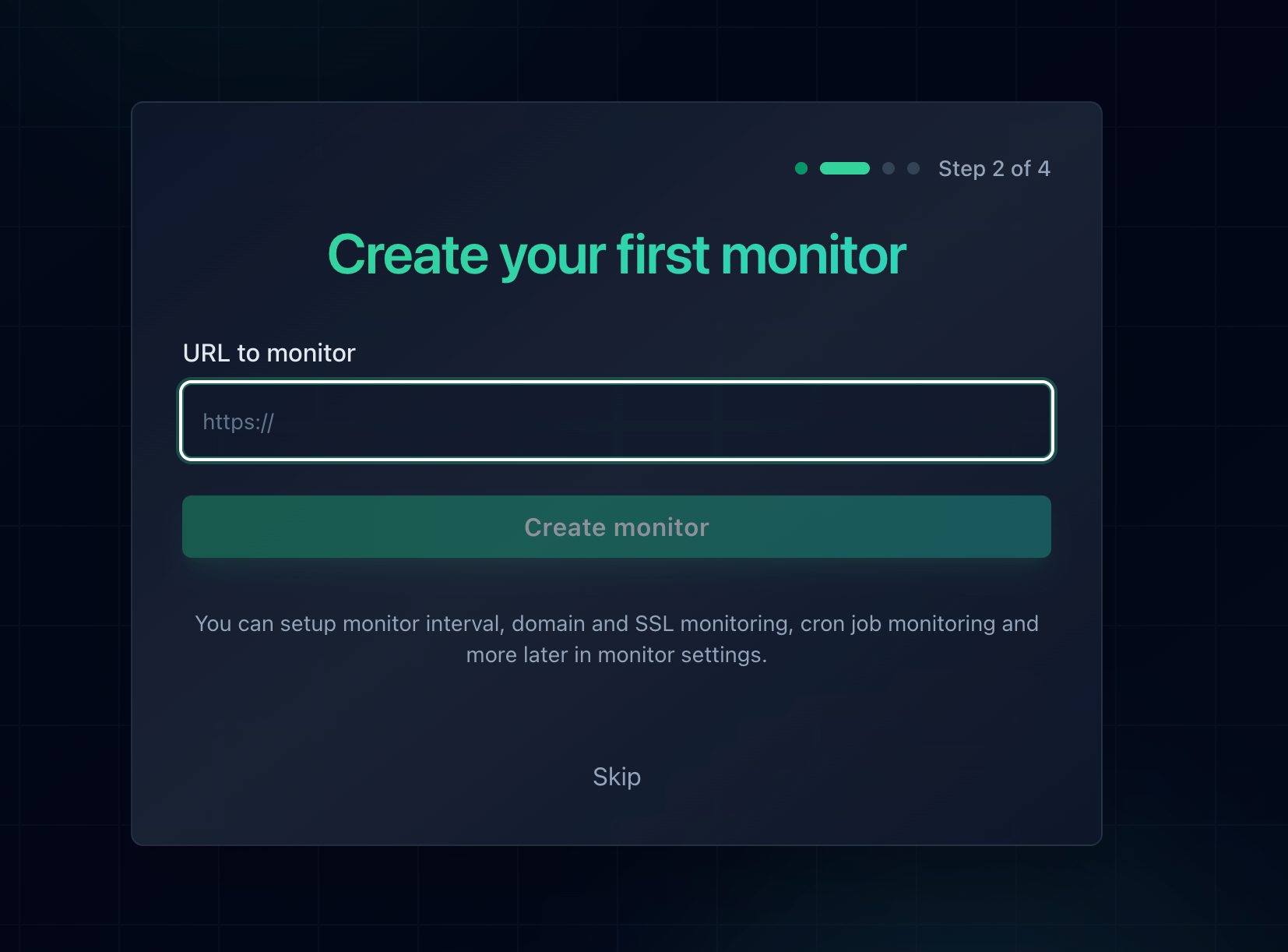
Add the HTTPS URL and the monitor performs a full TLS handshake on every check.
Be honest about what monitoring cannot see:
A monitor is a modern client. If you set your server to TLS 1.3 only, the monitor will still connect happily and report your site as up, while older visitor devices are locked out. Monitoring catches the case where your server got too old or too broken for everyone. The case where it got too new for some people is caught by the SSL Labs compatibility matrix, so run both.
Watch the Certificate Too
Certificate expiry is a different failure, but it lives in the same place and arrives with the same silence. SSL certificate monitoring watches the expiry date and warns you weeks ahead, which matters more now that certificate lifetimes are shrinking and renewals are automated by scripts nobody checks. Notifier includes SSL monitoring free on every plan, including the free tier, alongside uptime and DNS monitoring.
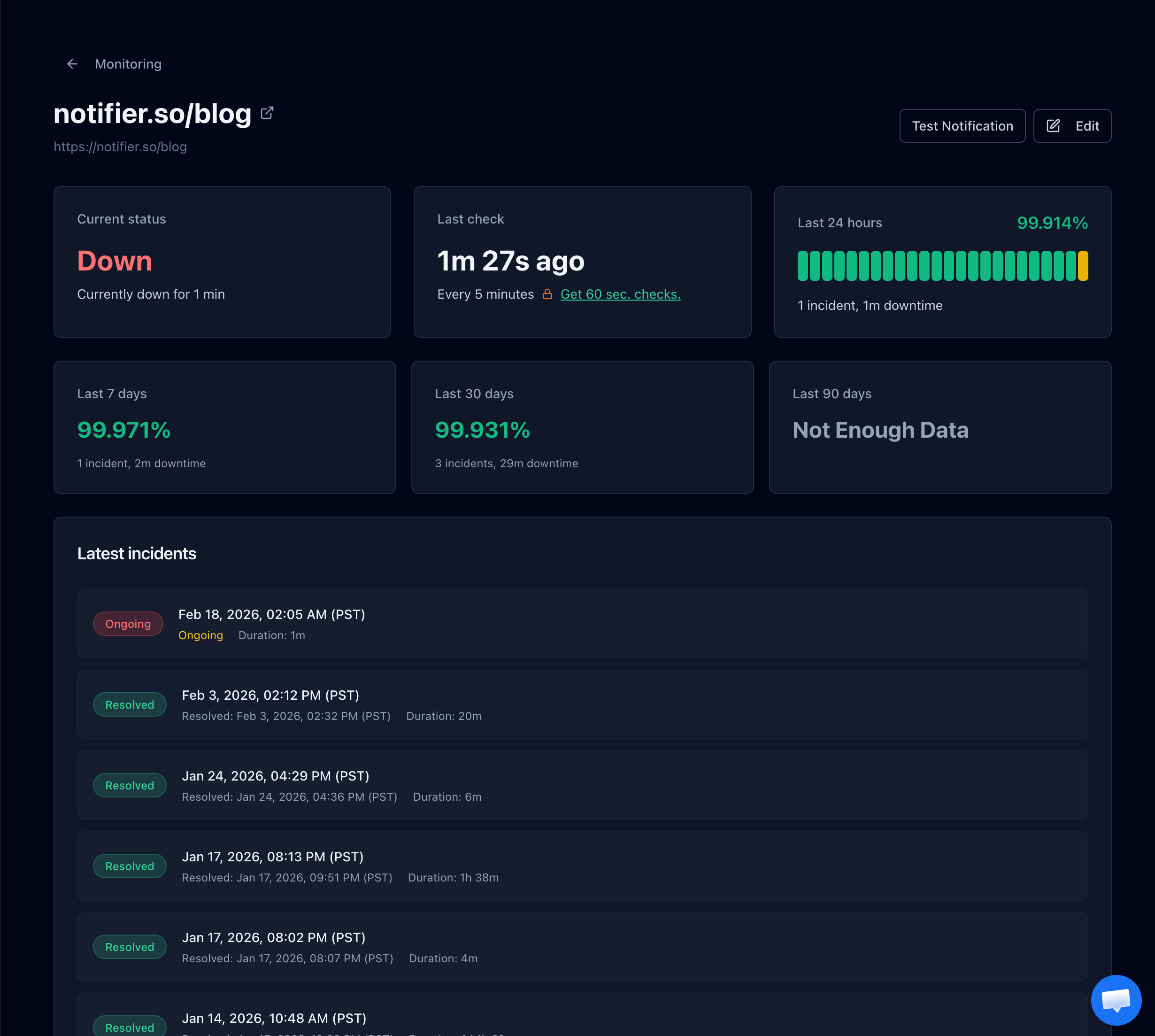
A failed handshake shows up as a failed check, with the incident history to show exactly when the change landed.
Get the Alert Somewhere You Will See It
A TLS change pushed on a Friday afternoon should not wait until Monday. Notifier sends email, SMS, phone call, and Slack alerts on every plan including the free tier, and if setup gives you trouble the support team usually replies within minutes through the chat widget or support@notifier.so.
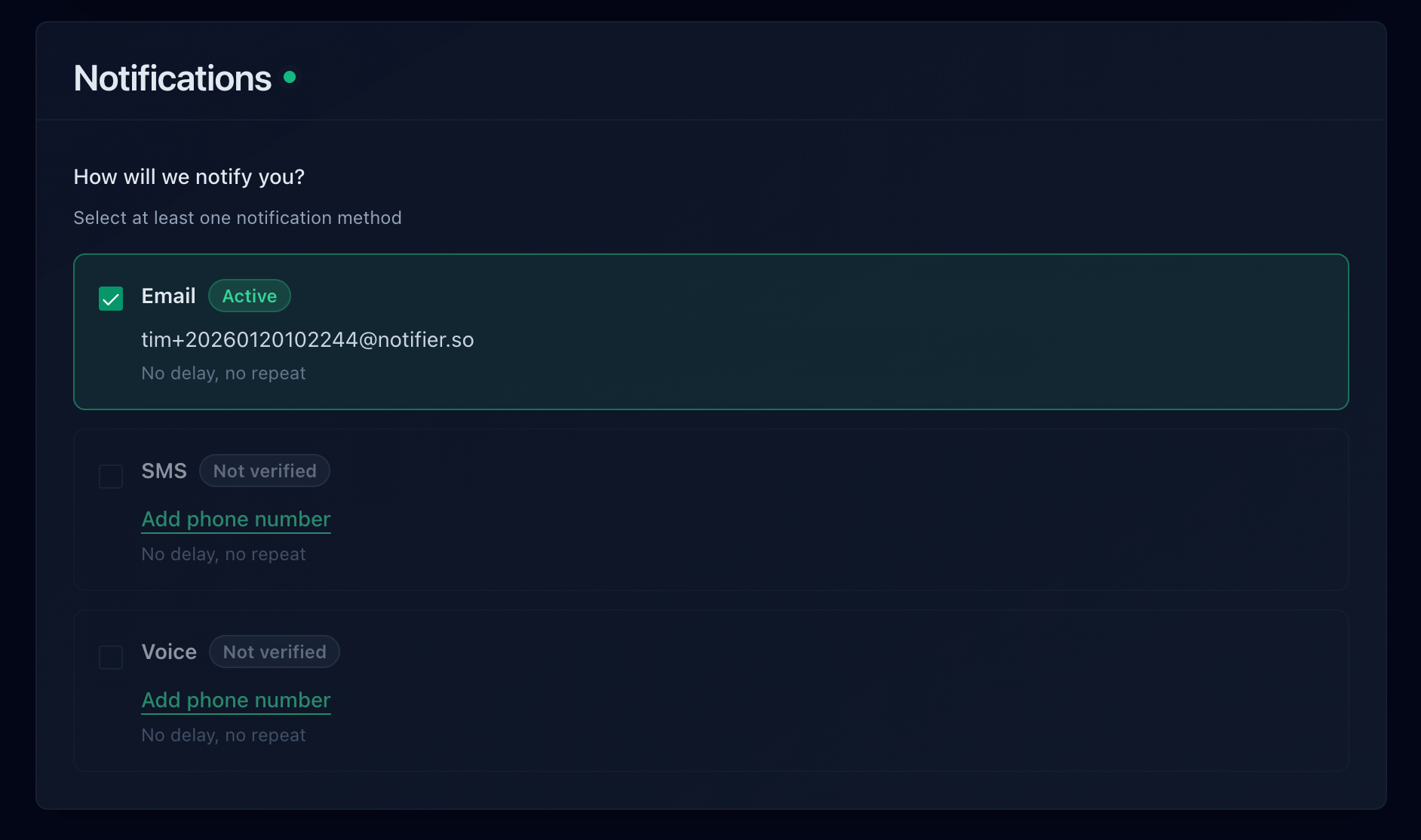
Email, SMS, phone call, and Slack are all available, including on the free plan.
How the Common Tools Compare
For a handshake failure, two things matter: how often the tool checks, and whether it also watches your certificate. Here is how the usual options compare on their free plans:
| Tool | Free Plan | SSL Monitoring | Notes |
|---|---|---|---|
| Notifier | 10 monitors, 5 min checks, 5 status pages | Free on every plan | Email, SMS, phone, and Slack alerts on free. Commercial use allowed. Solo is $4/month for 20 monitors at 1 minute. |
| UptimeRobot | 50 monitors, 5 min checks, 1 status page | Included | Free plan is non-commercial only. Email alerts on free, with SMS and voice sold as credits. |
| Better Stack | 10 monitors, 3 min checks, 1 status page | Included | Strong incident management, but pricing is per responder at $34/month and adds up quickly for a team. |
| StatusCake | 10 monitors, 5 min checks | 1 SSL monitor on free | Status pages are a separate paid product, and the first paid tier is $24.49/month. |
| Uptime Kuma | Unlimited, self-hosted | Included | Free and flexible, but you host and maintain it, and its own TLS library ages the same way your server's does. |
Important: UptimeRobot restricted its free plan to non-commercial use only in October 2024. If the site belongs to a business or a client, that free tier is not an option. Notifier's free tier has no such restriction.
Pricing changes, so verify before committing. Our comparison of free website monitoring tools covers each free tier in detail, how to set up website monitoring walks through the whole setup in about five minutes, and the website monitoring checklist covers what else belongs on the list.
Frequently Asked Questions
What does ERR_SSL_VERSION_OR_CIPHER_MISMATCH mean?
It means your browser and the website's server could not agree on a TLS version or a cipher suite, so the encrypted connection was never established. The browser sent its list of supported versions and ciphers, the server found nothing on that list it could use, and it ended the connection with a handshake failure alert. No certificate was exchanged, which is why this is not a certificate problem despite appearing under a security warning.
How do I fix ERR_SSL_VERSION_OR_CIPHER_MISMATCH as a visitor?
Open the same URL on your phone over mobile data. If it fails there too, the website is misconfigured and there is nothing you can do except tell the owner. If it works, the problem is local: update your browser and operating system, turn off HTTPS or SSL scanning in your antivirus, and check whether a corporate proxy sits between you and the internet. Clearing your cache, fixing your clock, and changing DNS servers will not help with this particular error.
Why can't I click "Proceed anyway" on this error?
Because there is nothing to proceed with. A certificate warning happens after an encrypted channel has been established, so the browser can offer to continue at your own risk. Here the encryption itself was never agreed, so there is no connection to use. The absence of a bypass link is a reliable way to tell a handshake failure from a certificate warning such as NET::ERR_CERT_DATE_INVALID or NET::ERR_CERT_AUTHORITY_INVALID.
Is ERR_SSL_VERSION_OR_CIPHER_MISMATCH a certificate problem?
Usually not. The certificate is sent after the version and cipher are agreed, so a handshake that fails at agreement never reaches it. Renewing or reissuing the certificate normally changes nothing. The one exception is the certificate's key type: an ECDSA certificate paired with a cipher list containing only RSA suites leaves no usable combination, and a certificate on an unusual curve such as secp256k1 is one no browser will negotiate.
Why does the site work in Firefox but not in Chrome?
Because the browsers keep different cipher and version lists, and they retire old algorithms on different schedules. A server offering only one marginal cipher may still match Firefox while Chrome has already dropped it. Treat this as a warning rather than a workaround. The server is running on a shrinking overlap, and the next browser release will likely close it. Move to a maintained configuration such as the Mozilla intermediate profile.
What TLS versions should my server support in 2026?
TLS 1.2 and TLS 1.3, and nothing else. TLS 1.0 and 1.1 were removed from every major browser in 2020, so enabling them adds risk and reaches no one. Disabling TLS 1.2 and running 1.3 alone is the other common mistake, because it locks out older devices, some corporate TLS proxies, and older API clients. Enabling both versions with modern cipher suites gives you strong security and near universal compatibility at the same time.
Can Cloudflare cause ERR_SSL_VERSION_OR_CIPHER_MISMATCH?
Yes, in two ways. A Minimum TLS Version set to 1.3 under SSL/TLS and Edge Certificates blocks every visitor whose device supports only TLS 1.2. And on a newly added domain, the Universal SSL certificate can take up to twenty four hours to issue, during which proxied hostnames have no edge certificate to present. If the failure is between Cloudflare and your own server instead, visitors see Cloudflare error 525 rather than this browser error.
Will uptime monitoring catch a TLS handshake failure?
Yes, when the failure affects modern clients. A monitor opens a real HTTPS connection on every check, so a server that can no longer negotiate with a current TLS client fails the check and triggers an alert. Notifier alerts by email, SMS, phone call, or Slack within a minute on a paid plan and within five minutes on the free tier. What monitoring cannot see is a configuration that is too modern, where the monitor connects fine and only older visitor devices are excluded, so pair it with an SSL Labs compatibility check after any cipher change.