At a Glance
- •NET::ERR_CERT_DATE_INVALID means the browser refuses to trust the SSL certificate because its validity dates do not match the current date. In 90% of cases, the certificate has expired.
- •Visitor-side fix number one: check that your computer's system clock is correct. A wrong clock makes every valid certificate look expired or not yet valid.
- •If you own the site, renew the expired certificate. Let's Encrypt certificates renew with one command (sudo certbot renew). Commercial certificates renew through your CA vendor.
- •After renewing, reload your web server (systemctl reload nginx or apache2) so it picks up the new certificate. Cloudflare users should check that Universal SSL is active and the origin certificate is not also expired.
- •SSL certificate monitoring catches expiry 30 days in advance so this never happens again. Notifier monitors SSL expiry free on every plan, with paid plans from $4/month.
You open a website and instead of the page, you see a red warning screen: NET::ERR_CERT_DATE_INVALID. Your browser is refusing to load the site because the SSL certificate's dates do not match the current date. In most cases, the certificate expired.
This guide covers every fix in order of how likely it is to solve your specific situation. If you are just trying to visit a site, start with the visitor fixes. If you own the site and visitors are seeing this error, jump to the site owner section.
What NET::ERR_CERT_DATE_INVALID Actually Means
SSL certificates are only valid between two dates: a "not before" date and a "not after" date. Your browser checks the certificate against your computer's current clock. If the current time falls outside that window, the browser blocks the connection and shows NET::ERR_CERT_DATE_INVALID.
There are only three ways this error happens:
- The certificate expired. This is the #1 cause. The "not after" date is in the past.
- The certificate is not yet valid. Rare. The "not before" date is in the future.
- Your system clock is wrong. The certificate is fine, but your computer thinks it is a different date.
Different browsers show slightly different messages for the same underlying problem:
| Browser | Error Message |
|---|---|
| Chrome / Edge / Brave | NET::ERR_CERT_DATE_INVALID or "Your connection is not private" |
| Firefox | SEC_ERROR_EXPIRED_CERTIFICATE or "Warning: Potential Security Risk Ahead" |
| Safari | "This Connection Is Not Private" with "The website may be impersonating..." |
| Edge (older) | "Your connection isn't private" with certificate error code 0x800B0101 |
Quick Fixes if You Are Just Trying to Visit a Site
Try these in order. Most visitor-side cases are fixed by the first two.
1. Check Your System Clock
This sounds trivial but it is the fix for a surprising number of cases, especially on older laptops with dead CMOS batteries, phones that lost network time sync, or computers that rebooted after a power outage.
- Windows: Right click the clock in the taskbar, choose "Adjust date and time," and toggle "Set time automatically" off and back on.
- Mac: System Settings, General, Date & Time, then make sure "Set date and time automatically" is on.
- Linux: Run
timedatectlto check, andsudo timedatectl set-ntp trueto fix. - Android / iOS: Settings, General or System, Date & Time, enable automatic network time.
2. Try a Different Browser or Private Window
Browsers cache certificate state. Opening the same site in a private or incognito window forces a fresh connection. If the site loads in a private window but not in a regular one, it is a cache or extension issue.
3. Clear SSL State (Chrome, Edge, Brave)
In the address bar, paste:
chrome://net-internals/#dnsClick "Clear host cache." Then switch to "Sockets" in the sidebar and click "Flush socket pools." Restart the browser. This is the same trick that fixes related DNS errors like those covered in our DNS_PROBE_FINISHED_NXDOMAIN guide.
4. Disable Antivirus SSL Scanning Temporarily
Some antivirus software (Kaspersky, Bitdefender, Avast, ESET) intercepts HTTPS traffic by installing its own certificates. When that intercepting certificate expires or breaks, every site shows NET::ERR_CERT_DATE_INVALID. If you recently disabled or uninstalled antivirus software, lingering certificates can also cause this.
Open your antivirus settings and look for "HTTPS scanning," "SSL/TLS scanning," or "Web shield." Temporarily disable it and reload the site. If the error goes away, you know the antivirus is the culprit.
5. Disable Browser Extensions
Security extensions, VPN extensions, and ad blockers sometimes inject or intercept certificates. Try opening the site with all extensions disabled (easiest with a private / incognito window, which disables most extensions by default).
6. Check for Public Wi-Fi Captive Portals
Hotels, airports, and coffee shops often route traffic through a captive portal that breaks HTTPS. If you have not logged into the network yet, try visiting a plain HTTP site like http://example.com to trigger the login page.
Do not ignore the warning unless you trust the site.
Browsers show a hidden "Proceed anyway" option (in Chrome, type thisisunsafe with the warning page focused). Use this only for your own test servers. On public sites, an expired certificate could mean the site has been compromised or abandoned. Any data you submit is unencrypted and visible to attackers.
If You Own the Site: Common Causes
If visitors are reporting NET::ERR_CERT_DATE_INVALID on your site, the certificate on your server is the problem. Here are the most common root causes, ranked by how often they occur in practice.
| Cause | Frequency | Fix Time |
|---|---|---|
| Certificate expired, auto-renewal failed | Very common | 5 to 15 minutes |
| Renewed cert not yet deployed to server | Common | Under 5 minutes |
| Web server cached old cert and needs reload | Common | Under 1 minute |
| CDN (Cloudflare, Fastly) serving stale cert | Common | 5 to 60 minutes |
| Missing intermediate certificate in chain | Less common | 10 to 30 minutes |
| Server clock skewed, cert rejected as not-yet-valid | Rare | Under 5 minutes |
| Let's Encrypt rate limit hit during renewal | Rare | Up to 1 week |
Check What Your Server Is Actually Serving
Before assuming the cert is expired, verify it. Run this command from any terminal:
echo | openssl s_client -connect yoursite.com:443 -servername yoursite.com 2>/dev/null | openssl x509 -noout -datesYou will see output like:
notBefore=Jan 15 00:00:00 2026 GMT
notAfter=Apr 15 00:00:00 2026 GMT
If notAfter is in the past, your certificate is expired. If notBefore is in the future, your server is serving a certificate that is not yet valid (usually a deployment mistake). If both dates look fine, the certificate on disk has been updated but the web server has not reloaded it yet.
Renewing an Expired SSL Certificate
The fix depends on where your certificate came from. The three most common sources are Let's Encrypt (free, automated), a commercial certificate authority (paid, manual), or a managed host that handles SSL for you.
Let's Encrypt (certbot)
Let's Encrypt certificates last 90 days. Most servers use certbot to auto-renew them. If auto-renewal broke, run renewal manually:
# Try renewal
sudo certbot renew

# Force renewal even if not close to expiry (useful for testing)
sudo certbot renew --force-renewal

# Check why the automated renewal failed
sudo systemctl status certbot.timer
sudo journalctl -u certbot.service --since "7 days ago"
Common reasons certbot renewal fails:
- Port 80 is blocked or redirected. The HTTP-01 challenge requires port 80 reachable. Check your firewall and any redirect rules that send all HTTP to HTTPS before the challenge path (
/.well-known/acme-challenge/) can be served. - DNS record changed. If your A record points to a new IP that certbot cannot reach, the challenge fails.
- Old certbot version. Run
sudo apt update && sudo apt upgrade certboton Ubuntu/Debian. - Rate limits hit. Let's Encrypt allows 5 duplicate certificates per week. If a buggy renewal script keeps retrying, you can get locked out until the next week.
Commercial Certificate (DigiCert, Sectigo, GoDaddy)
If your certificate came from a commercial CA, renewal is a manual process:
- 1. Log into your CA vendor account (DigiCert, Sectigo, GoDaddy, etc.).
- 2. Purchase or renew the certificate. Complete domain validation if prompted.
- 3. Generate a new CSR on your server, or reuse the original if the CA allows.
- 4. Download the issued certificate bundle (usually a
.crtfile plus the intermediate chain). - 5. Install the files on your server and reload the web server (see the next section).
Deploying the New Certificate: Nginx, Apache, Cloudflare
Renewing the certificate file is only half the job. Your web server has to reload its configuration before visitors see the new certificate.
Nginx
# Test the config first (catches typos)
sudo nginx -t

# Reload without dropping connections
sudo systemctl reload nginx

# If reload fails, try a full restart
sudo systemctl restart nginx
Verify the new certificate is being served:
echo | openssl s_client -connect yoursite.com:443 -servername yoursite.com 2>/dev/null | openssl x509 -noout -datesApache
# Test the config
sudo apachectl configtest

# Graceful reload (Ubuntu/Debian)
sudo systemctl reload apache2

# Graceful reload (RHEL/CentOS/Fedora)
sudo systemctl reload httpd
Cloudflare
If your site sits behind Cloudflare, there are two certificates involved. The "edge" certificate is what visitors see, and the "origin" certificate is what Cloudflare uses to fetch content from your server.
- Edge certificate expired: Cloudflare's Universal SSL should auto-renew. In the Cloudflare dashboard, go to SSL/TLS, Edge Certificates, and confirm status is "Active." If it is "Pending Validation," check that your domain is fully active on Cloudflare and any CAA records allow Cloudflare as a CA.
- Origin certificate expired: With SSL mode set to Full (strict), Cloudflare verifies your origin cert. If it expired, visitors see a 525 error, not NET::ERR_CERT_DATE_INVALID. Renew the origin cert (Let's Encrypt or Cloudflare's 15 year origin certificate).
- Cache serving old cert: Purge everything in Cloudflare Caching, Configuration, Purge Cache.
Fixing the Error on Managed Hosts
If your site runs on a managed host, you usually cannot run certbot or edit server configs directly. Here is how each major host handles SSL renewal issues.
WordPress Hosts (WP Engine, Kinsta, Flywheel, Pressable)
Managed WordPress hosts issue Let's Encrypt certificates automatically, but renewal can fail if DNS records were changed without re-validation. In the host dashboard, find the SSL section for your domain and click "Renew" or "Reissue." If the button is greyed out or the host says renewal failed, contact support. Most managed hosts resolve these within an hour.
Cloudways
Cloudways lets you install Let's Encrypt certificates through the platform. Go to your application, SSL Certificate, and click "Install Certificate" if it says the current one is expired. Enable auto-renewal so it does not happen again.
Netlify / Vercel
Both automatically manage Let's Encrypt certificates for custom domains. The most common cause of expiry on these platforms is DNS misconfiguration. Check that your CNAME or A record still points to the platform (not a previous host) and that no CAA record is blocking Let's Encrypt. Then trigger a renewal from the domain settings page.
Shopify / Wix / Squarespace
These platforms manage SSL entirely on your behalf. If you see NET::ERR_CERT_DATE_INVALID on a Shopify, Wix, or Squarespace site, the usual cause is a custom domain that was moved or had its DNS changed. Go into domain settings, confirm DNS is correctly pointing to the platform, and the certificate should reprovision within an hour. If it does not, open a support ticket. For Wix and Squarespace specifics, see our Wix monitoring guide and Squarespace monitoring guide.
Preventing This From Happening Again
A NET::ERR_CERT_DATE_INVALID error means visitors have already seen the warning. For a business site, every minute the error shows is lost revenue and damaged trust. Browsers now enforce HSTS strict transport security on many top-level domains, which means once a visitor has visited your HTTPS site, their browser refuses to load your site over HTTP at all. Expired certificate equals invisible site.
The fix is SSL certificate monitoring. A good monitor checks the certificate on your live site every few minutes and alerts you 30 days before expiry. That is plenty of time to renew even if you are on vacation, dealing with a deploy freeze, or debugging a failed auto-renewal script.
Why Auto-Renewal Is Not Enough
- Silent failures: certbot can fail quietly for weeks if port 80 is blocked or a DNS record changed. You find out when the cert expires.
- Not all renewals are automated: Commercial certificates from DigiCert, Sectigo, etc. still require manual purchase and install.
- Partial deployments: The cert file can be renewed on disk but your web server was never reloaded, or a load balancer is still serving the old one.
- Intermediate chain changes: Let's Encrypt has changed intermediate certificates multiple times. A renewal can succeed but your config can still serve an outdated chain that some devices reject.
What SSL Monitoring Should Do
A proper SSL monitor checks from the outside, the same way a browser does. It should catch:
- Expired certificates.
- Certificates expiring within 30 days (advance warning).
- Certificates served with a missing or broken intermediate chain.
- Certificates served for the wrong hostname (common after a domain change).
- Self-signed certificates (indicates a misconfiguration).
Setting Up Monitoring in a Minute
Notifier includes SSL certificate monitoring free on every plan, including the free tier. You add your URL as a monitor, and SSL expiry tracking is enabled by default. The free plan covers 10 URLs, 5 status pages, and email plus SMS and phone alerts. Paid plans start at $4/month for 1 minute check intervals.
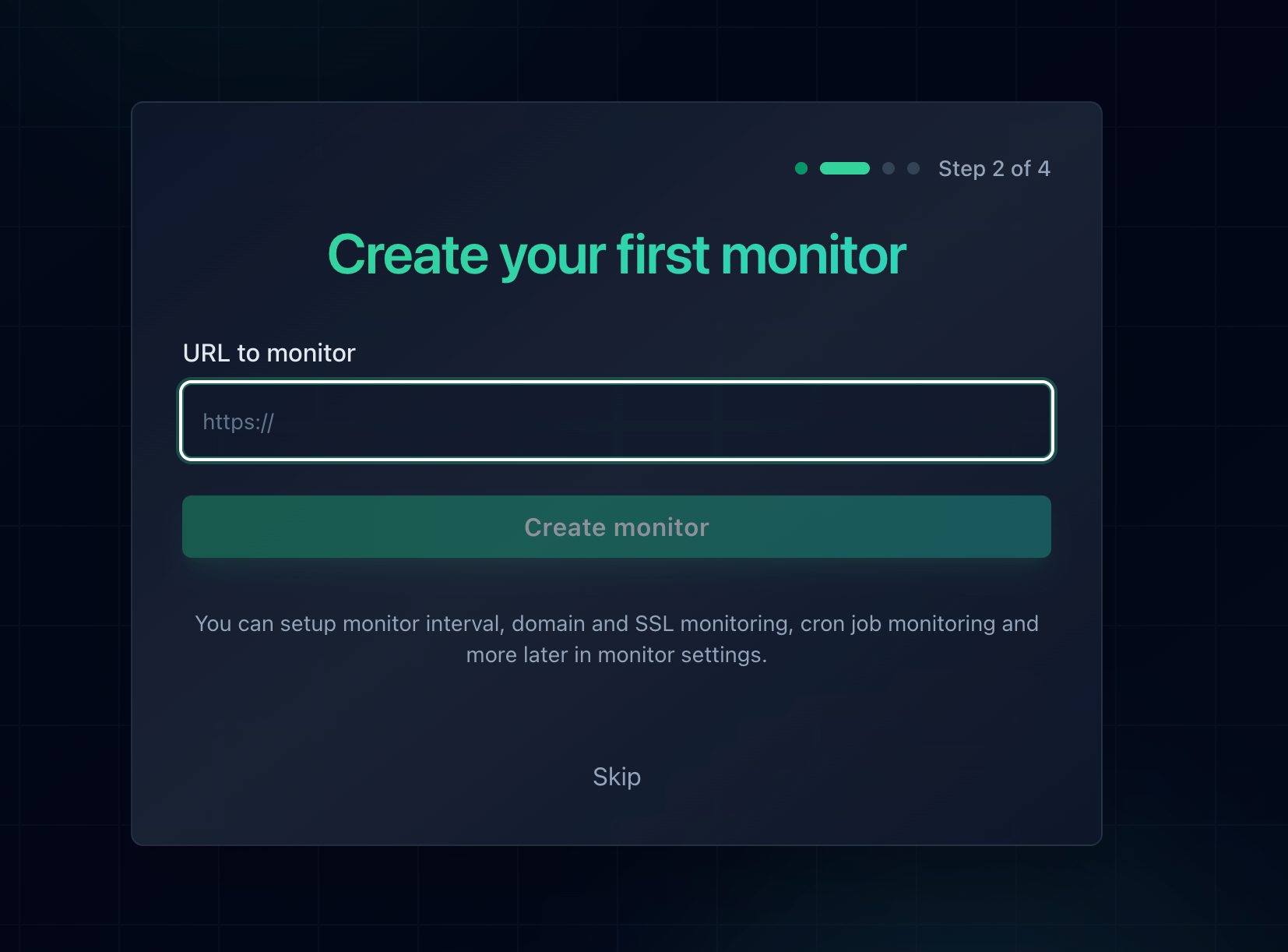
Adding a monitor in Notifier. SSL certificate monitoring is enabled automatically for every HTTPS URL on every plan.
For a deeper walkthrough of SSL monitoring strategies and the 47 day certificate lifecycle that is coming, see our full SSL certificate monitoring guide.
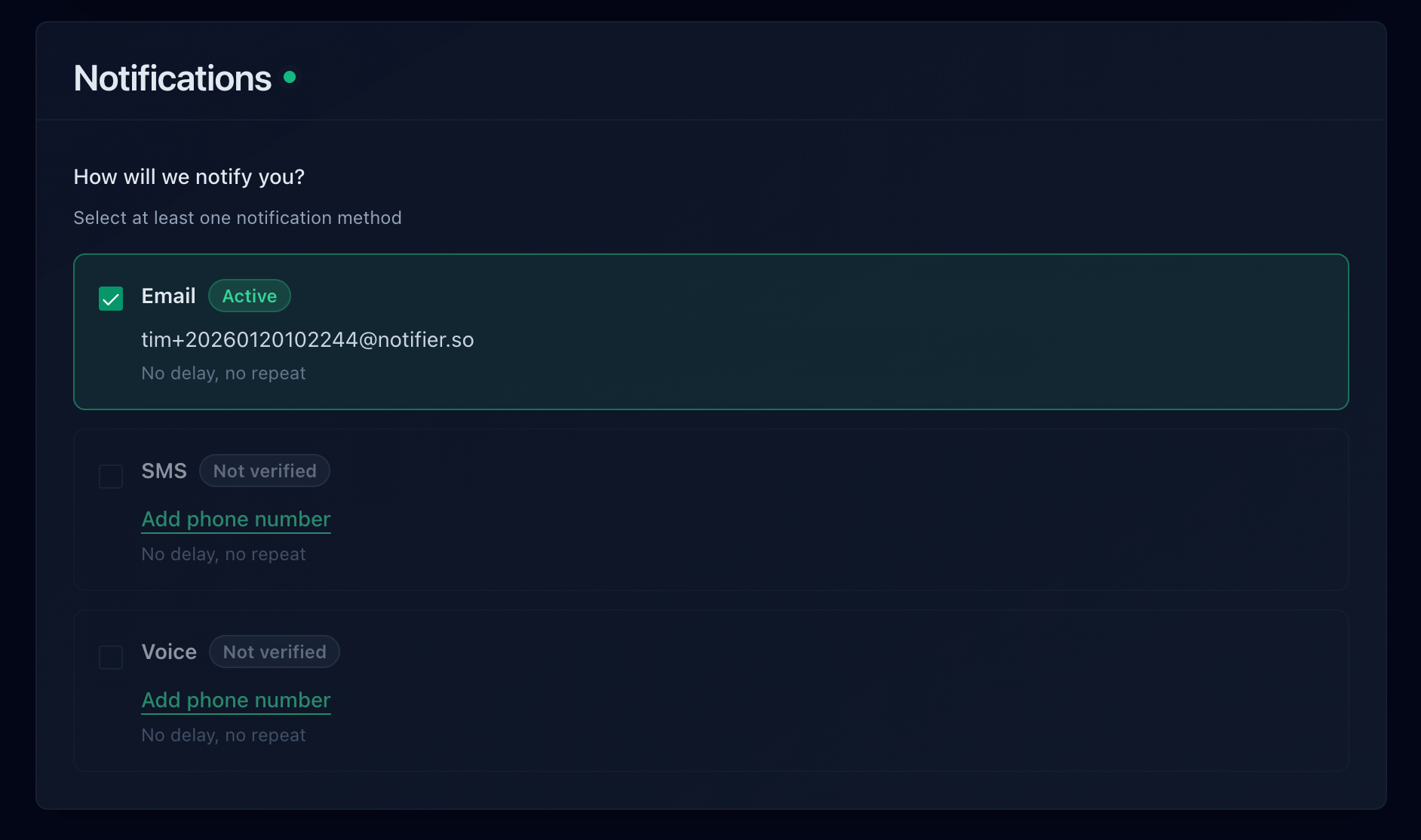
Notifier alert channels: email on every plan, plus SMS and phone call credits available on the free plan.
Frequently Asked Questions
Why does NET::ERR_CERT_DATE_INVALID show on every site I visit?
If the error appears on every HTTPS site, the problem is almost certainly on your end, not the sites. The three most likely causes are: your computer's system clock is wrong, your antivirus software is intercepting SSL traffic with its own broken certificate, or a corporate network is doing SSL inspection. Check your clock first, then disable antivirus SSL scanning, then try a different network.
How long do SSL certificates last before they expire?
Let's Encrypt certificates last 90 days. Commercial certificates from CAs like DigiCert and Sectigo now cap at 398 days (roughly 13 months). The CA/Browser Forum has approved a plan to shorten the maximum validity period to 47 days by 2029, so renewal automation is becoming essential for everyone. Auto-renewal typically triggers 30 days before expiry.
Is it safe to bypass the error and continue to the site?
Only if you know and trust the site operator. Bypassing the warning disables encryption for that connection, which means credentials, form data, and cookies are sent in cleartext. On public sites (banks, stores, logins), never bypass the warning. Close the tab and contact the site operator. On your own test server, bypassing is fine.
I renewed my certificate but the error is still showing. Why?
Three likely reasons. One, you renewed the file but your web server is still serving the old cert; run sudo systemctl reload nginx (or equivalent) to pick up the new one. Two, a CDN like Cloudflare is caching the old certificate; purge the cache from the CDN dashboard. Three, the visitor's browser is caching the old cert; ask them to restart their browser or clear SSL state at chrome://net-internals/#dns.
Does HSTS make an expired certificate worse?
Yes. HSTS (HTTP Strict Transport Security) tells browsers never to load your site over HTTP again. If your HTTPS certificate expires and HSTS is active, visitors cannot fall back to HTTP as a workaround. Every browser that has ever visited your site is locked out until you fix the certificate. For sites on the HSTS preload list, even first-time visitors are affected. This makes SSL monitoring mandatory rather than optional.
Does Notifier's SSL monitoring cost extra?
No. SSL certificate monitoring is included free on every Notifier plan, including the free tier. Every HTTPS monitor you add is automatically checked for certificate expiry, and you get an alert 30 days in advance. Paid plans start at $4/month for faster check intervals and more monitors.
What is the difference between this error and NET::ERR_CERT_AUTHORITY_INVALID?
NET::ERR_CERT_DATE_INVALID means the certificate exists and is properly signed, but the current date is outside its validity window. NET::ERR_CERT_AUTHORITY_INVALID means the browser does not trust the certificate authority that signed the certificate (often a self-signed certificate or a private internal CA). They are different errors with different fixes.
