At a Glance
- •ERR_CONNECTION_TIMED_OUT means your browser tried to reach a website but got no response in time and gave up. The request never completed the connection, so the problem is usually the network path or an overloaded server, not the page itself.
- •The fastest visitor-side fixes: reload the page, try incognito mode, restart your router, flush the DNS cache, disable VPN or proxy settings, and temporarily turn off firewall or antivirus web filtering.
- •On Windows, run ipconfig /flushdns and netsh winsock reset. On Mac, flush the DNS cache with dscacheutil and restart mDNSResponder. On mobile, toggle airplane mode or switch between Wi-Fi and mobile data.
- •If you own the site and visitors see this error, check in order: server load and firewall rules, a maxed-out web server or database, aggressive rate limiting or DDoS protection, and slow response times that push past the connection timeout.
- •Notifier monitors uptime, response time, DNS resolution, and SSL certificates free for up to 10 URLs, with email, SMS, and phone call alerts. Paid plans start at $4/month for 1-minute checks.
You click a link, the page hangs for what feels like forever, and then Chrome gives up with "This site can't be reached" and the code ERR_CONNECTION_TIMED_OUT. It is one of the most common browser errors, and unlike a 404 or a 500, it usually means the connection never even completed. This guide walks through every fix, from the 10 second ones to the deeper problems you need to solve if the site is yours.
What ERR_CONNECTION_TIMED_OUT Actually Means
When your browser loads a page, it opens a network connection to the server, sends a request, and waits for a response. ERR_CONNECTION_TIMED_OUT means the browser waited the maximum amount of time (usually about 30 seconds) and never got a reply, so it stopped trying.
This is different from an error like a 500 Internal Server Error, where the server responds but reports a problem. With a timeout, there was no usable response at all. The request went into a black hole. That points to one of three broad places where things break:
- Your device or network: a stale DNS cache, a bad Wi-Fi connection, a VPN, a proxy, or a firewall silently dropping the connection.
- The path in between: ISP routing issues, DNS resolver failures, or a corporate network blocking the destination.
- The server: an overloaded web server, a maxed-out database, aggressive rate limiting, or a crashed service that accepts no new connections.
The variations you might see (ERR_CONNECTION_TIMED_OUT, ERR_TIMED_OUT, or just "The connection has timed out" in Firefox) all describe the same underlying event. Start by ruling out your own side, because that is where the fix lives most of the time. If the site loads fine elsewhere but not for you, see our guide on whether a site is down for everyone or just you.
Quick Fixes to Try First (Under 5 Minutes)
Work through these in order. Most timeout errors are solved before you reach the bottom of the list.
1. Reload and try incognito
Refresh the page once. If it still fails, open a private or incognito window and try again. Incognito mode ignores your extensions and cached data, so if the page loads there, the culprit is a browser extension or a corrupted cache.
2. Test a different network
Switch from Wi-Fi to mobile data (or the other way around) and reload. If the site loads on one network but not the other, the problem is your network or router, not the website. This single test saves a lot of guessing.
3. Restart your router
Unplug your router, wait 30 seconds, and plug it back in. Routers hold their own DNS caches and connection tables that can get stale or corrupted. A restart clears both and fixes a surprising number of timeout errors.
4. Disable VPN, proxy, and extensions
VPNs and proxies route your traffic through extra servers that can time out or block destinations. Turn off any VPN and, in Chrome, clear manual proxy settings:
# Windows: open proxy settings
Settings > Network & Internet > Proxy > turn off "Use a proxy server"

# Mac: check proxy settings
System Settings > Network > your connection > Details > Proxies > uncheck all
Then disable ad blockers and privacy extensions one at a time. Some aggressive blockers drop connections to entire domains.
5. Temporarily disable firewall and antivirus web filtering
Security software sometimes blocks legitimate sites and lets the connection time out instead of showing a clear "blocked" message. Turn off web or HTTPS filtering briefly and reload. If the page loads, add the site to your allow list and turn protection back on. Never leave your firewall or antivirus disabled.
6. Clear the browser cache
A corrupted cache can point your browser at an old server address that no longer responds. In Chrome, go to chrome://settings/clearBrowserData, choose "Cached images and files," and clear it. Then reload.
Fixes for Windows, Mac, and Mobile
If the quick fixes did not work, the next step is to reset your device's network stack and DNS cache. The commands differ by operating system.
Windows
Open Command Prompt as an administrator and run these commands one by one. They flush the DNS cache, reset the Winsock catalog, release and renew your IP address, and reset the TCP/IP stack:
ipconfig /flushdns
ipconfig /release
ipconfig /renew
netsh winsock reset
netsh int ip reset
Restart your computer after running netsh winsock reset so the changes take effect. This clears the most common Windows-side causes of connection timeouts.
Mac
Open Terminal and flush the DNS cache. The exact command depends on your macOS version, but this works on recent releases:
sudo dscacheutil -flushcache; sudo killall -HUP mDNSResponderIf that does not help, renew your DHCP lease under System Settings > Network > your connection > Details > TCP/IP > Renew DHCP Lease. As a last resort, remove the network connection and add it back to force a clean configuration.
Android and iOS
On mobile, the fastest reset is to toggle airplane mode on for 10 seconds and back off. This forces a fresh connection to the network. If that does not work:
- Switch networks: move between Wi-Fi and mobile data to isolate whether the router or the carrier is the problem.
- Forget and rejoin Wi-Fi: in your Wi-Fi settings, forget the network and reconnect to clear a bad configuration.
- Reset network settings: on iOS, Settings > General > Transfer or Reset iPhone > Reset > Reset Network Settings. On Android, Settings > System > Reset options > Reset Wi-Fi, mobile & Bluetooth.
Change your DNS server
A failing ISP DNS resolver can cause timeouts on some sites but not others. Switching to a fast public resolver often fixes it. Set your DNS to Cloudflare or Google:
Cloudflare:  1.1.1.1  and  1.0.0.1
Google:      8.8.8.8  and  8.8.4.4
You can set these in your operating system's network settings or directly on your router so every device benefits. If you also see DNS-specific errors, our guide on fixing DNS_PROBE_FINISHED_NXDOMAIN covers DNS troubleshooting in depth.
If You Own the Site and Visitors See This Error
When ERR_CONNECTION_TIMED_OUT hits your own visitors, it is no longer a browser problem to shrug off. It means real people are failing to reach your site. Work through these server-side causes in order.
1. Check server load and resource limits
An overloaded server stops accepting new connections, which produces a timeout rather than an error page. Check CPU, memory, and open connection counts:
# Live view of CPU and memory
top

# Count established connections
ss -s

# Check the load average (numbers should be below your core count)
uptime
If load is high, look for a traffic spike, a runaway process, or a slow database query holding connections open. On shared hosting, you may simply be hitting your plan's resource cap.
2. Check the web server and worker pool
If every worker or PHP-FPM process is busy, new requests queue until they time out. Confirm your web server is running and has free workers:
# Is the service running?
systemctl status nginx     # or apache2

# Restart to clear a hung worker pool
sudo systemctl restart php8.2-fpm
sudo systemctl reload nginx
Raising the worker or connection limits buys headroom, but if you keep exhausting the pool, the real fix is faster responses so each worker frees up sooner.
3. Check firewall and rate limiting rules
A firewall or DDoS protection layer that silently drops packets is a classic cause of timeouts. If a specific region or IP range cannot reach you, check that your firewall, Cloudflare rules, or rate limiter is not blocking legitimate traffic. Overly aggressive rate limiting during a traffic spike can lock out real visitors along with bots.
4. Rule out slow responses that cross the timeout
If a page takes 25 seconds to render, some visitors will time out before it finishes. A slow database query, an unresponsive third-party API, or a heavy uncached page can all push response times past the browser's patience. This is where response time monitoring earns its keep. Track how long your pages take to respond and you can fix slowdowns before they turn into timeouts. See our guide on how to monitor website response time.
Common Causes and Where the Fix Lives
Use this table to jump straight to the likely cause based on what you are seeing.
| Cause | Clue | Where to Fix It |
|---|---|---|
| Stale DNS cache | Only some sites time out | Your device |
| Bad router state | All sites slow, restart helps | Your network |
| VPN or proxy | Works when VPN is off | Your device |
| Firewall or antivirus block | Works in incognito or after disabling | Your device |
| ISP or DNS resolver failure | Fixed by changing DNS server | Network path |
| Overloaded server | Down for everyone, high load | The server |
| Exhausted worker pool | Intermittent, worsens under traffic | The server |
| Slow response past timeout | Loads eventually, sometimes fails | The server |
If your checks point to the server side, the next section covers how to know about these problems the moment they start instead of hearing about them from a frustrated customer.
How to Catch Connection Timeouts Before Your Visitors Do
A timeout error means someone already failed to load your site. By the time you notice, the damage is done. The only reliable way to get ahead of it is external monitoring: a service that checks your site from outside your own network on a schedule and alerts you the instant a request times out or slows down.
With Notifier, setup takes about a minute. You add your URL, choose how often to check it, and pick your alert channels. If a check times out or the response gets slow, you get an alert by email, SMS, phone call, or Slack, often within seconds.
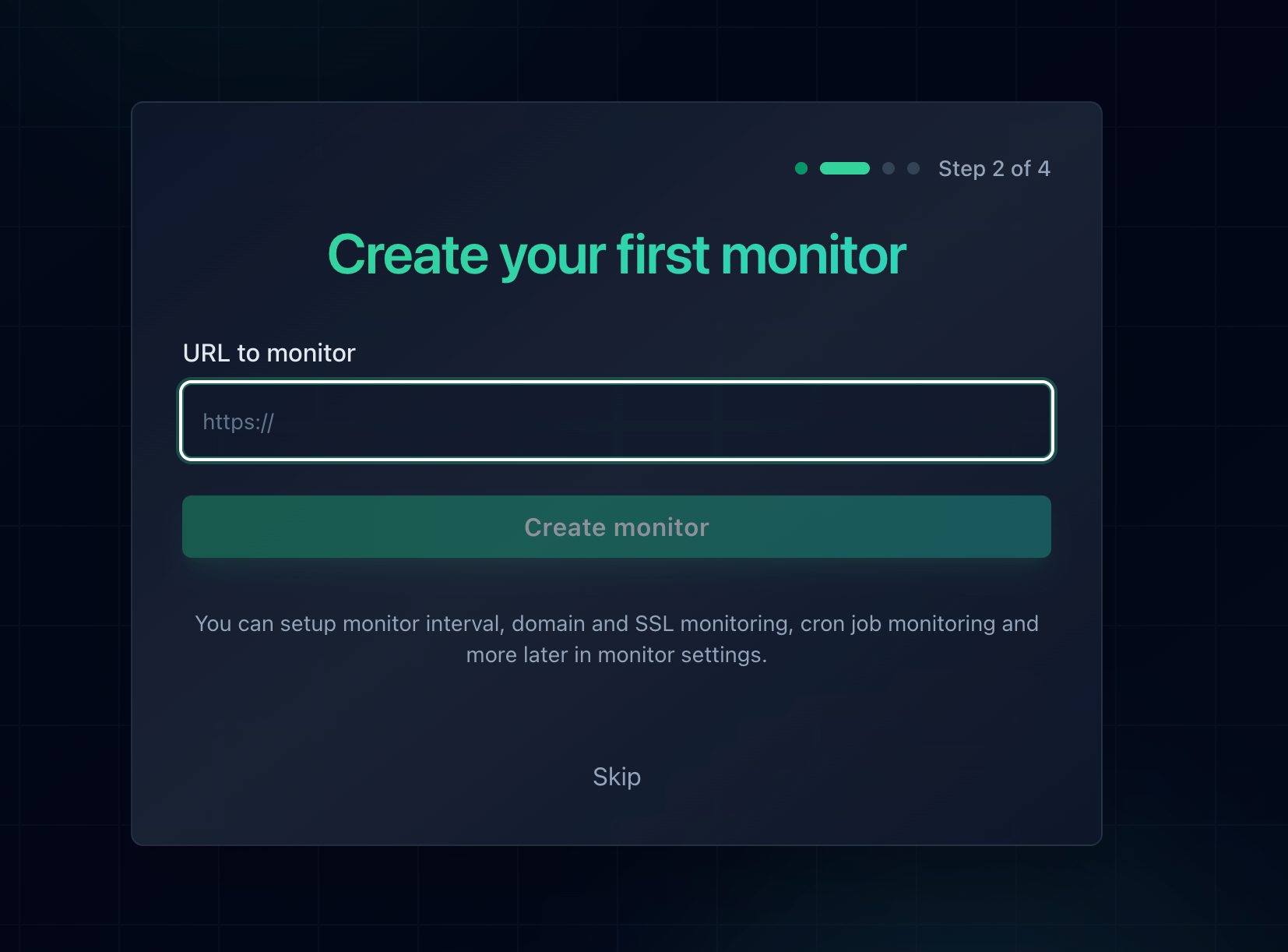
Adding a monitor in Notifier. Response time and SSL certificate tracking are enabled automatically for every URL.
Because Notifier checks from outside your infrastructure, it catches the exact conditions that cause ERR_CONNECTION_TIMED_OUT: an overloaded server that stops answering, a firewall dropping connections, or response times creeping toward the browser's timeout. Response time alerts are the early warning here. A monitor that flags a page taking 8 seconds gives you time to act before it becomes a 30 second timeout for real users.
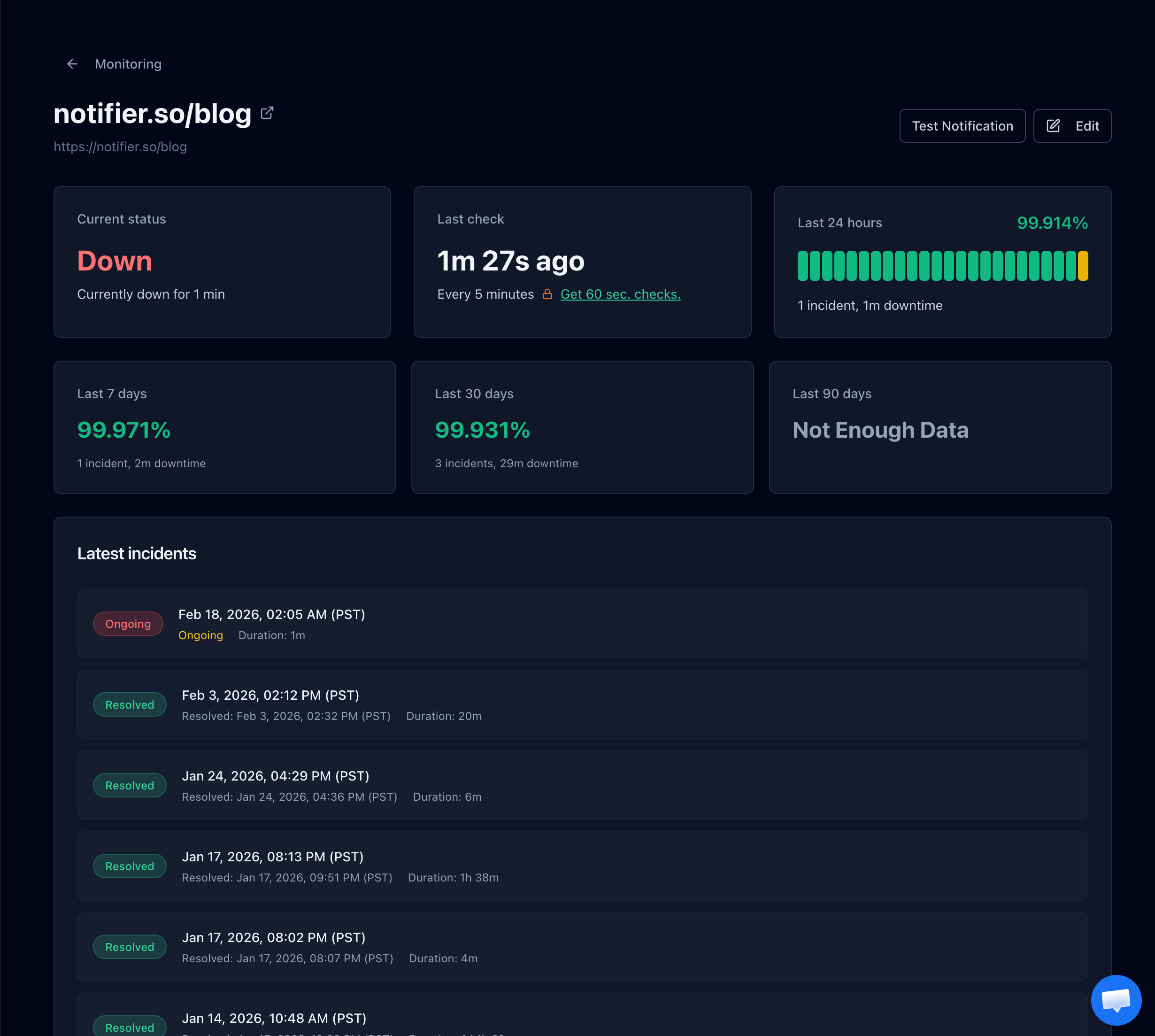
A Notifier monitor detail page showing status, uptime history, and the incident timeline so you can see exactly when a timeout started.
What Notifier checks for you:
- Uptime: confirms your site accepts connections and responds, from outside your network.
- Response time: tracks how long each check takes so you catch slowdowns before they become timeouts.
- SSL certificates: alerts you 30 days before a certificate expires, free on every plan.
- DNS resolution: verifies your domain still resolves so a DNS failure does not silently take you offline.
The free plan covers 10 URLs, 5 status pages, and email plus SMS and phone alerts. Paid plans start at $4/month for 1-minute check intervals. There is no credit card required to start. For a broader walkthrough, see how to set up website monitoring, or if you are still diagnosing, how to check if a website is down.
Frequently Asked Questions
Is ERR_CONNECTION_TIMED_OUT my fault or the website's?
It can be either. The fastest way to tell is to load the site on a different network, like switching from Wi-Fi to mobile data. If it works on one network but not the other, the problem is on your side. If it fails everywhere and other people also cannot reach it, the website's server is the problem. When the site is yours, treat a timeout that everyone sees as a real outage.
What is the difference between ERR_CONNECTION_TIMED_OUT and ERR_CONNECTION_REFUSED?
A timeout means the server never answered at all. Your connection request went out and nothing came back before the browser gave up, which usually points to an overloaded server, a firewall dropping packets, or a network path problem. Connection refused means the server actively rejected the connection, which usually means the web server is not running on that port or a firewall is explicitly blocking it. Refused is an immediate "no," while timed out is silence.
Why do only some websites time out while others load fine?
When only specific sites fail, the cause is usually a stale DNS cache pointing at an old server address, a firewall or extension blocking those particular domains, or a failing DNS resolver that cannot look up certain names. Flush your DNS cache, switch to a public DNS resolver like 1.1.1.1, and disable any VPN or content blocker. If it is still only one site, that site's server may genuinely be down.
Does clearing the DNS cache actually help with timeout errors?
Yes, often. If your device cached an outdated IP address for a site (for example, after the site moved servers), every request goes to a server that no longer answers, producing a timeout. Flushing the DNS cache forces a fresh lookup. On Windows use ipconfig /flushdns, on Mac use dscacheutil -flushcache with a killall of mDNSResponder, and in Chrome you can also clear its internal DNS cache at chrome://net-internals/#dns.
My site times out only during traffic spikes. What causes that?
That pattern points to resource exhaustion. Under heavy load, your web server workers or PHP-FPM processes all get busy, new requests queue, and some queue long enough to time out. The same happens when a slow database query holds connections open. Fixes include adding caching, tuning your worker and connection limits, upgrading server resources, and speeding up slow queries. Response time monitoring shows you the slowdown building before it turns into full timeouts.
Can a VPN cause ERR_CONNECTION_TIMED_OUT?
Yes. A VPN routes your traffic through an intermediate server that can be slow, overloaded, or blocked at the destination. If a site refuses connections from VPN IP ranges, or the VPN server itself is congested, you get a timeout. Turn the VPN off and reload. If the site loads, the VPN was the cause. Try a different VPN server location, or add the site to a split-tunnel exclusion if your VPN supports it.
How do I get notified when my own site starts timing out?
Use external uptime monitoring. A service like Notifier checks your site from outside your network on a schedule and alerts you by email, SMS, phone call, or Slack the moment a check times out or the response gets slow. This is the only way to know about connection timeouts before your visitors report them. Notifier's free plan covers 10 URLs with response time and SSL monitoring included, and paid plans start at $4/month for 1-minute checks.