At a Glance
- •ERR_CONNECTION_REFUSED means the server sent back a TCP reset, so nothing is listening on that port or something explicitly rejected the connection. It fails in under a second, which is what separates it from ERR_CONNECTION_TIMED_OUT.
- •The three fastest visitor-side fixes: clear any manual proxy setting left behind by a VPN, check your hosts file for an entry pointing that domain at 127.0.0.1, and test in incognito to rule out an extension or antivirus web filter.
- •On localhost, the usual cause is a server bound to 127.0.0.1 instead of 0.0.0.0, localhost resolving to IPv6 ::1 while your server only listens on IPv4, or Chrome forcing HTTPS on a dev server that only speaks HTTP.
- •If you own the site, check that Nginx or Apache is actually running, that ports 80 and 443 are bound with ss -tlnp, that your firewall and cloud security group allow web traffic, and that your DNS A record still points at a live server.
- •A refused connection is invisible from inside your own server, so external monitoring is the only way to hear about it first. Notifier monitors uptime, SSL, and DNS free for up to 10 monitors, with paid plans from $4/month.
ERR_CONNECTION_REFUSED is one of the few browser errors that fails instantly. There is no spinner, no 30 second wait, just an immediate "This site can't be reached." That speed is actually useful information: something on the other end answered your connection attempt with a flat rejection. This guide covers what that rejection means, the fixes that work for visitors, the specific reasons it happens on localhost during development, and what to check when the refused site is your own.
What ERR_CONNECTION_REFUSED Actually Means
When your browser loads a page, it first opens a TCP connection to the server's IP address on a specific port (443 for HTTPS, 80 for HTTP). That handshake starts with your browser sending a SYN packet. ERR_CONNECTION_REFUSED means the other end replied with a TCP RST packet, which is a reset. In plain terms, the machine at that address is reachable, but nothing is listening on that port, or something explicitly rejected the connection.
This is the key distinction from a timeout. A timeout is silence. Refused is an answer, and the answer is no. That difference narrows your search considerably:
- Refused (RST): the host is up and routable, but no service is listening on that port, or a firewall is rejecting rather than dropping packets. Fails in under a second.
- Timed out: packets went out and nothing came back, which points to an overloaded server, a firewall silently dropping traffic, or a routing problem. Fails after roughly 30 seconds. See our guide on fixing ERR_CONNECTION_TIMED_OUT.
- DNS failure: the name never resolved to an address at all, so there was nothing to connect to. That shows as DNS_PROBE_FINISHED_NXDOMAIN or ERR_NAME_NOT_RESOLVED.
Every browser shows this differently, so you may recognize it by another name. Chrome and Edge say "This site can't be reached" with ERR_CONNECTION_REFUSED. Firefox says "Unable to connect." Safari says "Safari can't connect to the server." On the command line, curl reports Failed to connect to example.com port 443: Connection refused. All four describe the same TCP reset.
Quick Fixes to Try First (Under 5 Minutes)
Work through these in order. They are ranked by how often they actually resolve the error, not by how technical they are.
1. Check whether the site is down for everyone
Because a refusal comes from the destination side more often than a timeout does, this is the first thing worth ruling out. Load the site on your phone over mobile data, or use an external checker. If it is refused for everyone, no amount of local troubleshooting will help. Our guide on whether a site is down for everyone or just you covers the fastest ways to confirm this.
2. Check the URL, the protocol, and the port
A surprising share of refusals are a typo in the address bar. Confirm you are using the right scheme and port. A server that only listens on HTTPS will refuse plain HTTP on port 80, and vice versa. If the URL has an explicit port like :8080 or :3000, verify that is still the port the service runs on. Try the address with and without www as well.
3. Disable your VPN and proxy
A misconfigured proxy is the single most common local cause. If your browser is told to send traffic to a proxy on a port where nothing is listening, every request gets refused instantly. Turn off your VPN, then clear manual proxy settings:
# Windows: open proxy settings
Settings > Network & Internet > Proxy > turn off "Use a proxy server"

# Mac: check proxy settings
System Settings > Network > your connection > Details > Proxies > uncheck all
Some VPN clients leave proxy entries behind after they are uninstalled, which produces refusals long after the VPN is gone.
4. Try incognito, then disable extensions
Open a private or incognito window and reload. Incognito runs without most extensions, so if the page loads there, an extension is responsible. Ad blockers, privacy tools, and security extensions can refuse connections to entire domains. Disable them one at a time until the page loads.
5. Temporarily disable firewall and antivirus web filtering
Local security software often rejects connections outright rather than dropping them, which is exactly what produces a refusal. Turn off web or HTTPS filtering briefly and reload. If the page loads, add the site to your allow list and turn protection back on. Never leave your firewall or antivirus disabled.
6. Clear your cache and cookies for that site
A cached HSTS entry or a stale redirect can push your browser to a port or protocol that is no longer serving. In Chrome, go to chrome://settings/clearBrowserData, select cached images and files plus cookies, and clear them. Then reload.
Fixes for Windows, Mac, and Mobile
If the quick fixes did not help, the next step is to clear your device's DNS cache and reset its network stack. A stale DNS record pointing at an old IP address will produce a refusal when the new occupant of that address is not running a web server.
Windows
Open Command Prompt as an administrator and run these in order:
ipconfig /flushdns
netsh winsock reset
netsh int ip reset
ipconfig /release
ipconfig /renew
Restart your computer after netsh winsock reset so the change takes effect. It is also worth checking your hosts file at C:\Windows\System32\drivers\etc\hosts. An entry there mapping a domain to 127.0.0.1 will refuse every connection to that domain, because nothing on your own machine is serving it.
Mac
Open Terminal and flush the DNS cache:
sudo dscacheutil -flushcache; sudo killall -HUP mDNSResponder

# Check the hosts file for stale overrides
cat /etc/hosts
Look for any line pointing the domain you are trying to reach at 127.0.0.1 or 0.0.0.0. Development tools, ad blocking scripts, and some parental control software write entries here and do not always clean them up. Remove the line, save, and flush the cache again.
Android and iOS
On mobile, toggle airplane mode on for 10 seconds and back off to force a fresh network connection. If that does not clear it:
- Switch networks: move between Wi-Fi and mobile data. A refusal on one network but not the other points at a router or DNS setting, not the site.
- Check for a private DNS or content blocker: on Android, Settings > Network & internet > Private DNS. On iOS, check Settings > General > VPN & Device Management for profiles that filter traffic.
- Reset network settings: on iOS, Settings > General > Transfer or Reset iPhone > Reset > Reset Network Settings. On Android, Settings > System > Reset options > Reset Wi-Fi, mobile & Bluetooth.
Change your DNS server
If your resolver is handing out an outdated address for the site, every connection lands on a machine that is not serving it. Switching to a public resolver forces fresh answers:
Cloudflare:  1.1.1.1  and  1.0.0.1
Google:      8.8.8.8  and  8.8.4.4
ERR_CONNECTION_REFUSED on localhost
Hitting this error on localhost:3000 or 127.0.0.1:8000 is a completely different problem from hitting it on a public site, and it has a much shorter list of causes. On localhost, a refusal almost always means nothing is listening on that port.
1. Confirm the process is actually running
Development servers crash quietly. Check what is listening before you change anything:
# Mac and Linux: what is listening on port 3000?
lsof -i :3000

# Linux: list all listening ports with the owning process
ss -tlnp

# Windows: find the process holding a port
netstat -ano | findstr :3000
If nothing comes back, your server is not running. Check the terminal it was started in for a stack trace. If a different process holds the port, either stop it or start your app on another port.
2. Check which interface the server bound to
This is the cause developers lose the most time to. A server bound to 127.0.0.1 only accepts connections from the same machine. If you are trying to reach it from a phone, a VM, or another computer on your network, you get a refusal even though the server is running perfectly. Bind to 0.0.0.0 to accept connections on every interface:
# Django
python manage.py runserver 0.0.0.0:8000

# Node with Express, in your listen call
app.listen(3000, '0.0.0.0')

# Vite
npm run dev -- --host 0.0.0.0

# Docker: publish the port to the host
docker run -p 8000:8000 your-image
With Docker specifically, a missing -p flag, or an app inside the container bound to 127.0.0.1 rather than 0.0.0.0, both produce a refusal from the host even though the container is healthy.
3. Watch out for the IPv6 localhost mismatch
On many systems, localhost resolves to the IPv6 address ::1 before it tries IPv4. If your server is only listening on IPv4, the browser connects to ::1, finds nothing, and refuses. Try http://127.0.0.1:3000 instead of http://localhost:3000. If the explicit IPv4 address works, this was your problem.
4. Check http versus https on the dev server
Chrome aggressively upgrades addresses to HTTPS. If your dev server only speaks plain HTTP and the browser tries port 443, you get a refusal. Type the URL with an explicit http:// prefix. If Chrome keeps forcing HTTPS because of a cached HSTS entry, clear it at chrome://net-internals/#hsts by entering the domain under "Delete domain security policies."
If You Own the Site and Visitors See This Error
A refusal on a production site is an outage. Every visitor is getting an instant rejection, and unlike a slow page or a 500 error, there is no partial service. Work through these in order.
1. Confirm the web server process is running
The most common production cause is simply that Nginx or Apache is not running. It may have failed to restart after a config change, crashed under memory pressure, or been stopped by a deploy script that never finished:
systemctl status nginx        # or apache2

# If it failed to start, find out why before restarting
nginx -t                      # test the config for syntax errors
journalctl -u nginx --since "10 minutes ago"

sudo systemctl restart nginx
Run nginx -t before restarting. A config error means the restart will fail too, and you will have spent your outage guessing.
2. Verify the server is listening on the right ports
A running process is not the same as a process listening where you expect. Confirm both 80 and 443 are open:
# On the server: which ports are bound?
ss -tlnp | grep -E ':80|:443'

# From your own machine: test each port directly
curl -Iv http://example.com
curl -Iv https://example.com
If port 80 answers but 443 refuses, your HTTPS virtual host is not loading. That is usually a missing or invalid certificate path in the config, or a listen 443 directive that is missing the ssl keyword. If TLS is involved, our guide on fixing ERR_SSL_PROTOCOL_ERROR covers those handshake failures in depth.
3. Check firewall rules
A firewall configured to reject rather than drop packets returns a refusal. Confirm your rules allow web traffic:
# ufw (Ubuntu and Debian)
sudo ufw status
sudo ufw allow 80/tcp
sudo ufw allow 443/tcp

# firewalld (RHEL, CentOS, Fedora)
sudo firewall-cmd --list-all
sudo firewall-cmd --permanent --add-service=https
sudo firewall-cmd --reload
Also check the layer above the server. Cloud provider security groups (AWS, GCP, Azure) and hosting panel firewalls sit in front of the operating system firewall, and they are easy to forget after a migration. A fail2ban or rate limiting rule that banned a whole IP range will also refuse those visitors while the site looks fine to you.
4. Check your DNS records and CDN configuration
If an A record still points at a decommissioned server, visitors connect to an address where nothing is listening and get refused. Confirm the record resolves to the IP you expect:
dig +short example.com
dig +short www.example.com

# Compare with the address your server actually holds
curl -s ifconfig.me
Behind a CDN, the refusal may be happening between the CDN and your origin. In Cloudflare, an origin that refuses connections on the port Cloudflare is configured to use will surface as a 521 error rather than a raw refusal, so check the encryption mode and the origin's open ports together.
Common Causes and Where the Fix Lives
Use this table to jump straight to the likely cause based on what you are seeing.
| Cause | Clue | Where to Fix It |
|---|---|---|
| Misconfigured proxy setting | Every site refuses instantly | Your device |
| Hosts file override | One domain refuses, others fine | Your device |
| Extension or antivirus block | Works in incognito or after disabling | Your device |
| Stale DNS pointing at an old IP | Fixed by flushing DNS or switching resolver | Network path |
| Dev server bound to 127.0.0.1 | Works locally, refused from other devices | Your app config |
| Web server not running | Refused for everyone, instantly | The server |
| Firewall rejecting port 80 or 443 | Server process is up but unreachable | The server |
| HTTPS vhost failed to load | Port 80 answers, 443 refuses | The server |
| DNS record pointing at a dead host | Refused everywhere after a migration | Your DNS provider |
Notice how many of the red rows are total outages. When a connection is refused, there is no degraded mode where some visitors still get through. That is what makes this error worth detecting automatically instead of waiting for a report.
How to Catch Refused Connections Before Your Visitors Do
The uncomfortable part of ERR_CONNECTION_REFUSED is how invisible it is from the inside. If Nginx died at 2 AM, your server is still up, your logs stop rather than fill with errors, and nothing on the machine will tell you anything is wrong. The site simply refuses everyone until someone notices. External monitoring closes that gap by checking your site from outside your infrastructure and alerting the moment a connection is rejected.
With Notifier, setup takes about a minute. Add your URL, choose a check interval, and pick your alert channels.
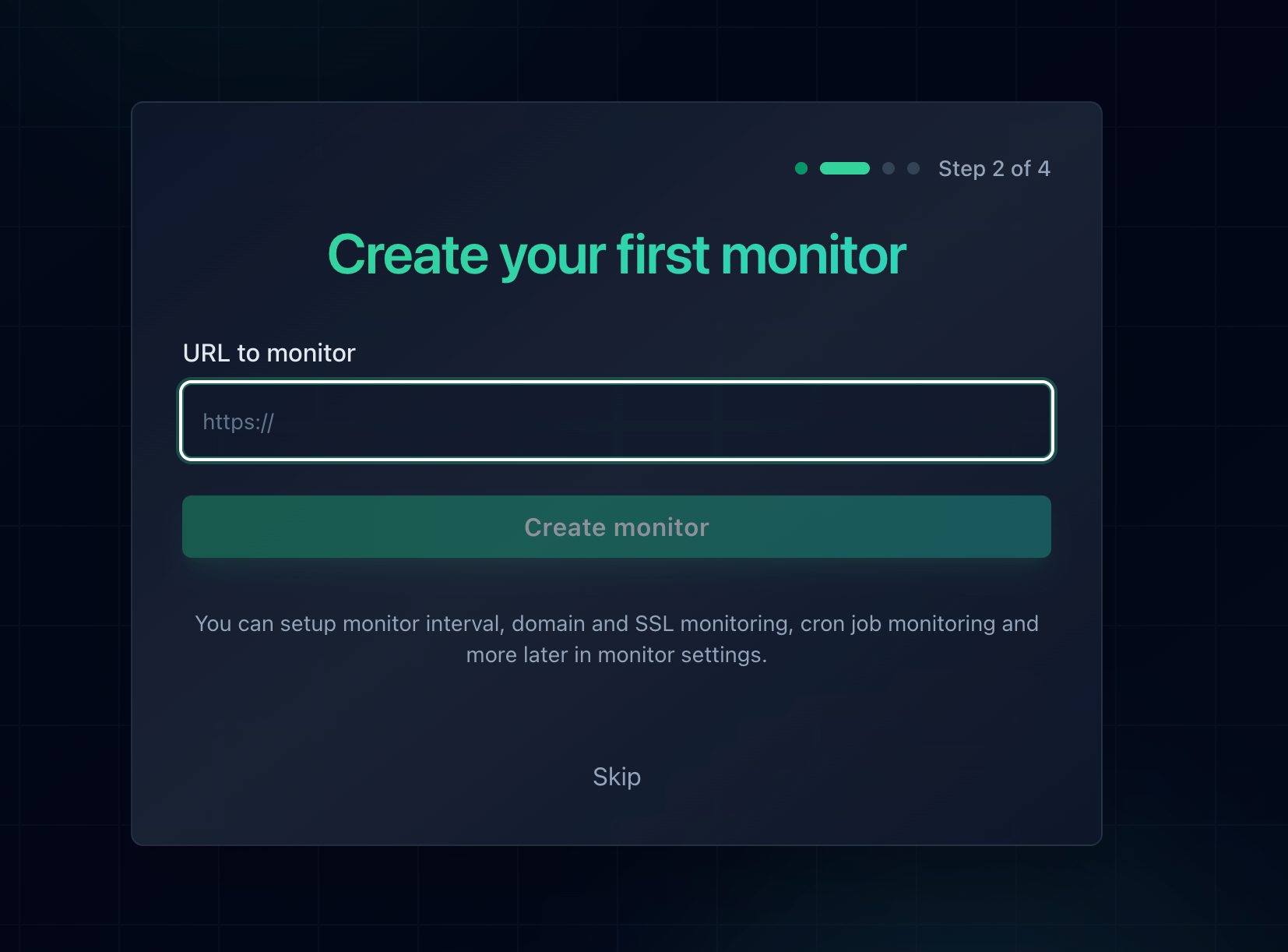
Adding a monitor in Notifier. Response time and SSL certificate tracking are included for every URL you add.
Because the check runs from outside your network, it fails exactly the way a visitor's browser does. A crashed web server, a firewall rule that closed port 443, or a DNS record pointing at a decommissioned host all register as a failed check, and you get told within seconds rather than hours.
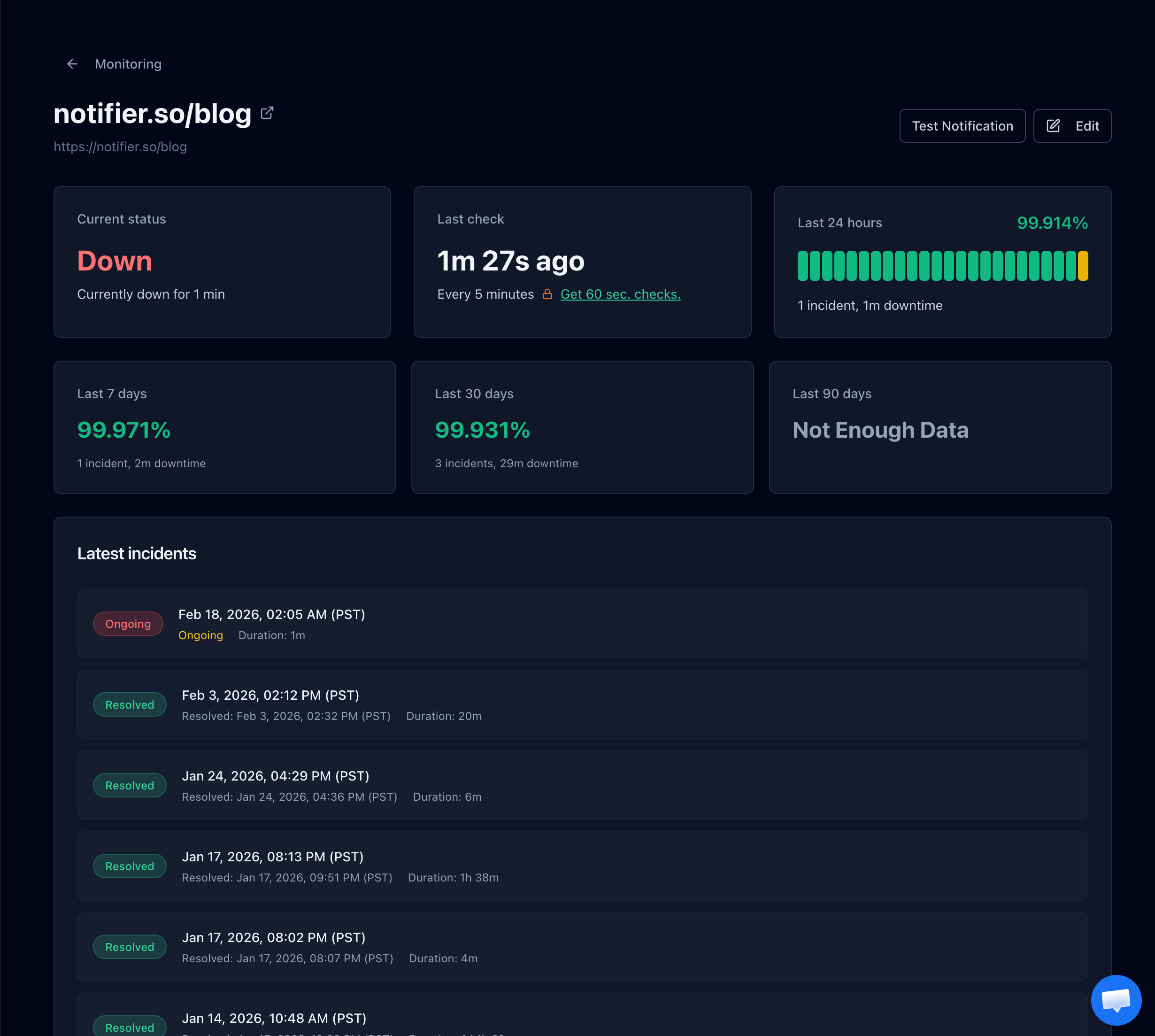
A Notifier monitor detail page showing status, uptime history, and the incident timeline, so you know exactly when connections started being refused.
What Notifier checks for you:
- Uptime: confirms your site accepts connections and responds, from outside your network.
- SSL certificates: alerts you before a certificate expires, free on every plan including the free tier.
- DNS records: a separate DNS monitor type watches your records so a bad or missing entry does not quietly point visitors at a dead host.
- Response time: tracks how long each check takes so you see degradation before it becomes an outage.
One practical tip specific to this error: monitor both your bare domain and your www subdomain, and monitor any subdomain that runs on its own server or port. Refusals are frequently scoped to one hostname or one port, so a single monitor on your homepage can miss an API or checkout endpoint that is refusing every request.
Alerts arrive by email, SMS, phone call, or Slack. The free plan covers 10 monitors and 5 status pages with 5 minute checks, and paid plans start at $4/month for 1 minute checks and custom domain status pages. No credit card is required to start. For a full walkthrough, see how to set up website monitoring, or if you are still diagnosing, how to check if a website is down.
Frequently Asked Questions
What is the difference between ERR_CONNECTION_REFUSED and ERR_CONNECTION_TIMED_OUT?
Refused means the destination actively rejected your connection with a TCP reset, so it fails almost instantly. That usually means no service is listening on that port or a firewall is explicitly rejecting traffic. Timed out means nothing came back at all and the browser gave up after roughly 30 seconds, which points to an overloaded server, dropped packets, or a routing problem. The speed of the failure is the quickest way to tell them apart.
Why do I get ERR_CONNECTION_REFUSED on localhost when my server is running?
The three usual causes are an interface mismatch, an IPv6 mismatch, and a protocol mismatch. If your server is bound to 127.0.0.1 it will refuse connections from any other device, so bind to 0.0.0.0 instead. If localhost resolves to ::1 but your server only listens on IPv4, try http://127.0.0.1 with the explicit address. And if Chrome is upgrading your address to HTTPS while your dev server only speaks HTTP, type the http:// prefix explicitly or clear the HSTS entry at chrome://net-internals/#hsts.
Does ERR_CONNECTION_REFUSED mean the website is down?
Not always, but it is more likely than with most browser errors. A refusal can come from your own machine, usually a proxy setting, a hosts file entry, a browser extension, or antivirus web filtering. The fastest test is to load the site on a different network such as mobile data. If it fails there too, the site's server is genuinely refusing connections and the problem is on their end.
Why does one site refuse connections while every other site works?
When the failure is scoped to a single domain, check your hosts file first. An entry mapping that domain to 127.0.0.1 or 0.0.0.0 will refuse every request to it, and these entries get left behind by development setups, ad blocking scripts, and content filters. The other common causes are a browser extension blocking that specific domain and a stale DNS record pointing at a server that no longer serves the site.
How do I check whether a port is open on my own server?
From the server itself, run ss -tlnp to list every listening port and the process that owns it. From outside, run curl -Iv https://example.com and watch whether the connection is established or refused. If the port is bound locally but refused from outside, the block is in your firewall or your cloud provider's security group rather than in the web server config.
Can a VPN or proxy cause ERR_CONNECTION_REFUSED?
Yes, and a leftover proxy setting is one of the most common local causes. If your system or browser is configured to send traffic to a proxy that is no longer running, every request gets refused immediately. This often happens after uninstalling a VPN client that did not clean up its proxy entries. Clear manual proxy settings in your operating system's network preferences and reload.
How do I get notified when my own site starts refusing connections?
Use external uptime monitoring, because a refused connection is invisible from inside your own server. Notifier checks your site from outside your network on a schedule and alerts you by email, SMS, phone call, or Slack the moment a check fails. The free plan covers 10 monitors with SSL and DNS monitoring included, and paid plans start at $4/month for 1 minute checks.