At a Glance
- •404 Not Found means the server was reached and is working normally but has nothing at that URL. Everything below HTTP already succeeded, which is why restarting your router, flushing DNS, or switching to a VPN never helps.
- •As a visitor, check the end of the URL first for a trailing period or bracket picked up from a sentence, then delete the last part of the path and press Enter to walk back to a page that exists. If the page is genuinely gone, read it on the Wayback Machine.
- •If every page 404s except the homepage, rewrite rules stopped running and the server is looking for a literal file at each path. On Apache that is usually a missing .htaccess, AllowOverride set to None, or mod_rewrite being off. On Nginx it is a missing try_files line.
- •Find the 404s worth fixing by counting them by referrer in your access log. A 404 referred from your own domain is a broken link you generated. Most of the rest are bots probing for /wp-login.php and need no action at all.
- •A 404 only costs you when the URL had traffic or backlinks. Redirect those to the closest equivalent page rather than the homepage, which Google treats as a soft 404. Notifier is free for 10 monitors with SSL and DNS monitoring included, and paid plans start at $4/month for 1-minute checks.
404 Not Found is the only HTTP status code that made it into everyday language, and that familiarity hides how much it actually tells you. A 404 is not a failure. It is the server working perfectly and reporting, accurately, that nothing lives at the address you asked for.
That is why the standard troubleshooting advice fails here. Nothing below HTTP is broken. DNS resolved, the connection opened, the TLS handshake finished, the server read your request and composed a reply. Restarting a router cannot change any of that. The gap is between the URL that was requested and the URLs the application knows how to serve, and closing that gap is the entire job.
This guide covers what a 404 really means, the visitor fixes worth trying in the order they succeed, a one command diagnosis that tells you which layer is answering, the three causes behind nearly every unexpected 404 on a site you run, soft 404s and what Google actually does with a missing page, how API clients should treat one, and how to find out that a page started 404ing before a customer tells you. If you do not run the site, skip to the visitor section.
What 404 Not Found Actually Means
A 404 means the server understood the request and has no representation to return for that URL. Notice what that sentence does not say. It does not say the page never existed, it does not say the page was deleted, and it does not say you are not allowed to see it. HTTP has separate codes for those situations and almost nobody uses them, so the 404 absorbs all of it.
The specification is deliberate about this ambiguity. A 404 lets a server refuse to explain itself. A page you lack permission to view can legitimately return 404 rather than 403, precisely so that an attacker cannot use the difference between the two to map out which admin URLs exist. Most 404s are boring typos, but the code is designed to be uninformative, and that is worth knowing before you spend an hour deciding what it is hiding.
The practical value of a 404 is that it eliminates almost everything. Compare it to the errors people confuse it with. A connection refused means nothing answered. A 502 means a proxy answered but the application behind it did not. A 500 means your code ran and threw. A 404 means the stack is healthy from the network card all the way up to routing, and routing is where it stopped. That narrows the search dramatically.
The single most useful question:
Does the homepage still work? If the homepage loads and everything else 404s, this is a routing or rewrite problem and the content is almost certainly fine. If one page 404s and the rest of the site is fine, this is a URL problem: something moved, was renamed, or was linked incorrectly. Those two answers lead to completely different sections of this guide, and it takes five seconds to tell them apart.
404 Compared to the Codes It Gets Confused With
Half of all 404 debugging is realizing the response should have been a different code. This table is worth reading before you start changing configuration.
| Code | What It Really Says | How It Differs From 404 |
|---|---|---|
| 404 Not Found | No representation exists for this URL right now | Says nothing about whether it ever existed or ever will |
| 410 Gone | It existed, it is deliberately removed, it is not coming back | A promise rather than a shrug. Search engines drop a 410 faster than a 404 |
| 403 Forbidden | It exists and you may not have it | Confirms existence, which is why some apps return 404 instead on purpose |
| 401 Unauthorized | Prove who you are and ask again | Credentials could fix a 401. No credential fixes a 404 |
| 405 Method Not Allowed | The URL is real, the verb is wrong | Many frameworks wrongly send 404 here, hiding a POST to a GET only route |
| 400 Bad Request | The request itself could not be parsed | A 404 was understood perfectly. A 400 never got that far |
| 451 Unavailable For Legal Reasons | Blocked by a legal demand | A deliberately honest alternative to quietly returning 404 |
| 301 or 302 redirect | It moved, go here instead | What most of your 404s should have been |
| Soft 404 | A 200 response whose content says "not found" | The worst of both: invisible in your logs, and search engines keep crawling it |
The 405 trap:
If a form or an API call fails with 404 but the same URL loads fine in a browser, you are almost certainly sending the wrong HTTP method. A browser sends GET. Your form sends POST. Several frameworks and routers respond to an unmatched method with 404 rather than the correct 405, so the error tells you the URL is missing when the URL is sitting right there accepting GETs. Test it directly with curl -X POST before you go looking for the route.
If You Are Just Trying to Reach the Page
You cannot fix somebody else's server, but a surprising share of 404s are caused by the link rather than the site, and those you can work around. These are ordered by how often they actually work.
1. Look at the End of the URL
The most common 404 in the world is a URL that picked up one extra character on its way to you. A link pasted at the end of a sentence collects the period. A link inside parentheses collects the closing bracket. A link quoted in a chat message collects a quotation mark. Click into the address bar, press End, and delete anything after the last letter or slash that looks like it belongs.
The related case is a truncated link. Email clients and older chat apps wrap long URLs across two lines and only turn the first line into a link, so you request half an address. If the URL in your address bar looks like it stops mid word, go back to the source and copy the whole thing by hand.
2. Walk the URL Back
Delete the last segment of the path and press Enter. Then the one before it. A URL like example.com/guides/2024/old-post becomes example.com/guides/2024/, then example.com/guides/. One of those levels usually exists and lists what you were looking for under its new name.
3. Search the Site Instead of Guessing
Use the site's own search box if it has one. If not, ask Google to search only that domain by typing a query like site:example.com annual report. Pages that moved keep their content and their title, so a few words from the page you wanted usually find it at its new address.
4. Try the Slash Both Ways
To a web server, /about and /about/ are two different URLs. Most sites redirect between them, but not all do. Adding or removing the trailing slash takes two seconds and occasionally just works.
5. Check the Capitalization
Most web servers run on Linux, where /Report.pdf and /report.pdf are different files. If the link came out of a document or a phone keyboard that capitalized the first letter for you, lowercase it and try again.
6. Look for the Old Version
If the page genuinely existed and is now gone, paste the URL into the Wayback Machine at web.archive.org. It keeps snapshots of a large share of the public web going back decades. Google retired its own cached page links in 2024, so the Wayback Machine is now the practical option for reading a page that no longer exists.
7. Tell the Site Owner
If you got to the 404 by clicking a link on the site itself rather than from an email or a search result, the site owner almost certainly does not know. Broken internal links are invisible from the inside, and nobody reports them. A one line message costs you nothing and is genuinely useful to them.
What will not help, no matter what a forum tells you:
Restarting your router, flushing your DNS cache, changing to a different DNS provider, reinstalling your browser, disabling your firewall, or connecting through a VPN. A 404 is proof that every one of those layers already worked: your machine found the server, reached it, negotiated encryption with it, and received a complete reply. The only exception worth a single attempt is a hard refresh with Ctrl+Shift+R or Cmd+Shift+R, which clears a stale service worker on web apps that cached a page path that has since changed.
Diagnosing a 404 on a Site You Run
A 404 can come from four different layers, and they are almost indistinguishable in a browser because every one of them renders as a page saying the same thing. The headers tell you which one answered, and that decides where you go looking.
curl -sI https://example.com/the-failing-page/ | head -20Then match what comes back against this table.
| What You See | Who Answered | Where to Look |
|---|---|---|
| Your own styled 404 page, plus a Set-Cookie or a framework header | Your application | Routing, the database, or the slug. The request reached your code |
A plain page reading "404 Not Found" with Server: nginx |
Nginx | try_files and the document root. Your application was never invoked |
| "The requested URL was not found on this server" with an Apache footer | Apache | mod_rewrite, .htaccess, and AllowOverride |
A branded error page and a cf-ray header |
Cloudflare | Page Rules, Workers, or a cached 404 at the edge |
XML containing NoSuchKey or NoSuchBucket |
Amazon S3 | The object path, the bucket name, or a missing index document |
JSON such as {"detail":"Not found."} |
Your API framework | The route matched the API but no record or endpoint exists |
Follow the Redirects First
A large share of confusing 404s are really redirect problems. The URL you requested redirects somewhere, and it is the destination that does not exist. This prints every hop and the final landing point:
curl -sIL https://example.com/old-page -o /dev/null -w "%{url_effective} %{http_code}\n"

# Or see every hop in the chain:
curl -sIL https://example.com/old-page | grep -i "^HTTP/\|^location:"
If the chain ends somewhere you did not expect, fix the redirect rather than the page. If the chain never ends, you have a different problem entirely, covered in how to fix ERR_TOO_MANY_REDIRECTS.
Count the 404s in Your Access Log
Every 404 your site has ever served is recorded. These three commands turn that log into a work list. The first shows which URLs are being missed most:
awk '$9 == 404 {print $7}' /var/log/nginx/access.log | sort | uniq -c | sort -rn | head -30The second is the one that actually matters, because it pairs each missing URL with the page that linked to it:
awk '$9 == 404 {print $7, $11}' /var/log/nginx/access.log | sort | uniq -c | sort -rn | head -30
Read the referrer column carefully, because it sorts your 404s into three very different piles. A referrer on your own domain means your site generated a link to a page that does not exist, which is a bug you can fix today and the highest priority item on the list. A referrer from somebody else's site means an external page links to a URL you removed, which deserves a redirect. A referrer of "-" on paths nobody would ever type is a bot.
The third tells you whether this started at a specific moment, which usually means a deploy:
awk '$9 == 404 {print substr($4, 14, 2)}' /var/log/nginx/access.log | sort | uniq -c
Before you panic about the number: most 404s on any public site are automated scanners probing for /wp-login.php, /.env, /phpmyadmin, and a few hundred similar paths. Those 404s are the correct response and need no action at all. A site with a thousand 404s a day may have only five real ones. Filter by referrer before you judge the total.
Cause 1: Every Page 404s Except the Homepage
This is the emergency, and it has an unmistakable signature. The homepage loads perfectly. Every other URL on the site returns a 404 from the web server rather than from your application. Nothing appears in your application logs, because your application is never reached.
The cause is always the same in principle. Modern sites do not have a file sitting on disk for each URL. They have one entry point, and a rewrite rule that hands every request that does not match a real file to that entry point. When the rewrite rule stops running, the web server falls back to its original behavior of looking for a literal file at that path, finds nothing, and returns 404. The homepage keeps working because a request for / maps to the index file without needing any rewriting at all.
Apache and WordPress
Three things have to be true. The rewrite module must be loaded, the virtual host must permit .htaccess overrides, and the .htaccess file must contain the rules. Check them in that order:
# Is mod_rewrite loaded?
apache2ctl -M | grep rewrite

# Turn it on if it is missing
sudo a2enmod rewrite
sudo systemctl restart apache2

# Does the .htaccess file even exist?
ls -la /var/www/html/.htaccess
Then confirm that Apache is allowed to read it. In your virtual host or in the directory block for the site, AllowOverride must not be None. This is the setting that silently breaks a working site during a server migration, because the .htaccess file comes across with the files and is then ignored:
<Directory /var/www/html>
    AllowOverride All
    Require all granted
</Directory>
Finally, restore the rules themselves. For WordPress this block is the default, and the easiest way to regenerate it is to open Settings, then Permalinks, and click Save without changing anything:
# BEGIN WordPress
<IfModule mod_rewrite.c>
RewriteEngine On
RewriteBase /
RewriteRule ^index\.php$ - [L]
RewriteCond %{REQUEST_FILENAME} !-f
RewriteCond %{REQUEST_FILENAME} !-d
RewriteRule . /index.php [L]
</IfModule>
# END WordPress
If saving permalinks does nothing, the file is probably not writable. Check that the .htaccess file is owned by the web server user and writable, then save permalinks again. For the wider set of things that break a WordPress site, see our WordPress uptime monitoring guide.
Nginx
Nginx ignores .htaccess files completely, which catches out anyone moving a site from Apache. The equivalent lives in the server block, and the directive is try_files:
# WordPress and most PHP applications
location / {
    try_files $uri $uri/ /index.php?$args;
}

# Laravel and Symfony, where the root must point at the public directory
root /var/www/app/public;
location / {
    try_files $uri $uri/ /index.php?$query_string;
}

# A single page app built with React, Vue, or Svelte
location / {
    try_files $uri $uri/ /index.html;
}
Apply the change and reload:
sudo nginx -t && sudo systemctl reload nginxThe single page app version of this bug:
A React or Vue app works perfectly while you click around it, and 404s the moment somebody refreshes on a deep URL or opens a shared link directly. Clicking is handled entirely in the browser by the router, so the server never sees those paths. A refresh sends the path to the server for the first time, and there is no file there. The fallback to index.html above is the fix. On Netlify it is a _redirects file containing /* /index.html 200, and on most other static hosts it is a setting called SPA mode or a custom error document.
Cause 2: The URL Moved and Nothing Points to the New One
This is the slow version of the problem. The site works, but a set of URLs that used to resolve now do not, and every link, bookmark, and search result pointing at them is dead. It happens after a redesign, a CMS migration, a change to the permalink structure, dropping or adding a path prefix such as /blog, or a move to a new domain.
The fix is a redirect map, and the work is in building it rather than deploying it. Three sources between them find nearly every URL worth redirecting: the old sitemap or a crawl of the previous site, the Not Found report in Google Search Console, and the referrer column from the access log command above. Combine them, sort by how much traffic each URL used to get, and redirect the top of the list first.
Writing the Redirects
For a handful of URLs, one line each is fine. On Apache:
Redirect 301 /old-page/ /new-page/
Redirect 301 /2019/06/announcement/ /news/announcement/
On Nginx, a map block keeps hundreds of redirects readable and costs nothing at request time:
map $request_uri $redirect_to {
    default                      "";
    /old-page/                   /new-page/;
    /2019/06/announcement/       /news/announcement/;
    /blog/pricing/               /pricing/;
}

server {
    if ($redirect_to) {
        return 301 $redirect_to;
    }
}
Whole sections that moved as a unit can be handled with one pattern instead of one line per URL:
# Everything under /blog/ now lives under /guides/
location /blog/ {
    rewrite ^/blog/(.*)$ /guides/$1 permanent;
}
Do not redirect everything to the homepage. It is tempting, it takes one line, and it destroys exactly what you were trying to save. Google treats a redirect to an irrelevant page as a soft 404, which means the old URL loses its ranking signals anyway, and visitors who clicked a link about a specific article land on your homepage with no idea what happened. Redirect each URL to its closest equivalent, and let the genuinely unmatched ones return a real 404 with a helpful page.
Case Sensitivity: Works Locally, 404s in Production
If a page loads on your laptop and 404s on the server, check the capitalization before anything else. macOS and Windows file systems treat Header.png and header.png as the same file. Linux, which almost certainly runs your production server, does not. Code that references the wrong case is impossible to catch in local development and fails the instant it deploys.
# Find files whose names contain uppercase letters
find /var/www/html -name "*[A-Z]*" -type f | head -20
The durable fix is a convention of lowercase file names and slugs everywhere, applied to new files from now on. Renaming existing files means redirecting their old names, so it is not free.
Trailing Slashes and Encoding
Pick one trailing slash convention and redirect the other form to it. Serving both means every page has two addresses, which splits ranking signals and doubles your redirect surface. Django handles this with APPEND_SLASH, Nginx and Apache both do it in a few lines, and most CMS platforms have a setting for it.
Encoding is the other quiet source of 404s. A file name containing a space arrives as %20, and if something encodes the percent sign again you get %2520, which matches nothing. Curly quotes and dashes pasted in from a word processor encode into multi byte sequences that survive one copy and break on the next. Keep slugs and file names to lowercase letters, numbers, and hyphens, and this category of 404 disappears permanently.
Cause 3: The File Genuinely Is Not There
Sometimes the 404 is simply correct and the deploy is what went wrong. The tell is usually that the HTML loads but the page renders unstyled, because the CSS and JavaScript are 404ing while the page itself is fine. Open your browser's developer tools, switch to the Network tab, reload, and sort by status.
Check the Document Root
After a server migration or a config change, the most common mistake is pointing the root at the project directory rather than the directory that is meant to be public. Laravel, Symfony, and many others expect the root to be public, and pointing one level higher breaks every URL and exposes files that should never be served.
# What does the server think the root is?
grep -rn "root \|DocumentRoot" /etc/nginx/sites-enabled/ /etc/apache2/sites-enabled/ 2>/dev/null

# Is the entry point actually there?
ls -la /var/www/app/public/index.php
Check That the Build Output Shipped
Asset pipelines add a step that is easy to forget in a deploy script. Django needs collectstatic, Rails needs assets:precompile, and anything built with a bundler needs the build to run and its output to be copied. Skip that step and the HTML will reference hashed file names that were never written to disk. If your deploy uses a symlink to swap releases, confirm the symlink moved and points at a complete release rather than an empty directory.
Check Whether a CDN Cached the 404
This one wastes the most time, because you fix the origin, confirm the file is there, and visitors keep getting 404s. CDNs cache error responses, so once the edge has stored a 404 for a URL it will keep serving it until that entry expires. Compare what the edge says against what your origin says:
# What the world sees, and whether it came from cache
curl -sI https://example.com/assets/app.css | grep -i "http/\|cf-cache-status\|x-cache\|age"

# What your origin actually serves, bypassing the CDN entirely
curl -sI --resolve example.com:443:203.0.113.10 https://example.com/assets/app.css
If the origin returns 200 and the edge returns 404, purge that URL from your CDN. The habit worth building is to purge as the final step of any deploy that changes asset paths, rather than waiting to discover the problem from a customer.
Soft 404s, and What Google Actually Does With a Missing Page
A soft 404 is a page that tells a human it does not exist while telling every machine that it does. The server returns 200, the body says "Sorry, that page could not be found," and nothing in your logs or your analytics distinguishes it from a successful page view. It is strictly worse than a real 404 in every way that matters.
Search engines keep crawling soft 404s because a 200 means the URL is live. They can index the empty page. They spend crawl budget revisiting it. And because your monitoring, your logs, and your error tracker all see a success, nobody finds out. Google reports them under Soft 404 in the Search Console coverage report, which is usually how anybody discovers they exist.
The usual sources are predictable once you know to look. A single page app renders a "not found" component in the browser while the server happily returned 200 for the shell. An e-commerce platform keeps serving a template for a discontinued product with no content in it. A category or tag page has zero items. A site search results page with no matches gets crawled from a link somewhere.
The fix in one sentence:
Make the status code match the content. If the page says not found, the response must be 404, which for a client rendered app means handling unknown routes on the server or prerendering them. If the content was deliberately and permanently removed, return 410 Gone instead and search engines will drop it faster. If something genuinely equivalent exists, a 301 to it is better than either.
Do 404s Hurt Your Rankings?
Not by themselves, and Google has said so repeatedly. A 404 is a normal part of the web and having them does not carry a penalty. What does cost you is more specific than a penalty, and it is worth being precise about:
- A 404 on a URL with backlinks throws away the value of those links. Every link pointing at that address now points at nothing. A 301 to the closest equivalent page preserves most of it.
- A 404 on a page that ranked loses the ranking. The page is gone, so the position goes with it. This is the case worth acting on quickly.
- Thousands of 404s waste crawl budget. On a large site, crawlers spending their time on dead URLs means less attention for the pages you care about.
- Broken internal links are a quality signal and a user problem. A visitor who hits a 404 from your own navigation usually leaves rather than hunting for the new address.
The practical rule: a 404 on a URL nobody links to and nobody visits is fine and needs no action. A 404 on a URL with traffic or backlinks is a real loss and should be redirected the same day you find it.
Make Your 404 Page Do Some Work
Since some 404s are unavoidable, the page itself should help. Keep your normal header and navigation so people are not dumped somewhere unrecognizable. Include a search box. Link to your most popular pages. Say plainly that the page does not exist rather than showing a stack trace or a bare server error. And make sure it returns a genuine 404 status while doing all of that, which is the one requirement people most often break while making the page nicer.
When an API Returns 404
API 404s are harder than web 404s for one reason: a 404 is both a legitimate answer and a bug, and they look identical from the outside. "No customer with that id" and "that endpoint does not exist" arrive as the same status code. Telling them apart is the whole diagnosis.
The fastest way is to look at the content type rather than the status. An API that consistently returns JSON errors should never hand you HTML. If a 404 comes back as an HTML page, the request never reached your application code:
curl -s -o /dev/null -w "%{http_code} %{content_type}\n" https://api.example.com/v1/customers/42

# 404 application/json  -> your app ran and found no such record
# 404 text/html         -> a proxy or web server answered, your app was never called
The Usual Suspects
- A missing version prefix. The base URL is
/v1and the client is requesting the path without it, or a client library was configured with a base URL that already ends in the prefix and adds it again. - The proxy stripped or kept the path prefix. The famous Nginx gotcha: a trailing slash on
proxy_passremoves the matched location from the path before forwarding, and no trailing slash keeps it. One character decides whether your application receives/usersor/api/users. - A trailing slash mismatch. Many routers treat the two forms as distinct and only redirect GET requests between them, so a POST to the wrong form fails while the same URL works in a browser.
- The wrong HTTP method. Covered above, and it belongs on this list too, because in an API client it is far more common than on a website.
- A retired endpoint. An API version was sunset and now returns 404 rather than 410, so the client cannot tell "gone forever" from "temporarily missing" and keeps trying.
# Strips the location prefix: /api/users reaches the app as /users
location /api/ {
    proxy_pass http://127.0.0.1:8000/;
}

# Keeps it: /api/users reaches the app as /api/users
location /api/ {
    proxy_pass http://127.0.0.1:8000;
}
Never retry a 404:
A 404 is deterministic. Unlike a 429 or a 503, where waiting is the correct response, the same request will produce the same answer indefinitely. A retry loop on a 404 burns rate limit and delays the alert that a human needs to see. The one defensible exception is reading a record within moments of creating it, where replication lag to a read replica can produce a brief 404. One short retry covers that. Anything more is a bug hiding a bug.
For everything else worth checking on an API beyond the status code, see how to monitor an API endpoint.
Finding Out Before Your Visitors Do
A 404 is the error least likely to be reported to you. A 500 fills your error tracker. A 502 takes the site down loudly enough that somebody notices within minutes. A 404 shows a tidy page to a visitor who assumes they mistyped something, closes the tab, and never mentions it. Your dashboards stay green, because from the server's point of view it answered every request correctly.
The answer is to check your important URLs from outside, on a schedule, the way a stranger with no cache and no session would. An uptime monitor requesting your pages every few minutes turns a silent 404 into an alert.
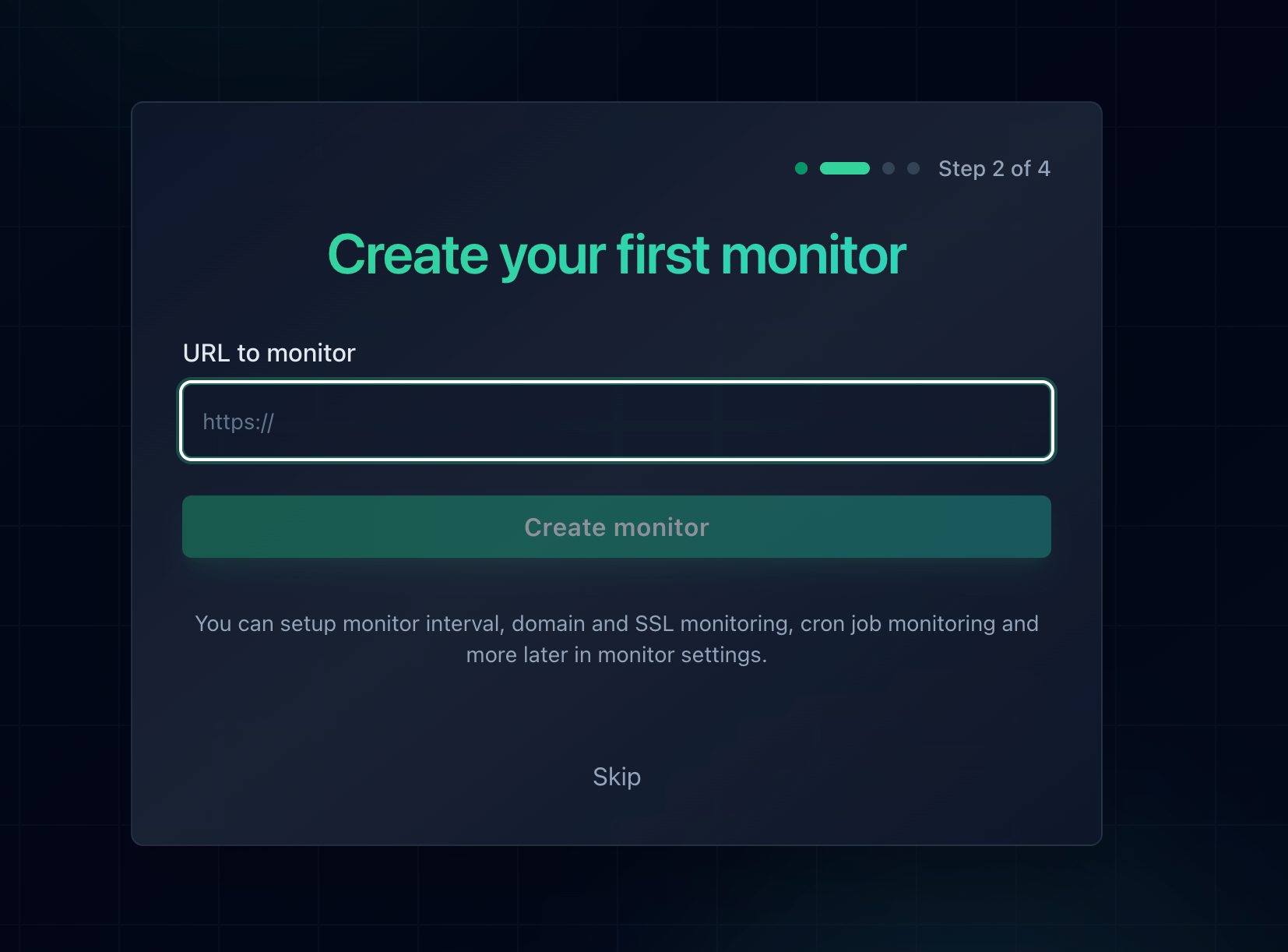
Add the URL and every check arrives clean, with no cache and no session, exactly like a first time visitor.
Monitoring only the homepage misses the worst 404 there is. The classic rewrite failure in Cause 1 leaves the homepage working perfectly while every other page on the site returns 404. A monitor pointed only at / reports 100% uptime through the entire incident. Always monitor at least one deep URL per route pattern: a blog post, a product page, a category listing. Those are the URLs that break when rewrite rules do.
What to Put Under Monitoring
- One deep URL for each kind of page. The highest value item on this list, for the reason in the callout above. Pick a URL that only resolves through your rewrite rules.
- Your top landing pages. The pages that receive paid traffic or rank well. A 404 on one of those is spending money to send people to nothing.
- Pricing, signup, checkout, and login. The pages where a 404 converts directly into lost revenue rather than mild annoyance.
- Your sitemap.xml. A 404 there stops search engines discovering anything new, and it is the last URL anybody thinks to check.
- Critical API endpoints. A health endpoint plus any endpoint that other systems depend on.
- Every hostname you own. Apex and www, the app subdomain, the docs, the status page. Routing configuration is per virtual host, so one can break while the rest look fine.
- Your SSL certificates. A different failure mode, but it takes the whole site down just as completely. SSL monitoring is free on every Notifier plan, including the free one.
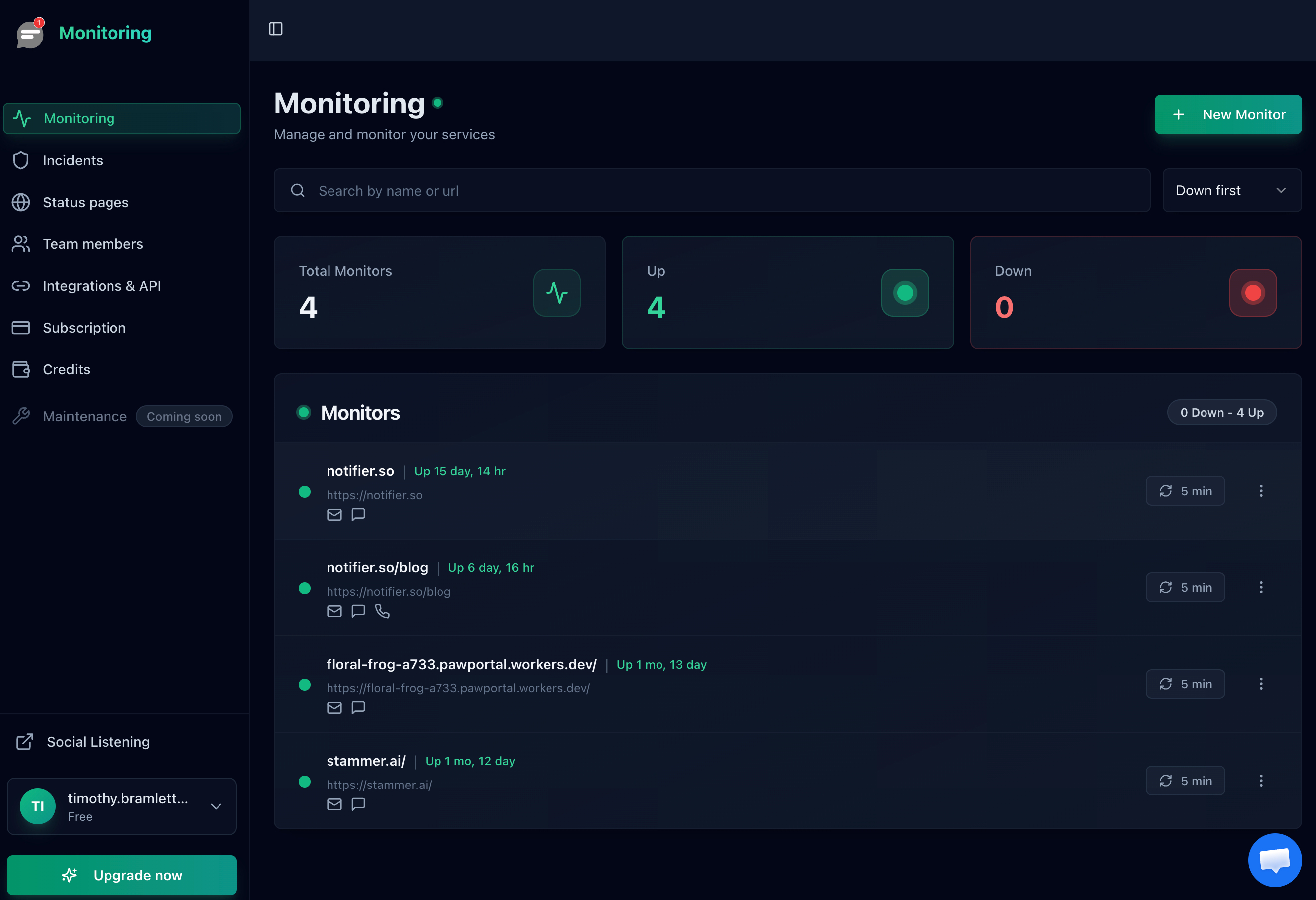
One row per URL, so a deep page that starts 404ing stands out even while the homepage stays green.
Where monitoring has a blind spot, and what to pair it with:
A monitor checks the URLs you gave it, which means it cannot discover a broken link on a page you never listed. It catches regressions on your important pages, not the long tail. Pair it with two things that cover the rest: the Not Found report in Google Search Console, reviewed monthly, and the referrer based log command from the diagnosis section, which finds internal broken links you generated yourself. Monitoring covers "the page that matters just broke." Those two cover "something somewhere is linking to nothing."
Get the Alert Somewhere You Will See It
An alert sitting in an inbox you read twice a day is barely better than a customer email. For a site wide 404 after a deploy, where every page except the homepage is broken, you want the notification to interrupt you. Notifier sends alerts by email, SMS, phone call, and Slack on every plan, including the free one, so a bad deploy on a Friday evening reaches somebody rather than waiting until Monday.
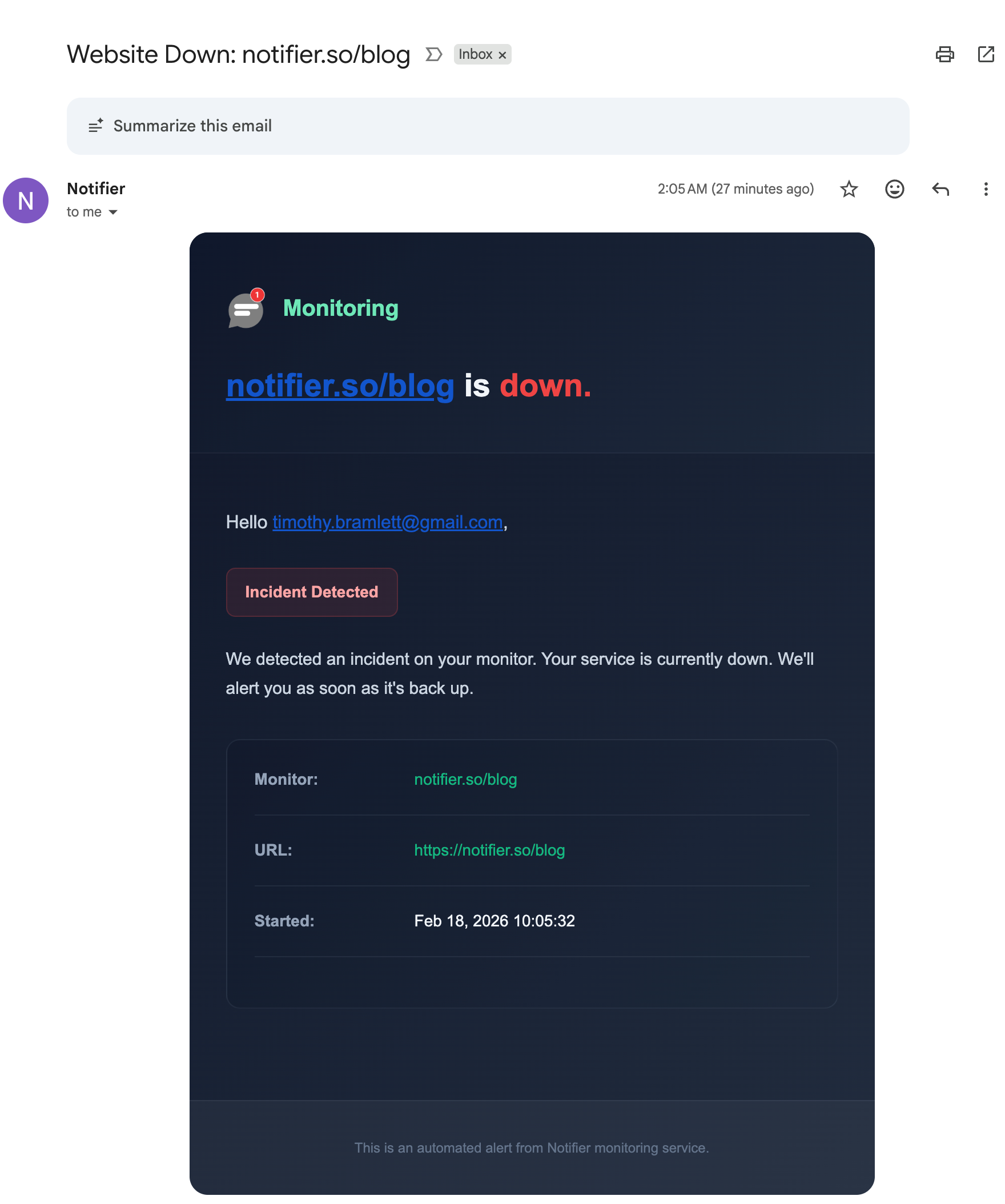
The alert names the monitor and the minute the incident began, which points straight at the deploy that caused it.
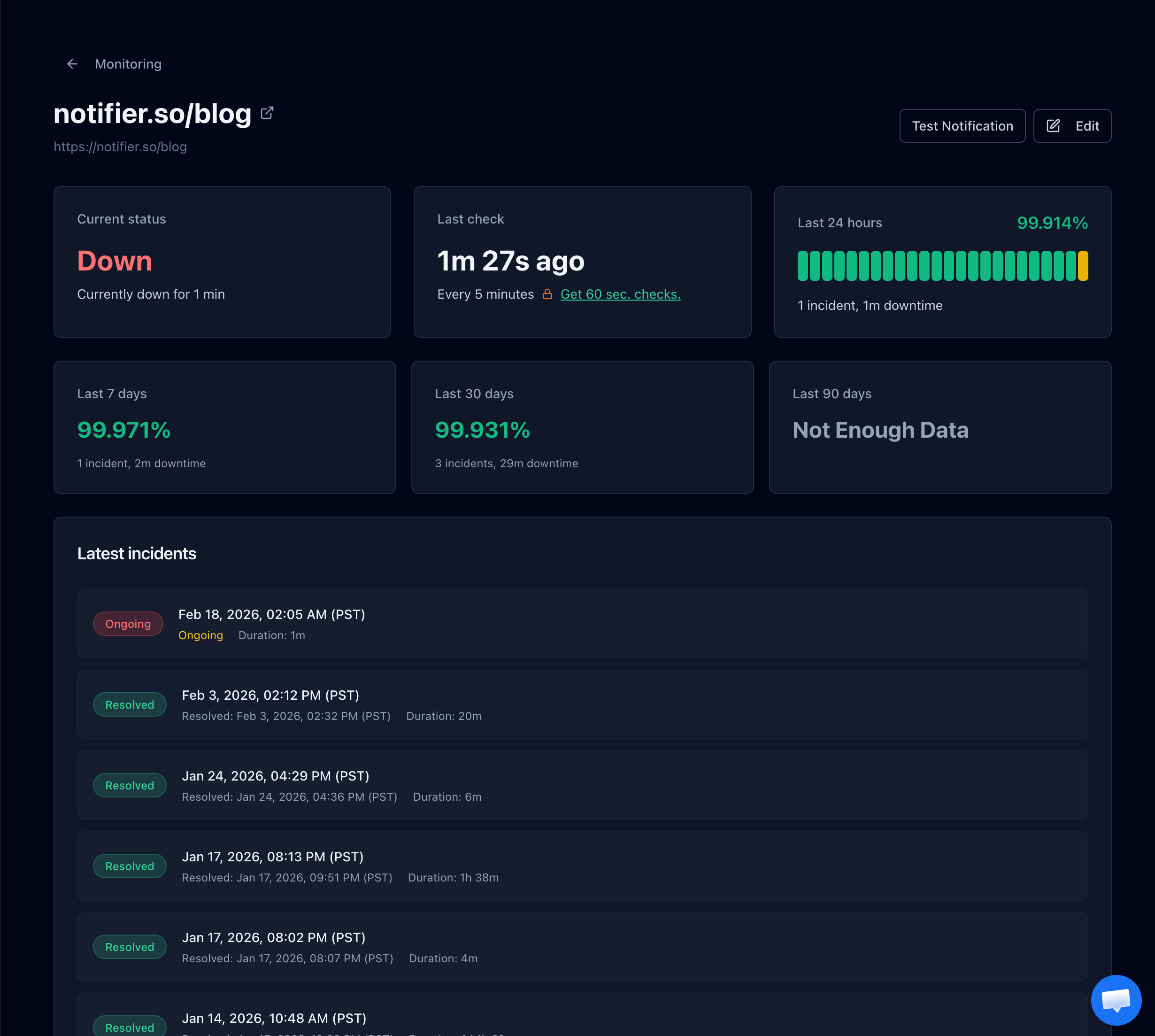
Incident history gives you the exact start time, which is usually enough to identify the change that broke routing.
Free Monitoring Tiers Compared
You do not need to spend anything to catch a page that starts returning 404. Here is what the main free tiers actually give you:
| Tool | Free Tier | SSL Monitoring | Notes |
|---|---|---|---|
| Notifier | 10 monitors, 5 min checks, 5 status pages | Free on every plan | Email, SMS, phone, and Slack alerts on free. Commercial use allowed. Solo is $4/month for 20 monitors at 1 minute. |
| UptimeRobot | 50 monitors, 5 min checks, 1 status page | Included | Free plan is non-commercial only. SMS and voice sold as credits. |
| Better Stack | 10 monitors, 3 min checks, 1 status page | Included | Strong incident management, but pricing is per responder and adds up quickly for a team. |
| StatusCake | 10 monitors, 5 min checks | 1 SSL monitor on free | Status pages are a separate paid product, and SMS uses paid credits. |
| Uptime Kuma | Unlimited, self-hosted | Included | Free and flexible, but you have to host and maintain it, and it cannot tell you your server is unreachable if it runs on that server. |
Important: UptimeRobot restricted its free plan to non-commercial use only in October 2024. If the site belongs to a business or a client, that free tier is not an option. Notifier's free tier has no such restriction.
Pricing changes, so verify before committing. Our comparison of free website monitoring tools covers each free tier in detail, and how to set up website monitoring walks through setup in about five minutes. If broken pages are one of several recurring problems, why your website keeps going down and what causes website downtime cover the wider set of failure patterns.
Frequently Asked Questions
What does 404 Not Found mean?
It means the server received your request, understood it, and has nothing to return for that URL. The server itself is healthy: DNS resolved, the connection succeeded, encryption was negotiated, and a complete reply came back. The code says nothing about whether the page ever existed or ever will, which is why 410 Gone exists for content that was deliberately removed for good.
How do I fix a 404 error as a visitor?
Start with the end of the URL, since a link copied from a sentence often picks up a trailing period or bracket. Then delete the last part of the path and press Enter to walk back to a page that exists. Then search the site, or use a query like site:example.com followed by a few words from the page. Try adding or removing a trailing slash, and lowercase any capital letters, because most servers are case sensitive. If the page is genuinely gone, look it up on the Wayback Machine at web.archive.org.
Why do all my WordPress pages show 404 except the homepage?
Rewrite rules stopped running, so the web server is looking for a real file at each path and finding nothing. The homepage keeps working because it does not need rewriting. On Apache, check that mod_rewrite is enabled with apache2ctl -M, that AllowOverride is set to All rather than None for the site directory, and that the .htaccess file exists and contains the WordPress block. Then open Settings, then Permalinks, and click Save to regenerate the rules. On Nginx there is no .htaccess support at all, so the server block needs try_files $uri $uri/ /index.php?$args instead.
Do 404 errors hurt SEO?
Not directly. Google has said repeatedly that 404s are a normal part of the web and carry no penalty. The real costs are more specific: a 404 on a URL with backlinks discards the value of those links, a 404 on a page that ranked loses that ranking, thousands of 404s waste crawl budget on a large site, and broken internal links drive visitors away. A 404 on a URL with no traffic and no links needs no action at all. A 404 on a URL that had either should be redirected to the closest equivalent page the same day you find it.
What is a soft 404 and why is it worse?
A soft 404 is a page that returns HTTP 200 while its content says the page was not found. It is worse than a real 404 because it is invisible: your logs, analytics, and monitoring all record a success. Search engines treat the URL as live, keep crawling it, and may index an empty page. The usual causes are single page apps that render a not found component while the server returned 200, and CMS templates for products or categories with no content. Google lists them under Soft 404 in the Search Console coverage report. The fix is to make the status code match the content.
Should I use 404 or 410 for deleted pages?
Use 410 Gone when you deliberately removed the content and it is not coming back, such as an expired promotion, a discontinued product line, or spam you cleaned up. A 410 is a definite statement, and search engines drop those URLs faster than they drop 404s. Use 404 when you are unsure, when the absence might be temporary, or when the URL was never valid in the first place. If something equivalent exists, a 301 redirect to it beats both, because it keeps the value of any links pointing at the old address.
Should I redirect all my 404s to the homepage?
No. It looks like a tidy catch all and it destroys the thing you were trying to protect. Google treats a redirect to a page that is not equivalent as a soft 404, so the old URL loses its ranking signals just as it would have anyway, and visitors who clicked a link about a specific article land on a homepage with no explanation. Redirect each URL to its closest genuine equivalent, and let the rest return a real 404 on a page that includes your navigation, a search box, and links to your popular content.
Why does my API return 404 when the endpoint exists?
Check the content type of the response first. A 404 returned as JSON means your application ran and found no matching record. A 404 returned as HTML means a proxy or web server answered and your application was never called, which points at routing rather than data. The most common causes are a missing or duplicated version prefix in the base URL, a trailing slash mismatch that only affects non GET requests, a proxy_pass trailing slash in Nginx adding or stripping the path prefix, and the wrong HTTP method on a route that returns 404 instead of the correct 405.
Will uptime monitoring catch 404 errors?
Yes for the URLs you monitor, because a 404 counts as a failed check and triggers an alert within one check interval. The important detail is which URLs you pick. Monitoring only your homepage will miss the most damaging 404 there is, where broken rewrite rules leave the homepage working while every other page fails, so include at least one deep URL per route pattern. Monitoring cannot discover broken links on pages you never listed, so pair it with Google Search Console's Not Found report. Notifier checks every 5 minutes on the free plan and every minute on the $4/month Solo plan, with email, SMS, phone call, and Slack alerts and free SSL monitoring.