At a Glance
- •A 403 Forbidden error means the server understood your request but refuses to authorize it. The page exists, but access is deliberately blocked. This is different from a 401 (not logged in) or a 404 (page not found).
- •The fastest visitor-side fixes: double check the URL, clear the site's cookies, disable your VPN or proxy, try a different network, and turn off browser extensions.
- •If you own the site, the most common causes are wrong file permissions (files should be 644, folders 755), a missing index file, a bad .htaccess deny rule, or a security plugin or firewall blocking legitimate traffic.
- •A Cloudflare 403 comes from the Web Application Firewall or a custom rule. Use the Ray ID in the Security Events log to find and adjust the exact rule that fired.
- •A 403 on a critical page (login, checkout, an API) can block every visitor while your homepage looks fine. Notifier monitors status codes and SSL certificates free for up to 10 URLs, with email, SMS, and phone alerts. Paid plans start at $4/month.
A 403 Forbidden error means the server understood your request perfectly and then refused to fulfill it. The page exists, the server is running, and the request was valid. The server simply decided you are not allowed to see it. That is what makes 403 so confusing. Nothing looks broken, yet the door is locked.
This guide covers what a 403 Forbidden error actually means, quick fixes you can try right now as a visitor, and detailed server side solutions for file permissions, .htaccess, Nginx, WordPress, and Cloudflare. Every fix includes the exact commands and config snippets you need.
What Is a 403 Forbidden Error?
A 403 Forbidden is an HTTP status code that means the server received and understood the request but refuses to authorize it. Unlike a 500 Internal Server Error (the server crashed) or a 404 (the page does not exist), a 403 is a deliberate refusal. The resource is there, but access is denied.
The key difference between 403 and 401 Unauthorized is subtle but important. A 401 means "you are not logged in, please authenticate." A 403 means "I know who you are, and you still cannot have this." Logging in will not fix a genuine 403 because the refusal is not about identity, it is about permission.
You might see the error worded differently depending on the server, CDN, or application:
- 403 Forbidden
- HTTP Error 403 - Forbidden
- Access Denied. You do not have permission to access this server.
- 403 Forbidden nginx (very common, since Nginx is the most popular web server)
- Error 403: Forbidden
- Access to this resource on the server is denied
- You don't have permission to access / on this server (classic Apache wording)
They all mean the same thing: the server chose to block the request. Let's find out why and fix it.
Quick Fixes for a 403 Forbidden Error (Try These First)
If you are seeing a 403 error on someone else's site, or you want to rule out simple issues before touching server configs, try these first. Many 403 errors on the visitor side come from your browser, your network, or a security rule that flagged your request.
1. Double Check the URL
The most common visitor side cause is trying to open a directory that has no index file, or mistyping a path. If the URL ends in a folder name like /images/, the server may forbid directory listing and return a 403. Try navigating to a specific file or the homepage instead.
2. Clear Your Browser Cache and Cookies
A stale or corrupted cookie can trigger a 403 on sites that tie access to session data. Clear the cache and cookies for that specific site, or open it in an incognito window. If the page loads in incognito but not in your normal session, a bad cookie is the culprit and clearing it fixes the problem.
3. Disable Your VPN or Proxy
Many websites block traffic from known VPN, proxy, and data center IP ranges as an anti abuse measure. If you are on a VPN, turn it off and reload. If the site works without the VPN, the site is blocking your VPN provider's IPs, not you personally.
4. Try a Different Network or Device
Switch to your phone hotspot or mobile data. Some 403 errors come from IP based blocking or a firewall rule that flagged your home IP address. If the site loads on a different network, the block is tied to your original IP. See our guide to checking if a site is down for everyone or just you to confirm.
5. Disable Browser Extensions
Ad blockers, privacy extensions, and script blockers sometimes rewrite requests in ways that trigger a web application firewall. Disable extensions one at a time, or test in a fresh incognito window with extensions off, to see if one of them is the cause.
If none of these work and every visitor sees the 403, the problem is server side. If you own the site, keep reading. If not, there is nothing you can do except contact the site owner and let them know their page is returning a 403.
The 7 Most Common Causes of 403 Forbidden Errors
Before editing config files, it helps to know what usually causes a 403. In rough order of frequency for site owners:
| Cause | Where to Look | Typical Fix |
|---|---|---|
| Wrong file permissions | ls -l on the file or folder | Set files to 644, folders to 755 |
| Missing index file | Document root directory | Add index.html or index.php |
| .htaccess deny rule | .htaccess in the site root | Remove or fix the Require / Deny rule |
| Directory listing disabled | Nginx/Apache config | Add an index file or enable autoindex intentionally |
| IP or country block | Firewall, security plugin, Cloudflare rules | Allowlist the blocked IP or region |
| Web application firewall (WAF) | Cloudflare WAF log, ModSecurity log | Whitelist the false positive rule |
| Corrupt or misconfigured plugin | WordPress plugins directory | Deactivate the offending plugin |
The first place to look, regardless of stack, is your web server error log. A 403 almost always writes a line explaining exactly which rule or permission blocked the request. That single log line usually saves you an hour of guessing.
How to Fix 403 From File Permissions and .htaccess
Incorrect file permissions are the single most common server side cause of a 403. The web server user (often www-data, nginx, or apache) must be able to read the file. If it cannot, you get a 403.
Step 1: Set Correct Permissions
The standard is 644 for files (owner can read and write, everyone else can read) and 755 for directories (everyone can read and enter the folder). Run these from your document root:
# Set all files to 644
find /var/www/html -type f -exec chmod 644 {} \;

# Set all directories to 755
find /var/www/html -type d -exec chmod 755 {} \;
Never use 777. It makes files world writable and is a serious security risk. If a page only works at 777, the real problem is file ownership, not permissions.
Step 2: Fix File Ownership
Files owned by the wrong user cause 403 even when permissions look correct. Change ownership to the web server user:
# Ubuntu/Debian (Nginx or Apache)
sudo chown -R www-data:www-data /var/www/html

# CentOS/RHEL
sudo chown -R nginx:nginx /var/www/html
Step 3: Inspect Your .htaccess File (Apache)
On Apache, a rule in .htaccess is a frequent 403 source. A corrupted file, a leftover deny rule, or an outdated Apache 2.2 directive on an Apache 2.4 server can all block everything. Temporarily rename it to test:
cd /var/www/html
sudo mv .htaccess .htaccess_backup
Reload the site. If the 403 disappears, the file was the problem. Look for old style access rules and update them to the modern Apache 2.4 syntax:
# Old (Apache 2.2) style can cause 403 on Apache 2.4
Order deny,allow
Deny from all

# New (Apache 2.4) style
Require all granted
For WordPress, if you renamed .htaccess, regenerate a clean one by going to Settings, then Permalinks, and clicking Save Changes without altering anything.
How to Fix 403 Forbidden in Nginx
A 403 from Nginx usually means one of three things: the requested directory has no index file, permissions block the Nginx worker, or a deny directive is matching the request.
Step 1: Check the Nginx Error Log
sudo tail -f /var/log/nginx/error.log
Look for directory index of "..." is forbidden (missing index file) or access forbidden by rule (a deny directive). The log tells you exactly which case you are in.
Step 2: Add a Valid Index File
If the log says the directory index is forbidden, Nginx received a request for a folder with no index file and directory listing is off (the safe default). Confirm your server block names a real index file:
server {
    root /var/www/html;
    index index.html index.php;
}
Make sure that index file actually exists in the folder being requested. Do not turn on autoindex on; unless you genuinely want the public to browse your files.
Step 3: Review Deny Rules
Search your config for deny directives that might be blocking legitimate traffic:
sudo grep -r "deny" /etc/nginx/
A rule like deny all; inside a location block will 403 every request to that path. Remove it or add an allow rule for the IPs that should have access.
Step 4: Reload Nginx
sudo nginx -t          # validate config first
sudo systemctl reload nginx
Always run nginx -t before reloading on a production server so a syntax error does not take the whole site down.
How to Fix 403 Forbidden in WordPress
WordPress 403 errors usually come from a security plugin, a corrupted .htaccess file, or wrong file permissions after a migration. Work through these in order.
Step 1: Deactivate Security Plugins
Firewall and security plugins such as Wordfence, iThemes Security, and All In One WP Security aggressively block requests they consider suspicious, and false positives are common. If you can reach wp-admin, deactivate them one at a time. If you cannot log in, rename the plugins folder over SSH or SFTP:
cd /var/www/html/wp-content
sudo mv plugins plugins_disabled
Reload the site. If the 403 clears, rename the folder back and reactivate plugins one by one to find the guilty one.
Step 2: Regenerate the .htaccess File
A corrupted .htaccess is a classic WordPress 403 cause. Rename the current one and let WordPress create a fresh copy:
cd /var/www/html
sudo mv .htaccess .htaccess_old
Then log in to WordPress, go to Settings, then Permalinks, and click Save Changes. WordPress writes a clean default .htaccess automatically.
Step 3: Reset File Permissions
After a migration or a hasty file transfer, WordPress permissions often break. Reset them to the recommended values:
cd /var/www/html
sudo find . -type d -exec chmod 755 {} \;
sudo find . -type f -exec chmod 644 {} \;
sudo chown -R www-data:www-data .
Step 4: Check Your Hosting or CDN Firewall
If plugins and permissions are clean, the block may be at the host or CDN level. Managed WordPress hosts (WP Engine, Kinsta, SiteGround) run their own firewalls that can 403 requests to wp-login.php or xmlrpc.php. Check your host's dashboard or contact support to whitelist your IP. This is also common on WordPress sites behind a CDN.
How to Fix a Cloudflare 403 Forbidden Error
A Cloudflare 403 is different from a server 403. It means a Cloudflare security rule blocked the request before it ever reached your origin. The most common source is the Cloudflare Web Application Firewall (WAF) flagging a false positive.
Step 1: Confirm the 403 Is Coming From Cloudflare
Check the response. A Cloudflare block page shows a Cloudflare Ray ID and often the words "Sorry, you have been blocked." That confirms the 403 came from Cloudflare, not your server. Note the Ray ID, because you will use it to find the exact rule.
Step 2: Find the Blocking Rule in the WAF Log
In the Cloudflare dashboard, go to Security, then Events. Search for the Ray ID or filter by the blocked IP. The log shows exactly which rule fired: a managed WAF rule, a custom firewall rule, a rate limit, or a country block.
Step 3: Create a Skip or Allow Rule
If the block is a false positive, add a WAF exception or a custom rule with the Skip action for the affected path or IP. For your own traffic, allowlist your IP under Security, then WAF, then Tools. Avoid disabling the entire WAF, since that removes protection for the whole site.
Step 4: Check Your Security Level and Country Blocks
A Security Level set to "I'm Under Attack" challenges or blocks a lot of legitimate visitors. If you turned it on during an attack and forgot to turn it back down, lower it to Medium. Also review any country level blocks under custom rules, which are easy to set too broadly.
How to Prevent 403 Errors (And Know Before Users Do)
Fixing a 403 once is good. Making sure the next one does not silently block your visitors for hours requires monitoring. A 403 is especially dangerous because your homepage can be perfectly fine while a critical page (login, checkout, an API endpoint) returns 403 to every user, and you never notice from your own logged in browser session.
Set Up External Uptime Monitoring
External uptime monitoring checks your site from outside your infrastructure and treats any unexpected status code, including 403, as a failure. A botched deploy, a misfiring security plugin, or an overly broad firewall rule that starts 403ing real users gets caught in seconds instead of after a flood of support tickets.
Notifier monitors uptime and status codes for free on up to 10 URLs and alerts you via email, SMS, or phone call the moment a page returns a 403 or any other error. SSL certificate monitoring is included free on every plan, which catches another common cause of user facing failures.
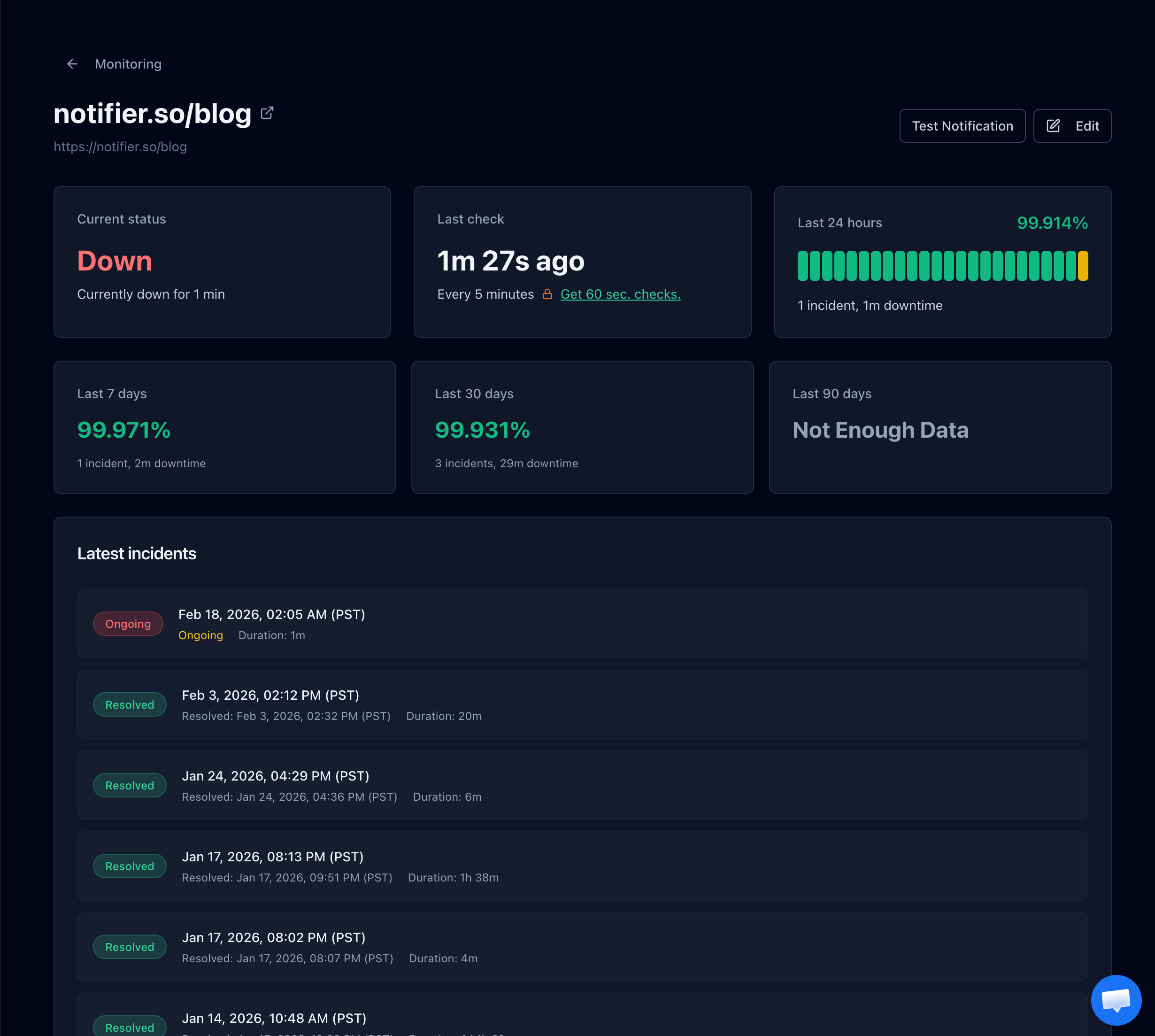
Notifier flags any unexpected status code, including a 403, as an incident so you find out before your visitors do.
Monitor Your Critical Paths, Not Just the Homepage
A single homepage monitor misses a 403 on your checkout or login page. Add a separate monitor for every path that matters: /login, /checkout, key landing pages, and any API endpoints. If a security rule starts blocking one of them, you want a dedicated alert for exactly that path.
Configure SMS or Phone Call Alerts
Email alerts are too slow when a firewall rule locks real customers out of your store. SMS and phone call alerts get your attention immediately. With Notifier, SMS and phone call alerts are available on every plan including free, so you do not have to pay extra to get paged when something breaks.
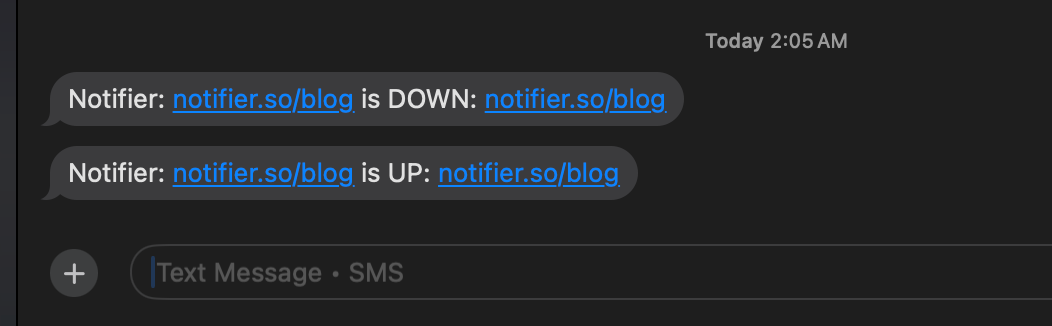
Notifier SMS alert showing both the downtime and recovery messages for a monitored URL.
Which Monitoring Tools Catch 403 Errors?
Every major uptime monitoring tool catches an unexpected 403 response. What varies is alert speed, whether SMS and phone alerts are included, whether SSL monitoring is bundled, and whether the free plan allows commercial use.
| Tool | Free Plan | SMS/Phone Alerts | SSL Monitoring | Paid Starts At |
|---|---|---|---|---|
| Notifier | 10 monitors, 5 min checks, commercial use OK | Yes, all plans (credit based) | Free on all plans | $4/mo |
| UptimeRobot | 50 monitors, non-commercial only | Paid only | Paid only | $8/mo |
| Better Stack | 10 monitors, 3 min checks | Paid plans | Yes | ~$24/mo |
| Pingdom | No free plan | Included on paid | Extra | ~$15/mo |
| StatusCake | 10 monitors, 5 min checks | Paid plans (extra cost) | Yes on paid | ~$24/mo |
Note on UptimeRobot's free plan
Since October 2024, UptimeRobot's free tier is restricted to personal, non-commercial use. If you are monitoring a business or client website, you need a paid plan or a different tool.
Frequently Asked Questions
What is the difference between a 401 and a 403 error?
A 401 Unauthorized means you are not authenticated, so logging in can fix it. A 403 Forbidden means the server knows who you are and still refuses access. Authenticating will not help with a genuine 403 because the refusal is about permission, not identity.
Why am I getting a 403 error on a website I could access yesterday?
The most likely causes are a security rule that recently flagged your IP, a stale cookie, or a VPN. Try clearing that site's cookies, disabling any VPN, and switching networks. If it works elsewhere, the site is blocking your original IP address, not you specifically.
What file permissions cause a 403 Forbidden error?
Directories should be 755 and files should be 644. If a folder is set to 700 or a file is set to 600, the web server user cannot read it and returns a 403. Never use 777 to fix this, since it is a security risk. The real fix is usually correcting file ownership to the web server user.
Is a 403 error bad for SEO?
Yes, if Googlebot hits it repeatedly. A 403 tells the crawler it is not allowed to index the page. If a page that should be public starts returning 403, Google will eventually drop it from the index. Accidentally 403ing Googlebot through an overzealous firewall rule is a common and costly mistake.
Why does my WordPress site show 403 after installing a plugin?
Security plugins like Wordfence and iThemes Security block requests they consider suspicious, and false positives are common. Deactivate the plugin (rename the plugins folder over SFTP if you are locked out), confirm the 403 clears, then reconfigure the plugin's firewall rules to stop blocking legitimate traffic.
Can Cloudflare cause a 403 error?
Yes. Cloudflare's Web Application Firewall, custom firewall rules, rate limiting, and country blocks can all return a 403 before the request reaches your origin. A Cloudflare 403 shows a Ray ID. Use that Ray ID in the Security Events log to find and adjust the exact rule that fired.
How do I get alerted when a page returns a 403?
Set up external uptime monitoring on that specific URL. A tool like Notifier treats any unexpected status code, including 403, as an incident and alerts you by email, SMS, or phone call. Monitor your critical paths individually (login, checkout, key landing pages) so a 403 on one page does not go unnoticed.