At a Glance
- •ERR_TOO_MANY_REDIRECTS means your browser got stuck in a loop where page A sends you to page B, which sends you back to page A, over and over, until the browser gives up. The redirect never resolves to a real page.
- •The fastest visitor-side fix: clear the cookies for that specific site, then reload. A stale or conflicting cookie is the single most common cause you can fix yourself.
- •If you own the site, the usual culprits are a Cloudflare SSL mode set to Flexible while the server also forces HTTPS, conflicting www to non-www rules, or a WordPress site URL that fights a redirect plugin or .htaccess rule.
- •Use curl -IL to follow the redirect chain from the command line and see exactly which two URLs are bouncing off each other. That single command usually finds the loop in seconds.
- •Notifier follows redirects when it checks your site and alerts you the moment a page starts returning errors, free for up to 10 URLs. Paid plans start at $4/month for 1-minute checks and SMS or phone alerts.
You open a page and instead of loading, the browser tells you the site "redirected you too many times" with the code ERR_TOO_MANY_REDIRECTS. The page never appears. This happens when a website gets stuck in a redirect loop: one address sends you to a second, the second sends you back to the first, and the browser bounces between them until it gives up. This guide covers every fix, from the 30 second cookie clear to the server-side misconfigurations you need to solve if the site is yours.
What ERR_TOO_MANY_REDIRECTS Actually Means
A redirect is a normal part of the web. When you visit an old URL, the server can send back a response that says "this page has moved, go here instead," and your browser follows it. ERR_TOO_MANY_REDIRECTS means the browser followed a chain of these instructions and never arrived anywhere real. Page A pointed to page B, and page B pointed straight back to page A, forming an infinite loop.
Browsers cap how many redirects they will follow, usually around 20, before they stop and show the error. This is a safety mechanism. Without it, your browser would spin forever. The error is different from a timeout or a 404, because the server is responding perfectly well. It is just giving instructions that contradict each other.
Every browser shows its own wording for the same problem:
- Chrome and Edge: "This page isn't working" with the code ERR_TOO_MANY_REDIRECTS.
- Firefox: "The page isn't redirecting properly."
- Safari: "Safari can't open the page because too many redirects occurred."
The cause falls into two buckets. Either something on your device (usually a stale cookie) is confusing the site, or the website itself is misconfigured and sending contradictory redirects to everyone. If the page loads fine for other people but not for you, start with the quick fixes below. If it fails for everyone and the site is yours, jump to the section on fixing it as the site owner.
Quick Fixes to Try First (Under 5 Minutes)
If you are a visitor and only some sites show this error, the fix is almost always on your side. Work through these in order.
1. Clear the cookies for that one site
This is the single most effective fix. A corrupted or conflicting cookie can trigger a redirect loop, for example when a login cookie tells the site you are signed out but the page you land on requires you to be signed in. Clear cookies for just that domain rather than wiping every site you use. In Chrome:
Open the site, click the icon left of the address bar
> Cookies and site data > Manage on-device site data > Delete

# Or go directly to:
chrome://settings/content/all
Search for the site's domain, remove its stored data, then reload. This clears the bad cookie without logging you out of everything else.
2. Try incognito or a private window
A private window ignores your existing cookies, cache, and extensions. If the page loads there, you have confirmed the problem is local data, and clearing the site's cookies will fix your normal window too.
3. Clear your browser cache
A cached redirect can keep sending you in circles even after the site has been fixed. Clear cached files so the browser fetches fresh instructions. In Chrome, go to chrome://settings/clearBrowserData, choose "Cached images and files" and "Cookies and other site data," then clear and reload.
4. Check the URL and try HTTP or HTTPS
Sometimes the loop is triggered by the exact address you typed. Try loading the site with and without www, and confirm you are using https://. If one version works and another loops, the site owner has a redirect rule pointed the wrong way, but at least you can reach the page in the meantime.
5. Disable extensions and try another browser
Some privacy and security extensions force HTTPS or rewrite URLs in ways that can create loops. Disable extensions one at a time, or open the site in a different browser. If it works elsewhere, an extension in your main browser is the cause.
Clearing Cookies by Browser and Device
Because clearing site cookies is the fix that works most often, here is exactly where to find it in each major browser.
Chrome and Edge (desktop)
Click the tune or lock icon to the left of the address bar while on the site, then choose "Cookies and site data" and delete the stored data. To clear everything, use chrome://settings/clearBrowserData in Chrome or edge://settings/clearBrowserData in Edge and select "Cookies and other site data."
Firefox
Open Settings > Privacy & Security > Cookies and Site Data > Manage Data. Search for the site's domain, select it, click Remove Selected, then save changes and reload.
Safari (Mac)
Go to Safari > Settings > Privacy > Manage Website Data. Search for the domain, select it, and click Remove. Then reload the page.
Mobile (Android and iOS)
On Chrome for Android, open the three dot menu > Settings > Site settings > find the site > Clear & reset. On Safari for iOS, the cleanest option is Settings > Safari > Advanced > Website Data, then search for the site and swipe to delete its entry. A private tab is the fastest way to confirm the loop is caused by stored cookies.
If You Own the Site and Visitors See This Error
When ERR_TOO_MANY_REDIRECTS hits your own visitors, it is a full outage. Nobody can reach the page, and clearing their cookies is not something you can ask every visitor to do. The good news is that a redirect loop is a configuration problem, so once you find the two rules fighting each other, the fix is usually quick. Start by tracing the chain.
1. Trace the redirect chain with curl
Before changing anything, see exactly where the loop is. The -IL flags tell curl to follow redirects and print each response header, so you can watch the chain bounce:
# Follow the full redirect chain and show each hop
curl -IL https://example.com

# Look for the Location headers. A loop looks like this:
# HTTP/2 301  Location: https://www.example.com/
# HTTP/2 301  Location: https://example.com/
# HTTP/2 301  Location: https://www.example.com/   <-- bouncing forever
The two URLs that keep swapping are your loop. Once you can name them, you know which rules to look at.
2. Fix the Cloudflare SSL mode (the most common cause)
If your site sits behind Cloudflare, the number one cause is the SSL/TLS encryption mode set to Flexible while your origin server also forces HTTPS. Here is the loop: Cloudflare talks to your server over plain HTTP, your server sees HTTP and redirects to HTTPS, that request goes back to Cloudflare, which again forwards it as HTTP, and the cycle never ends.
The fix is to set the encryption mode correctly. In the Cloudflare dashboard, go to SSL/TLS > Overview and change the mode:
- Full (strict): use this if your origin has a valid certificate. It is the recommended, most secure setting.
- Full: use this if your origin has a self-signed or non-matching certificate but still serves HTTPS.
- Avoid Flexible whenever your server also forces HTTPS. That combination is what creates the loop.
3. Fix conflicting www and HTTPS redirect rules
A classic self-inflicted loop is having two rules that disagree, for example one that forces the naked domain and another that forces www. Pick a single canonical version of your URL and make every rule point to it. On Apache, a clean redirect to HTTPS and non-www looks like this:
# .htaccess: force HTTPS and non-www, once, without looping
RewriteEngine On
RewriteCond %{HTTPS} off [OR]
RewriteCond %{HTTP_HOST} ^www\. [NC]
RewriteCond %{HTTP_HOST} ^(?:www\.)?(.+)$ [NC]
RewriteRule ^ https://%1%{REQUEST_URI} [L,R=301]
The equivalent on Nginx is to send both HTTP and the www host to the canonical URL in a single server block, and never redirect the canonical URL back to itself:
# Nginx: redirect www and HTTP to the canonical https://example.com
server {
    listen 80;
    server_name example.com www.example.com;
    return 301 https://example.com$request_uri;
}
server {
    listen 443 ssl;
    server_name www.example.com;
    return 301 https://example.com$request_uri;
}
# The canonical https://example.com block serves the site, no redirect
4. Fix a WordPress redirect loop
WordPress loops usually come from the site address settings, a redirect plugin, or a caching plugin holding an old redirect. Check these in order:
- Site URL settings: in Settings > General, confirm the WordPress Address and Site Address both use the same scheme and host (for example both
https://example.comwith no www). A mismatch here loops instantly. - Redirect plugins: disable any redirect, HTTPS, or "really simple SSL" style plugin temporarily. If the loop stops, that plugin was fighting your server rules.
- wp-config overrides: if you have set WP_HOME and WP_SITEURL in wp-config.php, make sure they match your General settings and your server redirects.
- Clear the cache: purge any caching plugin and your CDN so old redirect responses stop being served.
If you host a WordPress site, our guide on WordPress uptime monitoring covers how to catch problems like this the moment they take the site offline.
Common Causes and Where the Fix Lives
Use this table to jump straight to the likely cause based on what you are seeing.
| Cause | Clue | Where to Fix It |
|---|---|---|
| Corrupted site cookie | Loads in incognito, fails normally | Your browser |
| Cached redirect | Persists after the site was fixed | Your browser |
| HTTPS-forcing extension | Works in another browser | Your browser |
| Cloudflare Flexible SSL | Down for everyone, site uses Cloudflare | Cloudflare SSL mode |
| Conflicting www rules | curl shows two URLs bouncing | Server config |
| WordPress URL mismatch | Loops right after a URL or SSL change | WordPress settings |
| Redirect or cache plugin | Stops when the plugin is disabled | Plugin config |
If your checks point to the server side, the next section covers how to know about a broken redirect the moment it starts instead of hearing about it from a frustrated customer.
How to Catch a Broken Redirect Before Your Visitors Do
Redirect loops almost always appear right after a change: switching to HTTPS, adding Cloudflare, installing an SSL plugin, or editing an .htaccess rule. The problem is that you rarely test every entry point after a change, so the loop can sit live for hours before someone tells you the site is down. The only reliable way to know immediately is external monitoring: a service that loads your site from outside your network on a schedule and alerts you the instant it stops resolving to a working page.
With Notifier, setup takes about a minute. You add your URL, choose how often to check it, and pick your alert channels. Notifier follows redirects the way a real browser does, so when a page loops instead of loading, the check fails and you get an alert by email, SMS, phone call, or Slack, often within seconds.
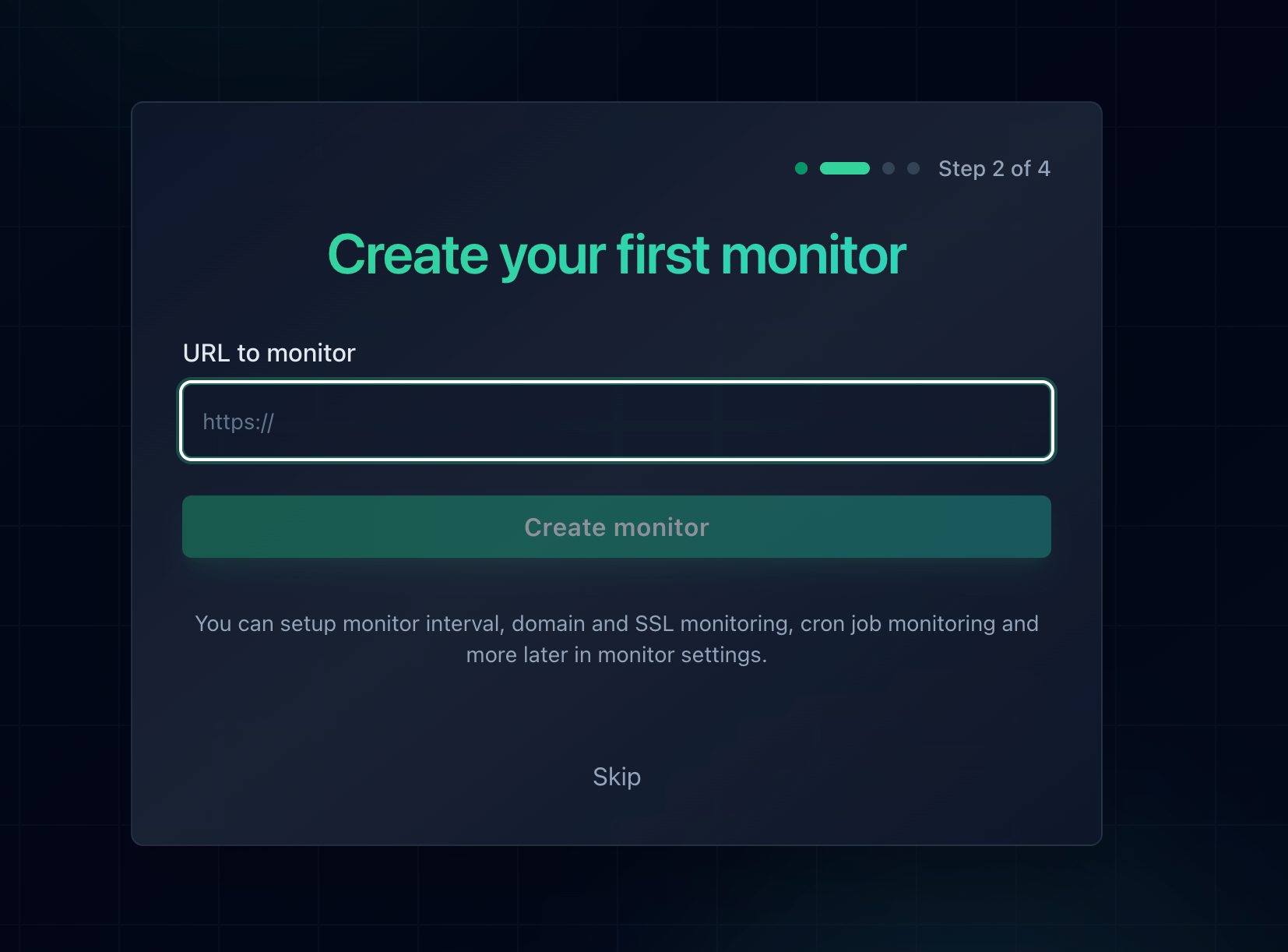
Adding a monitor in Notifier. Response time and SSL certificate tracking are enabled automatically for every URL.
Because Notifier checks from outside your infrastructure, it sees exactly what a visitor sees. If a deploy or a Cloudflare change introduces a redirect loop, the monitor catches the failure and shows you when it started, so you can tie the outage to the change that caused it and roll it back fast.
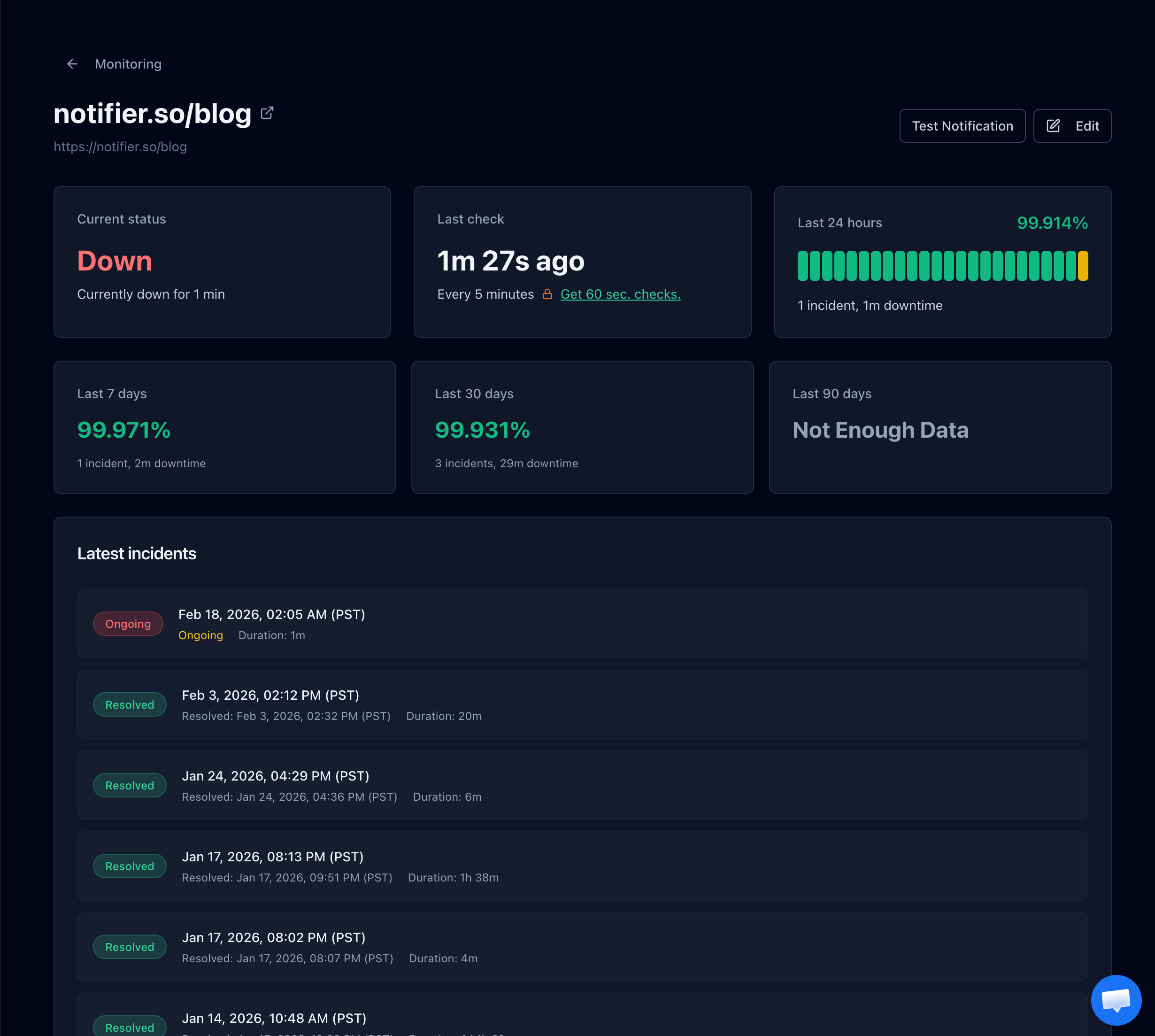
A Notifier monitor detail page showing status, uptime history, and the incident timeline so you can see exactly when a page broke.
What Notifier checks for you:
- Uptime: confirms your site resolves to a real, working page from outside your network.
- Response time: tracks how long each check takes so you catch slowdowns early.
- SSL certificates: alerts you 30 days before a certificate expires, free on every plan.
- DNS resolution: verifies your domain still resolves so a DNS failure does not silently take you offline.
The free plan covers 10 URLs, 5 status pages, and email plus SMS and phone alerts. Paid plans start at $4/month for 1-minute check intervals. There is no credit card required to start. For a broader walkthrough, see how to set up website monitoring, or if you are still diagnosing, how to check if a website is down.
Frequently Asked Questions
Is ERR_TOO_MANY_REDIRECTS my fault or the website's?
It can be either. Open the page in an incognito or private window. If it loads there, the problem is a stale cookie or cached redirect on your side, and clearing that site's cookies will fix it. If it still loops in incognito and other people cannot reach the page either, the website itself is misconfigured. When the site is yours, treat a loop that everyone sees as a real outage.
How do I clear cookies for just one site instead of all of them?
In Chrome, while you are on the site, click the icon to the left of the address bar, choose Cookies and site data, and delete the stored data for that domain. In Firefox, use Settings > Privacy & Security > Cookies and Site Data > Manage Data and search for the domain. In Safari, use Settings > Privacy > Manage Website Data. This removes only that site's cookies, so you stay logged in everywhere else.
Why does Cloudflare cause ERR_TOO_MANY_REDIRECTS?
It happens when the Cloudflare SSL/TLS mode is set to Flexible while your origin server also forces HTTPS. Cloudflare sends the request to your server over plain HTTP, your server redirects it to HTTPS, that request returns to Cloudflare, which forwards it as HTTP again, and the loop never ends. The fix is to change the SSL/TLS mode to Full or Full (strict) in the Cloudflare dashboard so the origin connection matches what your server expects.
How do I fix a redirect loop in WordPress?
Check three things in order. First, confirm the WordPress Address and Site Address in Settings > General use the same scheme and host, for example both https and both without www. Second, disable any redirect, SSL, or caching plugin temporarily to see if one of them is fighting your server rules. Third, if you set WP_HOME and WP_SITEURL in wp-config.php, make sure they match your General settings. Then clear your cache and CDN so old redirects stop being served.
How can I see exactly where the redirect loop is?
Run curl -IL https://yoursite.com from a terminal. The -L flag follows redirects and -I prints the headers of each hop. Look at the Location header on each line. When you see the same two URLs alternating, those are the two rules bouncing off each other. That tells you exactly which redirect to fix, whether it lives in Cloudflare, your server config, or a plugin.
Does ERR_TOO_MANY_REDIRECTS mean my site is hacked?
Almost never. It is a configuration problem, not a security breach. The usual causes are a mismatched SSL mode, conflicting www or HTTPS rules, or a plugin conflict, all of which appear right after a change you or your host made. In rare cases malware can inject redirects, so if you cannot find a configuration cause and you see redirects to unfamiliar domains, scan the site. But in the vast majority of cases, the loop is just two rules disagreeing.
How do I get notified when my own site breaks like this?
Use external uptime monitoring. A service like Notifier loads your site from outside your network on a schedule, follows redirects like a real browser, and alerts you by email, SMS, phone call, or Slack the moment a page loops or stops resolving. This is the only way to know about a broken redirect before your visitors report it. Notifier's free plan covers 10 URLs with response time and SSL monitoring included, and paid plans start at $4/month for 1-minute checks.