At a Glance
- •Webflow sites go down due to platform outages (AWS infrastructure), custom domain DNS misconfiguration, SSL provisioning failures, and issues with CMS-heavy pages that hit API rate limits.
- •Monitor your published site URL, key CMS collection pages, form submission endpoints, and staging versus production separately. Check intervals of 1 to 5 minutes cover most Webflow sites.
- •SSL certificates on Webflow custom domains are provisioned automatically, but DNS misconfigurations can block renewal. SSL monitoring catches these failures before visitors see security warnings.
- •Agencies managing multiple Webflow client sites can monitor all of them from one dashboard and create per-client public status pages to demonstrate reliability.
- •Notifier monitors Webflow sites (including SSL certificates) free for up to 10 URLs with email, SMS, and phone call alerts on every plan. Paid plans start at $4/month for 1 minute check intervals.
Webflow has become the go-to platform for designers, freelancers, and agencies building marketing sites, portfolios, and CMS-powered content hubs. Webflow handles hosting on AWS infrastructure, so most users assume their site is always online. But Webflow sites go down, and Webflow will not tell you when it happens.
If you are a freelancer running your own Webflow site, you need to know when your site is unreachable. If you are an agency managing ten, twenty, or fifty client Webflow projects, the stakes are even higher. A client discovering their own site is down before you do is a conversation nobody wants to have.
This guide covers everything you need to monitor on a Webflow site, why Webflow sites go down, how to set up monitoring in minutes, and how agencies can scale monitoring across dozens of client projects from a single dashboard.
Why Webflow Sites Go Down
Webflow is a managed hosting platform built on top of AWS and Fastly's CDN. That infrastructure is reliable, but "reliable" does not mean "never goes down." Here are the specific failure modes that affect Webflow sites.
1. Webflow Platform Outages
Webflow runs on AWS infrastructure and uses Fastly as its CDN. When either service has an incident, every Webflow hosted site is affected. Webflow maintains a status page at status.webflow.com, but platform-wide outages happen several times per year. These range from brief degradations lasting minutes to full outages lasting hours. External monitoring detects these faster than Webflow's own status page, which can lag 10 to 20 minutes behind the actual start of an incident.
2. Custom Domain DNS Misconfiguration
Connecting a custom domain to Webflow requires adding specific DNS records: an A record pointing to Webflow's IP address and a CNAME record for the www subdomain. If these records are wrong, stale, or conflicting with records from a previous hosting provider, your site becomes unreachable on your custom domain while the yourproject.webflow.io subdomain continues to work fine.
This is one of the most common Webflow issues, especially after domain transfers or registrar changes. A site that was working yesterday can suddenly break because a DNS record expired or was overwritten. For more on diagnosing this type of problem, see our guide on checking if a site is down for everyone or just you.
3. SSL Certificate Issues
Webflow provides free SSL certificates through Let's Encrypt for all custom domains. These certificates are provisioned automatically when you connect your domain and renew automatically every 90 days. But if your DNS configuration is incorrect at the time of renewal, the certificate cannot be verified and renewal fails. When the old certificate expires, visitors see browser security warnings ("Your connection is not private") or cannot access your site over HTTPS at all.
This failure mode is particularly dangerous because it happens silently. Everything appears fine in the Webflow Designer. You might not realize your SSL certificate has expired until a visitor reports it. For a deeper look at this problem, see our SSL certificate monitoring guide.
4. CMS Collection Page Failures
Webflow's CMS is powerful, but CMS-heavy sites can hit performance limits. Large collection lists (hundreds or thousands of items), nested references, and complex filtering can cause slow load times or timeouts on specific pages while the rest of your site loads normally. Webflow imposes a limit of 10,000 CMS items per site, and sites approaching that limit often experience degraded performance on collection pages.
This type of failure is easy to miss because your homepage loads fine. Only the specific collection pages are affected. Monitoring just your homepage would not catch it.
5. Form Submission Failures
Webflow includes native form handling, but forms can fail independently of the rest of your site. Webflow's form submission limits vary by hosting plan (100 submissions per month on the free plan, 2,500 on CMS plans). When you hit the limit, forms stop working silently. The page loads fine, the form appears normal, but submissions do not go through. If you rely on third-party form processors (Zapier, Make, or custom webhooks), those integrations can also break without affecting the page itself.
6. CDN and Caching Issues
Webflow uses Fastly's CDN to serve sites from edge locations around the world. Occasionally, CDN cache purges fail after publishing changes, resulting in visitors seeing stale content or broken layouts. Regional CDN outages can also make your site inaccessible in specific geographic areas while it works fine in others. Multi-location monitoring is the only way to detect regional availability issues.
What to Monitor on a Webflow Site
Not every page on your Webflow site needs its own monitor. Focus on the URLs that matter most to your business and the ones most likely to break independently.
| What to Monitor | Why | Check Interval |
|---|---|---|
| Homepage | Your most visited page. If this is down, everything is likely down. | 1 to 5 min |
| Key landing pages | Pages receiving paid traffic. Downtime means wasted ad spend. | 1 to 5 min |
| CMS collection pages | Blog posts, case studies, resource pages. Can fail independently from static pages. | 5 min |
| Contact/lead gen forms | If the page with your form is down, you are losing leads. | 1 to 5 min |
| E-commerce product pages | Revenue-critical pages on Webflow E-commerce sites. | 1 min |
| SSL certificate | Catch renewal failures before visitors see security warnings. | Automatic |
| Custom domain DNS | Detect DNS misconfigurations that make your site unreachable. | Automatic |
Pro tip: Monitor a CMS page, not just the homepage
If your Webflow site is CMS-heavy (blog, directory, resource library), add a monitor for at least one CMS collection page in addition to your homepage. CMS pages pull data from Webflow's API layer, which can fail independently from your static pages. A monitor on yoursite.com/blog/your-latest-post catches CMS-specific issues that a homepage check would miss entirely.
How to Set Up Monitoring for Your Webflow Site
Setting up uptime monitoring for a Webflow site takes about two minutes. Here is a step-by-step walkthrough using Notifier.
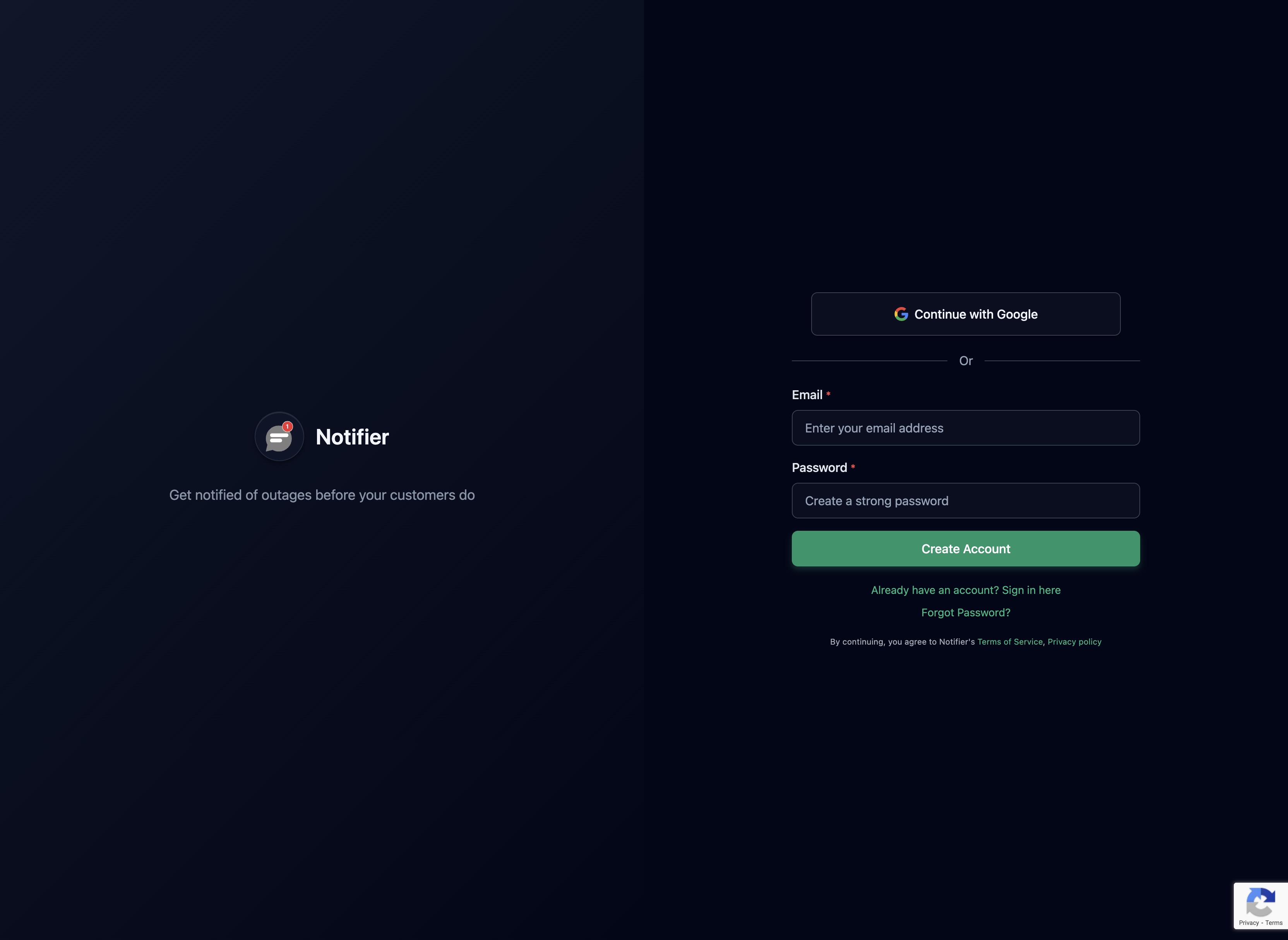
Step 1: Create an Account
Sign up at notifier.so/register. No credit card required. The free plan includes 10 monitors, 5 status pages, and SSL certificate monitoring.
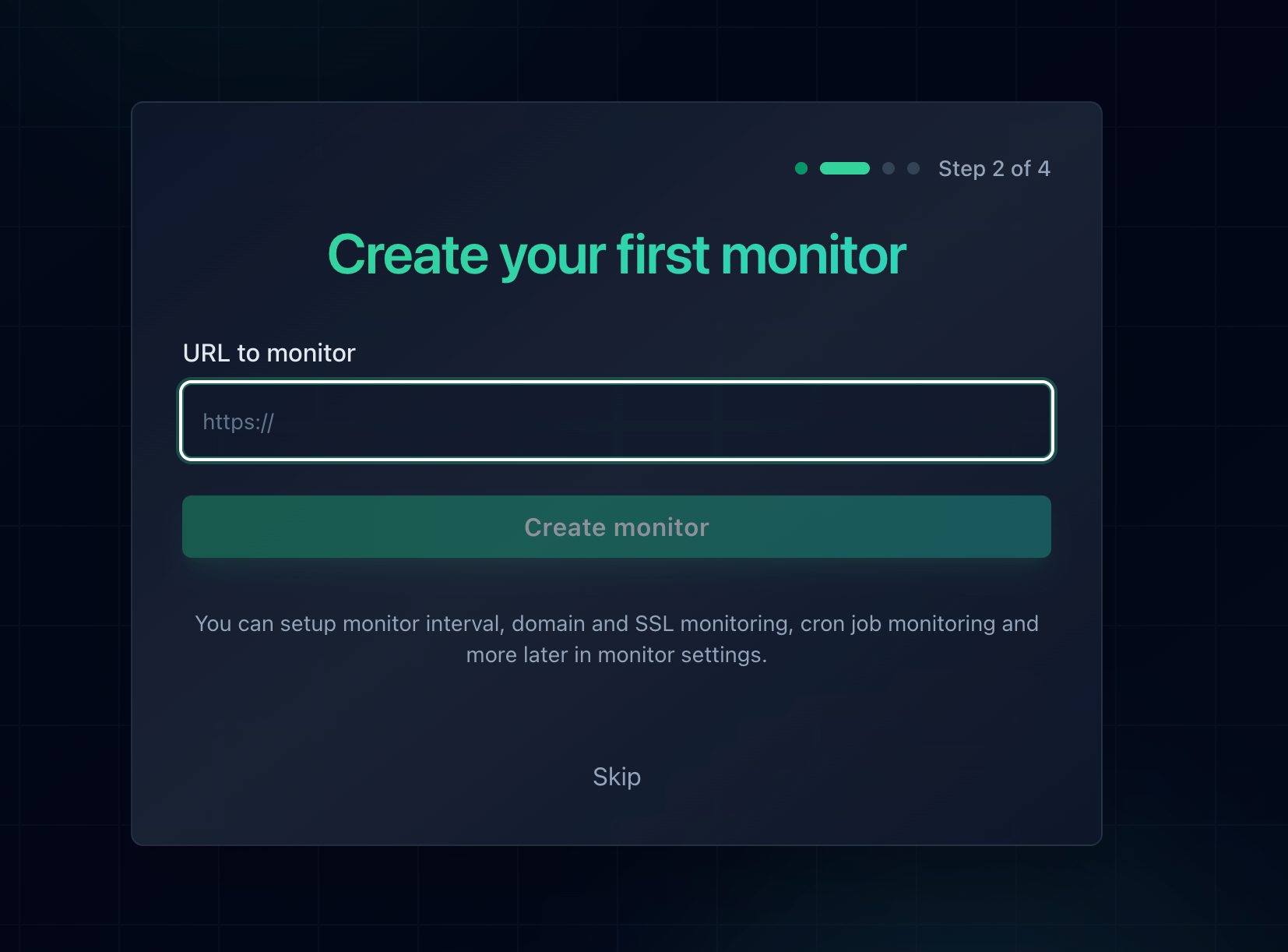
Step 2: Add Your Webflow Site URL
Click "Add Monitor" and enter your Webflow site's custom domain URL (e.g., https://yoursite.com). Use the custom domain, not the .webflow.io subdomain. You want to monitor what your visitors actually see, which includes your DNS configuration and SSL certificate.
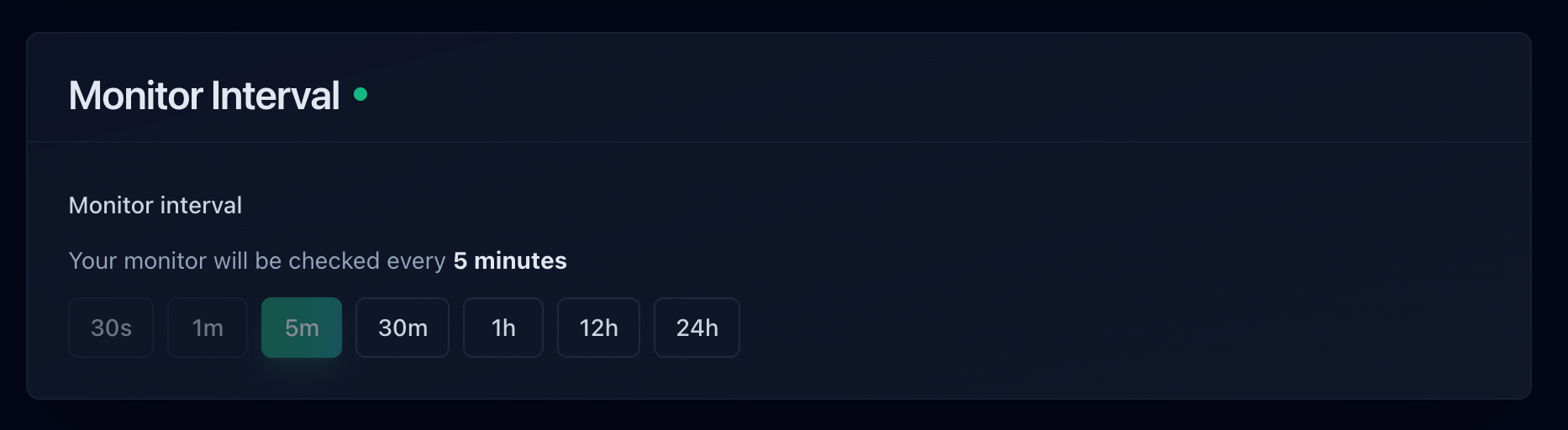
Step 3: Set Your Check Interval
Choose how frequently Notifier checks your site. The free plan checks every 5 minutes. For business sites and client projects, the Solo plan ($4/month) offers 1 minute intervals, and the Team plan ($19/month) checks as often as every 30 seconds.
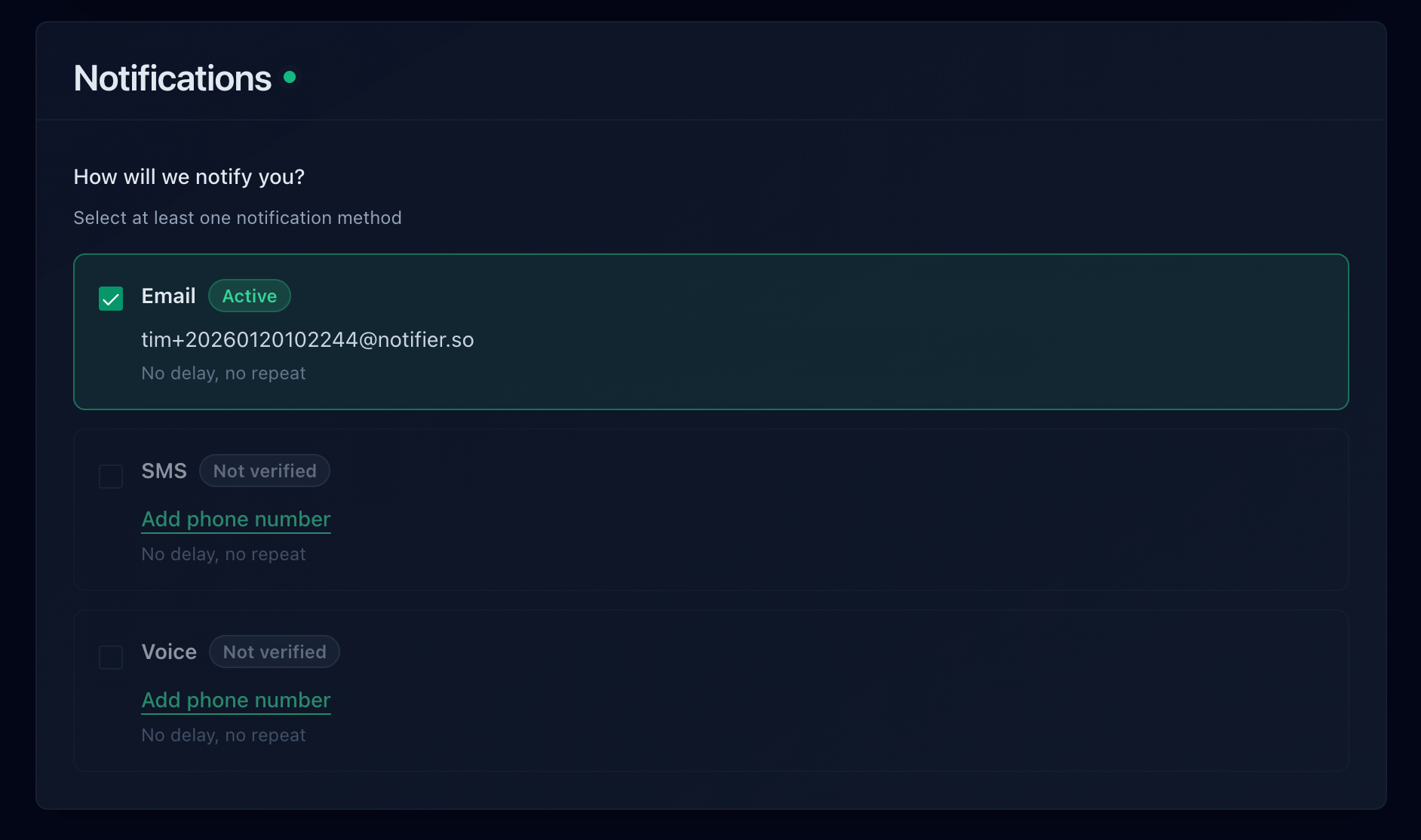
Step 4: Configure Alerts
Choose how you want to be notified when your Webflow site goes down. Notifier supports email, SMS, phone calls, and Slack on every plan (including free). SMS and phone call alerts use a credit-based system, so you can add them even on the free tier.
For Webflow agency work, Slack alerts sent to a dedicated channel work well for teams. You can route different client sites to different Slack channels so alerts stay organized. See our Slack alerts guide for setup details.
Step 5: Add Additional Monitors
Repeat the process for your key CMS pages, landing pages, and any other critical URLs. If you are on the free plan, you have 10 monitors to work with. That is typically enough for a single Webflow site with several important pages. For agencies managing multiple sites, the Team plan ($19/month) includes 100 monitors.
Quick check with curl
Before adding a monitor, verify your Webflow site is responding correctly from the command line:
curl -s -o /dev/null -w "Status: %{http_code}\nTime: %{time_total}s\n" https://yoursite.com
You should see Status: 200 and a total time under 2 seconds. If the status is anything other than 200, there is already an issue to investigate before setting up monitoring.
Agency Workflow: Monitoring Multiple Client Webflow Sites
If you are a Webflow agency or freelancer managing sites for multiple clients, monitoring is not optional. It is part of the service you provide. Here is how to structure monitoring at scale.
One Dashboard, All Client Sites
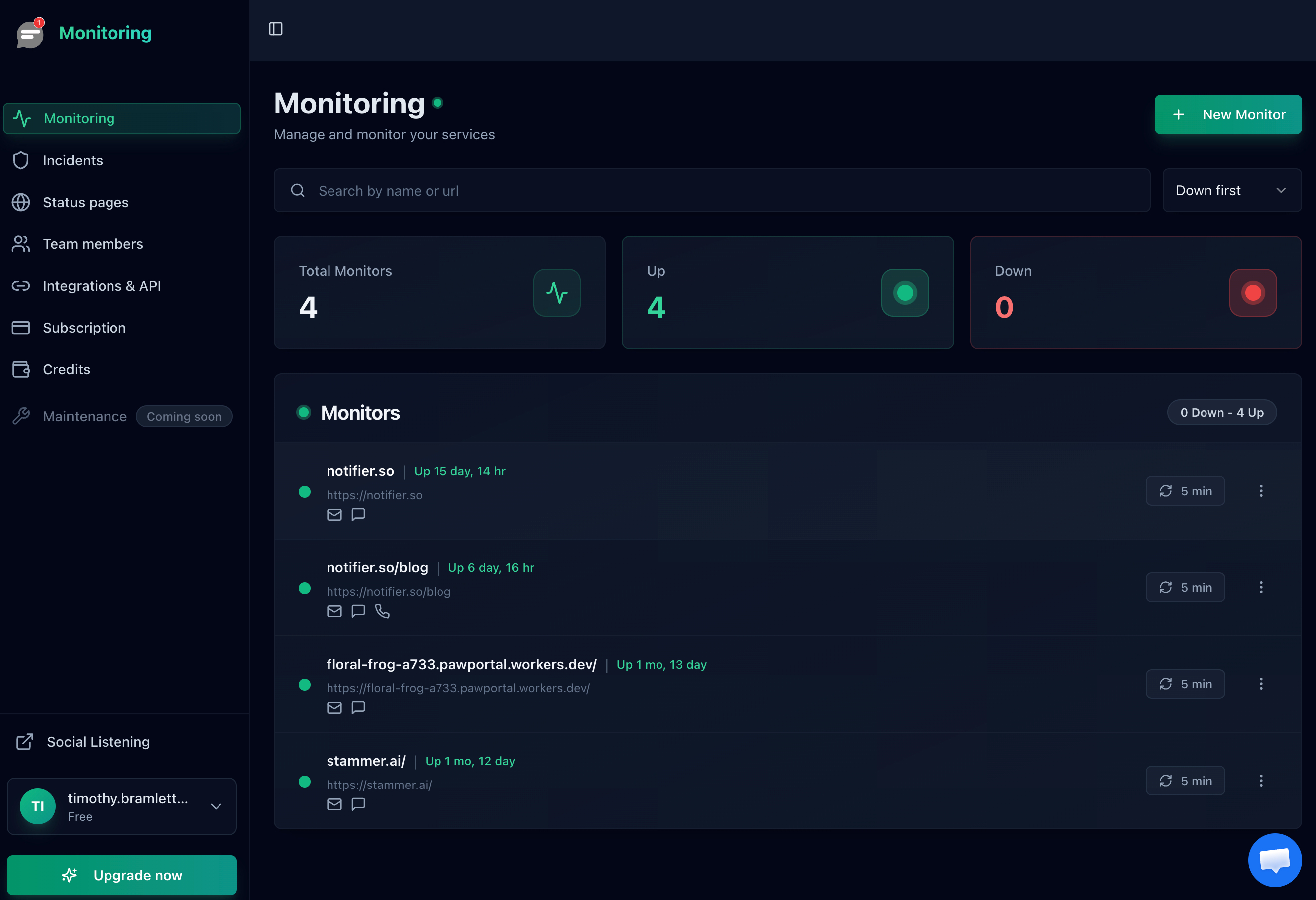
Add all your client Webflow sites to a single Notifier account. The dashboard gives you a single view of every site's current status, response time, and uptime history. When a client calls asking "Is my site down?", you already have the answer.
Per-Client Status Pages
Create a public status page for each client so they can check their own site's uptime status at any time. This serves two purposes: it demonstrates transparency and professionalism, and it reduces "is it down?" support messages from clients.
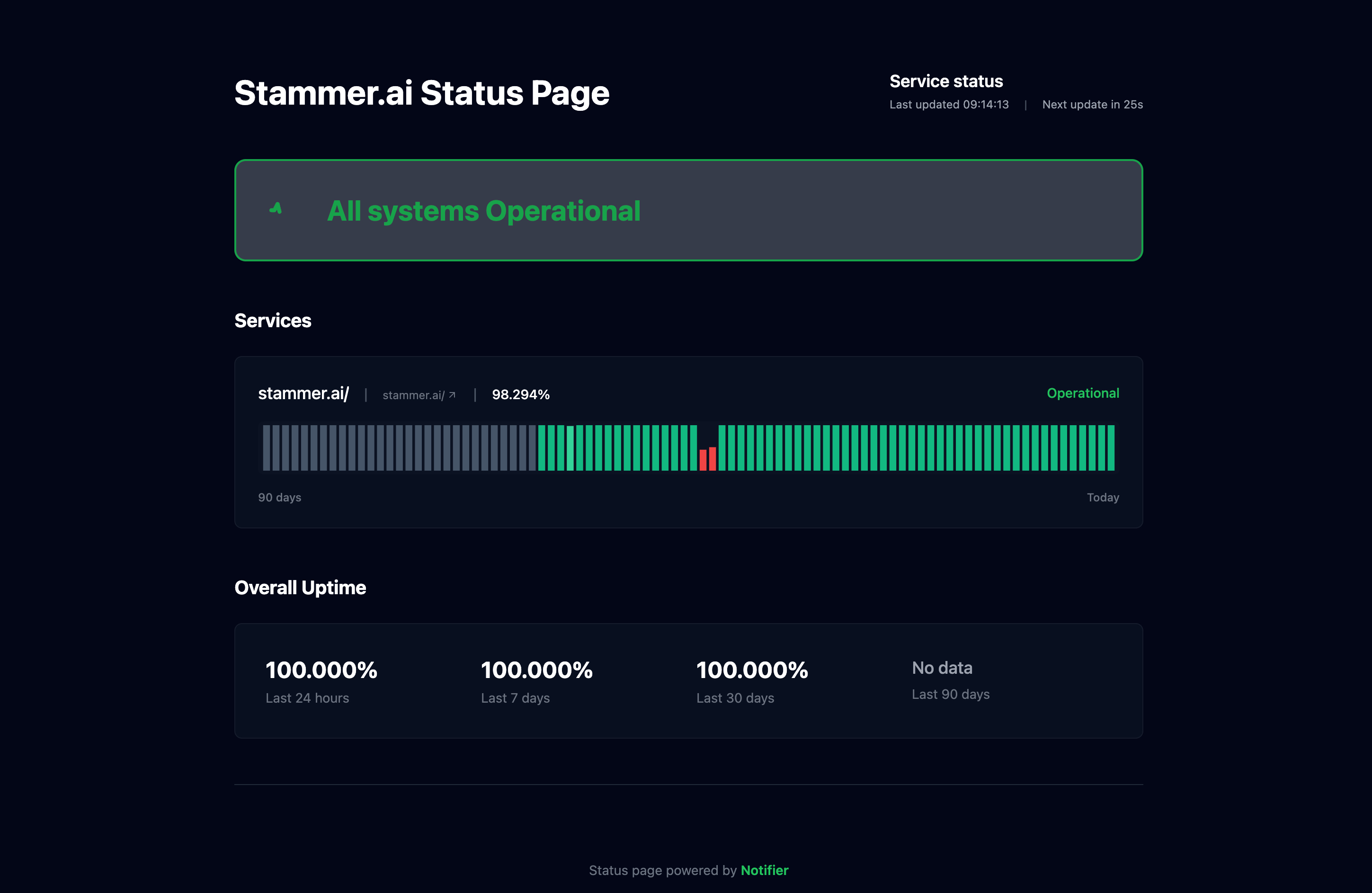
The free plan includes 5 status pages. For agencies with more than 5 clients, the Solo plan ($4/month) includes 10, the Team plan ($19/month) includes 50, and the Enterprise plan ($35/month) offers unlimited status pages. On paid plans, you can use custom domains for status pages, allowing you to host them at something like status.clientsite.com. For a detailed walkthrough, see our guide to creating a status page.
How Many Monitors Do You Need?
As a rough guide, budget 2 to 4 monitors per client Webflow site: homepage, one key landing or CMS page, and optionally a form page and an e-commerce page. Here is how that scales across Notifier's plans:
| Plan | Monitors | Status Pages | Client Sites (at 3 monitors each) | Price |
|---|---|---|---|---|
| Free | 10 | 5 | 3 sites | $0 |
| Solo | 20 | 10 | 6 sites | $4/mo |
| Team | 100 | 50 | 33 sites | $19/mo |
| Enterprise | 200 | Unlimited | 66 sites | $35/mo |
Organize Alerts by Client
If your agency uses Slack, create a dedicated Slack channel for each client or a single #webflow-monitoring channel for all alerts. Route each monitor's alerts to the appropriate channel. This keeps client alerts organized and ensures the right team members see the right notifications.
For agencies that offer ongoing website maintenance retainers, monitoring data (uptime percentage, response time trends, incidents resolved) makes excellent material for monthly client reports. It is concrete proof of the value you provide.
SSL and Domain Monitoring for Webflow
SSL and DNS issues are the most common "invisible" failures on Webflow sites. The site looks fine in the Webflow Designer, but visitors cannot reach it or see security warnings.
SSL Certificate Monitoring
Webflow uses Let's Encrypt certificates that renew every 90 days. With the upcoming shift to 47-day certificate lifecycles (expected by late 2026), renewal frequency will nearly double. If a single renewal fails because of a DNS issue, your site is exposed.
Notifier monitors SSL certificates on every plan, including the free tier. You will receive an alert before your certificate expires, giving you time to fix the DNS misconfiguration or contact your domain registrar. This alone can prevent one of the most common Webflow outages.
DNS Monitoring
DNS monitoring checks that your domain resolves to the correct IP address. If someone at the domain registrar accidentally changes a record, or if a DNS record expires, you will know immediately rather than finding out hours later when a client or visitor reports the problem.
This is especially important for Webflow sites because the custom domain DNS setup is a manual process. Unlike platforms where the hosting provider controls your DNS, Webflow requires you to manage DNS records at your registrar. Any accidental change breaks the connection between your domain and your Webflow site.
Verify Your DNS Is Correct
You can quickly check your Webflow DNS configuration from the command line:
# Check A record
dig +short yoursite.com A

# Check CNAME for www subdomain
dig +short www.yoursite.com CNAME

# Check SSL certificate details
echo | openssl s_client -connect yoursite.com:443 2>/dev/null | openssl x509 -noout -subject -enddate
The A record should point to Webflow's IP address (currently 75.2.70.75). The CNAME for www should point to proxy-ssl.webflow.com. If either of these is wrong, your site will not resolve correctly.
Monitoring Staging vs Production
Every Webflow project has two URLs: the staging URL (yourproject.webflow.io) and the production URL (your custom domain). These are different systems, and they can behave differently.
| Aspect | Staging (.webflow.io) | Production (custom domain) |
|---|---|---|
| DNS | Managed by Webflow | Managed by you (your registrar) |
| SSL | Webflow handles everything | Depends on your DNS being correct |
| CDN caching | Less aggressive caching | Full CDN caching (Fastly) |
| Content | Updates immediately on publish | May have CDN cache delay |
Always monitor your production URL (custom domain). That is what your visitors see. The staging URL is useful as a secondary check: if your custom domain is down but the .webflow.io URL works, the issue is with your DNS or SSL configuration, not with Webflow's platform.
For agencies doing active development, monitoring the staging URL during a project launch can catch publishing issues before they affect the live site.
Monitoring Tools for Webflow Sites Compared
Any external uptime monitoring tool works with Webflow, since Webflow sites are just websites. But some tools are better suited for Webflow users (especially agencies) than others. Here is how the main options compare.
| Tool | Free Tier | SSL Monitoring | Status Pages | Best For |
|---|---|---|---|---|
| Notifier | 10 monitors, 5 min checks | All plans (free included) | 5 free, up to unlimited | Freelancers and agencies managing multiple client sites |
| UptimeRobot | 50 monitors, 5 min checks | Yes | 1 free, limited | Personal projects only (free tier restricted to non-commercial use since October 2024) |
| Better Stack | 10 monitors, 3 min checks | All plans | 1 free | Teams that also need incident management and on-call scheduling |
| StatusCake | 10 monitors, 5 min checks | Paid only | Paid only | Users who need page speed monitoring |
| Pingdom | No free tier | All plans | 1 included | Enterprise teams with budget (starts at $15/month) |
For Webflow agencies, the key factors are: enough monitors to cover multiple client sites, status pages to share with clients, SSL monitoring included on all plans, and pricing that scales reasonably as you add clients. Notifier checks all of those boxes, with the Team plan covering up to 33 client sites at 3 monitors each for $19/month.
If you are currently using UptimeRobot for free, be aware that their free tier has been restricted to non-commercial use since October 2024. Monitoring client Webflow sites is commercial use. See our UptimeRobot alternatives guide for a full comparison.
Frequently Asked Questions
Does Webflow have built-in uptime monitoring?
No. Webflow does not offer any built-in uptime monitoring or downtime alerts. Webflow maintains a public status page at status.webflow.com for platform-wide incidents, but it does not monitor your individual site or alert you when your specific site goes down. You need an external monitoring service for that.
Why is my Webflow site down but the .webflow.io URL works?
This almost always means the issue is with your custom domain's DNS configuration or SSL certificate, not with Webflow's platform. Check that your A record points to Webflow's IP address (75.2.70.75) and that your www CNAME points to proxy-ssl.webflow.com. Also verify that your SSL certificate has not expired by checking the SSL settings in your Webflow project's hosting tab.
How often should I monitor my Webflow site?
For a personal portfolio or blog, 5 minute checks are sufficient (available free on Notifier). For business sites, landing pages receiving paid traffic, or client projects, 1 minute checks ($4/month Solo plan) catch issues faster. For Webflow E-commerce stores, 30 second checks ($19/month Team plan) minimize revenue loss during outages.
Can I monitor Webflow form submissions?
HTTP monitoring can verify that the page containing your form loads correctly, but it cannot simulate an actual form submission. If the form page returns a 200 status code, the page is accessible. To catch issues with Webflow's form processing backend (such as hitting submission limits), check your Webflow form submissions dashboard regularly. If you use third-party form processors like Zapier or Make, monitor those endpoints separately.
How do I monitor multiple Webflow client sites as an agency?
Add all client sites to a single Notifier account. The Team plan ($19/month) includes 100 monitors and 50 status pages, which covers roughly 33 client sites at 3 monitors per site. Create a separate status page for each client. Use Slack integration to route alerts to client-specific channels. The dashboard gives you a single view across all client sites.
Does Webflow's SSL certificate renew automatically?
Yes, Webflow uses Let's Encrypt certificates that renew automatically every 90 days. But automatic renewal only works if your DNS configuration is correct at the time of renewal. If your DNS records have changed or are misconfigured, renewal fails silently. SSL certificate monitoring from an external tool catches these failures before the old certificate expires and visitors see security warnings.
Should I monitor my Webflow staging URL or production URL?
Always monitor your production URL (custom domain). That is what visitors see, and it includes your DNS and SSL configuration. The staging URL (.webflow.io) bypasses your DNS and uses Webflow's own SSL, so monitoring it alone would miss DNS and SSL failures. You can optionally monitor the staging URL as a secondary check to quickly determine whether an outage is platform-wide or specific to your domain configuration.
Is there a free way to monitor my Webflow site?
Yes. Notifier's free plan includes 10 monitors, 5 status pages, SSL certificate monitoring, and email, SMS, and phone call alerts. No credit card required. That is enough to monitor a Webflow site's homepage, key landing pages, and CMS pages. For a full comparison of free options, see our guide on the best free website monitoring tools.
