WordPress powers about 43% of all websites on the internet. That's roughly 500 million sites. But WordPress has unique failure modes that generic monitoring doesn't account for: plugin conflicts that silently break pages, PHP memory exhaustion, database connection errors, auto-updates that fail at 3 AM, and brute force attacks that bring servers to their knees.
A standard HTTP check on your homepage will catch total outages. But WordPress sites often fail in subtler ways: the homepage loads fine while wp-admin is broken, or a plugin update leaves a white screen on specific pages, or your REST API stops responding while the cached homepage keeps serving. This guide covers what WordPress site owners actually need to monitor and how to set it up.
Why WordPress Sites Go Down
WordPress has specific failure modes that don't apply to static sites or custom-built applications. The average WordPress site runs 20+ active plugins, each one a potential point of failure. Here are the most common causes of WordPress downtime.
1. Plugin and Theme Conflicts
This is the number one cause of the White Screen of Death (WSOD), the most common WordPress error. When you update a plugin and it conflicts with another plugin, your theme, or your PHP version, WordPress can crash entirely. The site either shows a blank white page or, since WordPress 5.2, a "There has been a critical error on this website" message.
Auto-updates make this worse. WordPress can automatically update plugins and themes overnight. If an update conflicts with something on your site, you may not find out until the next morning (or until a customer tells you).
2. PHP Memory Exhaustion
The error looks like this:
Fatal error: Allowed memory size of 67108864 bytes exhausted
WordPress's default memory limit is often 40MB or 64MB. Resource-heavy plugins (page builders, WooCommerce, image optimization), large media uploads, or a traffic spike can exhaust that limit. The result is a white screen or a 500 error. You can increase the limit in wp-config.php, but shared hosting often caps what you can set.
3. Database Connection Errors
The classic "Error establishing a database connection" message. WordPress depends entirely on its MySQL/MariaDB database. If the database server goes down, the credentials in wp-config.php are wrong, or the database tables are corrupted, the entire site is dead.
On shared hosting, a traffic spike can exhaust the database connection pool. Your site might be one of hundreds sharing the same MySQL server. One bad neighbor or your own traffic surge can bring the database to a halt.
4. Shared Hosting Resource Limits
The majority of WordPress sites run on shared hosting. When your site exceeds its allocated CPU, RAM, or I/O limits, the hosting provider either throttles your site (making it extremely slow) or suspends it entirely. The result is a 508 "Resource Limit Reached" error that's specific to shared hosting.
Some shared hosting providers advertise "unlimited" resources but enforce strict limits behind the scenes. A viral blog post, a traffic spike from social media, or even a misbehaving cron job can push your site over the edge.
5. WP-Cron Failures
WordPress doesn't use a real server cron. Instead, wp-cron.php fires only when someone visits the site. If your site has low traffic, scheduled tasks (posts, backups, plugin updates, email digests) simply don't run. Worse, if cron jobs pile up and all execute at once during a single page load, the resulting resource spike can crash the site.
Caching plugins compound this problem. If pages are served from cache without hitting PHP, WP-Cron never triggers at all.
6. Brute Force Attacks
Automated bots constantly hammer wp-login.php and xmlrpc.php on every WordPress site. Even when the login attempts fail, each one requires PHP execution and a database query. Enough simultaneous attempts can overwhelm the server, causing slowdowns or complete outages for legitimate visitors.
Sites with xmlrpc.php enabled are also vulnerable to pingback amplification attacks, where attackers use other WordPress sites to flood your server with legitimate-looking requests.
7. Stuck Maintenance Mode
When WordPress runs an update, it creates a .maintenance file in the root directory. This file displays "Briefly unavailable for scheduled maintenance" to all visitors. Normally, WordPress deletes this file after the update finishes. But if the update fails or times out, the file stays, and your entire site shows the maintenance message indefinitely until someone manually deletes it via FTP.
Quick reference: WordPress-specific errors
- White Screen of Death: Plugin conflict, PHP fatal error, or memory exhaustion
- "Critical error on this website": Same causes as WSOD (WordPress 5.2+ replaces blank screen with this message)
- "Error establishing a database connection": Database server down, wrong credentials, or corrupted tables
- "Briefly unavailable for scheduled maintenance": Stuck .maintenance file from a failed update
- 508 Resource Limit Reached: Shared hosting has throttled or suspended your account
- "Allowed memory size exhausted": PHP memory limit too low for your plugins or traffic
The Soft Failure Problem
Here's something most WordPress site owners don't realize: your site can be broken while still returning an HTTP 200 (OK) status code. Standard uptime monitoring checks for HTTP status codes. If the server responds with 200, the site is "up." But WordPress has multiple ways to be technically "up" while functionally broken.
Examples of Soft Failures
- Cached homepage, broken backend: Your caching plugin serves the homepage from cache perfectly, but wp-admin is completely broken because a plugin update failed. Users see the site, but you can't log in to manage it.
- Error page with 200 status: Some WordPress error handlers and poorly configured themes return an HTTP 200 status code along with an error message. The monitoring tool sees 200 and thinks everything is fine.
- Homepage works, inner pages don't: A permalink rewrite issue or plugin conflict can break specific pages while the homepage loads normally. Your contact page, checkout flow, or blog posts return errors that a homepage-only check never sees.
- REST API down, frontend up: If you have mobile apps, integrations, or headless setups that depend on the WordPress REST API, the API can stop responding while the frontend continues serving cached pages.
The solution is to monitor more than just the homepage, and to use keyword validation where possible. If your monitoring tool can check that the response body contains a specific string (like your site name or a footer element), you'll catch soft failures that status code checks miss.
What URLs to Monitor on a WordPress Site
Don't just monitor your homepage. Here are the specific URLs that tell you whether your WordPress site is truly healthy.
1. Your Homepage
The baseline check. Monitor https://yoursite.com/ for HTTP 200 responses. This catches total server outages, DNS failures, and expired SSL certificates. If you can add keyword validation, check for a string that appears in your site's normal output (like your site title in the footer).
2. The REST API Endpoint
This is the most underused WordPress monitoring strategy. Monitor https://yoursite.com/wp-json/ for a 200 response. Unlike the homepage, this endpoint requires the full WordPress stack to respond: PHP execution, database connectivity, and plugin loading. If the REST API responds, WordPress is genuinely running.
Important: Some security plugins disable the REST API. If you've locked it down, either whitelist the monitoring IPs or use a different endpoint. Also, this requires pretty permalinks to be enabled (which most sites have by default).
3. The wp-admin Redirect
When you visit https://yoursite.com/wp-admin/ without being logged in, WordPress redirects you to the login page. Monitoring for a redirect response (301 or 302) confirms that PHP is running and WordPress is processing requests. This catches database errors and plugin crashes that don't affect the cached frontend.
Tip: Prefer monitoring /wp-admin/ over /wp-login.php directly. Security plugins often rate-limit or block repeated requests to the login page, which can trigger false alerts in your monitoring tool.
4. Critical Landing Pages
If you have high-value pages beyond the homepage (a pricing page, signup page, or key landing pages), monitor those individually. Plugin conflicts and permalink issues can break specific pages while leaving others intact.
5. WooCommerce Checkout (If Applicable)
If you run WooCommerce, monitor your checkout page at https://yoursite.com/checkout/ and your cart page. These are dynamically generated (never cached) and exercise the database heavily. A broken checkout that nobody notices for hours directly costs you revenue. For a deeper dive, see our guide to website monitoring for developers.
| URL | What It Tests | Priority |
|---|---|---|
/ |
Server, DNS, SSL, basic reachability | Essential |
/wp-json/ |
PHP, database, plugin loading | Essential |
/wp-admin/ |
WordPress backend, authentication system | Recommended |
/checkout/ |
WooCommerce cart and payment flow | If WooCommerce |
Key landing pages |
Permalink rewrites, page-specific plugins | Optional |
WP-CLI Health Checks (For Technical Users)
If you have SSH access to your server, WP-CLI gives you powerful health check commands you can run manually or automate with a real server cron job. These complement external monitoring by checking things from the inside.
Verify Core File Integrity
Check that no WordPress core files have been modified, deleted, or tampered with:
wp core verify-checksumsThis compares your local files against the official checksums from WordPress.org. Any mismatch could indicate a hack or a corrupted update.
Check Site Health Status
# Check overall site health status
wp site-health status

# List detailed info sections
wp site-health info
This mirrors the Site Health screen (Tools > Site Health) from your WordPress dashboard, but from the command line. It reports critical issues, recommended improvements, and passed tests.
Check Plugin and Theme Status
# List plugins with update status
wp plugin list --fields=name,status,update,version

# List themes with update status
wp theme list --fields=name,status,update,version

# Check database integrity
wp db check
WP Doctor (Advanced)
The wp doctor command package runs a comprehensive set of diagnostic checks:
# Install the doctor command
wp package install wp-cli/doctor-command

# Run all checks
wp doctor check --all
It checks WordPress version, database table health, cron status, file permissions, and more. You can create custom doctor.yml files with checks specific to your site.
WP-CLI + External Monitoring
WP-CLI health checks are valuable, but they only work when you have server access and the server is running. They can't alert you when the entire server is down. Use WP-CLI for proactive internal diagnostics and pair it with external monitoring (like Notifier) for real-time downtime detection. The two approaches complement each other.
WordPress Monitoring Plugins vs External Monitoring
WordPress has monitoring plugins. But there's a fundamental problem: if your WordPress site goes down, the plugin goes down with it. A monitoring plugin installed on your site cannot send you an alert when the server that runs it is offline. It's like hiring a security guard who leaves when the building catches fire.
WordPress Monitoring Plugins
Jetpack (by Automattic)
- Free downtime monitoring, checks every 5 minutes
- Email alerts when site goes down
- Uses external Jetpack servers (so it does work when your site is down)
- Comes bundled with many other features you may not want
- Downtime monitoring is deactivated by default; you need to enable it in Settings
WP Umbrella
- Checks from multiple global locations
- Intervals as frequent as every 2 minutes
- Email and Slack notifications
- Monitors PHP error logs from its dashboard
- No free plan; requires paid subscription
ManageWP (owned by GoDaddy)
- Cloud-based monitoring, checks every 60 seconds
- Alerts via email, SMS, or Slack
- Uptime monitoring is a paid add-on ($1/site/month)
- Primarily a bulk WordPress management tool (updates, backups, security)
Why External Monitoring is Better
External monitoring services run on completely separate infrastructure. They check your site from outside, just like your visitors do. This means:
- Works when your server is down: The monitoring tool runs on its own servers. If your WordPress host has an outage, you still get alerted.
- No WordPress dependency: Nothing to install on your site. No plugin conflicts, no resource usage, no maintenance.
- Multi-location checks: External tools check from multiple geographic locations, catching regional outages and CDN failures. For more on this, see our guide to multi-location uptime checks.
- Tests the full path: External checks test DNS resolution, SSL, network routing, and server response. Plugin-based checks can only test what's happening inside WordPress.
The hybrid approach
For WordPress sites, the ideal setup is external monitoring for real-time alerts plus WordPress's built-in Site Health screen (Tools > Site Health) for internal diagnostics. The Site Health screen checks PHP version, database health, plugin conflicts, and loopback connectivity. External monitoring catches everything the Site Health screen can't see.
How to Set Up WordPress Monitoring (Step by Step)
Here's how to set up comprehensive monitoring for a WordPress site using Notifier. The same principles apply regardless of which external monitoring tool you choose.
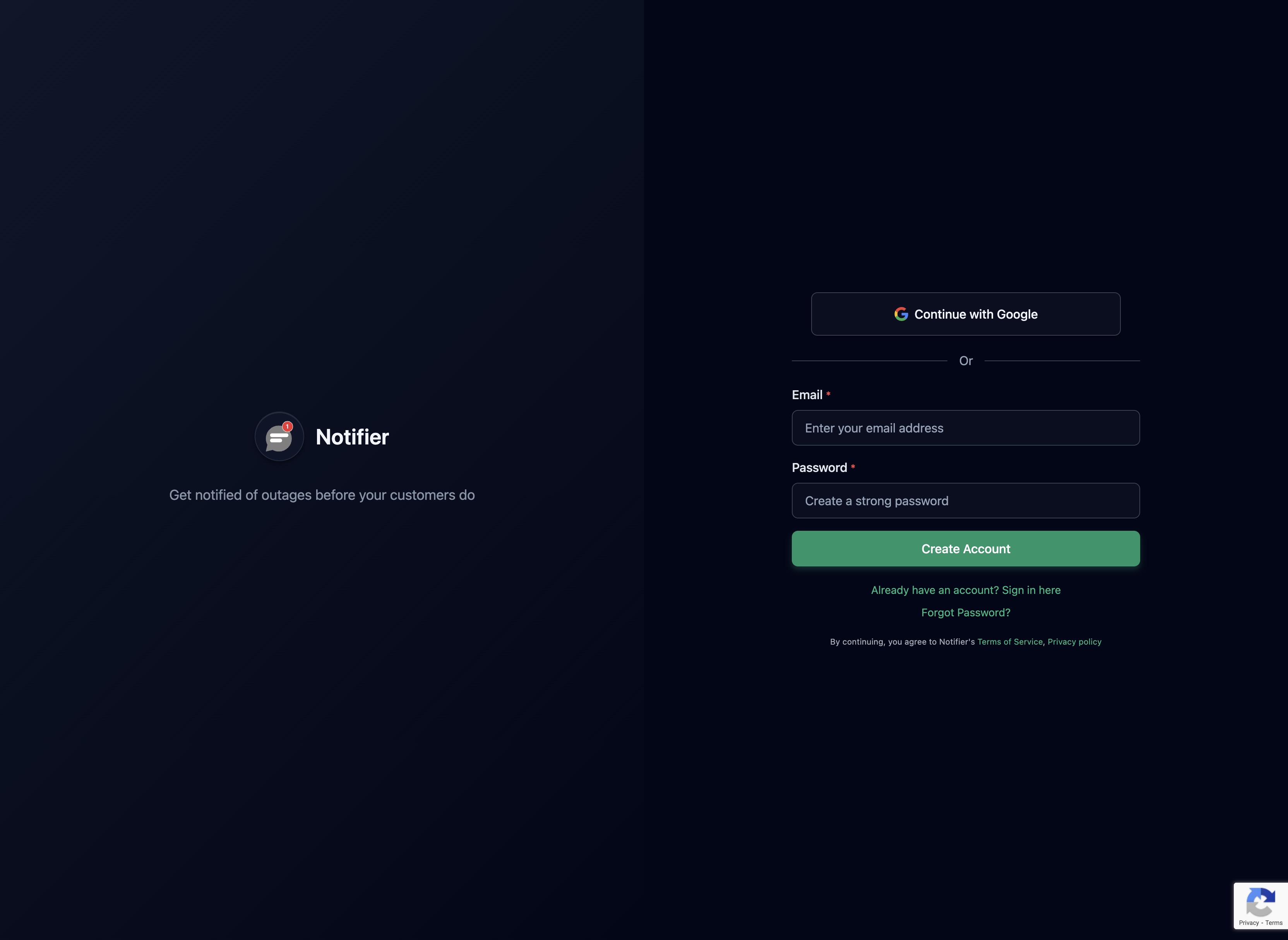
Step 1: Create Your Account
Sign up at notifier.so/register. The free plan gives you 10 monitors and 5 status pages, which is enough for most WordPress sites.
Step 2: Add Your Homepage Monitor
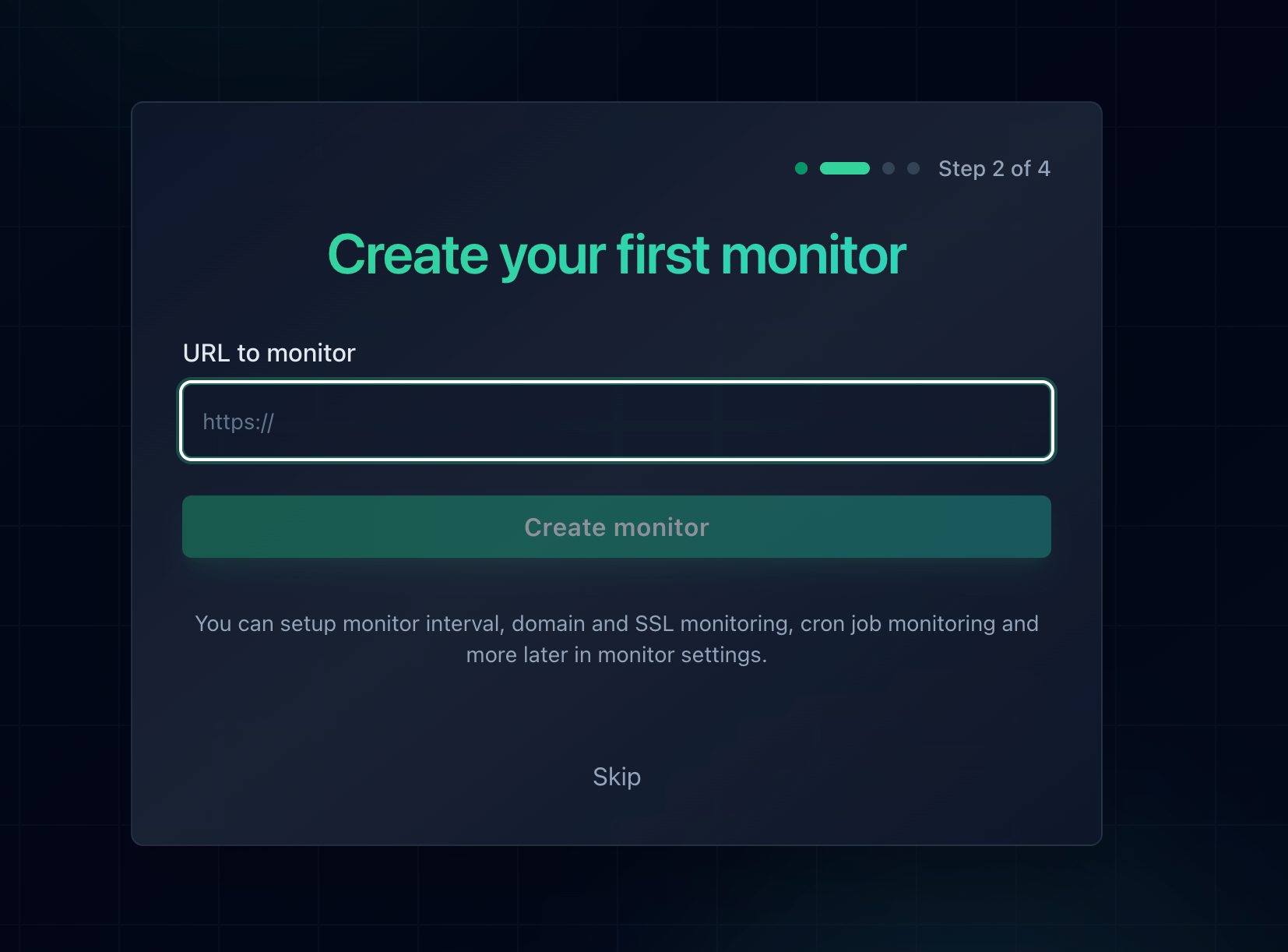
Click "Add Monitor" and enter your site's URL. This is your baseline check. Set the check interval to 5 minutes on the free plan, or 1 minute on the Solo plan ($4/month).
Step 3: Add a REST API Monitor
Add a second monitor for https://yoursite.com/wp-json/. This is the check that catches WordPress-specific failures (database errors, PHP crashes, plugin conflicts) even when a caching layer keeps the homepage alive.
Step 4: Configure Alerts
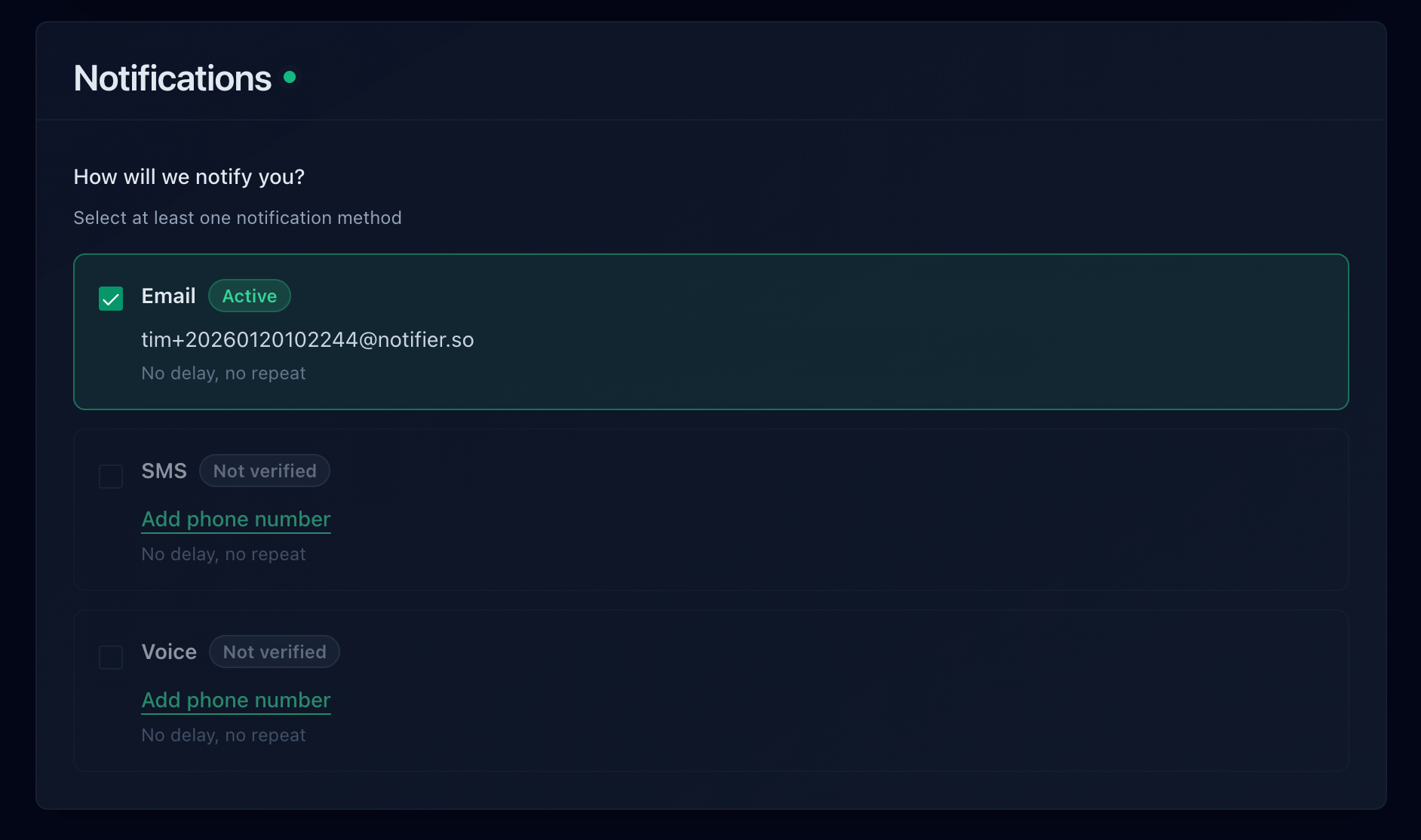
Set up at least two alert channels. Email is fine for non-critical sites, but if your WordPress site generates revenue, add SMS or phone call alerts so you're notified immediately. Notifier includes SMS and phone calls on all paid plans with no per-message fees.
Step 5: Set Up a Status Page (Optional)
If your WordPress site serves customers or clients, create a public status page. This gives visitors a place to check your site's status during outages, reducing support requests. Notifier includes status pages with custom domain support on all paid plans.
Step 6: Fix Your WP-Cron (Bonus)
While you're setting up monitoring, fix WordPress's unreliable cron system. Disable the default WP-Cron by adding this to wp-config.php:
define('DISABLE_WP_CRON', true);Then set up a real server cron job that calls wp-cron.php on a schedule:
*/5 * * * * wget -q -O /dev/null https://yoursite.com/wp-cron.phpThis ensures scheduled tasks run reliably regardless of site traffic.
WordPress Monitoring Tools Compared
Here's how the main options stack up for monitoring a WordPress site.
| Tool | Type | Free Tier | Check Interval | Best For |
|---|---|---|---|---|
| Notifier | External | 10 monitors | 5 min (free), 1 min ($4/mo) | Simple, affordable monitoring with status pages |
| UptimeRobot | External | 50 monitors | 5 min (free), 1 min ($7/mo) | Maximum free monitors |
| Jetpack | Plugin (external servers) | Yes | 5 min | Zero-config basic monitoring |
| ManageWP | Plugin + cloud | No (monitoring is $1/site/mo) | 1 min | Managing many WordPress sites |
| WP Umbrella | Plugin + cloud | No | 2 min | Safe updates with visual regression testing |
| Better Stack | External | 10 monitors | 3 min (free), 30 sec ($25/mo) | Incident management workflows |
Our Recommendation
For most WordPress sites, start with Notifier's free plan. You get 10 monitors, which is enough to cover your homepage, REST API, and key pages. If you need 1 minute checks and SMS/phone alerts, the Solo plan at $4/month is the most affordable option. If you run into issues, their support team typically responds within minutes via chat or email.
If you manage dozens of WordPress sites and need bulk plugin/theme updates alongside monitoring, ManageWP is worth considering as a complement to external monitoring (not a replacement for it). For a broader comparison of monitoring options, see our guide to the best free website monitoring tools.
Frequently Asked Questions
Can I use a WordPress plugin for uptime monitoring?
Some plugins like Jetpack do monitor from external servers, which means they work even when your site is down. But most WordPress monitoring plugins run on your server and can't alert you during a full outage. For reliable monitoring, use an external service (either standalone or in addition to a plugin).
How often should I check my WordPress site?
For a business site, every 1 to 5 minutes. For an e-commerce site processing orders, every 1 minute or less. For a personal blog, every 5 minutes is fine. The check interval determines how quickly you find out about downtime. A 5-minute interval means you could be down for up to 5 minutes before you know about it.
Should I monitor wp-login.php directly?
No. Security plugins (Wordfence, Sucuri, iThemes) often rate-limit or block repeated automated requests to wp-login.php, which will trigger false downtime alerts. Monitor /wp-admin/ instead. It redirects to the login page, confirming PHP is running, without triggering brute force protections.
What if my REST API is disabled?
If a security plugin has disabled your REST API, you can either whitelist the monitoring service's IPs, or skip the /wp-json/ check and rely on the homepage + /wp-admin/ redirect monitors. The REST API check is a nice-to-have, not a must-have.
Does managed WordPress hosting include monitoring?
Some managed hosts (WP Engine, Kinsta) include basic server-level monitoring and will alert you to infrastructure issues. However, this typically monitors the server, not your specific WordPress site. A plugin conflict that crashes your site won't trigger a server alert because the server itself is still running. External monitoring that checks your actual URLs is still necessary.
My WordPress site keeps going down. What should I do?
First, set up monitoring to establish a pattern: is it happening at specific times? After updates? During traffic spikes? The monitoring data will point you to the cause. For a detailed troubleshooting guide, see our article on why your website keeps going down.
