At a Glance
- •WordPress agencies need external monitoring on top of management tools like ManageWP. ManageWP handles updates and backups but lacks SSL monitoring, DNS checks, public status pages, and reliable multi-channel alerting.
- •Monitor at least 4 URLs per WordPress client: homepage, /wp-admin/, a key conversion page, and the SSL certificate. Add /wp-json/ and checkout pages for WooCommerce sites.
- •The most common WordPress failures at scale are plugin auto-update crashes, PHP memory exhaustion, SSL renewal failures, and database connection errors.
- •Create a dedicated status page per client as a deliverable that shows real-time uptime, response time, and incident history.
- •Notifier's Team plan ($19/month) covers 100 monitors and 50 status pages with SSL monitoring included, enough for 20 to 25 WordPress clients.
Managing 20, 30, or 50+ WordPress client sites means any one of them can break at any time. A plugin auto-update at 3 AM crashes a client's checkout page. A hosting provider hits resource limits during a traffic spike. An SSL certificate expires because the client changed their email and missed the renewal notice.
WordPress management tools like ManageWP and MainWP handle updates and backups, but they don't replace external uptime monitoring. This guide covers how to set up monitoring specifically for a WordPress agency: what to watch for, how to organize monitors across dozens of clients, and how to turn uptime data into a client deliverable.
Why WordPress Agencies Need External Monitoring
WordPress management dashboards like ManageWP can tell you if a site is reachable, but they run checks from a single location and are primarily designed for managing updates, not detecting downtime. External monitoring is a fundamentally different tool that solves different problems.
Management tools check if the site responds. Monitoring tools check if it works.
ManageWP pings the site to confirm it loads. External monitoring checks the HTTP status code, response time, SSL certificate validity, and DNS resolution. A WordPress site can return a 200 status code while displaying a PHP fatal error or a white screen of death. Monitoring catches the difference.
Your management tool runs on a server too.
If ManageWP or MainWP has its own outage, your monitoring goes dark along with it. External monitoring from an independent provider continues checking your client sites regardless of what happens to your management stack.
Clients expect proof, not promises.
A live status page showing 99.95% uptime over the last 30 days is worth more than a monthly email saying "everything looked fine." External monitoring generates the uptime data that makes this possible.
Common WordPress Failure Modes at Scale
When you manage one WordPress site, you learn its quirks. When you manage 30, you learn the patterns. These are the failures that take down WordPress client sites most often:
Plugin and Theme Auto-Updates
WordPress 5.5 introduced auto-updates for plugins and themes. In theory, this keeps sites secure. In practice, a plugin update can introduce a PHP fatal error, break a theme's layout, or conflict with another plugin. Since auto-updates run on a schedule (often overnight), you may not discover the problem for hours unless monitoring catches it immediately.
PHP Memory Limits and Hosting Resource Caps
Shared hosting plans cap PHP memory at 128MB or 256MB. A single poorly coded plugin can exhaust that limit, causing 500 Internal Server Errors. WooCommerce sites are especially vulnerable during traffic spikes because each page load requires more memory for cart calculations, payment gateway connections, and inventory queries.
SSL Certificate Expiration
Let's Encrypt certificates renew automatically, but the auto-renewal can fail silently if the hosting configuration changes, the cron job breaks, or the DNS validation stops working. When an SSL certificate expires, browsers show a full-page security warning that blocks visitors entirely. For an agency, this makes you look negligent even if the hosting provider caused the problem.
Database Connection Errors
The "Error establishing a database connection" message is the most common WordPress crash. It happens when the MySQL server hits its connection limit, the database credentials change (common during hosting migrations), or the database server itself goes down. On shared hosting, one noisy neighbor can exhaust database connections for everyone on the server.
Domain Expiration
Clients who manage their own domain registration sometimes let domains expire because they changed their email address and missed the renewal notice. Domain expiration monitoring catches this before the site goes offline and the domain potentially gets scooped up by a squatter.
What to Monitor on Every Client WordPress Site
For each WordPress client, set up these monitors as a baseline:
| URL | What It Catches | Priority |
|---|---|---|
| Homepage | Server down, DNS failure, hosting issues | Essential |
/wp-admin/ |
Admin access issues, redirects to login mean site is up but admin is reachable | Essential |
/wp-login.php |
Login page availability (different from /wp-admin/ redirect) | Recommended |
| SSL certificate | Expiring or misconfigured SSL | Essential |
| Key landing/conversion page | Plugin-specific crashes that only affect certain pages | Essential |
/wp-json/ |
REST API availability (important if using headless WordPress or mobile apps) | If applicable |
For WooCommerce clients, add monitors for the shop page, cart page, and checkout page. WooCommerce failures often only show on transaction pages while the homepage continues working fine.
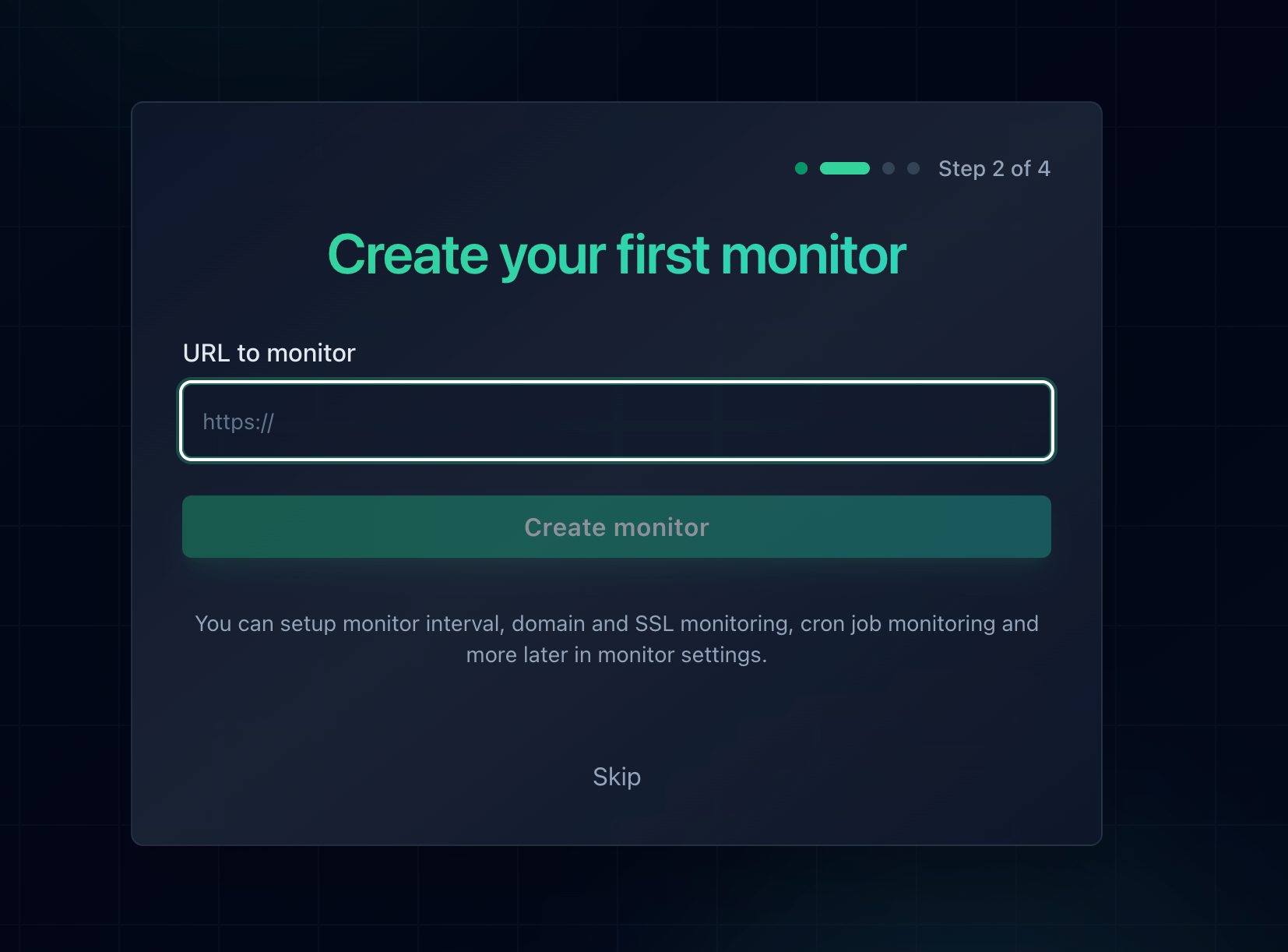
Adding monitors for a client WordPress site. Use the naming pattern "[Client] Page Name" to keep monitors organized.
ManageWP vs External Monitoring: Complement, Don't Replace
ManageWP, MainWP, and InfiniteWP are WordPress management platforms. They handle plugin updates, backups, security scans, and basic uptime checks. Here's how they compare to dedicated external monitoring:
| Feature | ManageWP/MainWP | External Monitoring (Notifier) |
|---|---|---|
| Uptime checks | Basic (single location) | Dedicated (30-sec intervals) |
| SSL monitoring | No | All plans |
| DNS monitoring | No | All plans |
| Public status pages | No | Up to unlimited |
| SMS/phone alerts | No | All plans |
| Plugin updates | Yes | No |
| Backups | Yes | No |
| Security scans | Yes | No |
The takeaway: use ManageWP or MainWP for WordPress-specific management (updates, backups, security) and a dedicated monitoring tool for uptime, SSL, DNS, status pages, and alerting. They solve different problems and work best together.
Setting Up Monitoring in Bulk for WordPress Clients
Onboarding 5 new clients at once means adding 15 to 25 monitors. Doing this one by one is tedious. Here's how to speed up the process.
Step 1: Prepare Your URL List
Create a spreadsheet with all the URLs you need to monitor, organized by client:
Client Name          | URL                              | Type
Acme Corp            | https://acmecorp.com             | Homepage
Acme Corp            | https://acmecorp.com/wp-admin/   | Admin
Acme Corp            | https://acmecorp.com/contact/    | Conversion
Baker Designs        | https://bakerdesigns.com         | Homepage
Baker Designs        | https://bakerdesigns.com/wp-admin/| Admin
Baker Designs        | https://bakerdesigns.com/shop/   | WooCommerce
Step 2: Use Bulk Upload
Notifier supports bulk monitor upload, so you can add all your client URLs in one batch rather than creating them individually. This saves significant time during initial setup or when onboarding multiple clients at once.
Step 3: Configure Alerts Per Client
After adding monitors, assign each client's monitors to a dedicated Slack channel. This way, the account manager for each client only receives alerts for their client's sites. For high-value clients, add SMS or phone call alerts as a secondary notification channel.
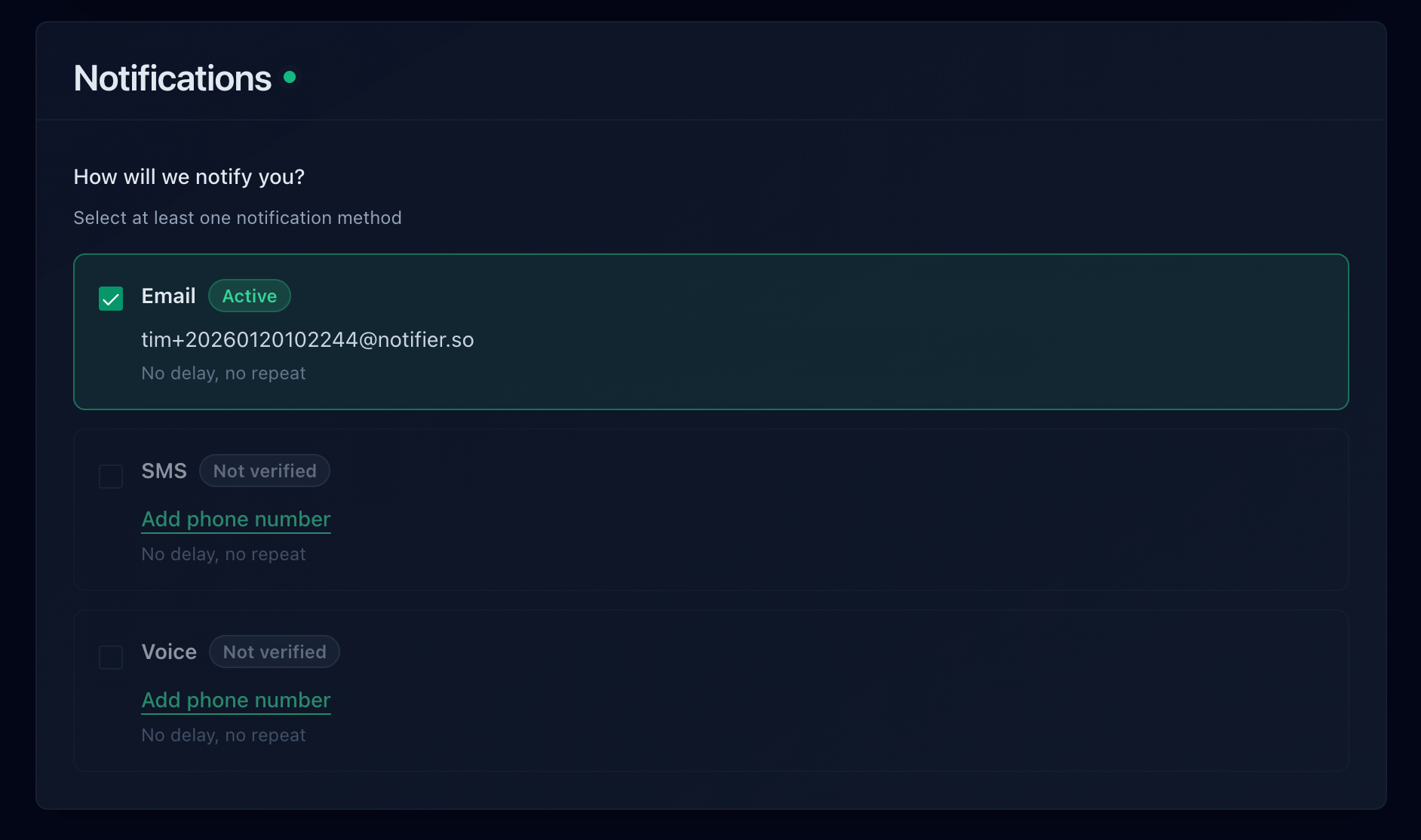
Configure different alert channels per client based on their priority level.
Turning Uptime Data Into Client Deliverables
Monitoring data is valuable to your clients, not just to your ops team. Here's how to package it as part of your agency service.
Public Status Pages
Create a dedicated status page for each client showing only their monitors. The client gets a URL they can bookmark and share internally. It shows real-time status, historical uptime percentage, and incident history. On Notifier's paid plans, you can host status pages on the client's own domain (e.g., status.clientsite.com).
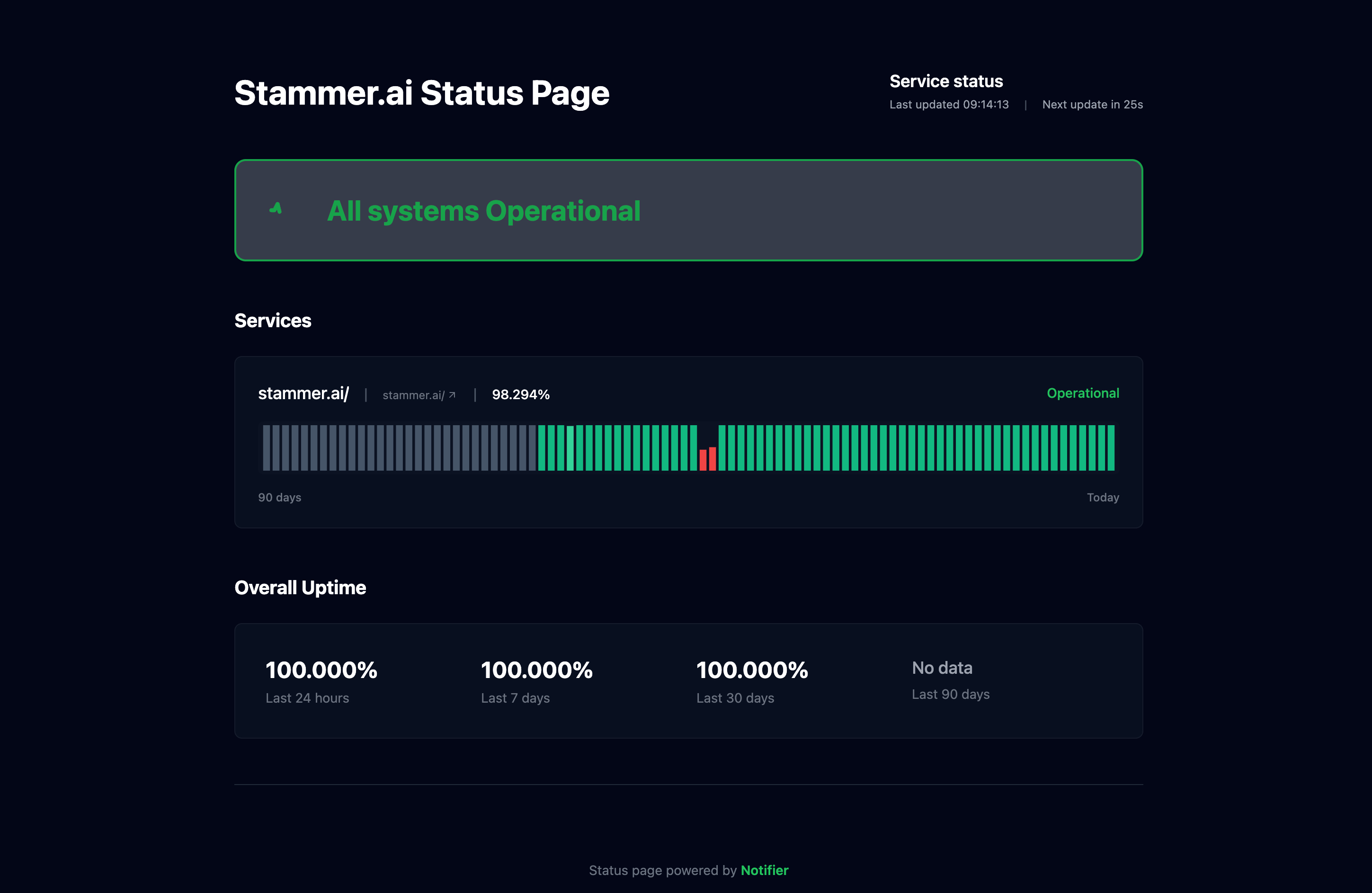
A dedicated status page per client shows real-time uptime and incident history.
Monthly Uptime Reports
Include uptime metrics in your monthly client reports. A simple section showing "Your site was up 99.97% this month with an average response time of 340ms" takes two minutes to add but demonstrates concrete value. If you had any incidents, include the timeline: when it was detected, when your team responded, and when it was resolved.
Status Pages as a Sales Tool
When pitching new clients or upselling maintenance retainers, a live status page is tangible proof that you take uptime seriously. "We monitor your site 24/7 and you get a live dashboard showing uptime and incident history" differentiates you from agencies that just promise to "keep an eye on things."
Monitoring Tools Compared for WordPress Agencies
Here's how the main monitoring tools stack up for a WordPress agency managing 20 to 50 client sites:
| Tool | 100 Monitors Cost | Status Pages | SSL Monitoring | Team Members |
|---|---|---|---|---|
| Notifier | $19/mo | 50 | All plans | 3 |
| UptimeRobot | $34/mo | 100 | All plans | 3 (+$15/ea) |
| HetrixTools | $19.95/mo | Unlimited | All plans | 5 sub-accounts |
| StatusCake | $24.49/mo | Separate product | Paid only | 9 |
| Better Stack | ~$80+/mo | $12 to $50/page | All plans | $34/responder |
| ManageWP | $100/mo (uptime add-on) | None | No | Unlimited |
| Pingdom | $95/mo | 1 per org | With HTTPS | Unlimited |
Note: UptimeRobot's free plan is restricted to non-commercial use since October 2024. WordPress agencies must use a paid plan.
For most WordPress agencies, Notifier's Team plan at $19/month offers the best value: 100 monitors (enough for 20 to 25 clients at 4 monitors each), 50 status pages (one per client), SSL monitoring on every monitor, and 30-second check intervals. If you manage more than 50 clients, the Enterprise plan at $35/month provides 200 monitors and unlimited status pages.
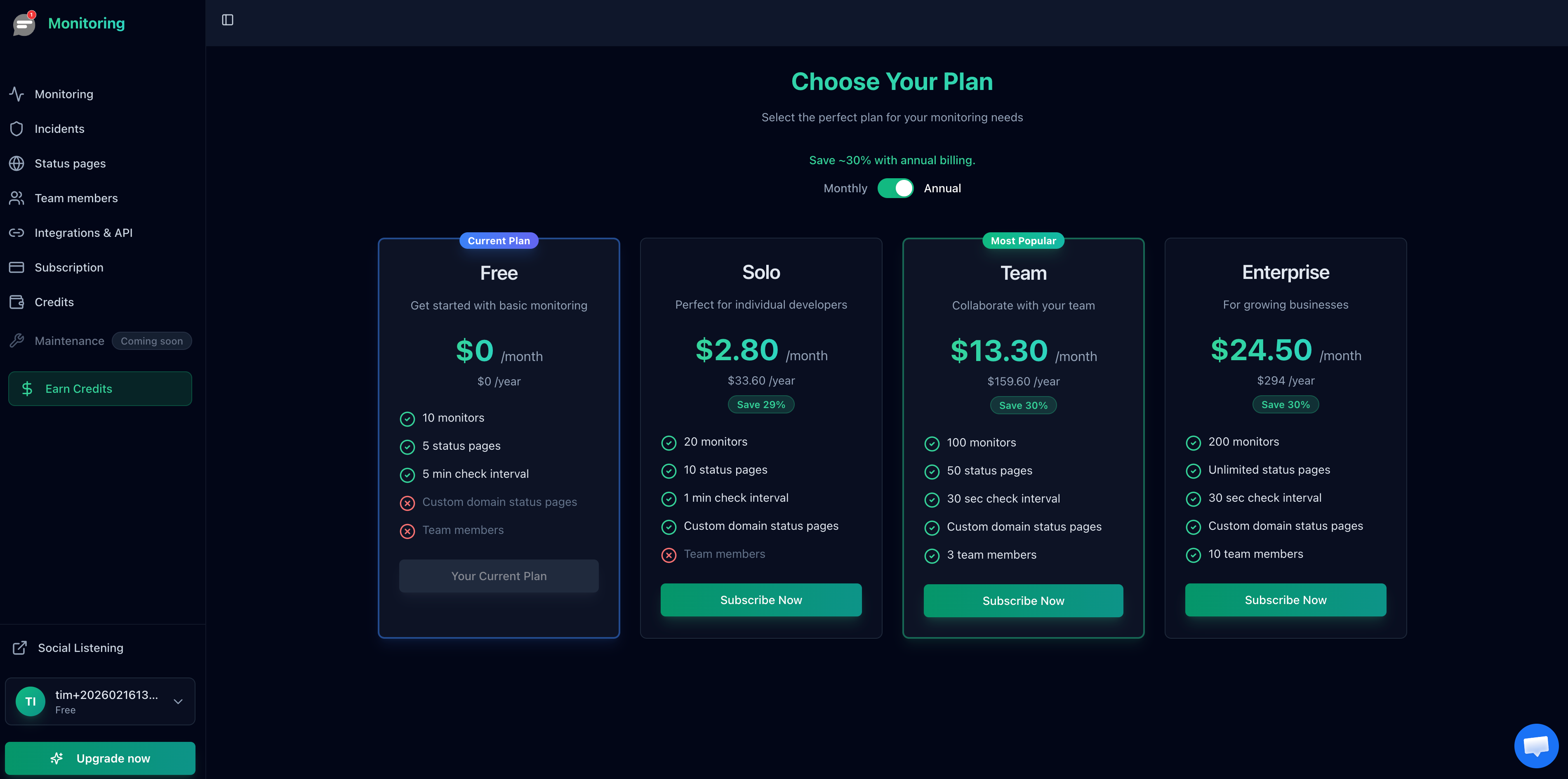
Notifier's Team plan at $19/month includes 100 monitors and 50 status pages.
Frequently Asked Questions
Can ManageWP replace dedicated uptime monitoring?
No. ManageWP's uptime monitoring is a basic add-on ($1/site/month) that checks from a single location with limited alerting. It doesn't monitor SSL certificates, DNS records, or provide public status pages. Use ManageWP for WordPress management (updates, backups, security) and a dedicated tool like Notifier for monitoring and alerting.
How do I handle WordPress multisite networks?
Monitor each subsite independently. A WordPress multisite shares one database and codebase, so a failure might affect all subsites or just one. Monitor the main site, each client subsite's homepage, and the network admin URL. This catches both network-wide outages and individual subsite failures.
Should I monitor staging sites too?
Generally no. Staging sites go down frequently during development, which would generate constant false alerts. Only monitor staging sites if you use them as pre-production environments with uptime expectations. Focus your monitor count on production client sites.
What check interval should I use for WordPress client sites?
1-minute checks are the sweet spot for most WordPress agency clients. This catches outages quickly without requiring a higher-tier plan. Use 30-second checks for e-commerce clients where every minute of downtime costs revenue. The free plan's 5-minute interval works for testing but is too slow for production monitoring.
How do I monitor WooCommerce checkout specifically?
Add a monitor for the checkout page URL (usually /checkout/). WooCommerce checkout pages can fail independently from the rest of the site due to payment gateway timeouts, cart session errors, or shipping calculation plugin failures. If the checkout page returns a non-200 status code, your monitor catches it immediately.
