At a Glance
- •Agencies need centralized monitoring across all client sites with per-client alert routing, so the right team member gets notified about the right site without noise.
- •Public status pages are a high-value deliverable for clients. Offer branded status pages on custom domains to build trust and reduce "is it down?" support tickets.
- •Team access matters more than monitor count. Look for tools that let you invite team members and assign responsibilities rather than sharing a single login.
- •Avoid tools that charge per seat or per component. Agency costs scale fast when you manage 20+ client sites across a 5-person team.
- •Notifier offers 100 monitors, 50 status pages, and 3 team members on the Team plan at $19/month, with SSL monitoring included free on every plan.
When you manage 20, 50, or 100+ client websites, monitoring becomes a logistics problem. You need to know the moment any client's site goes down, route the alert to the right person on your team, and give clients visibility into their own uptime without exposing your entire dashboard. Most monitoring tools are built for single site owners, not agencies.
This guide covers exactly how to set up website monitoring for an agency: how to organize monitors across clients, route alerts to the right team members, use status pages as a client deliverable, and choose a tool that scales with your client roster without breaking your budget.
Why Agency Monitoring Is Different
A freelancer monitoring their own site needs one monitor and one alert. An agency managing 30 client sites needs a fundamentally different setup. Here's what changes at scale:
Volume
Each client might need 3 to 5 monitors: the homepage, a key landing page, an API endpoint, the admin login, and an SSL certificate check. Multiply that by 30 clients and you need 100+ monitors just to cover the basics.
Alert fatigue
If every alert goes to the same inbox or Slack channel, your team stops paying attention within a week. The designer doesn't need to know about the e-commerce client's API going down, and the backend developer doesn't need alerts about the brochure site's SSL certificate.
Client visibility
Clients want proof that their site is up. Sending them a monthly email saying "uptime was 99.9%" is fine. Giving them a live status page they can check anytime is better. It builds trust and reduces "is our site down?" support tickets.
Cost per client
Monitoring is either a cost center you absorb or a value-add you include in your retainer. Either way, the per-client cost matters. A tool that charges $2 per monitor adds up fast when you need 150 monitors.
What Agencies Actually Need From a Monitoring Tool
Not every feature matters for agency use. Here's what to prioritize when evaluating tools:
| Feature | Why It Matters for Agencies | Priority |
|---|---|---|
| High monitor count | 3 to 5 monitors per client adds up fast across 20+ clients | Essential |
| Multiple status pages | One status page per client, each showing only their monitors | Essential |
| Team member access | Different team members handle different client accounts | Essential |
| SSL monitoring | Expired SSL certificates make your agency look negligent | Essential |
| Custom domain status pages | Host the status page on the client's domain for a professional look | Nice to have |
| Slack integration | Route alerts to client-specific Slack channels for team coordination | Nice to have |
| Bulk monitor upload | Onboarding a new client with 10 URLs is tedious one by one | Nice to have |
How to Organize Monitors by Client
The biggest mistake agencies make is dumping all monitors into a single flat list. When you have 100+ monitors and a client calls about downtime, scrolling through an alphabetical list is not a viable incident response strategy.
Naming Convention
Use a consistent naming pattern that groups monitors by client. The simplest approach:
[Client Name] Homepage
[Client Name] Admin Login
[Client Name] API
[Client Name] SSL Certificate
[Client Name] Contact Form

# Examples:
Acme Corp Homepage
Acme Corp Admin Login
Acme Corp SSL Certificate
Baker Ltd Homepage
Baker Ltd API /v2/orders
This ensures monitors sort together alphabetically. When a client calls, you can instantly see all their monitors grouped in one place.
What to Monitor Per Client
For a standard client website, set up these monitors at minimum:
- Homepage: The most visited page. If this is down, everything is likely down.
- Key conversion page: The contact form, checkout page, or booking page. This is where revenue happens.
- Admin/CMS login: WordPress
/wp-admin/, Shopify admin, or custom CMS. If the admin is down, your team can't make updates. - SSL certificate: SSL monitoring catches expiring certificates before they show browser security warnings to visitors.
For e-commerce clients, add the product API, search endpoint, and payment gateway health check. For clients with API endpoints, monitor those separately since API failures often don't show up on the homepage.
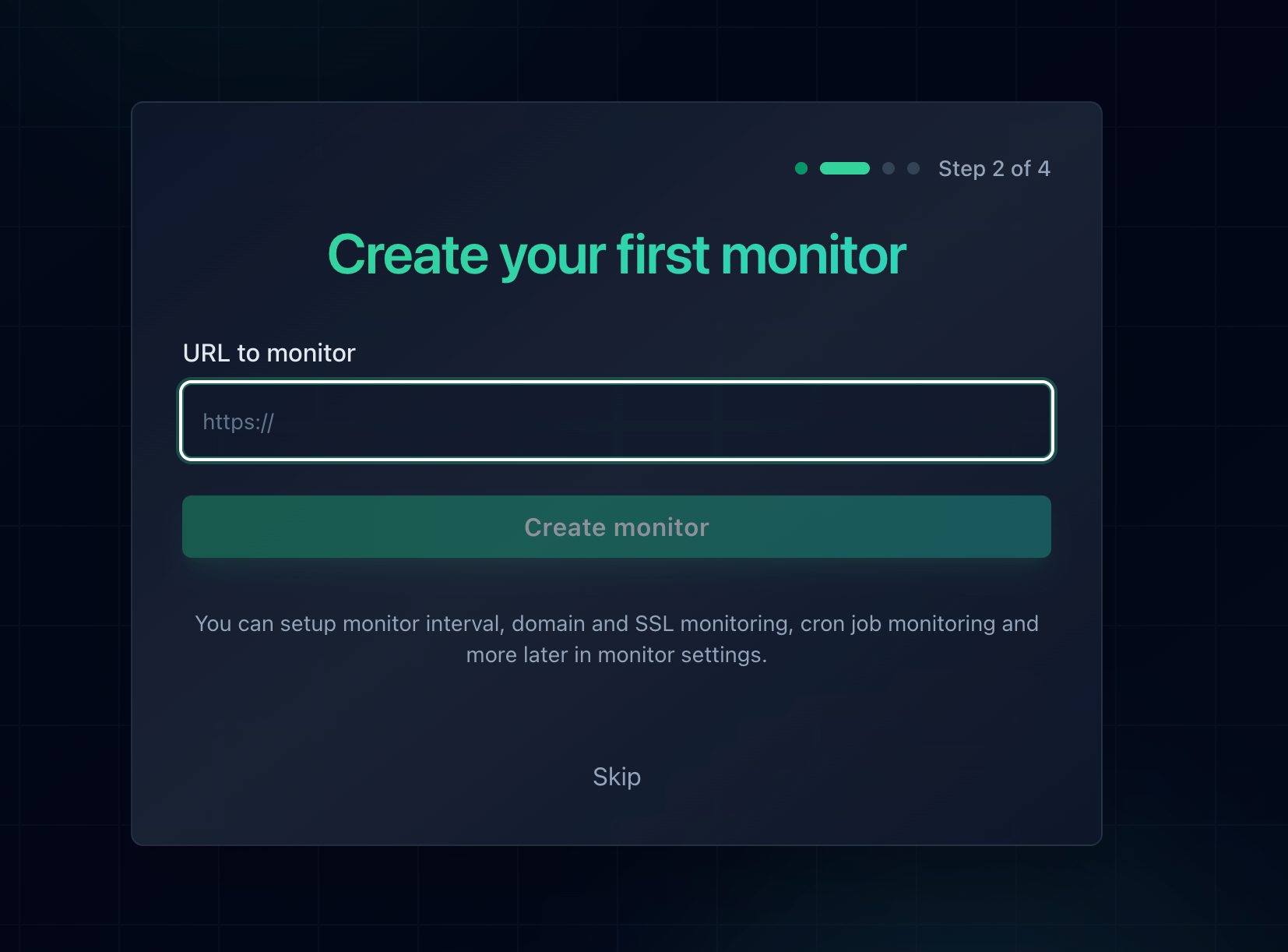
Adding a monitor for a client site. Use a consistent naming convention so monitors group by client.
Alert Routing: Getting the Right Alert to the Right Person
Alert routing is where most agency monitoring setups fail. When every downtime alert goes to a single email address, two things happen: critical alerts get buried in noise, and team members start ignoring notifications entirely.
Channel-Based Routing with Slack
The most effective approach for agencies is to create client-specific Slack channels and route alerts accordingly:
#monitoring-acme-corp     → All Acme Corp downtime/recovery alerts
#monitoring-baker-ltd     → All Baker Ltd downtime/recovery alerts
#monitoring-critical      → Only alerts for high-priority clients
#monitoring-all           → Firehose of all alerts (for ops team lead)
With Slack integration, you can assign each monitor to a specific channel. The account manager for Acme Corp joins #monitoring-acme-corp and only sees alerts for their client. No noise, no missed alerts.
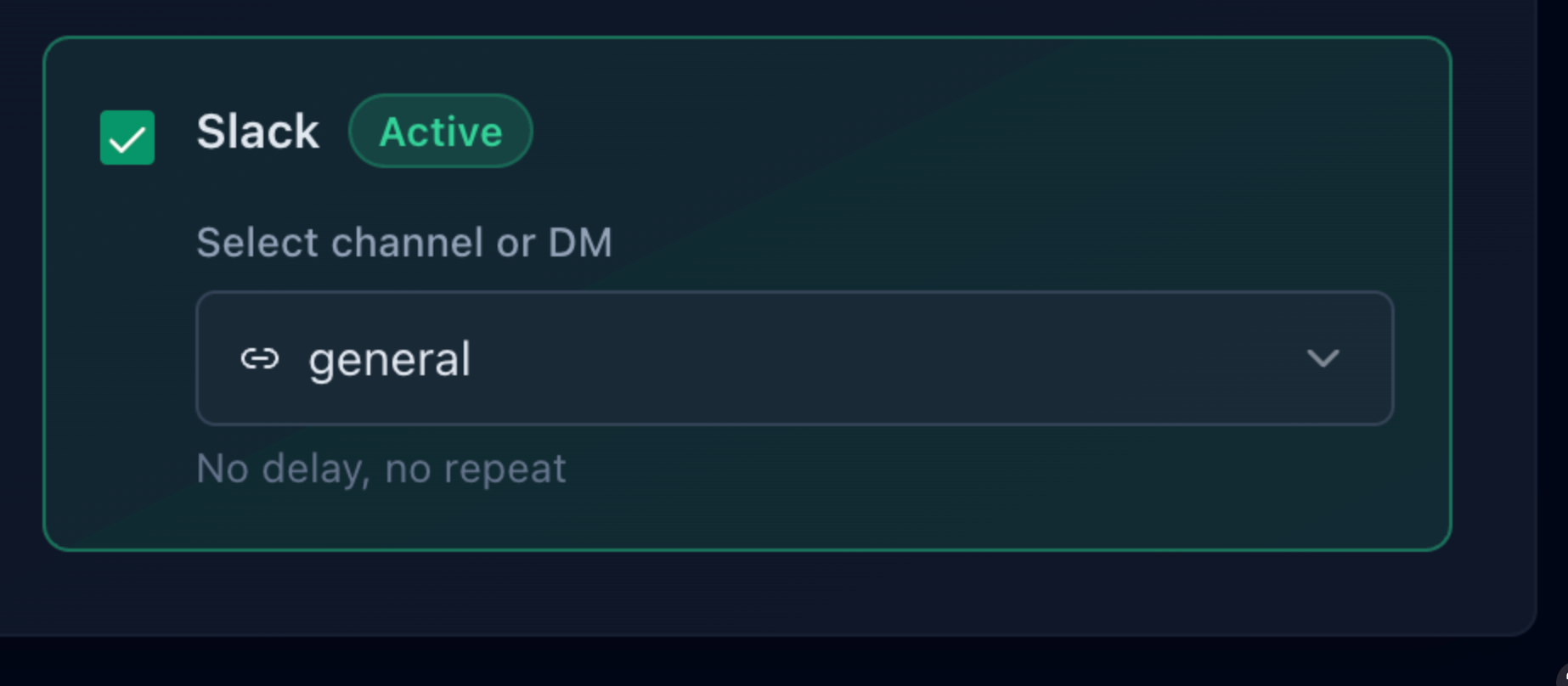
Each monitor can send alerts to a different Slack channel, making it easy to route alerts per client.
Escalation for Critical Clients
Some clients pay more and expect faster response times. For these high-priority accounts, layer your alerts:
- First layer: Slack notification to the client's channel (immediate)
- Second layer: Email alert to the assigned developer
- Third layer: SMS or phone call alert for extended outages
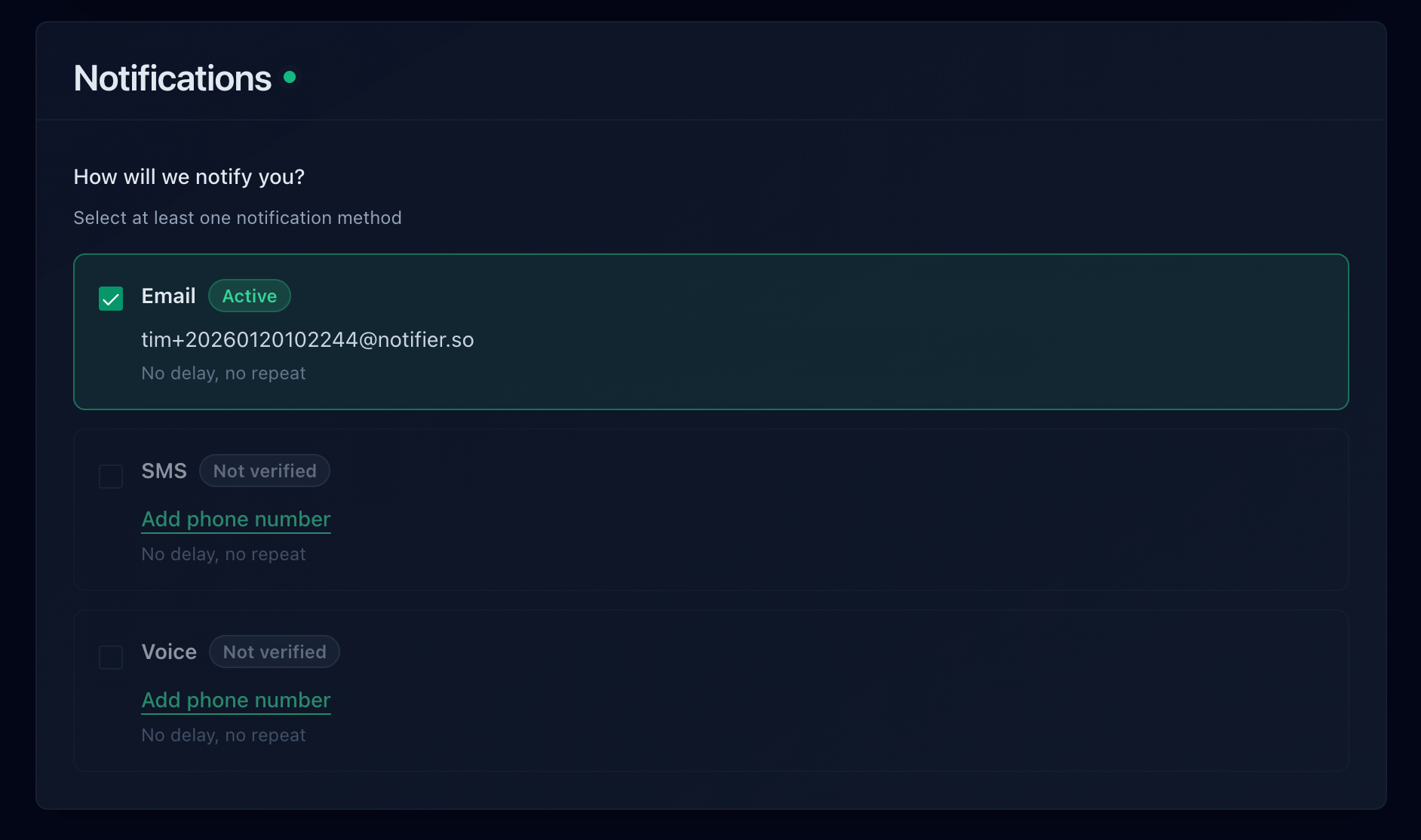
Notifier supports email, SMS, phone call, and Slack alerts on every plan, including the free tier.
Using Status Pages as a Client Deliverable
A public status page is one of the easiest ways to add perceived value to your agency retainer. Instead of telling clients their site is up, you show them.
One Status Page Per Client
Create a dedicated status page for each client that shows only their monitors. The client gets a URL they can bookmark, share with their team, or embed on their internal dashboard. It shows real-time status, uptime percentage, and incident history.
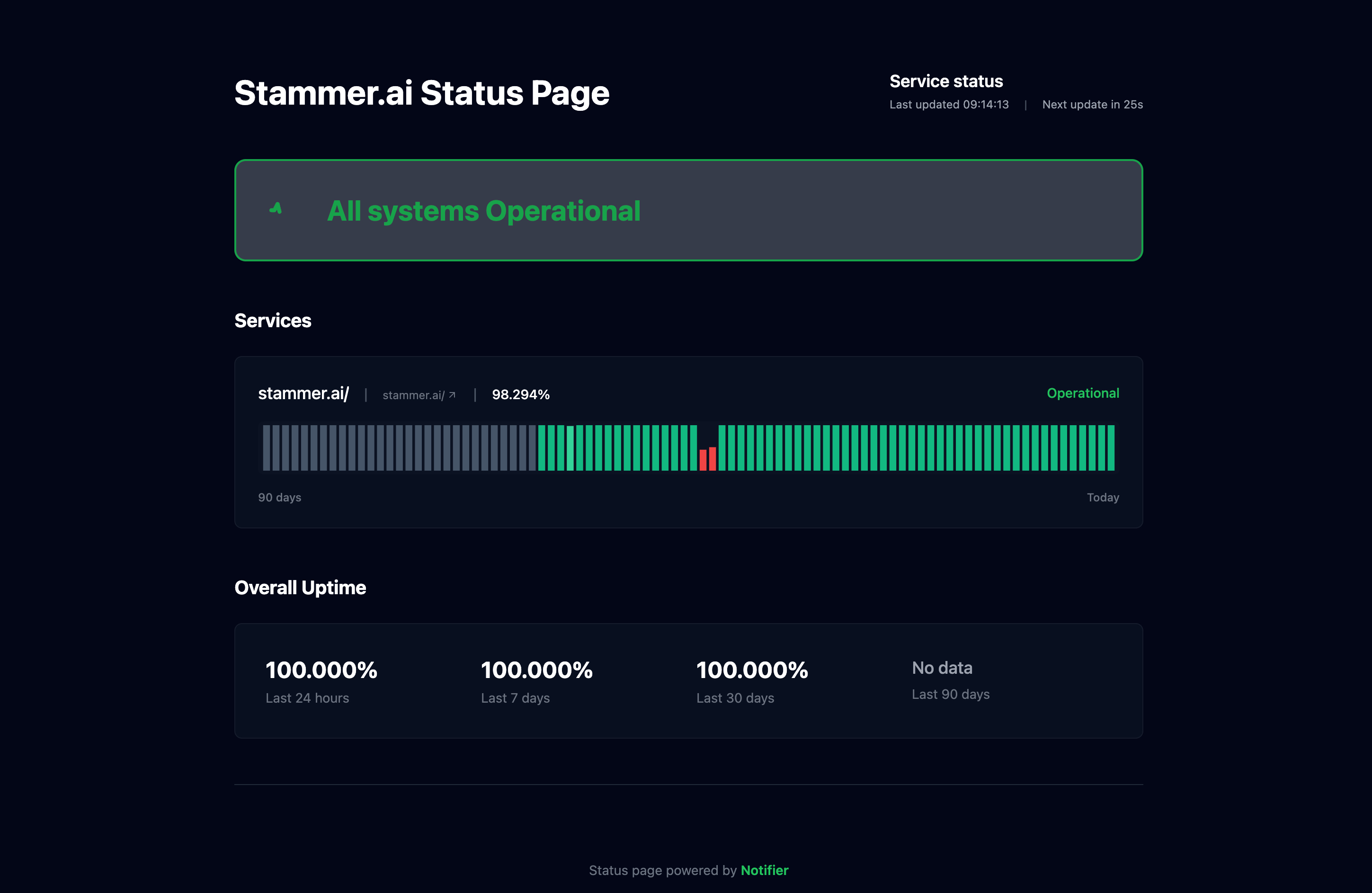
Each client can have their own status page showing only their monitors and uptime history.
Custom Domain Status Pages
For a more professional presentation, host the status page on the client's own domain (e.g., status.acmecorp.com). This makes the monitoring feel like part of the client's infrastructure rather than a third-party tool. On Notifier, custom domain status pages are available on Solo plans and above ($4/month).
Status Pages as a Sales Tool
When pitching website management retainers, a live status page is a tangible deliverable you can show prospects. "We monitor your site 24/7 and you get a live dashboard showing uptime, response time, and incident history" is more compelling than "we keep an eye on things." The status page turns an invisible service into something the client can see and share.
Monitoring Tools Compared for Agency Use
The right tool for an agency depends on how many clients you manage and what you need beyond basic uptime checks. Here's how the main options compare for agency-specific requirements:
| Tool | Monitors | Status Pages | Team Members | SSL Monitoring | Price (for 100 monitors) |
|---|---|---|---|---|---|
| Notifier | Up to 200 | Up to unlimited | Up to 10 | All plans | $19/mo (Team) |
| UptimeRobot | Up to 1,000 | Up to unlimited | 3 to 5 (+$15/ea) | All plans | $34/mo (Team) |
| Better Stack | Pay per block of 50 | $12 to $50/page | $34/responder | All plans | ~$80+/mo |
| StatusCake | Up to 300 | Separate product | Up to 9 | Paid plans | $24.49/mo (Superior) |
| HetrixTools | Up to 200 | Unlimited | Up to 20 sub-accounts | All plans | $19.95/mo (Business) |
| Pingdom | Up to 200+ | 1 per org | Unlimited | With HTTPS | $95/mo |
| Pulsetic | Up to 300+ | Unlimited | $8/member | All plans | $19/mo (Team) |
Note: UptimeRobot's free plan is limited to non-commercial use since October 2024. Agencies must use a paid plan.
Why Notifier Works Well for Agencies
For a mid-size agency managing 20 to 50 client sites, Notifier's Team plan ($19/month) gives you 100 monitors, 50 status pages, 3 team members, 30-second check intervals, and SSL monitoring on every monitor. That's enough to cover 20 to 25 clients with 4 to 5 monitors each, with a dedicated status page per client.
For larger agencies, the Enterprise plan ($35/month) provides 200 monitors, unlimited status pages, and 10 team members. The per-monitor cost at scale is among the lowest in the industry. SSL monitoring and domain expiration monitoring are included on all plans at no extra cost.
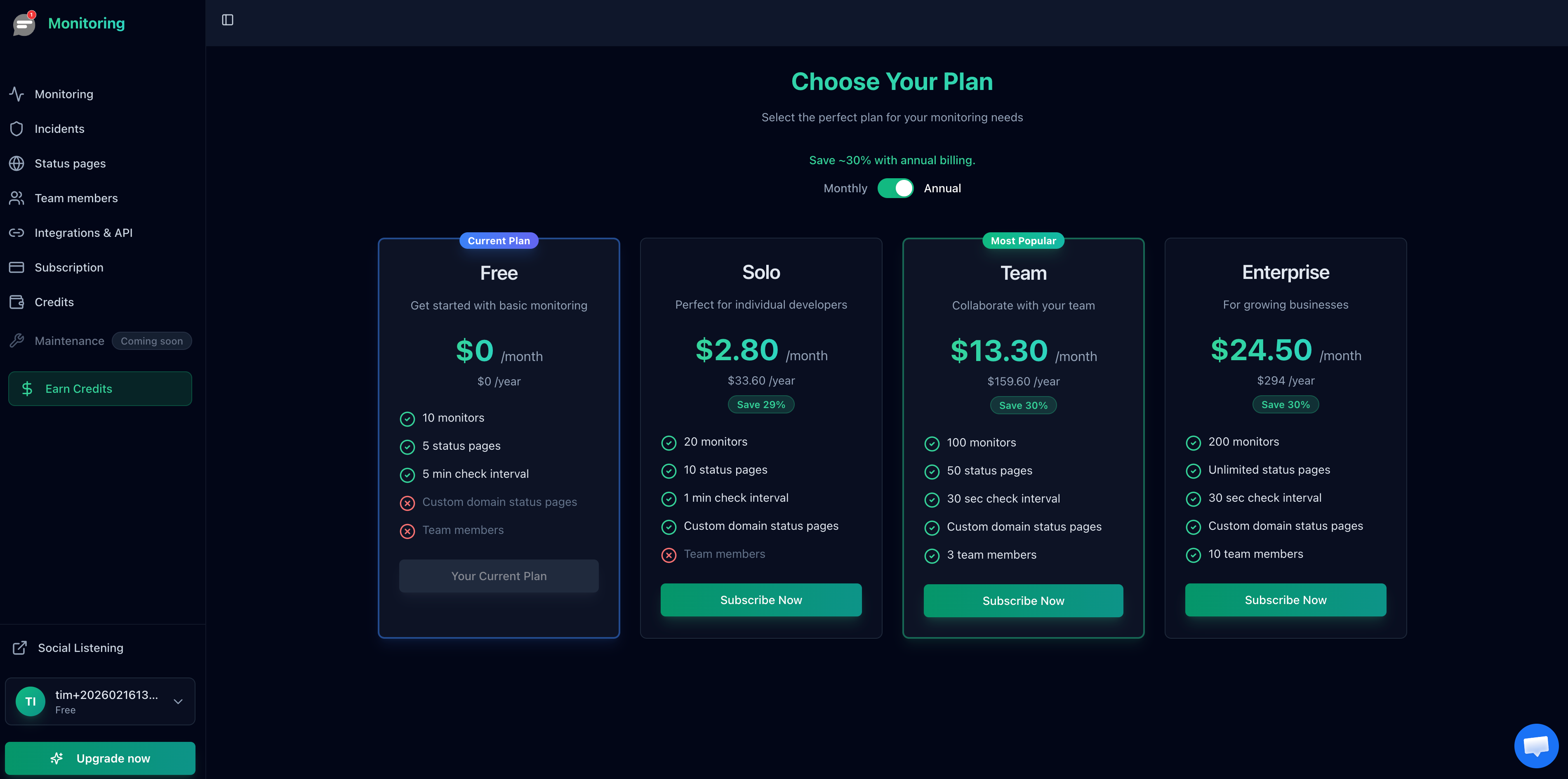
Notifier's Team plan at $19/month includes 100 monitors and 50 status pages, making it one of the most cost-effective options for agencies.
Getting Started: Agency Monitoring in 30 Minutes
Here's a practical walkthrough to get monitoring running for your first 5 clients.
Step 1: Create Your Account and Choose a Plan
Sign up for Notifier and start on the free plan to test the setup. You get 10 monitors and 5 status pages for free. Once you've confirmed the workflow works for your agency, upgrade to Team ($19/month) or Enterprise ($35/month) depending on your client count.
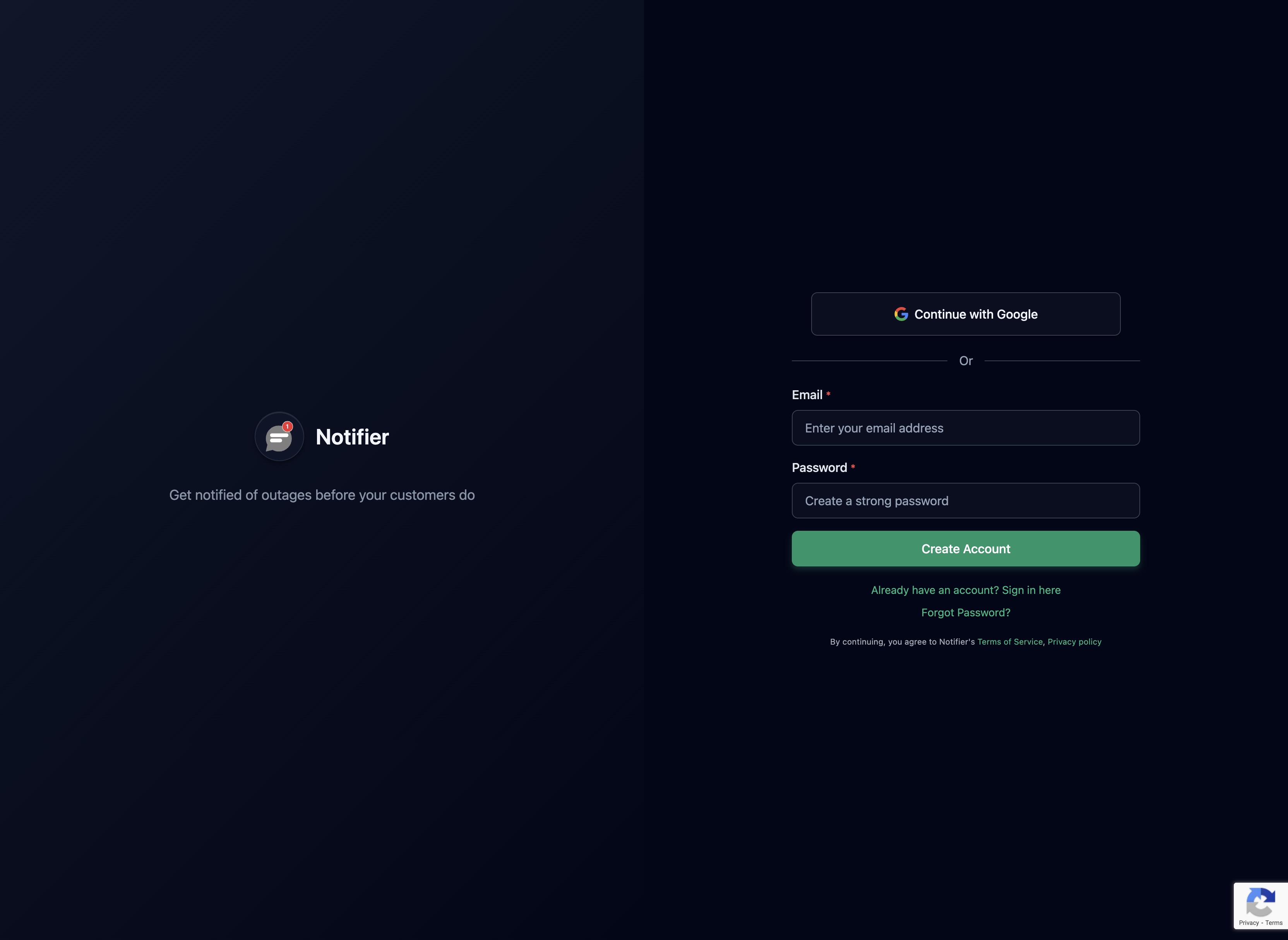
Creating a Notifier account takes under a minute. Start free and upgrade when you're ready to add more clients.
Step 2: Add Your First Client's Monitors
For each client, add monitors using the naming convention described above. Start with the homepage, admin login, and SSL certificate. Use the bulk upload feature if you have a spreadsheet of client URLs ready to go.
Step 3: Set Up Slack Channels
Connect your agency Slack workspace to Notifier. Create a channel per client and assign each monitor to the appropriate channel. This takes about 2 minutes per client.
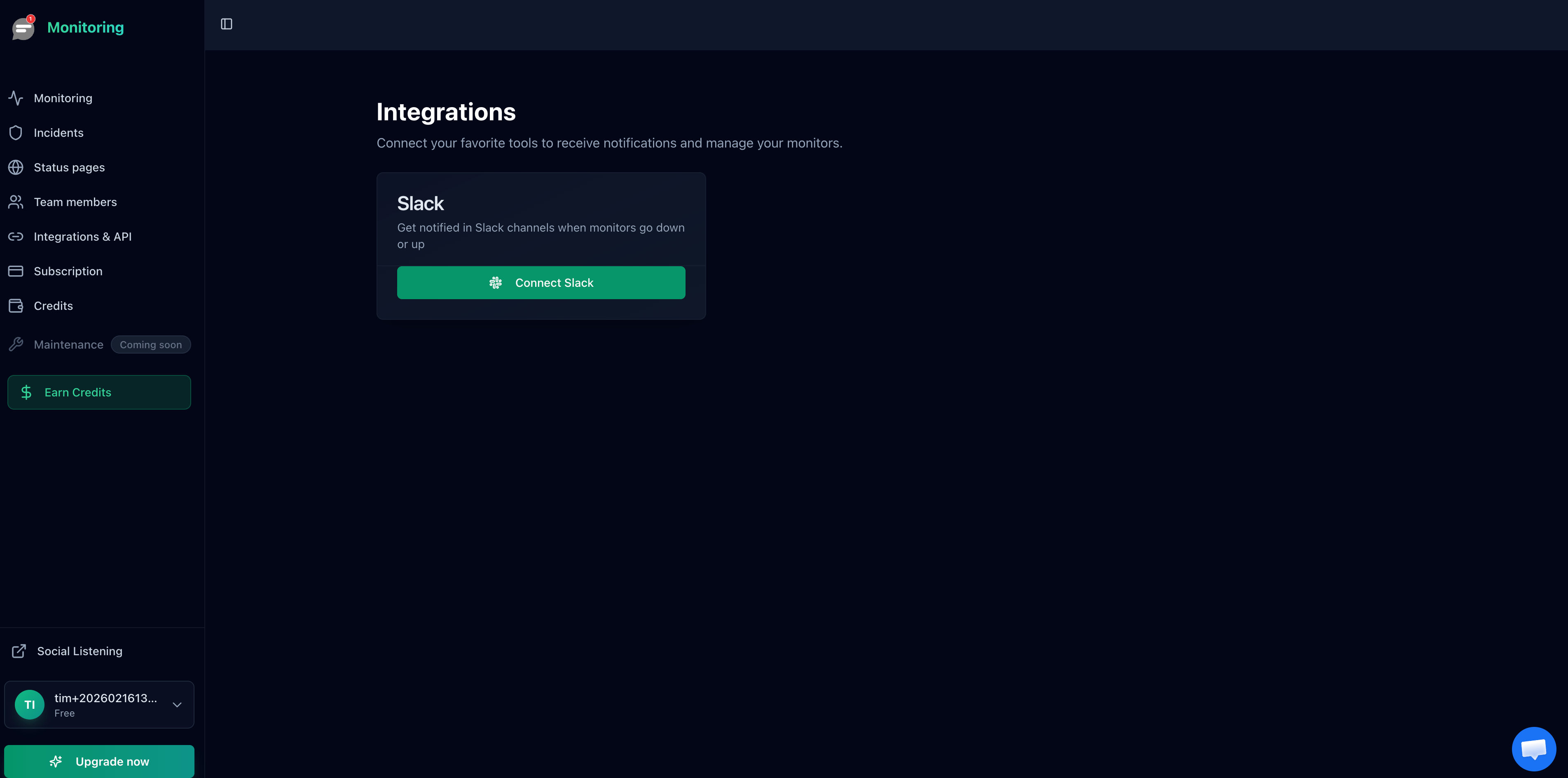
Connect your Slack workspace to start routing alerts to client-specific channels.
Step 4: Create Client Status Pages
Create a status page for each client and add only their monitors to it. Share the status page URL with the client. On paid plans, you can use a custom domain so the page lives at status.clientdomain.com.
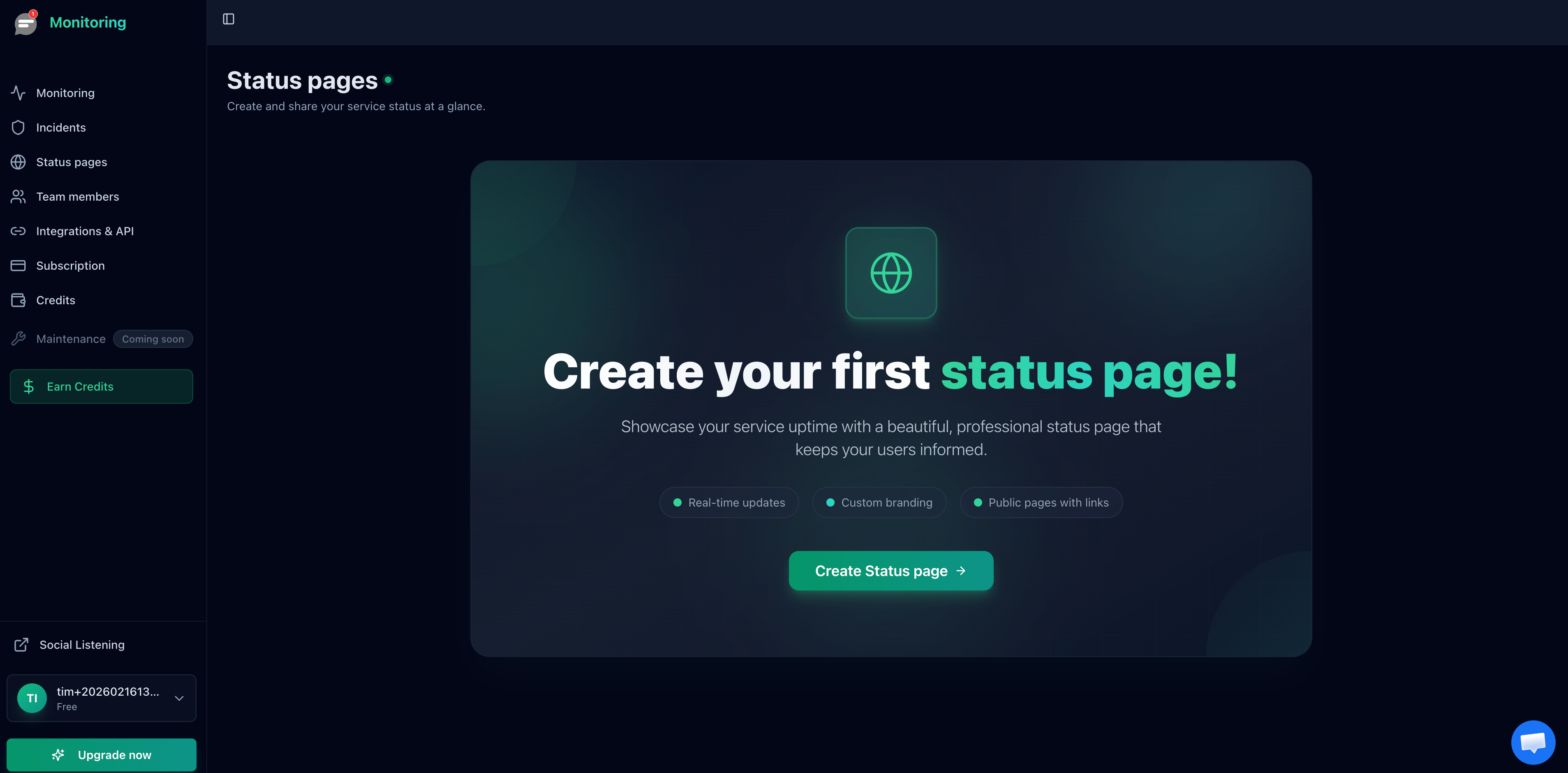
Create a dedicated status page for each client, showing only their monitors.
Step 5: Invite Team Members
Add your team members so they can view monitors and respond to incidents. On the Team plan, you get 3 team members included. On Enterprise, you get 10.
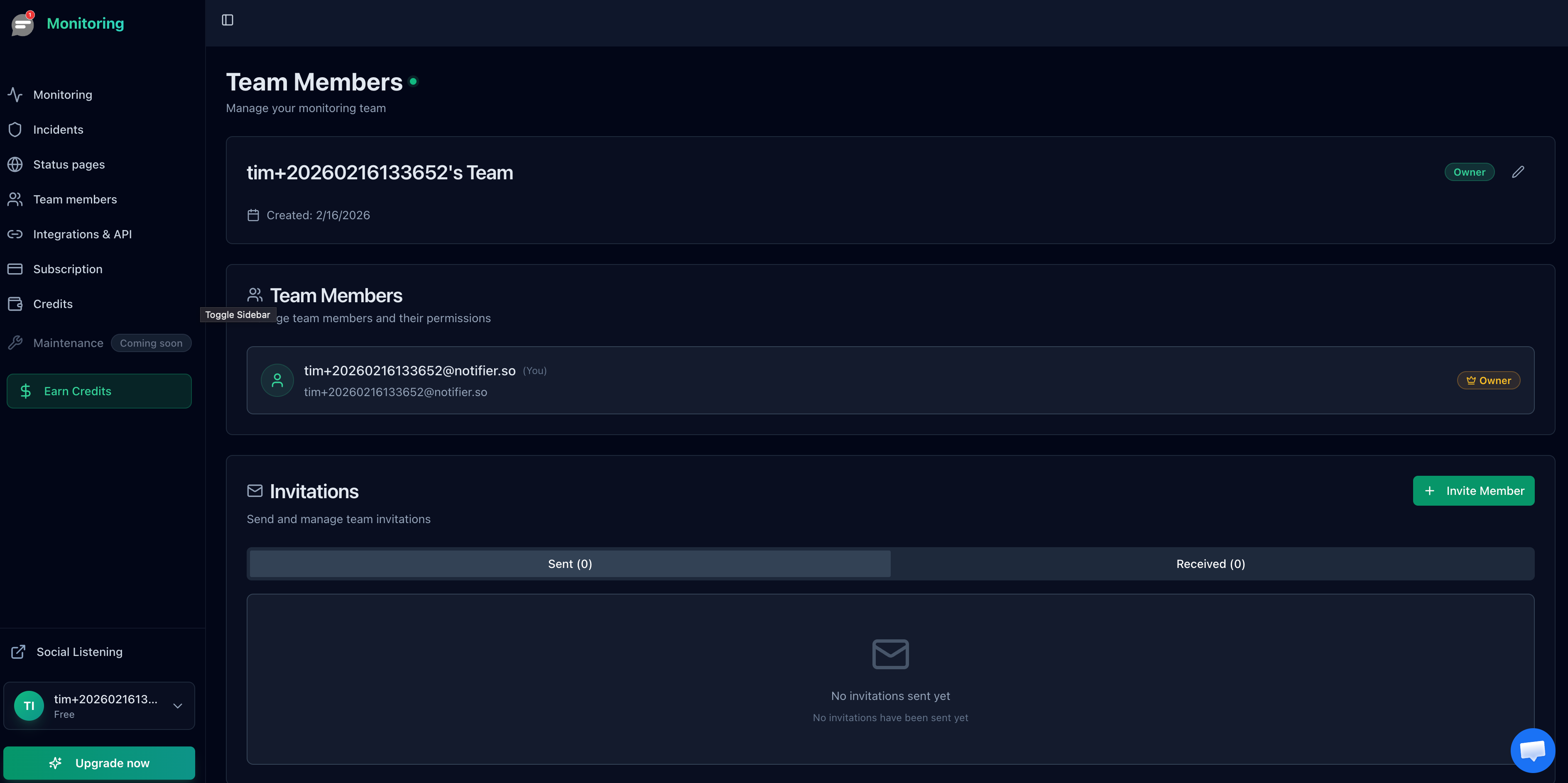
Invite team members so they can access the dashboard and respond to incidents.
Frequently Asked Questions
How many monitors do I need per client?
For a standard brochure site: 2 to 3 monitors (homepage, admin, SSL). For e-commerce: 4 to 5 monitors (add checkout and product API). For SaaS clients: 5+ monitors (add API endpoints, login page, webhooks). Start with the essentials and add more based on what breaks.
Should I charge clients for monitoring?
Most agencies include monitoring as part of their website management retainer. It adds perceived value and costs relatively little per client. If you're on Notifier's Team plan at $19/month with 30 clients, that's about $0.63 per client per month. Some agencies list monitoring as a separate line item at $10 to $25/month per client as an upsell on hosting or maintenance packages.
Can clients see each other's data?
No. Status pages only show the monitors you explicitly add to them. Client A's status page shows only Client A's monitors. Your dashboard shows everything, but individual status page URLs are isolated. There is no way for one client to see another client's uptime data through a status page.
What check interval should I use for client sites?
For most agency clients, 1-minute checks are sufficient. Use 30-second checks for high-value clients where faster detection justifies the higher tier. The free plan's 5-minute interval is fine for testing but too slow for production client monitoring where you need to respond quickly.
Do I need a separate monitoring account per client?
No. A single account with a Team or Enterprise plan is the most cost-effective and manageable approach. Use naming conventions to organize monitors by client, separate Slack channels for alert routing, and individual status pages for client-facing visibility. Separate accounts would mean managing multiple logins, separate billing, and no centralized dashboard.
What if a client leaves and I need to remove their monitors?
With a consistent naming convention, offboarding is straightforward: delete all monitors prefixed with the client's name and remove their status page. This frees up monitor slots for new clients immediately. If you use the naming convention described in this guide, all of a client's monitors will be grouped together in the dashboard.
