Your website doesn't go from "working fine" to "completely down" in an instant. There's almost always a warning sign first: response time gets slower. A page that normally loads in 200 milliseconds starts taking 2 seconds. Then 5. Then it times out entirely.
Response time monitoring catches this degradation before it becomes a full outage. It also catches something equally damaging: a site that's technically "up" but so slow that visitors leave before the page loads. Amazon found that every 100 milliseconds of added latency cost them 1% in sales. The BBC found they lost 10% of users for every additional second of load time.
This guide covers everything from running a quick terminal command to setting up continuous automated monitoring. Whether you want a one-time check or 24/7 response time tracking, you'll find the right approach here.
What Is Website Response Time?
"Response time" gets used loosely, but there are actually three distinct measurements that people confuse. Understanding the difference matters because each one points to a different problem.
Server Response Time
The time your server takes to process a request and begin sending back data. This is purely server-side: receiving the request, running application logic, querying the database, and generating the response. Good server response time is under 200ms. If this number is high, the problem is on your server (slow database queries, unoptimized code, insufficient resources).
Time to First Byte (TTFB)
TTFB is broader than server response time. It measures the total time from when the browser starts navigating to a page until the first byte of the response arrives. TTFB includes:
- DNS lookup: Resolving the domain name to an IP address
- TCP connection: The three-way handshake to establish a connection
- SSL/TLS handshake: Establishing the encrypted connection (HTTPS)
- Server processing: The actual server response time
- Network transit: The first byte traveling back to the browser
Server response time is just one component of TTFB. In some measurements, server processing accounts for only about 12% of the overall TTFB, with network overhead making up the rest.
Page Load Time
The time to download and render the entire page, including HTML, CSS, JavaScript, images, fonts, and third-party resources. This is what users actually experience. Average page load time is 2.5 seconds on desktop and 8.6 seconds on mobile.
| Metric | Good | Needs Work | Poor |
|---|---|---|---|
| Server Response Time | < 200ms | 200ms to 600ms | > 600ms |
| TTFB | < 800ms | 800ms to 1.8s | > 1.8s |
| Page Load Time | < 2s | 2s to 4s | > 4s |
TTFB thresholds are from Google's web.dev. Server response time threshold is from Google Lighthouse (fails audit at 600ms).
Why Response Time Matters
It Directly Affects Revenue
The data on response time and revenue is unambiguous:
- Amazon: Every 100ms of added latency costs 1% in sales
- Walmart: Every 1 second improvement yields a 2% increase in conversions
- Deloitte/Google study: A 0.1 second improvement in mobile site speed increased retail conversions by 8.4% and average order value by 9.2% (across 20.5 million user sessions)
- Akamai: A 100ms delay can reduce conversion rates by 7%
- BBC: Lost 10% of users for every additional second of load time
Users Won't Wait
Google's research found that as page load time goes from 1 second to 3 seconds, the probability of bounce increases by 32%. At 5 seconds, it increases by 90%. At 10 seconds, 123%. And 53% of mobile visitors leave entirely if a page takes more than 3 seconds to load.
It Affects SEO Rankings
TTFB is not a Core Web Vital itself, but it directly impacts Largest Contentful Paint (LCP), which is. Your LCP score can never be better than your TTFB because LCP can't start painting until the first byte arrives. Google Lighthouse specifically fails the "Reduce initial server response time" audit when TTFB exceeds 600ms. Slow response times cascade into poor Core Web Vitals scores, which are a ranking factor.
It's an Early Warning Signal
Response time degradation is often the first sign of a larger problem. A server running out of memory, a database filling up, or a traffic spike overwhelming your infrastructure all show up as increasing response times before they cause a complete outage. Monitoring response time lets you catch and fix problems before your site goes down entirely. For more on the business case for monitoring, see our guide on why uptime monitoring matters.
Method 1: Check Response Time With curl
The fastest way to check response time right now. Open your terminal and run one command. No tools to install, no accounts to create.
Quick TTFB Check
curl -o /dev/null -s -w "TTFB: %{time_starttransfer}s\n" https://example.com
Replace example.com with your domain. This outputs the time to first byte in seconds.
Full Timing Breakdown
For a detailed breakdown showing exactly where time is spent:
curl -o /dev/null -s -w "\
DNS Lookup:        %{time_namelookup}s\n\
TCP Connect:       %{time_connect}s\n\
SSL Handshake:     %{time_appconnect}s\n\
TTFB:              %{time_starttransfer}s\n\
Total Time:        %{time_total}s\n" https://example.com
Sample output:
DNS Lookup:        0.001506s
TCP Connect:       0.012004s
SSL Handshake:     0.035221s
TTFB:              0.067635s
Total Time:        0.089123s
How to Read the Output
- DNS Lookup: Time to resolve your domain to an IP. Should be under 50ms. If it's slow, consider switching DNS providers.
- TCP Connect: Time to establish the connection. Reflects network latency between you and the server.
- SSL Handshake: Time for the TLS negotiation. Should be under 100ms. TLS 1.3 is faster than 1.2.
- TTFB: Time until the first byte of response. This is the key number. Under 200ms is excellent, under 800ms is acceptable.
- Total Time: Complete request including content download.
You can calculate derived values: Server processing time = TTFB minus SSL Handshake. If TTFB is 0.068s and SSL is 0.035s, the server took about 0.033s (33ms) to process the request. That's fast. If TTFB is 2.5s and SSL is 0.04s, the server is taking 2.46s to process, and you have a server-side problem.
Pro tip: Test from outside your network
Running curl from your local machine only measures response time from your location. Your CDN might cache content at a nearby edge node, giving you artificially fast results. Use a remote server (a VPS in a different region) or a free online tool to get a more realistic picture of what your users experience.
Method 2: Browser DevTools
Browser DevTools give you a visual breakdown of every request your page makes, including response times, download sizes, and the rendering waterfall.
How to Use the Network Tab
- Open DevTools: Press F12 (Windows/Linux) or Cmd+Option+I (Mac)
- Go to the Network tab
- Reload the page (Cmd+R or Ctrl+R)
- Look at the Waterfall column for a visual timeline of every request
Reading the Waterfall
Click on any request, then click the Timing tab to see the detailed breakdown:
- Queueing: How long the request waited before being sent
- DNS Lookup: Domain resolution time (only for the first request to a domain)
- Initial Connection: TCP handshake time
- SSL: TLS handshake time
- Waiting (TTFB): Time waiting for the first byte of response. This is the most important number.
- Content Download: Time to download the full response
What to Look For
- The document request (first item): Its "Waiting (TTFB)" is your server response time. If this is slow, the problem is server-side.
- Large files: Images over 500KB, JavaScript bundles over 200KB, and uncompressed CSS files slow everything down.
- Third-party requests: Analytics, chat widgets, ad scripts, and social buttons. If these are slow, they block your page from loading. The average page has 35+ third-party scripts.
- Sequential requests: Requests that should load in parallel but are loading one after another. This often indicates render-blocking scripts.
Method 3: Free Online Testing Tools
These tools provide deeper analysis than curl and test from locations other than your own network.
Google PageSpeed Insights
Free, powered by Lighthouse. Enter your URL and get scores for Performance, Accessibility, Best Practices, and SEO. Shows both lab data (simulated test) and field data (real Chrome user data from CrUX). The "Reduce initial server response time" audit specifically flags slow TTFB. Best for a quick check and seeing how real users experience your site.
WebPageTest
The gold standard for detailed performance analysis. Choose from global test locations, browsers, and connection speeds. Provides filmstrip views showing the visual progression of your page loading, detailed waterfall charts, and advanced metrics like Speed Index and Start Render time. Uses real packet-level network throttling, which is more accurate than Lighthouse's simulated throttling. Best for deep technical analysis and before/after comparisons.
GTmetrix
Uses the Lighthouse engine but loads pages in a real browser. The free account lets you choose test locations (Vancouver, Dallas, Hong Kong, London, Mumbai, Sydney, Sao Paulo) and connection speeds. Includes video recording of the page load and detailed waterfall charts. Best for testing from specific geographic locations.
These tools are great for one-time checks, but...
Manual testing only tells you how your site performs right now. Your response time at 2 PM on a Tuesday might be very different from 9 AM on Black Friday. Response time problems are often intermittent: they happen during traffic spikes, after deployments, or when a database query gets slow as your data grows. To catch these issues, you need continuous automated monitoring.
Method 4: Automated Response Time Monitoring
Automated monitoring tools send HTTP requests to your site on a schedule (every 30 seconds to 5 minutes) from multiple global locations and record the response time for every check. You get continuous data, trend analysis, and alerts when performance degrades.
What Automated Monitoring Gives You
- Response time history: Graphs showing response time over hours, days, and weeks. You can spot trends (is your site getting slower over time?) and correlate spikes with events (deployments, traffic surges, database maintenance).
- Multi-location data: See how your site performs from different regions. A CDN edge failure in Europe won't show up if you're only testing from the US. For more on this, see our guide to multi-location monitoring.
- Alerts before downtime: Set alerts for when response time exceeds a threshold (e.g., alert if TTFB exceeds 2 seconds for 3 consecutive checks). This catches degradation before it becomes a complete outage.
- Baseline establishment: After a few days of monitoring, you'll know your site's normal response time. Any deviation from that baseline is worth investigating.
Setting Up Response Time Monitoring
Here's how to set up response time monitoring with Notifier:
- 1. Create your account at notifier.so/register. The free plan includes 10 monitors.
- 2. Add your monitor. Enter your URL and select your check interval. Notifier checks your site and records the response time for every single check.
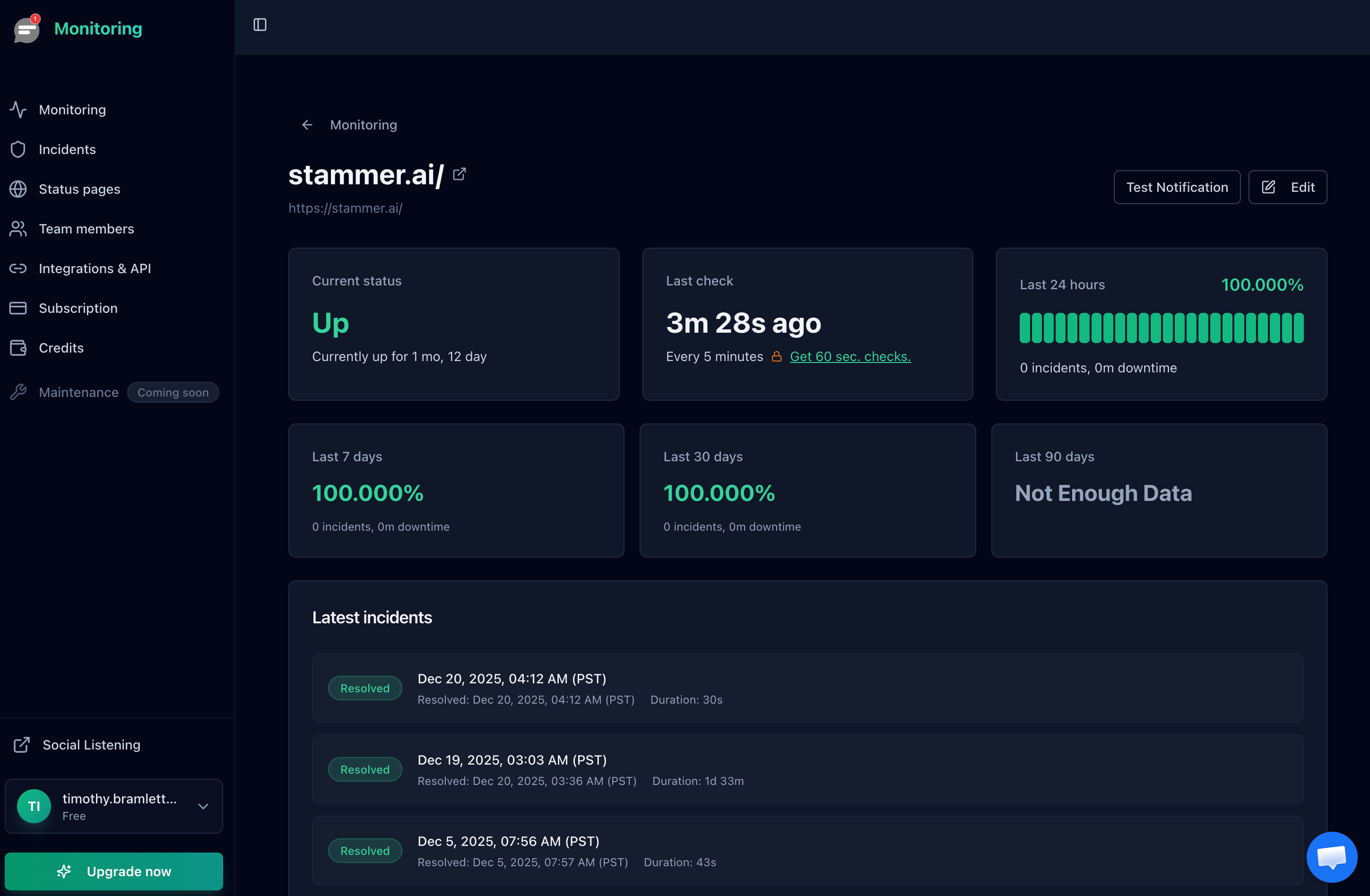
- 3. View response time data. The monitor detail page shows response time graphs over time, so you can spot trends and anomalies.
- 4. Set up alerts. Configure email, SMS, or phone call alerts. You'll be notified when your site goes down or when performance degrades significantly.
Monitoring Tools Compared
| Tool | Response Time Tracking | Free Tier | Check Interval |
|---|---|---|---|
| Notifier | Yes, with history graphs | 10 monitors | 5 min (free), 1 min ($4/mo) |
| UptimeRobot | Yes, with history graphs | 50 monitors | 5 min (free), 1 min ($7/mo) |
| Better Stack | Yes, with percentiles | 10 monitors | 3 min (free), 30 sec ($25/mo) |
| Pingdom | Yes, with RUM data | No free tier | 1 min ($15/mo) |
For most sites, Notifier is the best starting point. The free plan gives you response time tracking with history graphs for 10 monitors. When you need 1 minute checks and SMS/phone alerts, the Solo plan at $4/month is the most affordable option. For a broader comparison, see our guide to the best free monitoring tools.
What Causes Slow Response Times (And How to Fix Them)
If your monitoring shows slow or degrading response times, here are the most common causes and their fixes.
Server-Side Issues
Symptom: High TTFB, high server processing time in curl output.
- Slow database queries: The single biggest contributor to server latency. Add indexes, optimize queries, and consider caching query results with Redis or Memcached.
- No server-side caching: Without caching, the server re-processes every request from scratch. Implement page caching, object caching, and opcode caching (for PHP).
- Insufficient resources: Not enough CPU, RAM, or I/O. Upgrade your hosting plan or optimize resource usage. Check if you're on shared hosting that throttles under load.
- Unoptimized code: Synchronous blocking calls, N+1 query patterns, memory leaks. Profile your application to find bottlenecks.
Network Issues
Symptom: Low server processing time but high TTFB. Large gap between SSL handshake and TTFB in curl output.
- No CDN: Without a CDN, all requests travel to your origin server regardless of where the user is. A CDN caches content at edge nodes close to your users.
- Slow DNS: Switch to a faster DNS provider. Cloudflare DNS (1.1.1.1) and Google DNS (8.8.8.8) are among the fastest.
- Redirect chains: Each redirect adds a full round-trip. Eliminate unnecessary redirects (HTTP to HTTPS, www to non-www should be a single redirect, not a chain).
- TLS version: TLS 1.3 requires one round-trip instead of two (TLS 1.2). Make sure your server supports it.
Frontend Issues
Symptom: Good TTFB but slow page load. The server responds quickly, but the page takes forever to render.
- Unoptimized images: Often the biggest payload. Compress images, use modern formats (WebP, AVIF), and implement lazy loading.
- Render-blocking scripts: JavaScript and CSS in the
<head>block rendering. Defer non-critical scripts and inline critical CSS. - Too many requests: Each HTTP request has overhead. Combine files where possible, use HTTP/2 multiplexing, and eliminate unnecessary requests.
- No compression: Enable gzip or Brotli compression on your server. This can reduce file sizes by 60 to 80%.
Third-Party Scripts
Symptom: Fast initial response, but page load stalls or is slow. DevTools shows large downloads from external domains.
93% of web pages include at least one third-party resource. Analytics trackers, chat widgets, ad networks, and social buttons add up fast. Some chat widgets download over 500KB of JavaScript just to render a button. The average blocking time from the top 10 most popular third-party scripts is 1.4 seconds.
Fix: Audit your third-party scripts. Load them asynchronously (async or defer attributes). Remove scripts you're not actively using. Consider self-hosting critical third-party scripts to eliminate DNS lookups and connection overhead.
Quick diagnostic: Where is the slowness?
- High DNS lookup time: Switch DNS providers
- High TCP connect time: Server is far from users. Use a CDN.
- High SSL handshake: Check TLS version, enable session resumption
- High TTFB (after SSL): Server-side problem. Check database, caching, code
- Good TTFB, slow page load: Frontend problem. Check images, scripts, third parties
Frequently Asked Questions
What is a good TTFB for a website?
Google considers TTFB under 800ms "good" and over 1.8 seconds "poor." For server response time specifically, under 200ms is excellent. Google Lighthouse fails its server response time audit at 600ms. In practice, most well-optimized sites achieve TTFB under 300ms.
Is TTFB a Core Web Vital?
No. The three Core Web Vitals are LCP (Largest Contentful Paint), INP (Interaction to Next Paint), and CLS (Cumulative Layout Shift). However, TTFB directly impacts LCP because the largest content element can't start painting until the first byte arrives. Optimizing TTFB is effectively a prerequisite for good LCP scores.
How often should I check response time?
For manual checks (curl, DevTools), test after any deployment, infrastructure change, or when you notice slowness. For automated monitoring, every 1 to 5 minutes is standard. More frequent checks give you faster alerting but consume more of your monitor quota.
My TTFB is fine but my page is slow. What's wrong?
If your TTFB is under 800ms but the page takes 5+ seconds to load, the problem is on the frontend: large images, render-blocking scripts, too many HTTP requests, or slow third-party scripts. Use the DevTools Network tab to identify which resources are slow and prioritize fixing the largest and slowest ones.
Does a CDN improve response time?
Yes, significantly. A CDN caches your content at edge nodes around the world, reducing the physical distance between your users and your content. This reduces DNS, TCP, and SSL times because users connect to a nearby edge node instead of your origin server. For dynamic content, some CDNs also offer edge computing to reduce origin server load.
Can response time monitoring predict outages?
Often, yes. Response time degradation frequently precedes a complete outage. A server running out of memory, a database filling up, or a traffic spike building will all show up as increasing response times before the site goes down entirely. If your monitoring shows response time climbing from 200ms to 2 seconds over a few hours, something is wrong and needs attention. See our guide on server downtime detection for more.
