At a Glance
- •ERR_NAME_NOT_RESOLVED means your browser could not turn the domain name into an IP address, so it never reached the server at all. The lookup failed, which is why the page fails almost instantly.
- •The three fastest visitor-side fixes: flush your DNS cache, switch your resolver to Cloudflare 1.1.1.1 or Google 8.8.8.8, and turn off Secure DNS in Chrome or Private DNS on Android.
- •It is close to DNS_PROBE_FINISHED_NXDOMAIN but not identical. NXDOMAIN means the domain definitively does not exist, while ERR_NAME_NOT_RESOLVED also covers a resolver that was unreachable, timed out, or returned an error.
- •If you own the site, check for a missing A record, a missing www record, nameservers at your registrar that do not match your DNS host, an expired domain, or a DNS change that has not finished propagating.
- •Notifier has a DNS monitor type alongside uptime and SSL monitoring, free for up to 10 monitors, with email, SMS, and phone alerts. Paid plans start at $4/month for 1-minute checks.
ERR_NAME_NOT_RESOLVED fails before anything interesting has a chance to happen. Your browser never opened a connection, never sent a request, and never saw a certificate. It got stuck on the very first step: turning a domain name into an IP address. That is genuinely useful information, because it rules out most of the things people waste time checking.
This guide covers what the error means, the visitor-side fixes that actually resolve it, the Secure DNS and Private DNS settings that quietly cause it on modern devices, and what to check when the domain that will not resolve is your own.
What ERR_NAME_NOT_RESOLVED Actually Means
Every page load starts with a DNS lookup. Your browser hands the hostname to a resolver, usually the one your router or ISP handed you, and asks for an IP address. ERR_NAME_NOT_RESOLVED means that question never got a usable answer. Either the resolver said the name does not exist, it returned an error, or it did not answer at all before the browser gave up.
Because nothing after the lookup ever ran, you can immediately rule out a whole category of problems. The server might be perfectly healthy. The certificate might be valid. None of that matters yet, because your browser does not know where to send the request.
How it differs from DNS_PROBE_FINISHED_NXDOMAIN
These two errors are close cousins and Chrome sometimes shows either one for the same underlying problem, but they are not the same statement.
- DNS_PROBE_FINISHED_NXDOMAIN: Chrome ran its own DNS probe and got a definitive answer back. The domain does not exist. That usually means a typo, an expired domain, or a record that was never created. Our guide on fixing DNS_PROBE_FINISHED_NXDOMAIN goes deep on that case.
- ERR_NAME_NOT_RESOLVED: the broader error. It covers NXDOMAIN, but also a resolver that was unreachable, a lookup that timed out, a SERVFAIL response, and a blocked or filtered query. The domain may well exist and still fail to resolve for you.
That distinction matters for troubleshooting. If a domain resolves fine on your phone over mobile data but throws ERR_NAME_NOT_RESOLVED on your laptop, the domain clearly exists and the problem lives in your resolver, your network, or your device.
What each browser calls it
The same failure has a different name depending on where you hit it, which makes it hard to search for. Chrome and Edge show "This site can't be reached" with ERR_NAME_NOT_RESOLVED. Firefox says "Hmm. We're having trouble finding that site" or "Server not found." Safari says "Safari can't find the server." On the command line, curl reports Could not resolve host: example.com. All of them describe a failed DNS lookup.
Confirm it is DNS in one command
Before you change any settings, prove the lookup is what is failing. Run one of these:
# Mac and Linux
dig +short example.com

# Windows
nslookup example.com

# Ask a public resolver directly, bypassing your own
dig +short example.com @1.1.1.1
If your normal lookup returns nothing but the query against 1.1.1.1 returns an IP address, your resolver is the problem and switching DNS servers will fix it in seconds. If both come back empty, the domain genuinely has no record and the fix belongs to whoever owns it.
Quick Fixes to Try First (Under 5 Minutes)
These are ordered by how often they actually work, not by how technical they are.
1. Check the spelling of the domain
It feels too obvious to list first, and it is still one of the most common causes. A missing letter, a wrong top level domain such as .co instead of .com, or a stray character pasted from a chat message all produce a name that does not exist. Autocomplete makes this worse, because Chrome will happily suggest a misspelling you typed once weeks ago. Type the address manually rather than picking it from the dropdown.
2. Test the site on another network
Load the same URL on your phone with Wi-Fi turned off so it goes over mobile data. This single test splits the problem in half. If it loads there, the domain exists and your home or office network is at fault. If it fails there too, the domain itself is not resolving for anyone. Our guide on whether a site is down for everyone or just you covers other quick ways to confirm this.
3. Restart your router
Home routers run a small DNS cache of their own, and it holds bad answers just as happily as good ones. Unplug the router for 30 seconds and plug it back in. This clears the cache and forces fresh lookups for every device on your network. If several devices in the house are hitting the same error on the same site, the router cache is the first thing to suspect.
4. Clear Chrome's internal DNS cache
Chrome keeps a host cache separate from your operating system, so flushing the OS cache alone sometimes changes nothing. Clear Chrome's copy directly:
1. Go to  chrome://net-internals/#dns
2. Click "Clear host cache"
3. Go to  chrome://net-internals/#sockets
4. Click "Flush socket pools"
5. Reload the page
Both steps matter. An open socket pool can keep a stale association alive even after the host cache is empty. The same URLs work in Edge and other Chromium browsers.
5. Try incognito and disable extensions
Open a private window and reload. Incognito runs without most extensions. If the site loads there, an extension is blocking the lookup. Ad blockers, privacy tools, and parental control extensions all work by refusing to resolve specific domains, which surfaces as exactly this error. Disable them one at a time until the page loads.
6. Turn off your VPN, proxy, and antivirus web filtering
A VPN pushes your DNS queries through its own resolver. If that resolver is down, filtering the domain, or half configured after a disconnect, lookups fail while everything else on your machine looks fine. Disconnect the VPN, then check that no manual proxy setting was left behind. Antivirus suites with web protection also intercept DNS, so pause that feature briefly to test. Turn protection back on once you know the answer.
Fixes for Windows, Mac, and Mobile
If the quick fixes did not clear it, the next step is your device's own DNS cache and network stack.
Windows
Open Command Prompt as an administrator and run these in order:
ipconfig /flushdns
ipconfig /registerdns
ipconfig /release
ipconfig /renew
netsh winsock reset
Restart the machine after netsh winsock reset. Then check your hosts file at C:\Windows\System32\drivers\etc\hosts. An entry there pointing the domain at 0.0.0.0 is a common leftover from ad blocking scripts and development setups, and it will break that one domain while everything else works.
It is also worth confirming the DNS Client service is running. Open services.msc, find "DNS Client," and make sure its status is Running. Some system tuning utilities disable it, and lookups get slow and unreliable when it is off.
Mac
Open Terminal and flush the cache:
sudo dscacheutil -flushcache; sudo killall -HUP mDNSResponder

# Check for a stale override
cat /etc/hosts

# See which resolvers your Mac is actually using
scutil --dns | grep nameserver
That last command is the one people skip, and it often ends the investigation. If scutil shows a resolver you do not recognize, something set it: a VPN client, a configuration profile, or a network utility you installed and forgot. Set your DNS manually under System Settings, Network, your connection, Details, DNS.
Android
Android throws this error more than any other platform, and usually for one specific reason covered in the next section: Private DNS. Work through these first:
- Toggle airplane mode on for 10 seconds and back off to force a fresh network connection.
- Check Private DNS: Settings, Network & internet, Private DNS. If it is set to a specific provider hostname, switch it to Off or Automatic and retry.
- Clear the Chrome app cache: Settings, Apps, Chrome, Storage, Clear cache. Do not clear storage unless you want to lose your signed in state.
- Forget and rejoin the Wi-Fi network so it pulls new DNS settings from DHCP.
iOS
- Turn off iCloud Private Relay: Settings, your name, iCloud, Private Relay. Private Relay routes DNS through Apple's infrastructure and is a frequent cause of resolution failures on specific sites.
- Check for configuration profiles and VPNs: Settings, General, VPN & Device Management. Content filters installed by an employer or a parental control app override DNS entirely.
- Reset network settings: Settings, General, Transfer or Reset iPhone, Reset, Reset Network Settings. This clears the DNS cache along with saved Wi-Fi passwords, so have those handy.
Change your DNS server
If your ISP's resolver is the problem, no amount of cache flushing will help. Switching to a public resolver is the single most reliable fix for this error:
Cloudflare:  1.1.1.1  and  1.0.0.1
Google:      8.8.8.8  and  8.8.4.4
Quad9:       9.9.9.9  and  149.112.112.112
Set these on the device for a quick test, or on your router to fix every device at once. One caveat worth knowing: if you are on a corporate or school network, an internal hostname may only resolve through the internal DNS server, so a public resolver will break those while fixing everything else.
Secure DNS, Private DNS, and VPN Conflicts
This section deserves its own heading because encrypted DNS is now on by default in a lot of places, and it is the reason a growing share of ERR_NAME_NOT_RESOLVED reports have nothing to do with the site being visited.
Chrome's Secure DNS
Chrome can send lookups over DNS over HTTPS instead of using your system resolver. When the configured provider is unreachable, slow, or blocked by a network you are on, lookups fail even though ordinary DNS on the same machine works fine. Check the setting at:
chrome://settings/security → "Use secure DNS"
Try turning it off entirely and reloading. If the page loads, Secure DNS was the cause. You can then turn it back on and select a different provider rather than leaving it off. Edge has the same setting at edge://settings/privacy and Firefox has it under Settings, Privacy & Security, DNS over HTTPS.
Android Private DNS
Android's Private DNS setting applies system wide, and it fails hard rather than falling back. If you set it to a provider hostname months ago and that provider changed endpoints, went down, or is blocked on your current network, every app that resolves a name will fail. Set it to Automatic under Settings, Network & internet, Private DNS and test again. Automatic uses encrypted DNS when the network supports it and falls back cleanly when it does not.
Captive portals on public Wi-Fi
Hotel, airport, and cafe networks intercept DNS until you accept their terms page. Encrypted DNS breaks that interception, so instead of being redirected to the login page you get a resolution failure on every site. If you just joined a public network and nothing resolves, turn Secure DNS or Private DNS off, complete the portal login, and turn it back on afterwards.
VPN split tunneling
Split tunneling sends some traffic through the VPN and some directly. When the DNS query goes down one path and the connection goes down the other, you get inconsistent resolution that looks random: some sites work, some do not, and the pattern changes when you reconnect. Disable split tunneling to test, or configure the VPN to use its own DNS for all queries rather than only tunneled ones.
Quick way to tell encrypted DNS is the cause:
Run dig +short example.com in a terminal while the browser is failing. The terminal uses your system resolver, not the browser's encrypted one. If the command returns an IP address while Chrome still shows ERR_NAME_NOT_RESOLVED, the browser's own DNS configuration is the problem, not your network.
If You Own the Site and Visitors See This Error
A domain that will not resolve is a complete outage with a nasty extra property: your server is running fine, so nothing in your logs, dashboards, or hosting panel will look wrong. Traffic simply stops arriving. Work through these in order.
1. Check whether the record exists at all
Query your domain from a public resolver so you are not fooled by your own cache:
dig +short example.com @1.1.1.1
dig +short www.example.com @1.1.1.1

# Full answer including the response status
dig example.com @8.8.8.8
In the full output, look at the status: field. NOERROR with an answer means the record is fine. NXDOMAIN means the name does not exist. SERVFAIL means the authoritative servers failed to answer, which usually points at a broken DNSSEC configuration or nameservers that are down.
2. Check the www subdomain separately
This is the most common version of the problem, and it is easy to miss because the site works perfectly for you. The bare domain has an A record, the www version does not, and half your visitors type www out of habit. Add a CNAME for www pointing at the apex domain, or an A record with the same IP. Whichever you choose, verify both hostnames resolve before you move on.
3. Verify your nameservers match your DNS host
If your registrar is pointing the domain at one set of nameservers while you are editing records at a different provider, your changes are being published somewhere nobody is looking:
# Which nameservers is the domain delegated to?
dig NS example.com +short

# Follow the delegation from the root down
dig +trace example.com
The +trace output shows exactly where the chain breaks. This catches the classic failure after a migration, where the domain still points at a nameserver from a hosting company you left months ago.
4. Confirm the domain has not expired
An expired domain stops resolving entirely, and the renewal notice almost always went to an email address nobody checks any more. Check the expiry date directly:
whois example.com | grep -i "expir"You can also use our free domain expiry checker for a quick answer without the command line. If the domain has lapsed, renew it immediately. Resolution usually returns within an hour of the registry updating, though caching can stretch that out. Our guide on domain expiration monitoring covers how to make sure this never surprises you twice.
5. Account for propagation after a change
If you just changed records, some resolvers are still serving the old answer and some are serving the new one. The TTL on the record tells you how long that lasts. A record with a 3600 second TTL can be cached for an hour after the change; a 86400 second TTL means a full day. Nameserver changes at the registrar propagate more slowly still, often 24 to 48 hours. Lower the TTL to 300 seconds a day before a planned migration so the switch is nearly instant.
6. Look for a DNSSEC or registrar hold problem
Two less common causes are worth knowing because they produce total, confusing failures. A DNSSEC key mismatch, typically after moving DNS providers without updating the DS record at the registrar, causes validating resolvers to return SERVFAIL and refuse the answer entirely. Separately, a registrar can place a domain on clientHold for an unverified contact email or a billing problem, which removes it from the zone altogether. Both show up clearly in the whois output and the dig status line.
Common Causes and Where the Fix Lives
Use the clue column to jump straight to the likely cause.
| Cause | Clue | Where to Fix It |
|---|---|---|
| Typo in the domain name | Fails on every device and network | The address bar |
| Stale browser or OS DNS cache | Works after a flush or in another browser | Your device |
| Chrome Secure DNS or Android Private DNS | dig works in the terminal, browser still fails | Browser or system settings |
| Extension, VPN, or antivirus filtering | Loads in incognito or with the VPN off | Your device |
| Hosts file override | One domain fails, everything else works | Your device |
| ISP resolver failing | Fixed by switching to 1.1.1.1 or 8.8.8.8 | Network path |
| Missing A record or missing www record | dig returns nothing from any resolver | Your DNS provider |
| Nameservers pointing at the wrong host | dig +trace breaks at the delegation | Your registrar |
| Expired domain or registrar hold | whois shows a past expiry date or clientHold | Your registrar |
| Broken DNSSEC after a provider move | dig status returns SERVFAIL | Registrar DS record |
The red rows share an uncomfortable trait. Every one of them takes your entire site offline while your server keeps running normally, which means no server side alert will ever fire.
How to Catch DNS Failures Before Your Visitors Do
DNS outages are the quietest kind of downtime. Your web server is healthy, your CPU graphs are flat, your error logs are empty, and your traffic just goes to zero. Teams routinely lose a full day to a deleted record or a lapsed domain because nothing in their stack was watching the layer that broke. External monitoring solves this by doing what a visitor's browser does: resolving the name from outside your network and telling you the moment that stops working.
With Notifier, setup takes about a minute. Add your URL, pick a check interval, and choose how you want to be told.
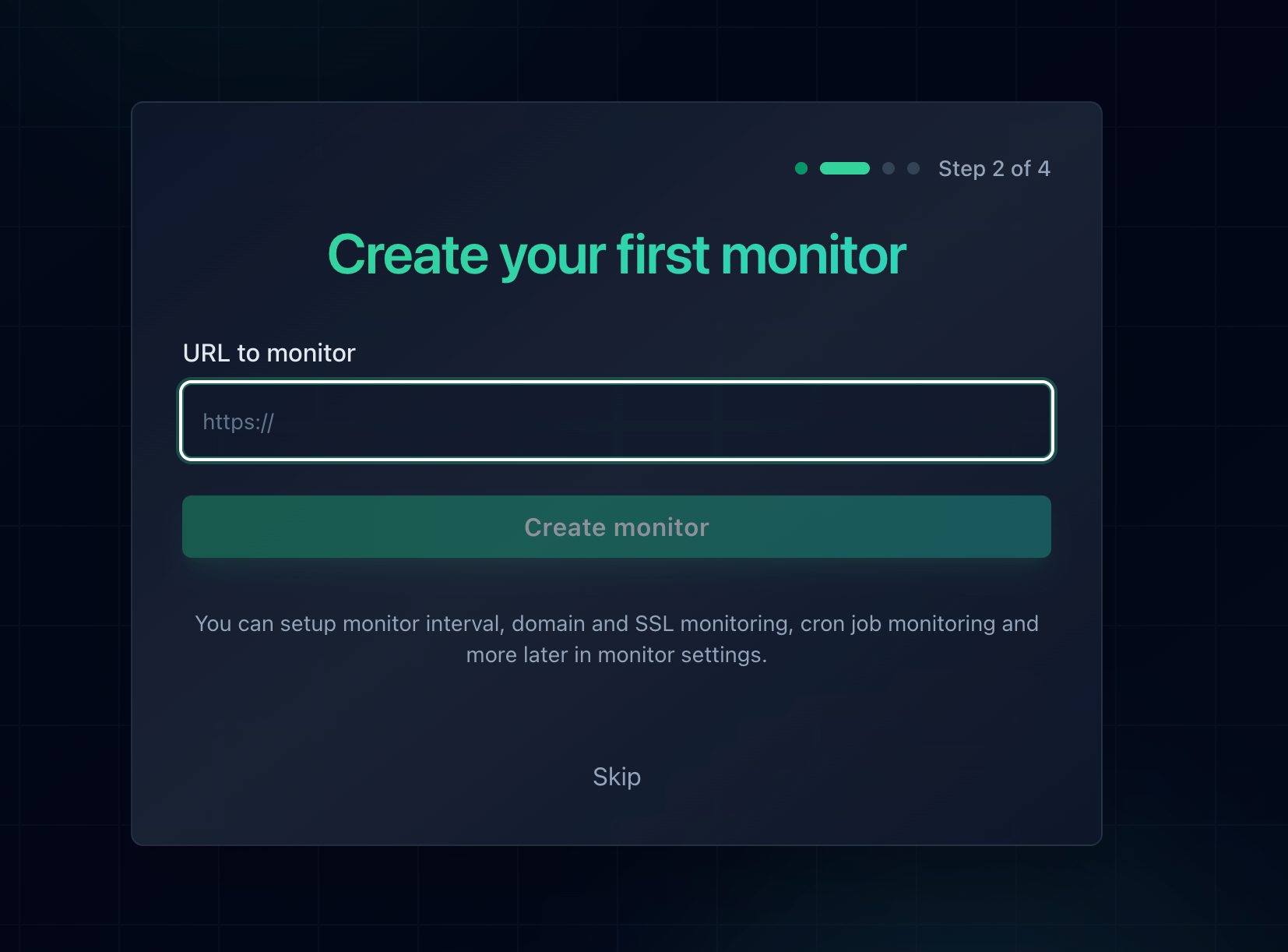
Adding a monitor in Notifier. Response time and SSL certificate tracking are included for every URL you add.
Notifier also has a dedicated DNS monitor type alongside the standard HTTP checks. That matters here, because an HTTP monitor tells you the site is unreachable while a DNS monitor tells you why: the record that used to answer has stopped answering. When your phone starts ringing at 3 AM, that distinction saves you the first twenty minutes of the investigation.
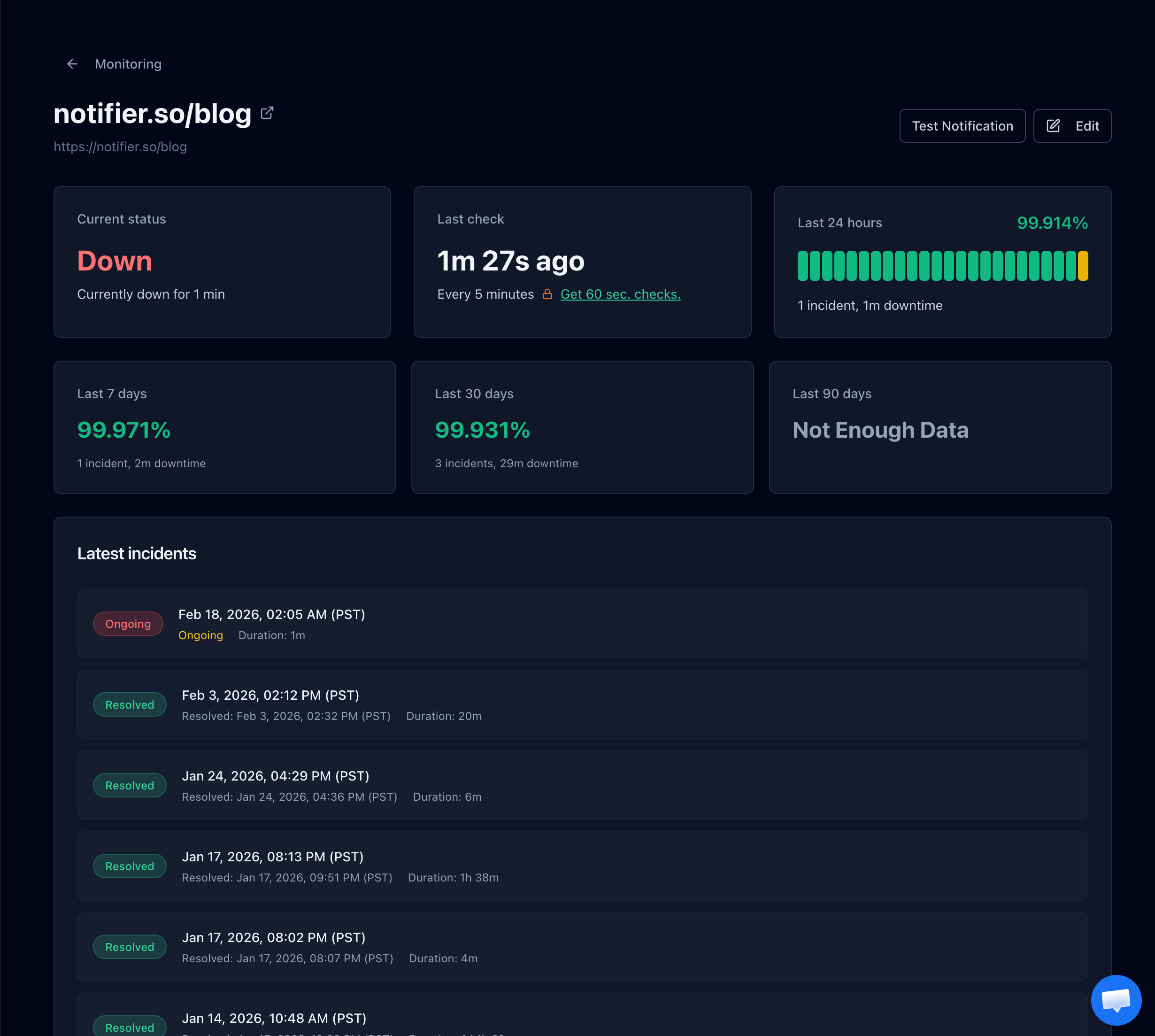
A Notifier monitor detail page showing status, uptime history, and the incident timeline, so you know exactly when resolution started failing.
What Notifier checks for you:
- DNS records: a dedicated DNS monitor type watches your records so a deleted or changed entry does not silently take the site off the internet.
- Uptime: confirms your site resolves, connects, and responds, all from outside your own network.
- SSL certificates: alerts you before a certificate expires, free on every plan including the free tier.
- Response time: tracks how long each check takes so you see degradation before it turns into an outage.
One tip specific to this error: monitor your bare domain and your www subdomain as two separate monitors, plus any subdomain that has its own record, such as an API or an app hostname. Name resolution failures are frequently scoped to a single hostname, so a monitor watching only your homepage will happily report everything is fine while www or api resolves for nobody.
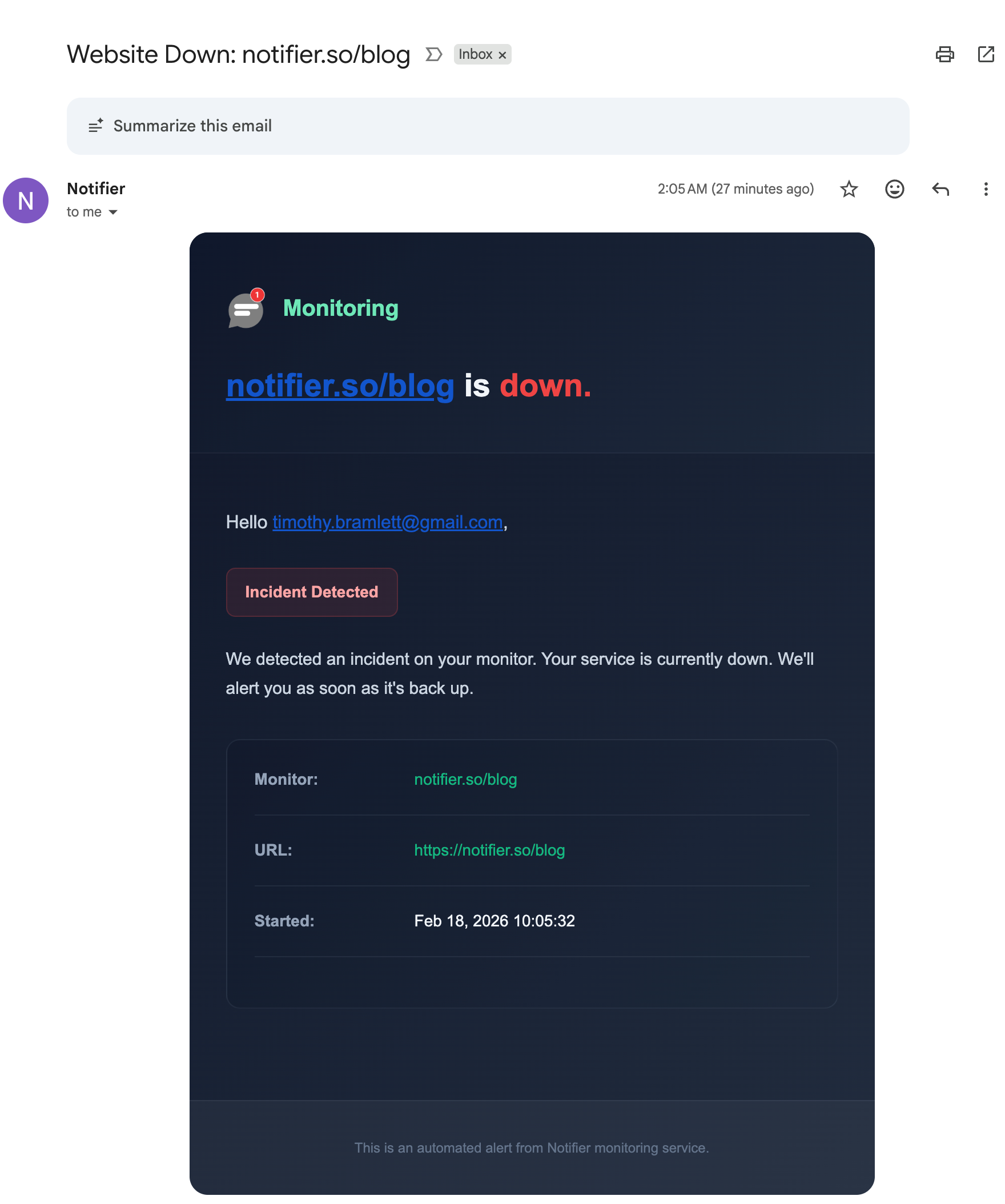
A downtime alert email from Notifier. Alerts also go out by SMS, phone call, and Slack.
The free plan covers 10 monitors and 5 status pages with 5 minute checks, and paid plans start at $4/month for 1 minute checks and custom domain status pages. No credit card is required to start. For a full walkthrough, see how to set up website monitoring, and if you are still working out whether the site is really down, how to check if a website is down walks through the fastest tests.
Frequently Asked Questions
What does ERR_NAME_NOT_RESOLVED mean?
It means your browser could not translate the domain name into an IP address, so it never contacted the server at all. The DNS lookup either returned no result, returned an error, or never got an answer before the browser gave up. Because the failure happens before any connection is made, the server itself may be completely healthy.
What is the difference between ERR_NAME_NOT_RESOLVED and DNS_PROBE_FINISHED_NXDOMAIN?
NXDOMAIN is a definitive answer that the domain does not exist, which usually points to a typo, an expired domain, or a record that was never created. ERR_NAME_NOT_RESOLVED is broader. It covers NXDOMAIN but also a resolver that was unreachable, a lookup that timed out, a SERVFAIL response, and a query blocked by a filter. If the site loads on another network, the domain exists and the problem is your resolver rather than the domain.
How do I fix ERR_NAME_NOT_RESOLVED in Chrome?
Start by clearing Chrome's own DNS cache at chrome://net-internals/#dns and flushing socket pools at chrome://net-internals/#sockets. If that does not work, turn off "Use secure DNS" at chrome://settings/security and reload, since an unreachable DNS over HTTPS provider produces this exact error. Then flush your operating system DNS cache and, if the problem persists, switch your resolver to 1.1.1.1 or 8.8.8.8.
Why does ERR_NAME_NOT_RESOLVED happen on Android but not on my computer?
The usual cause is Android's Private DNS setting. It applies system wide and fails hard rather than falling back, so if the provider you configured is down, has changed endpoints, or is blocked on your current network, every lookup fails. Go to Settings, Network and internet, Private DNS and set it to Automatic. Public Wi-Fi with a captive portal login page is the second most common cause, because encrypted DNS prevents the portal from redirecting you.
Can a VPN cause ERR_NAME_NOT_RESOLVED?
Yes. A VPN routes your DNS queries through its own resolver, so if that resolver is down, filtering the domain, or only half configured after a dropped connection, lookups fail while the rest of your machine seems fine. Split tunneling makes it worse, because DNS and the actual connection can travel different paths. Disconnect the VPN and confirm no manual proxy or DNS entry was left behind in your network settings.
Only my www address fails to resolve. Why?
Your bare domain and your www subdomain are separate DNS records, and one can exist without the other. If example.com resolves but www.example.com does not, you are missing a record for www. Add a CNAME pointing www at the apex domain, or an A record with the same IP address, then verify both hostnames with dig before assuming it is fixed.
How long does it take for DNS changes to fix the error?
It depends on the TTL of the record you changed. A record with a 300 second TTL updates almost immediately, while one set to 86400 seconds can be cached for a full day. Nameserver changes at the registrar are slower still, commonly 24 to 48 hours. Before a planned migration, lower your TTL to 300 seconds a day in advance so the switch takes effect in minutes rather than days.
How do I get alerted when my domain stops resolving?
Use external monitoring, because a DNS failure is invisible from inside your own infrastructure. Your server keeps running and your logs stay quiet while traffic drops to zero. Notifier checks your site from outside your network and has a dedicated DNS monitor type, with alerts by email, SMS, phone call, or Slack. The free plan covers 10 monitors including SSL certificate monitoring, and paid plans start at $4/month for 1 minute checks.