At a Glance
- •WordPress sites need external monitoring, not a plugin. A monitoring plugin runs on the same server as your site, so when the server goes down, the plugin goes down with it and cannot alert you.
- •Monitor at least four URLs: your homepage, /wp-admin/, /wp-login.php, and one critical page like your contact form or checkout. Add /wp-json/ if you rely on the REST API.
- •Managed WordPress hosts (WP Engine, Kinsta, Flywheel) monitor infrastructure but will not alert you about theme conflicts, plugin crashes, or SSL renewal failures.
- •SSL certificate monitoring is essential for WordPress because expired certificates trigger browser security warnings that block visitors entirely.
- •Notifier monitors WordPress sites (including SSL certificates) free for up to 10 URLs, with email, SMS, and phone call alerts on every plan. Paid plans start at $4/month.
WordPress powers over 40% of the web, and yet most WordPress site owners have no idea when their site goes down. They find out from a customer, a drop in Google Analytics, or a tweet they would rather not have seen.
The instinct is to install a monitoring plugin. That is the wrong move. A monitoring plugin runs on the same server as your WordPress site. When the server crashes, the plugin crashes with it. You get zero alerts about the very outage you needed to know about.
What you need is external monitoring: a separate service that checks your WordPress site from the outside, confirms it loads correctly, and alerts you instantly when something is wrong. This guide ranks the 7 best external monitoring tools for WordPress in 2026, with WordPress-specific setup tips for each one.
For a deeper look at WordPress failure modes and what URLs to watch, see our complete WordPress uptime monitoring guide.
Why WordPress Sites Need External Monitoring
WordPress has more moving parts than most platforms. A single plugin update, a PHP memory limit, or a database connection error can take your entire site offline. Here is why external monitoring is the only reliable approach.
Plugins Go Down With the Site
WordPress monitoring plugins (like Jetstats, ManageWP Worker, or WP Umbrella) run as PHP code inside your WordPress installation. If your hosting server goes down, if PHP hits a fatal error, or if the database stops responding, every plugin on that server stops working too. You will never receive an alert because the alerting mechanism is dead.
External monitoring services run on completely separate infrastructure. They send HTTP requests to your site from outside, just like a real visitor would. If the request fails, they alert you through email, SMS, phone call, or Slack. The monitoring continues working regardless of what happens to your WordPress server.
wp-admin Health Check Has Limitations
WordPress includes a built-in Site Health screen (Tools > Site Health in the dashboard) that checks for common issues. This is useful for routine maintenance, but it is not monitoring. It only runs when you manually visit the page. It does not check continuously, it does not send alerts, and it cannot tell you if your site is unreachable from the outside.
Think of Site Health as a doctor's checkup and external monitoring as a heart rate monitor. One tells you how things look right now. The other watches continuously and calls an ambulance when something goes wrong.
Managed Hosting Monitoring Has Gaps
Managed WordPress hosts like WP Engine, Kinsta, and Flywheel monitor their own infrastructure: server health, CPU usage, memory, and network connectivity. If a physical server fails, they know about it and work to fix it.
But they do not monitor your application layer. If a plugin update causes a white screen of death, if your theme throws a fatal PHP error, or if your SSL certificate fails to renew, your managed host will not alert you. From their perspective, the server is running fine. From your visitors' perspective, the site is broken.
Common WordPress failure modes that hosting providers miss:
- Plugin conflicts after auto-updates cause white screen of death
- PHP memory exhaustion on high-traffic pages
- Database connection errors (
Error establishing a database connection) - SSL certificate renewal failures
- Broken theme after WordPress core updates
- REST API failures that break headless WordPress setups
- wp-cron stuck, causing missed scheduled posts and maintenance tasks
What to Look For in WordPress Monitoring
Not every monitoring tool is equally suited for WordPress. Here are the features that matter most for WordPress site owners.
| Feature | Why It Matters for WordPress |
|---|---|
| External HTTP checks | Tests your site from outside, catches server crashes and plugin errors that internal monitoring misses |
| SSL certificate monitoring | WordPress sites on shared hosting often have SSL renewal issues. An expired certificate blocks all visitors with a security warning. |
| Response time tracking | WordPress sites slow down when plugins bloat, caching fails, or the database grows. Slow response times hurt SEO rankings and conversions. |
| Multiple URL monitoring | Your homepage might load fine while /wp-admin/ or /checkout/ is broken. You need to monitor more than one page. |
| SMS and phone call alerts | Email alerts get buried. If your WordPress site is your business, you need an alert that reaches you immediately. |
| Status pages | Let customers check if your site is down without flooding your inbox with "is your site working?" emails. |
| Affordable pricing | Most WordPress site owners are small businesses, freelancers, or solo creators. Enterprise pricing is a non-starter. |
The 7 Best Uptime Monitoring Tools for WordPress
1. Notifier
Best overall for WordPress site owners who want simple, affordable external monitoring.
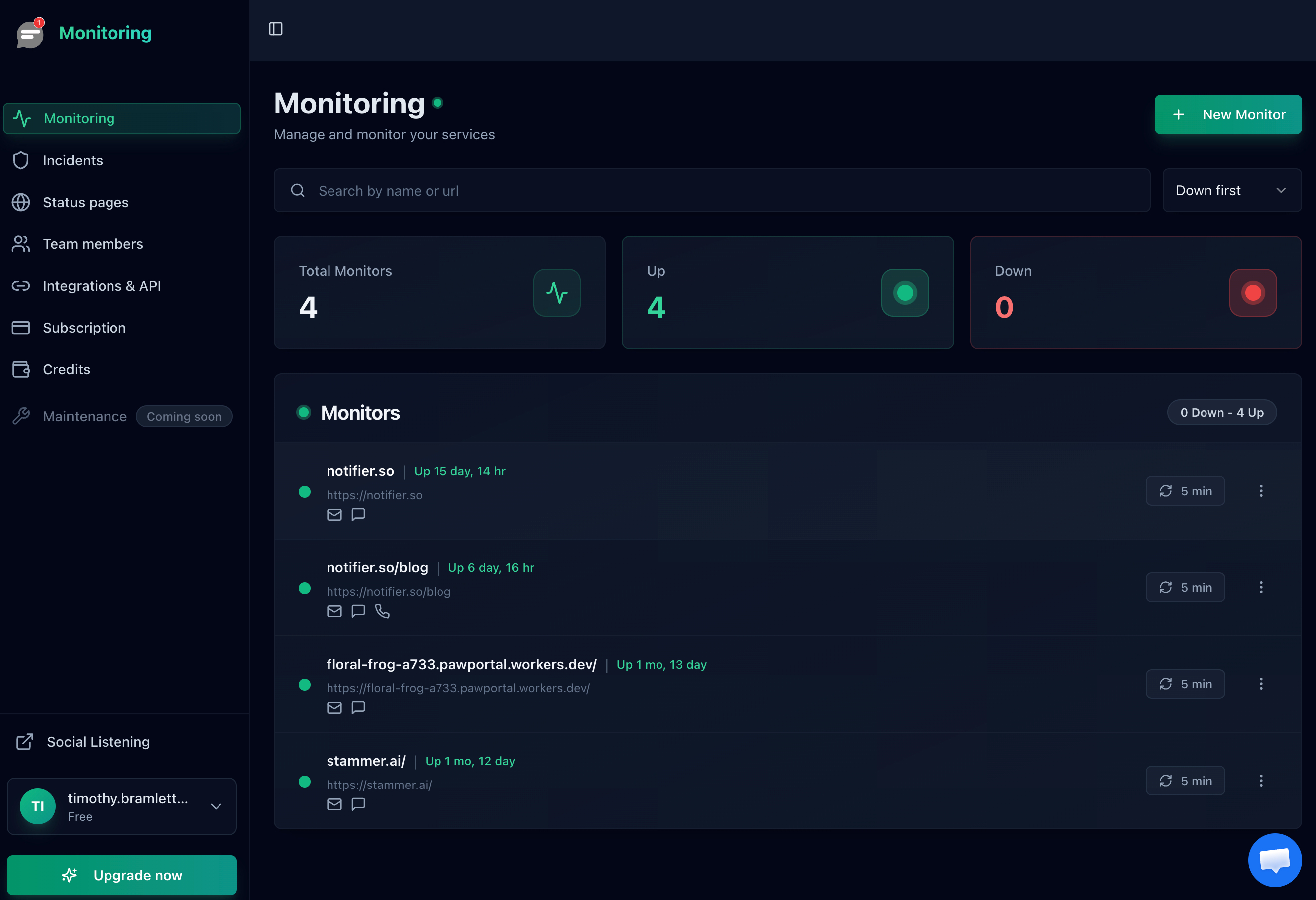
Notifier is purpose-built for the kind of monitoring WordPress site owners actually need. You add your site URLs, choose your alert channels, and you are done. No complex configuration, no incident management workflows to learn, no per-component pricing to calculate.
| Plan | Price | Monitors | Interval | Status Pages |
|---|---|---|---|---|
| Free | $0 | 10 | 5 min | 5 |
| Solo | $4/mo | 20 | 1 min | 10 |
| Team | $19/mo | 100 | 30 sec | 50 |
| Enterprise | $35/mo | 200 | 30 sec | Unlimited |
Why it is #1 for WordPress: The free plan gives you 10 monitors, which is enough to cover a typical WordPress site's homepage, admin panel, login page, key landing pages, and REST API endpoint. SSL certificate monitoring is included free on every plan, so you will know before your certificate expires. Email, SMS, and phone call alerts are available on all plans (including the free tier, using a credit system). When you outgrow the free plan, the Solo plan at $4/month doubles your monitors and adds 1 minute check intervals.
WordPress setup tip: Add your homepage, yoursite.com/wp-admin/, and yoursite.com/wp-login.php as separate monitors. This catches cases where the frontend works but the admin is unreachable (common during database errors). If you run WooCommerce, add your checkout page too.
Best for: WordPress site owners, bloggers, small businesses, and WooCommerce stores that want reliable monitoring without overpaying.
2. UptimeRobot
Largest free tier, but restricted to non-commercial use since October 2024.
UptimeRobot has been around since 2010 and is one of the most recognized names in uptime monitoring. It has over 2 million users and a straightforward interface that takes minutes to set up. For personal WordPress blogs and hobby projects, the free plan with 50 monitors at 5 minute intervals is generous.
The critical detail for WordPress business owners: as of December 2024, the free plan is restricted to non-commercial use only. If your WordPress site generates revenue (through ads, WooCommerce, memberships, client services, or anything else), you must use a paid plan. The Solo plan at $8/month gives you only 10 monitors with 1 minute checks. The Team plan at $34/month gives you 100 monitors.
SMS credits are a one-time welcome bundle, not a monthly allowance. Once used, extras cost $3 for 10 credits.
Note: UptimeRobot's free tier is limited to non-commercial use since December 2024. Personal blogs and hobby sites are fine. Business sites, WooCommerce stores, and client projects require a paid plan.
WordPress setup tip: UptimeRobot supports keyword monitoring on all plans, including free. Set up a keyword check for a string that appears on your homepage (like your site title). If WordPress throws a white screen or a "database connection error," the keyword will be missing and UptimeRobot will alert you, even though the server technically returned an HTTP response.
Best for: Personal WordPress blogs and non-commercial sites that can use the generous free tier. Commercial sites should compare the paid plans against alternatives.
3. ManageWP
WordPress management platform with basic uptime monitoring included.
ManageWP (owned by GoDaddy) is a WordPress management dashboard that lets you update plugins, themes, and WordPress core across multiple sites from a single interface. It also includes basic uptime monitoring as part of its premium add-ons.
The uptime monitoring add-on costs $1/month per website and checks your site every minute from multiple locations. When your site goes down, ManageWP sends email notifications. That is the extent of it. There are no SMS alerts, no phone call alerts, no status pages, and no response time tracking.
The value proposition is the combination: if you already use ManageWP to manage plugin updates, backups, and security scans across multiple WordPress sites, adding $1/site for monitoring keeps everything in one place. But as a standalone monitoring solution, it is limited.
WordPress setup tip: If you use ManageWP primarily for site management, pair its basic monitoring with a dedicated monitoring tool like Notifier for better alert coverage. Use ManageWP for the WordPress-specific management tasks and Notifier for the actual monitoring and alerts.
Best for: WordPress agencies and freelancers already using ManageWP for multi-site management who want basic monitoring without adding another tool.
4. Better Stack
Full incident management platform, but pricing adds up fast for WordPress users.
Better Stack (formerly Better Uptime) is an all-in-one incident management platform that includes uptime monitoring, on-call scheduling, status pages, and log management. It is a powerful tool designed for engineering teams running complex infrastructure.
The free tier includes 10 monitors with 3 minute checks, 1 status page, and email/Slack alerts. Paid plans use component-based pricing: $34/responder/month plus additional charges per 50 monitors and per status page.
For a WordPress site owner monitoring 10 URLs, the free plan is workable but limited (3 minute intervals, email and Slack only). A basic paid setup with 1 responder and 10 monitors would cost at least $34/month, which is difficult to justify for a single WordPress site when alternatives offer similar monitoring for $4/month or less.
WordPress setup tip: Better Stack supports SSL certificate monitoring (checks hourly) on all plans. This is useful for WordPress sites on shared hosting where SSL renewals occasionally fail.
Best for: WordPress agencies or larger organizations that need incident management workflows and on-call scheduling in addition to monitoring.
5. StatusCake
Includes page speed testing and SSL monitoring, but status pages cost extra.
StatusCake bundles uptime monitoring with page speed testing, SSL certificate monitoring, and domain expiration checks. For WordPress site owners who care about performance (and you should, since Google uses page speed as a ranking factor), the built-in page speed tests are a useful bonus.
The free plan includes 10 monitors at 5 minute intervals with 1 SSL monitor and 1 page speed monitor. No SMS credits and no status pages on the free plan. Status pages are a separate paid product. The Superior plan at $24.49/month gives you 100 monitors with 1 minute checks and 75 SMS credits.
WordPress setup tip: Take advantage of StatusCake's page speed monitoring to track how your WordPress site performs after plugin updates. If response time jumps after installing a new plugin, you have found the culprit.
Best for: WordPress site owners who want page speed monitoring bundled with uptime checks and do not need status pages.
6. Freshping
Shut down on March 6, 2026. No longer available.
Freshping, owned by Freshworks, was one of the most generous free monitoring tools available. It offered 50 monitors with 1 minute check intervals and 5 status pages, all completely free. Many WordPress site owners relied on it.
Freshworks discontinued Freshping on March 6, 2026. All monitoring stopped and data will be permanently deleted around June 2026. If you were a Freshping user, you need a replacement.
Freshping has shut down. For migration options and what to do next, see our Freshping shutdown guide.
7. Uptime Kuma
Free and open source, but you host and maintain it yourself.
Uptime Kuma is a free, open source monitoring tool with over 83,000 GitHub stars. You deploy it on your own server and get unlimited monitors, check intervals as fast as 20 seconds, unlimited status pages, and 90+ notification integrations.
docker run -d --restart=always -p 3001:3001 -v uptime-kuma:/app/data --name uptime-kuma louislam/uptime-kuma:2The trade-off is maintenance. You are responsible for server uptime, security patches, updates, and backups. If you host Uptime Kuma on the same server as your WordPress site (which many people do to save money), you have a critical problem: when that server goes down, both your site and your monitoring go down. You will not receive any alert about the outage.
There are also practical limitations. Performance degrades beyond 150 to 500 monitors, multi-user support is still in early stages, there is no official API, and SMS/phone alerts require third-party integrations (like Twilio) that you configure yourself.
WordPress setup tip: If you go the Uptime Kuma route, host it on a completely separate server from your WordPress site. A $5/month VPS from a different provider ensures your monitoring stays alive when your WordPress host goes down. Add keyword monitoring for your homepage to catch the WordPress "white screen of death."
Best for: Developers comfortable with Docker, server administration, and self-hosting who want zero recurring monitoring costs and full control.
Side-by-Side Comparison
This table compares what a WordPress site owner would get from each tool, focusing on the features and pricing tiers most relevant to WordPress sites:
| Tool | Free Monitors | Free Interval | SSL Monitoring | SMS/Phone Alerts | Status Pages (Free) | Cheapest Paid Plan | Commercial Use (Free) |
|---|---|---|---|---|---|---|---|
| Notifier | 10 | 5 min | Yes (all plans) | All plans (credits) | 5 | $4/mo | Yes |
| UptimeRobot | 50 | 5 min | Yes | Paid plans (credits) | 1 | $8/mo | No |
| ManageWP | 0 | N/A | No | Email only | 0 | $1/site/mo | N/A (paid only) |
| Better Stack | 10 | 3 min | Yes (hourly) | Paid plans | 1 | $34/mo | Yes |
| StatusCake | 10 | 5 min | Yes (1 free) | Paid plans (credits) | 0 | $24.49/mo | Yes |
| Shut down March 6, 2026 | |||||||
| Uptime Kuma | Unlimited | 20 sec | Yes | Via third-party | Unlimited | Free (self-hosted) | Yes |
For most WordPress site owners, the decision comes down to simplicity and value. Notifier gives you everything you need at the lowest price point, with the bonus of SSL monitoring and SMS/phone alerts included on every plan. UptimeRobot is a solid choice for personal, non-commercial sites. ManageWP makes sense if you already use it for WordPress management. And Uptime Kuma is there if you want to self-host.
WordPress-Specific Monitoring Tips
Monitor After Every Plugin Update
Plugin conflicts are the number one cause of WordPress downtime. When you update plugins (or let WordPress auto-update them), check your monitoring dashboard within 30 minutes. If you use a monitoring tool with 1 minute check intervals, you will know quickly if an update broke something.
Better yet, set up Slack alerts so your team sees downtime notifications immediately after deploying updates.
Watch Response Times, Not Just Uptime
A WordPress site can be "up" but painfully slow. This happens when caching stops working, when a plugin adds heavy database queries, or when your hosting plan is underpowered for your traffic. Set response time alerts so you know when your site slows down, not just when it goes completely offline.
A healthy WordPress site should load in under 2 seconds. If response times consistently exceed 3 seconds, investigate your caching setup, active plugins, and hosting plan. See our response time monitoring guide for details.
Set Up SSL Certificate Monitoring
WordPress sites on shared hosting, or sites using free SSL from Let's Encrypt, depend on automatic certificate renewal. When renewal fails (and it does, especially during DNS changes or hosting migrations), visitors see a full-page security warning that blocks access to your site entirely.
SSL certificate monitoring checks your certificate's expiration date and alerts you days or weeks before it expires. This gives you time to fix the renewal issue before visitors are affected.
Use a Status Page for Client or Customer Communication
If your WordPress site serves clients, customers, or members, a public status page saves you from answering "is the site down?" emails during every outage. Tools like Notifier include status pages on the free plan. You can set one up in minutes and share the link with your audience.
For more on this, see our guide on how to create a status page.
What WordPress URLs to Monitor
Monitoring just your homepage is better than nothing, but it misses failures that only affect specific parts of your WordPress site. Here are the URLs every WordPress site owner should monitor:
| URL | What It Catches | Priority |
|---|---|---|
yoursite.com |
Server crashes, DNS failures, SSL errors, total outages | Essential |
yoursite.com/wp-admin/ |
Admin panel failures, database connection errors, PHP fatal errors | Essential |
yoursite.com/wp-login.php |
Login page failures (separate from admin dashboard issues) | Important |
yoursite.com/wp-json/ |
REST API issues, headless WordPress failures, plugin API problems | Important |
yoursite.com/checkout/ |
WooCommerce checkout failures, payment gateway issues | Essential (WooCommerce) |
yoursite.com/contact/ |
Contact form page failures, lead capture disruption | Nice to have |
yoursite.com/wp-cron.php |
Scheduled task failures (missed posts, backup failures) | Nice to have |
With Notifier's free plan, you get 10 monitors, which is enough to cover all of these URLs for a single WordPress site. For WooCommerce stores, see our detailed WooCommerce uptime monitoring guide for additional endpoints to watch.
Quick setup with Notifier:
- 1. Create a free Notifier account
- 2. Add your homepage URL as a monitor
- 3. Add /wp-admin/ and /wp-login.php as separate monitors
- 4. Enable SSL certificate monitoring (automatic with HTTPS URLs)
- 5. Choose your alert channels: email, SMS, phone, or Slack
- 6. Optional: create a public status page for your visitors
The entire setup takes under 5 minutes. For a step-by-step walkthrough with screenshots, see our WordPress uptime monitoring tutorial.
Frequently Asked Questions
Do I need a monitoring plugin or an external monitoring service for WordPress?
You need an external monitoring service. Monitoring plugins run inside WordPress on the same server. If the server goes down, the plugin cannot send alerts. External services like Notifier check your site from outside, so they detect outages regardless of what happens to your WordPress server. Plugins are fine for performance optimization tips and security scans, but they are not a substitute for external uptime monitoring.
Does my managed WordPress host already monitor my site?
Managed hosts like WP Engine, Kinsta, and Flywheel monitor their infrastructure (server health, CPU, memory), but they do not monitor your WordPress application. If a plugin update causes a white screen of death, your host's servers are running fine and they will not alert you. You need external monitoring to catch application-level failures.
How often should I check my WordPress site for uptime?
For most WordPress sites, checking every 5 minutes is a reasonable starting point. This catches outages quickly without generating excessive requests. If your site generates revenue (WooCommerce store, membership site, client portal), upgrade to 1 minute checks for faster detection. For high-traffic e-commerce sites, 30 second intervals minimize the time between an outage starting and you being alerted.
Is free uptime monitoring good enough for a WordPress business site?
Free monitoring is better than no monitoring. For a small business WordPress site, a free plan with 10 monitors, 5 minute checks, and email, SMS, and phone call alerts covers the essentials. As your site grows and generates more revenue, upgrading to a paid plan with faster check intervals (1 minute or 30 seconds) becomes worthwhile. Notifier's free plan allows commercial use and includes SSL monitoring, making it a strong starting point for business sites.
Can I monitor my WordPress site's SSL certificate?
Yes. Most external monitoring tools, including Notifier, automatically monitor SSL certificates when you add an HTTPS URL. You will be alerted before your certificate expires, giving you time to renew it or fix the auto-renewal process. This is especially important for WordPress sites on shared hosting, where Let's Encrypt auto-renewals occasionally fail. See our SSL certificate monitoring guide for details.
How many monitors do I need for a single WordPress site?
For a basic WordPress site, 3 to 5 monitors cover the essentials: homepage, /wp-admin/, /wp-login.php, and one or two key pages. For a WooCommerce store, add monitors for the checkout page, cart page, and /wp-json/ REST API endpoint, bringing the total to 6 to 8. Notifier's free plan with 10 monitors is enough for a single WordPress site with room to spare.
What is the best free uptime monitoring tool for WordPress?
For commercial WordPress sites, Notifier offers the best free plan: 10 monitors, 5 status pages, SSL monitoring, and email/SMS/phone alerts, with no restriction on commercial use. For personal, non-commercial WordPress blogs, UptimeRobot's free tier offers 50 monitors. For a comprehensive comparison, see our best free website monitoring tools guide.
