Notifications
Configure how and where you receive downtime and recovery alerts.
Overview
Notifier alerts you when your website goes down and again when it comes back up. There are four alert channels available:
- Email — always enabled by default on all plans
- SMS — text messages to your verified phone number (uses credits)
- Phone calls — automated voice calls for critical alerts (uses credits)
- Slack — alerts posted directly to a Slack channel
Each monitor can use a different combination of alert channels. You configure them individually when creating or editing a monitor.
Email Alerts
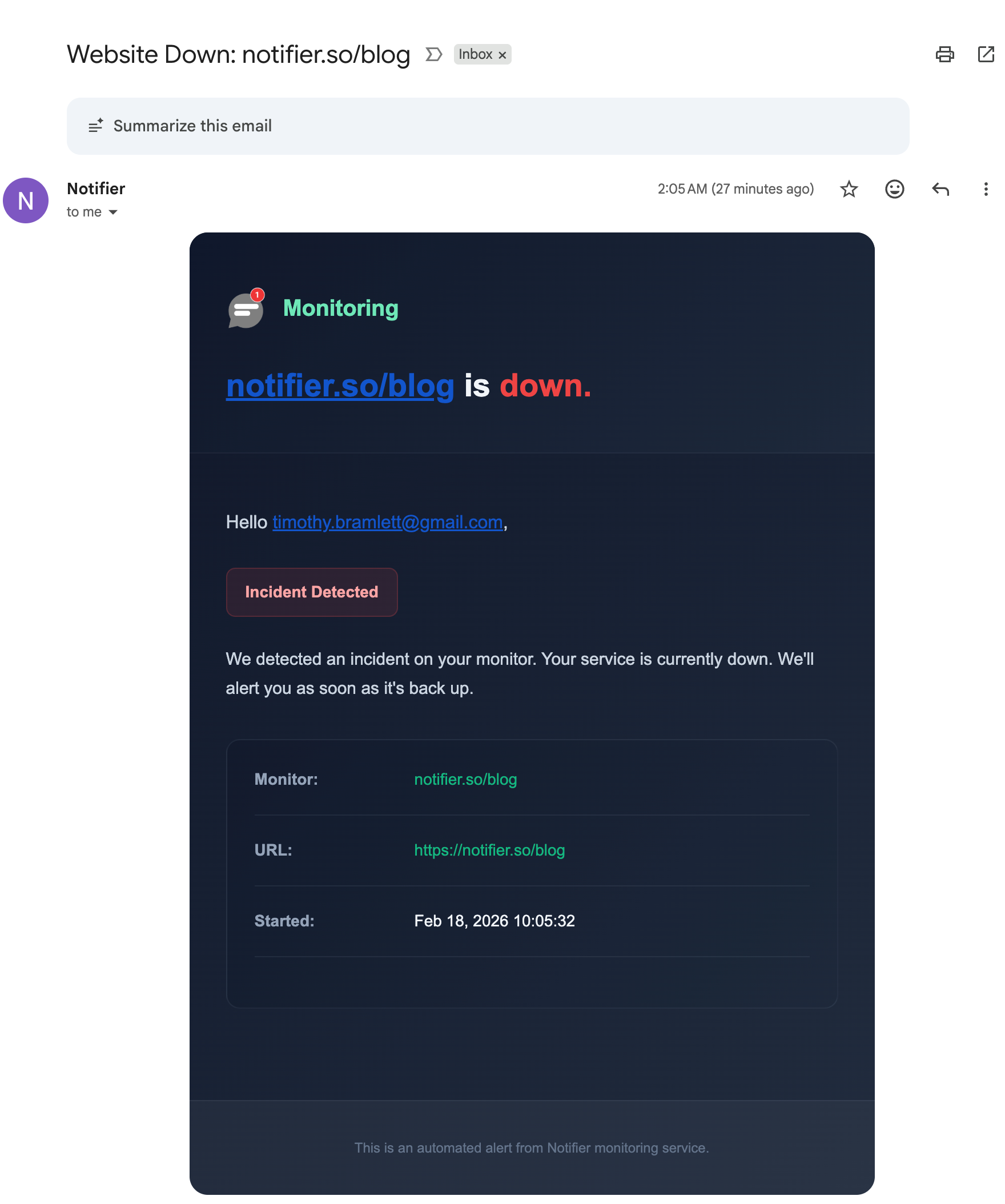
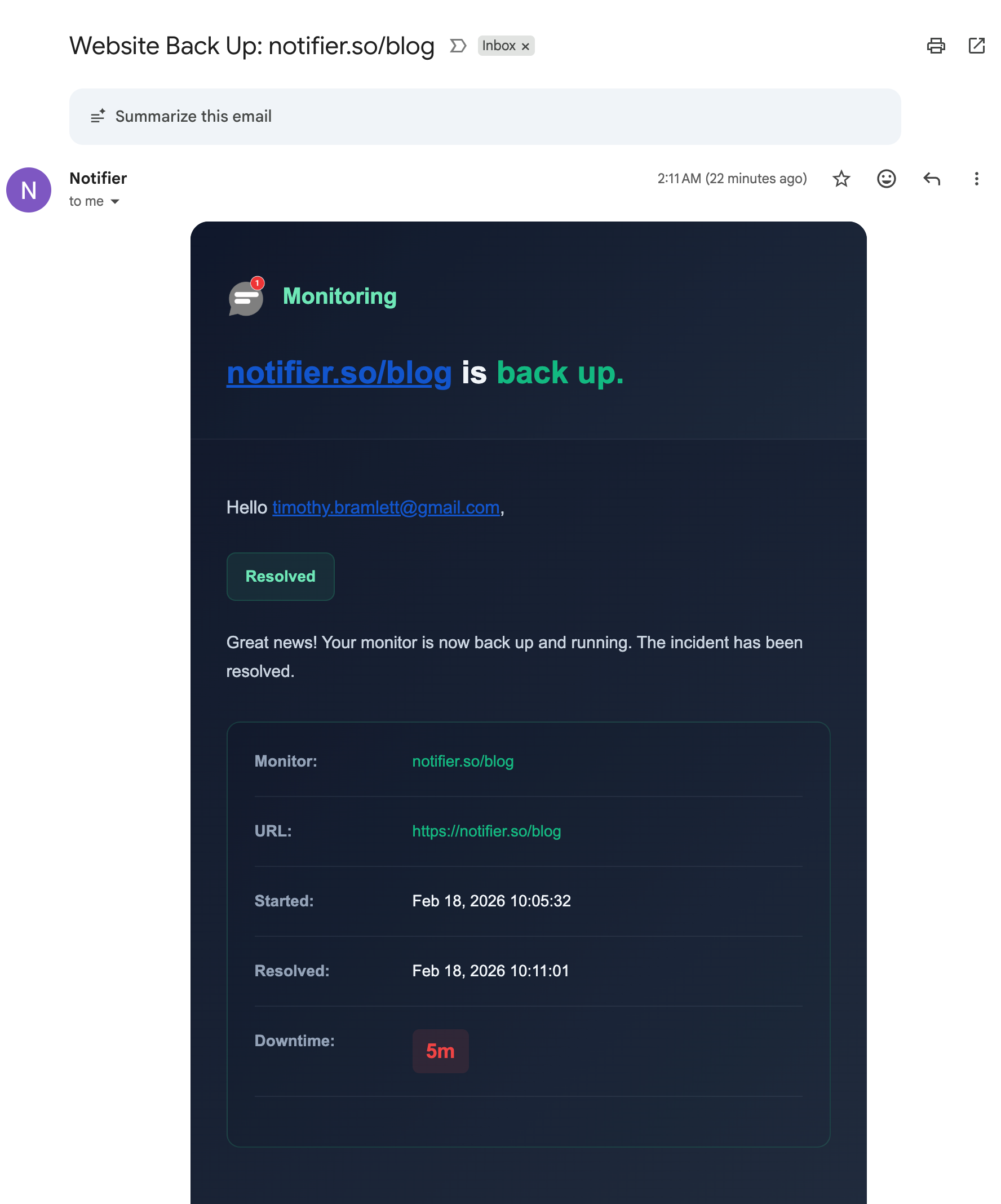
Email alerts are available on all plans and are enabled by default for every new monitor. When a monitor goes down, you receive a downtime alert with incident details. When the monitor recovers, you receive a recovery email with the total downtime duration.
Downtime Alert
Recovery Alert
SMS Alerts
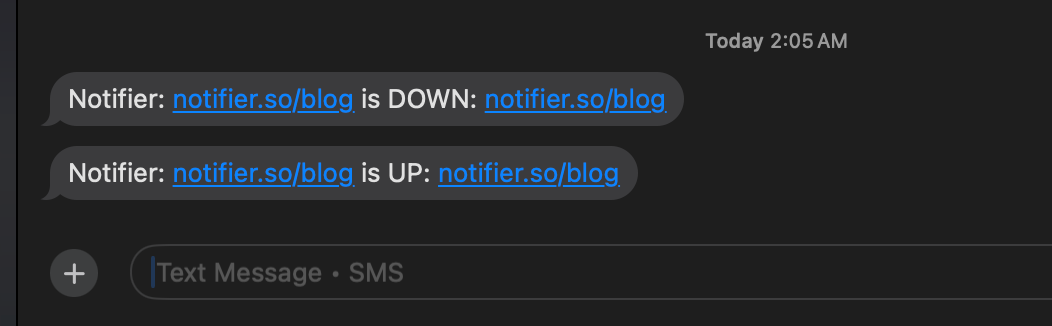
SMS alerts send a short text message with the monitor name and its current status (DOWN or UP). SMS requires a verified phone number and uses credits from your team wallet.
Phone Call Alerts
Phone call alerts trigger an automated voice call when a monitor goes down. This is the best option for critical monitors where you need to be woken up at night or reached immediately.
Phone calls require a verified phone number and use credits from your team wallet.
Verifying Your Phone Number
SMS and phone call alerts both require a verified phone number. To verify your number:
- Go to your notification settings in the dashboard
- Enter your phone number in E.164 format (e.g.
+12125551234) - You will receive a 6 digit OTP code via SMS
- Enter the code to complete verification
Credit Wallet
SMS and phone call alerts use credits. Your team has a single shared wallet that all team members draw from.
Purchasing Credits
You can purchase credits directly from the dashboard. Credits never expire.
Earning Free Credits
You can earn $0.50 in credits for each of the following actions:
- Sharing Notifier on X (Twitter)
- Writing a testimonial
Low Credit Warnings
Notifier sends automatic warning emails when your credit balance is running low and again when it reaches zero, so you never miss an alert unexpectedly.
Slack Integration
Connect Notifier to your Slack workspace to receive downtime and recovery alerts in any channel.
Connecting Slack
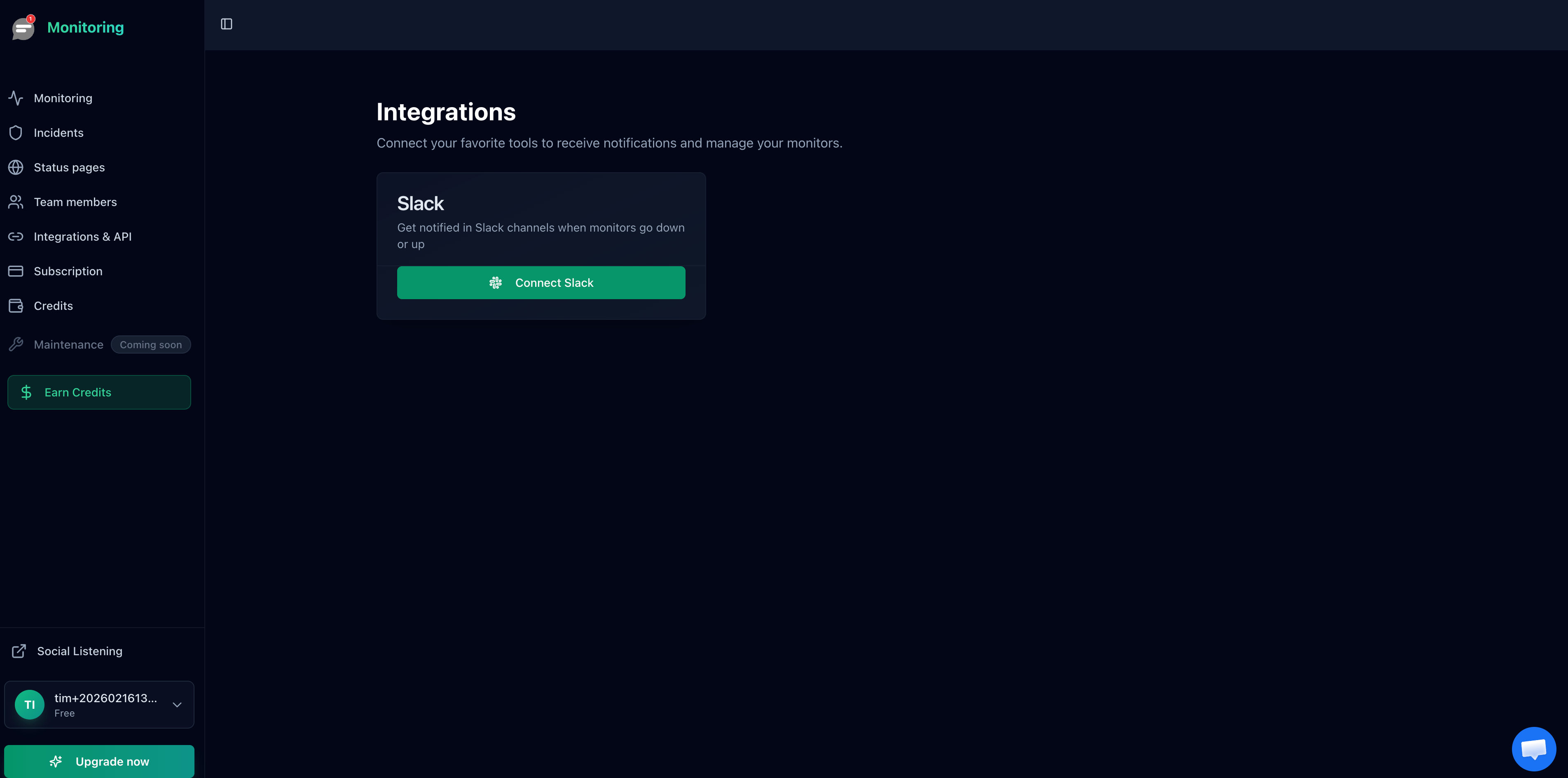
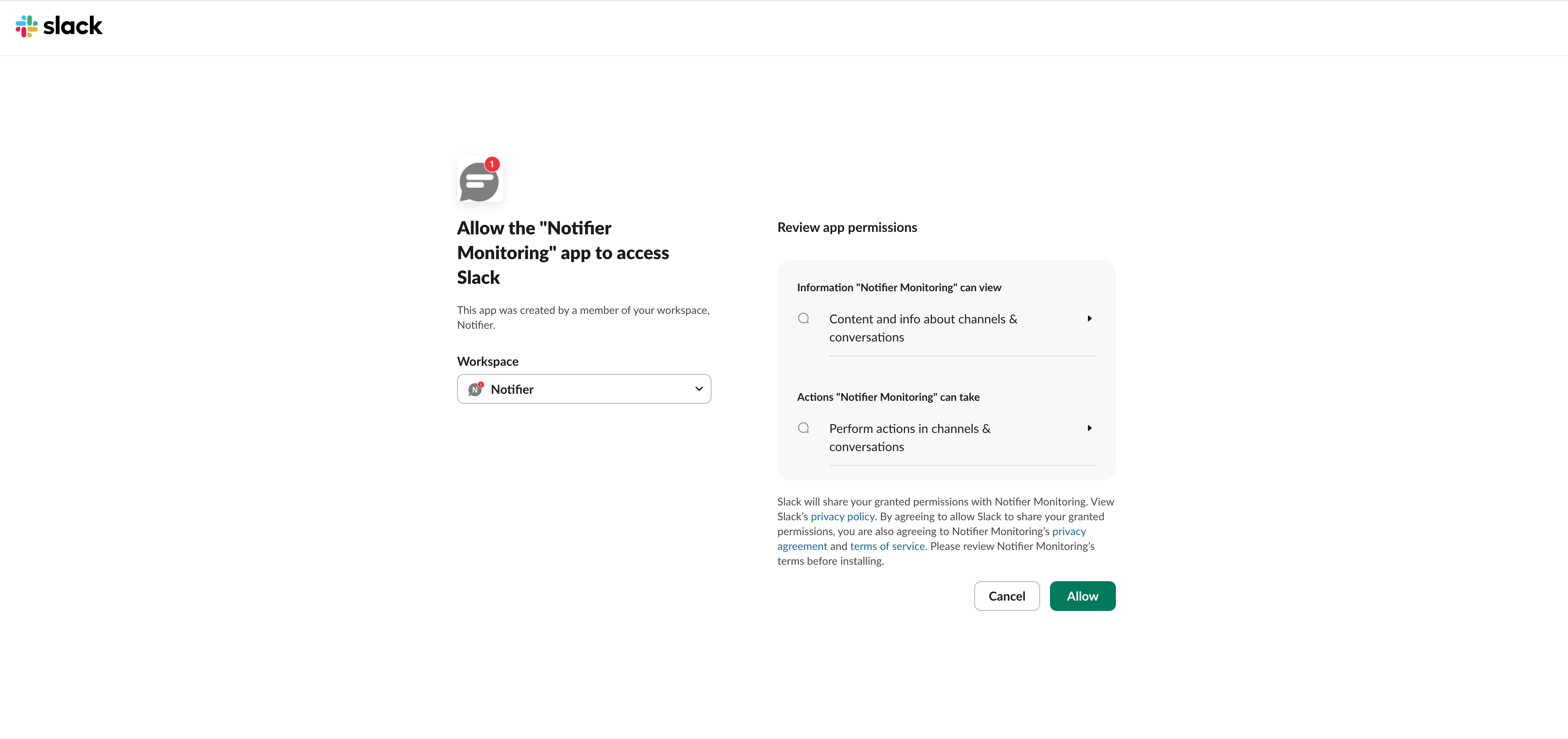
- Go to Monitoring > Integrations in the dashboard
- Click Connect Slack
- Authorize Notifier in your Slack workspace
Selecting a Channel
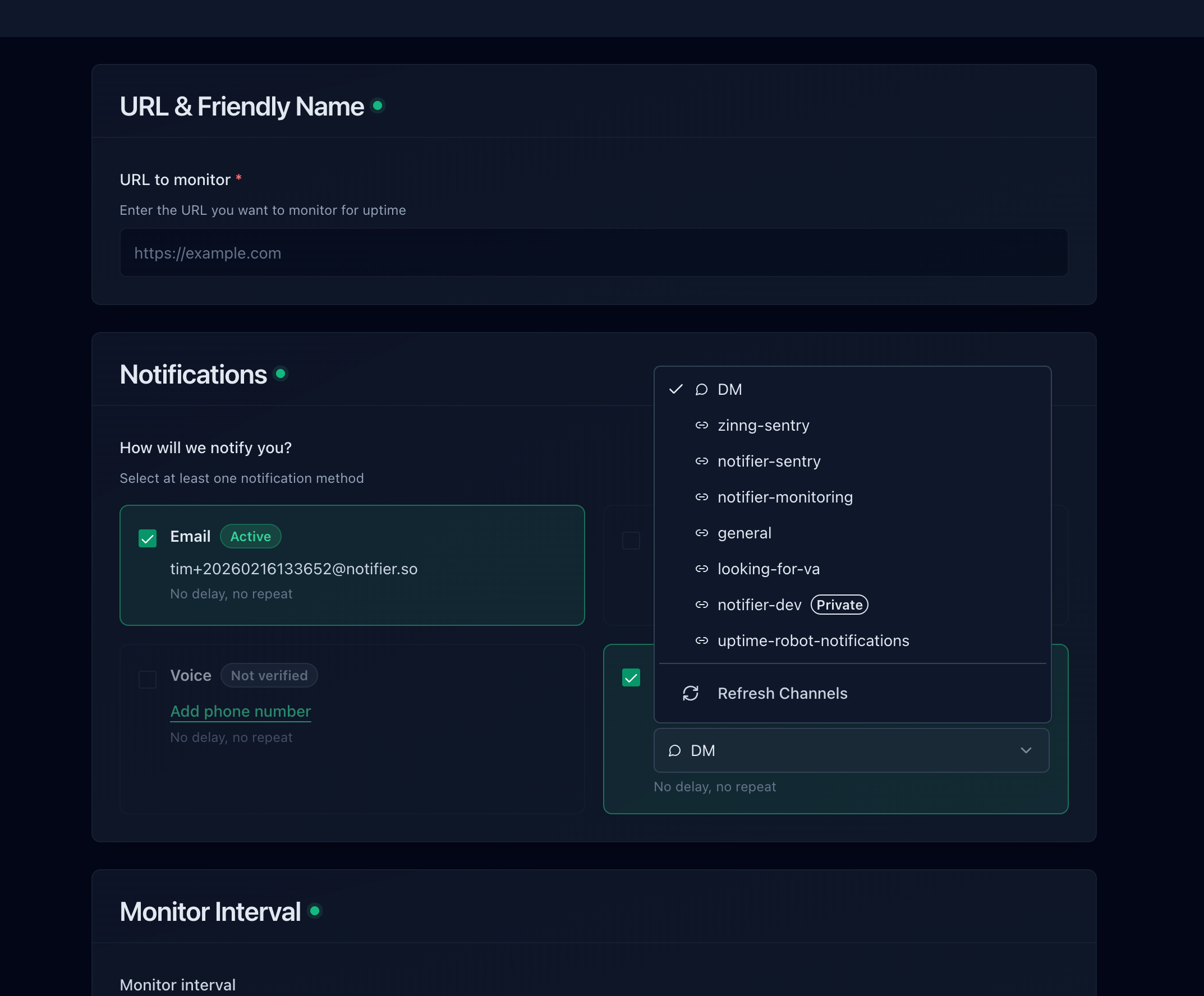
After connecting, edit any monitor and select a Slack channel from the dropdown menu.
Private Channels
Only public channels appear in the dropdown by default. To send alerts to a private channel, first invite the Notifier app to that channel in Slack:
- Open the private channel in Slack
- Go to channel settings > Integrations > Add app
- Search for and add Notifier
- The channel will now appear in the dropdown when editing a monitor
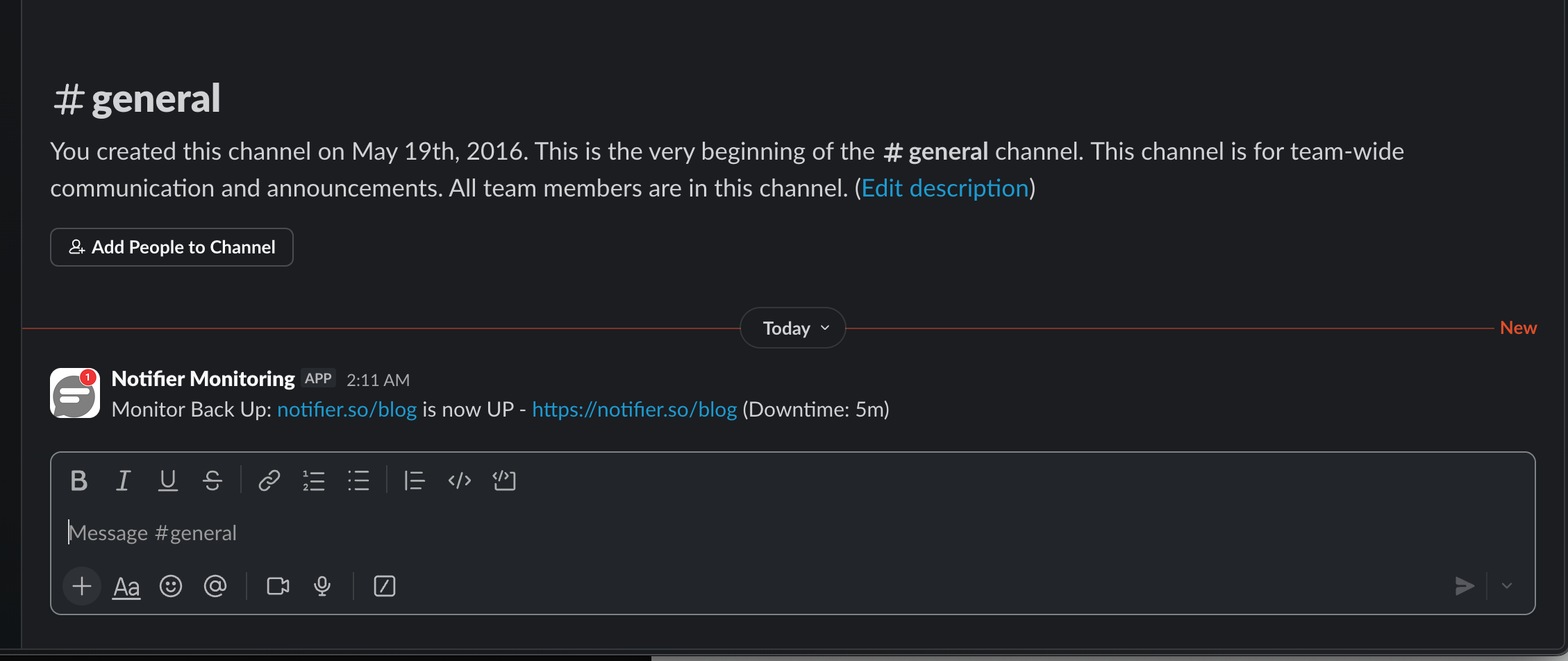
Slack Alert Example
WhatsApp Alerts
Get downtime and recovery alerts as WhatsApp messages. WhatsApp alerts are included on the Solo, Team and Enterprise plans, with no credits needed.
- Go to Integrations and click Connect WhatsApp.
- Click Get my WhatsApp link, then Open WhatsApp. WhatsApp opens with a short connect code already filled in.
- Send that message from the phone that should receive alerts. The dashboard confirms the connection within a few seconds.
- Edit a monitor, turn on WhatsApp under Notifications and pick the number.
You can connect several numbers, for example one per person on your team, and choose a different number for each monitor. Reply STOP in the WhatsApp chat at any time to turn WhatsApp alerts off for that number; connect it again from Integrations to turn them back on.
Discord Alerts
Post downtime, recovery and SSL certificate expiry alerts to a Discord channel. Discord alerts are included on every plan, including Free, with no credits needed.
- In Discord, open the settings for the channel that should get alerts, then go to Integrations > Webhooks > New Webhook.
- Click Copy Webhook URL.
- In Notifier, go to Integrations, click Connect Discord and paste the URL. Notifier posts a confirmation message in the channel.
- Edit a monitor, turn on Discord under Notifications and pick the channel.
You can connect several channels and choose a different one for each monitor. If you delete the webhook in Discord, Notifier marks it as needing a new URL; paste a fresh webhook URL from the menu on the Discord card and your monitors keep their settings.
Microsoft Teams Alerts
Post downtime, recovery and SSL certificate expiry alerts to a Microsoft Teams channel. Microsoft Teams alerts are included on the Solo, Team and Enterprise plans, with no credits needed.
- In Teams, click the ... next to the channel that should get alerts and choose Workflows.
- Pick the Send webhook alerts to a channel template, give it a name, then click Next and Add workflow.
- Copy the whole URL the workflow shows you.
- In Notifier, go to Integrations, click Connect Microsoft Teams and paste the URL. Notifier sends a confirmation card to the channel; check that it appears.
- Edit a monitor, turn on Microsoft Teams under Notifications and pick the channel.
Microsoft retired the old Office 365 "Incoming Webhook" connectors in 2026, so those URLs no longer work; use a Workflows webhook instead. Alerts appear as posted by the person who created the workflow. If the workflow is deleted or turned off, Notifier marks the channel as needing a new URL; paste a fresh Workflows URL from the menu on the Microsoft Teams card and your monitors keep their settings.
Test Notifications
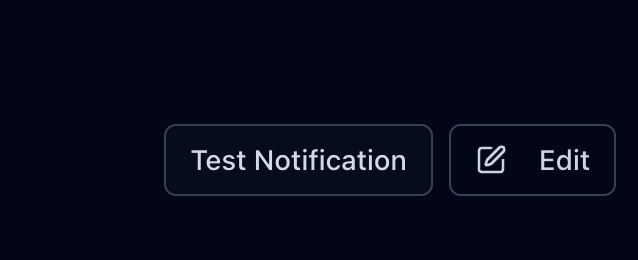
You can send a test alert from any monitor's detail page to verify that your notification setup is working correctly. Click the Test Notification button to trigger a test alert through all of the monitor's enabled channels.
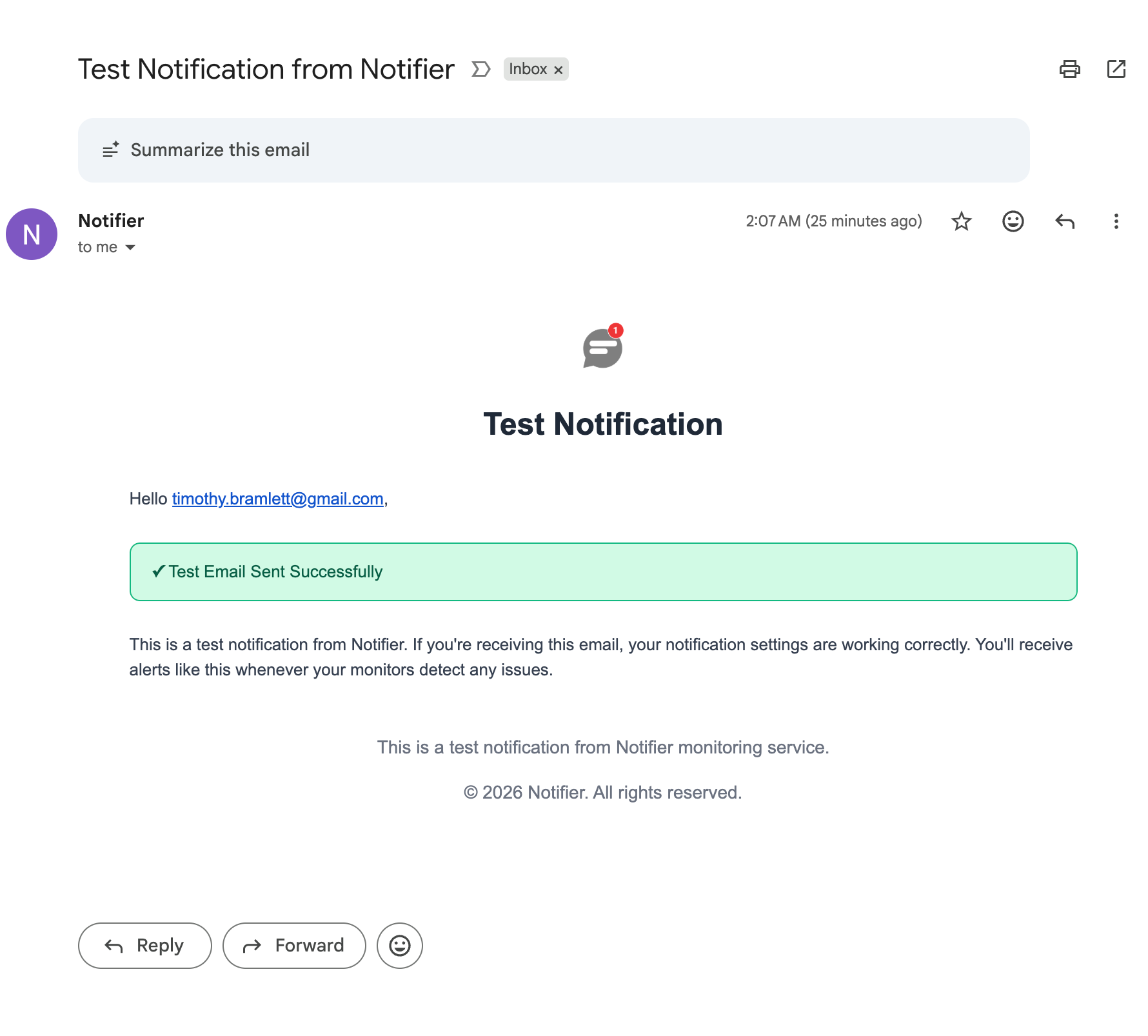
Configuring Alert Channels Per Monitor
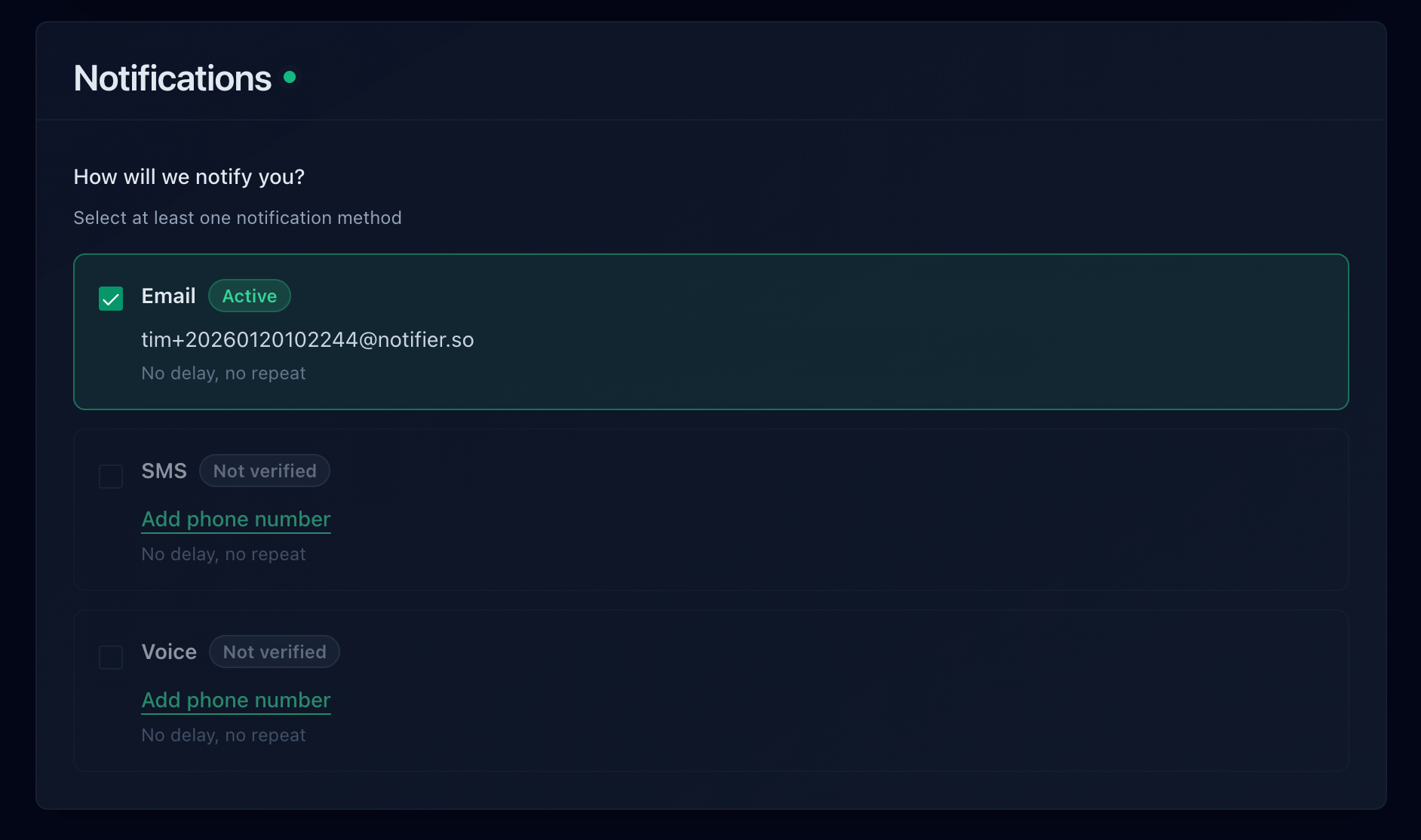
Each monitor has its own alert channel settings. When creating or editing a monitor, you can enable or disable each channel individually:
- Email — on or off
- SMS — on or off (requires verified phone number and credits)
- Voice call — on or off (requires verified phone number and credits)
- Slack — select a channel or leave disabled (requires connected workspace)
- WhatsApp — pick a connected number (Solo plan and above)
- Discord — pick a connected channel (all plans)
- Microsoft Teams — pick a connected channel (Solo plan and above)
At least one alert channel must be enabled for each monitor.
Plan Availability
| Channel | Plans | Requirements |
|---|---|---|
| All plans | None (always available) | |
| SMS | All plans | Verified phone number + credits |
| Phone call | All plans | Verified phone number + credits |
| Slack | All plans | Connected Slack workspace |
| Solo, Team, Enterprise | Connected WhatsApp number | |
| Discord | All plans | Connected Discord channel webhook |
| Microsoft Teams | Solo, Team, Enterprise | Connected Teams Workflows webhook |