Notifications
Configure how and where you receive downtime and recovery alerts.
Overview
Notifier alerts you when your website goes down and again when it comes back up. There are four alert channels available:
- Email — always enabled by default on all plans
- SMS — text messages to your verified phone number (uses credits)
- Phone calls — automated voice calls for critical alerts (uses credits)
- Slack — alerts posted directly to a Slack channel
Each monitor can use a different combination of alert channels. You configure them individually when creating or editing a monitor.
Email Alerts
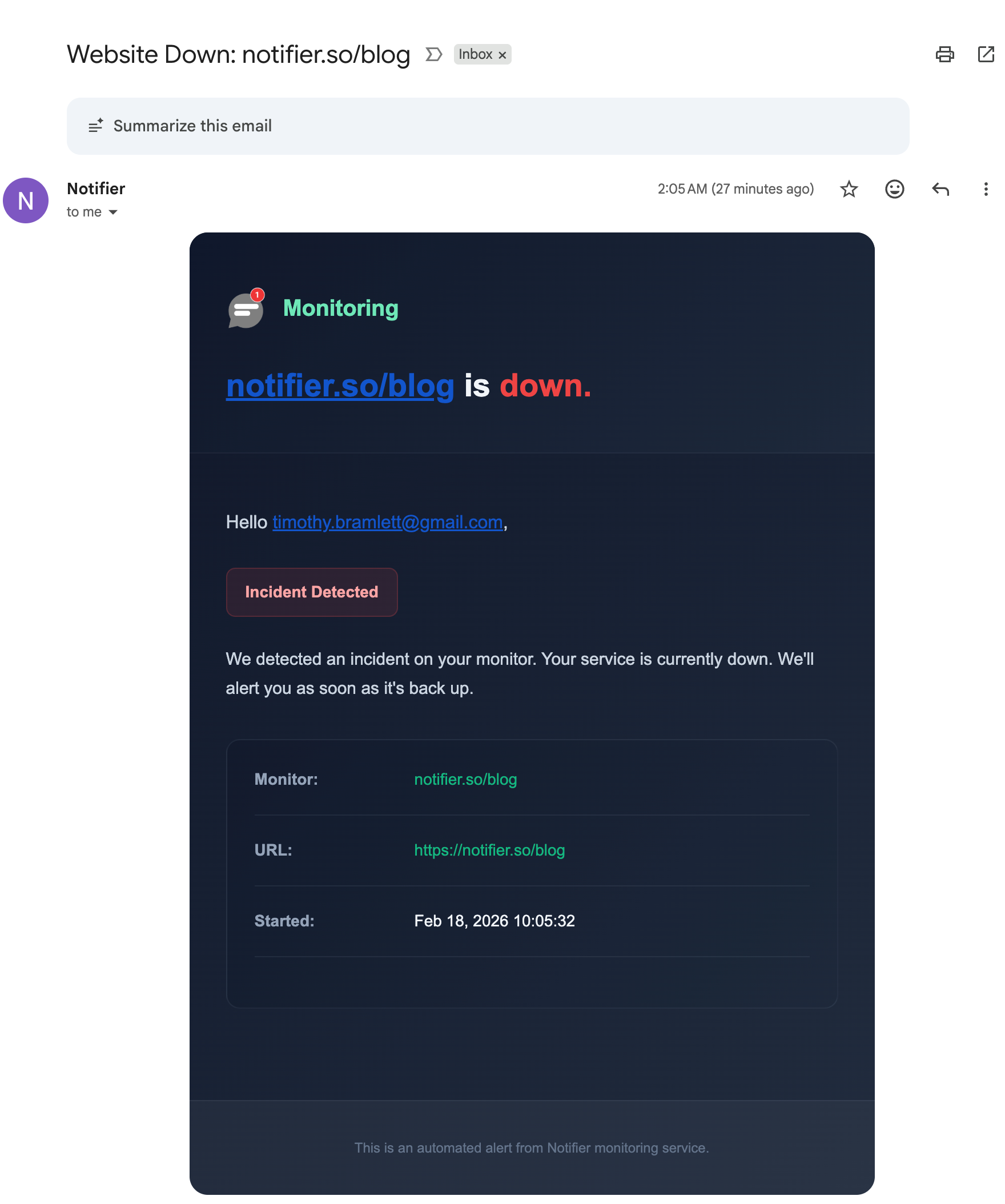
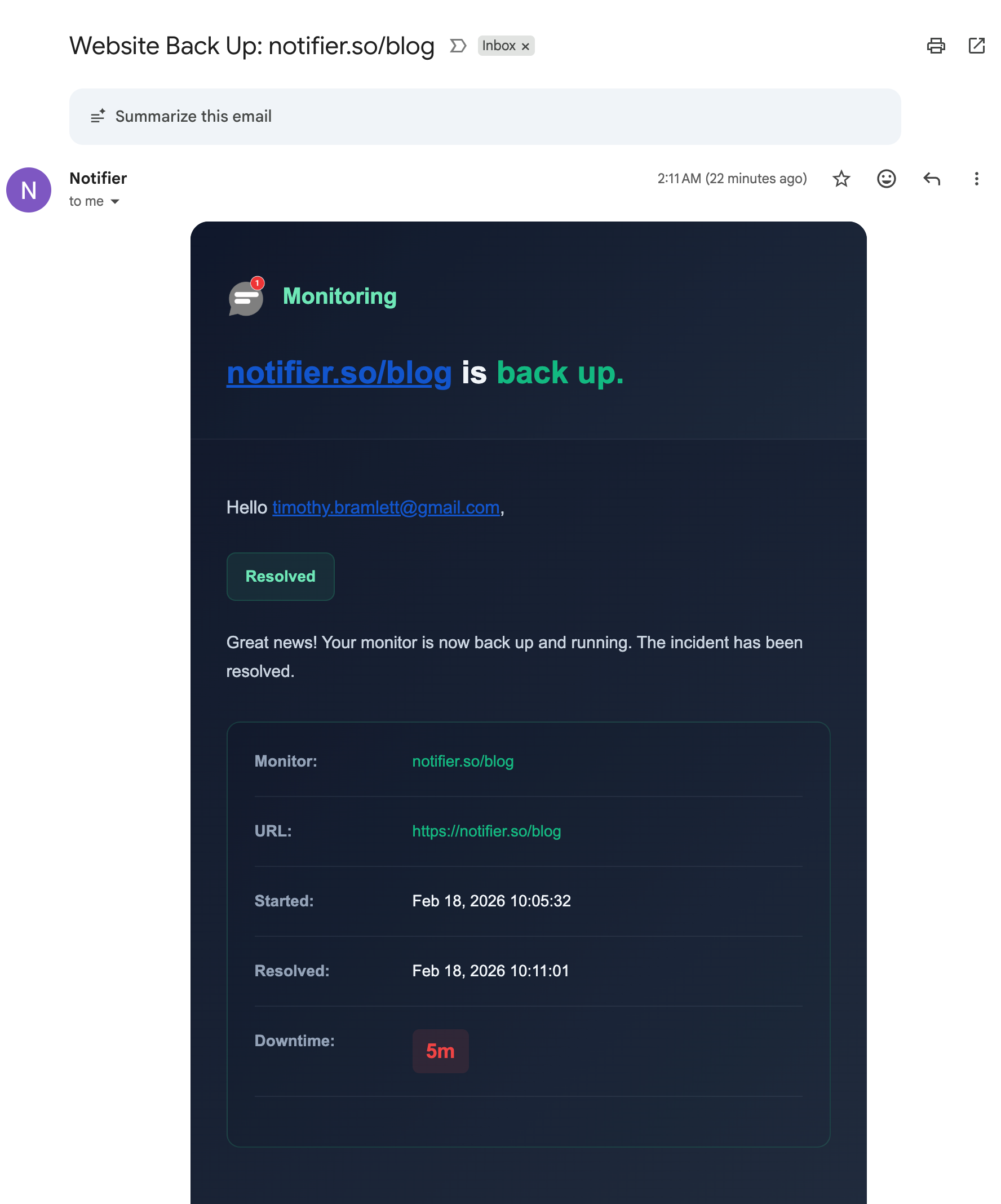
Email alerts are available on all plans and are enabled by default for every new monitor. When a monitor goes down, you receive a downtime alert with incident details. When the monitor recovers, you receive a recovery email with the total downtime duration.
Downtime Alert
Recovery Alert
SMS Alerts
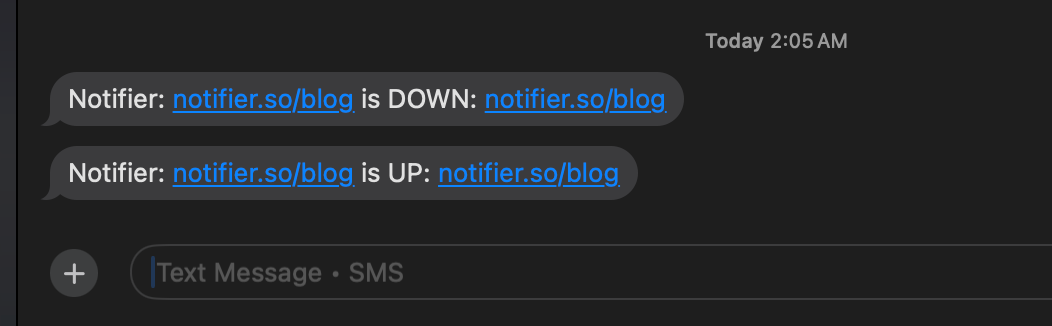
SMS alerts send a short text message with the monitor name and its current status (DOWN or UP). SMS requires a verified phone number and uses credits from your team wallet.
Phone Call Alerts
Phone call alerts trigger an automated voice call when a monitor goes down. This is the best option for critical monitors where you need to be woken up at night or reached immediately.
Phone calls require a verified phone number and use credits from your team wallet.
Verifying Your Phone Number
SMS and phone call alerts both require a verified phone number. To verify your number:
- Go to your notification settings in the dashboard
- Enter your phone number in E.164 format (e.g.
+12125551234) - You will receive a 6 digit OTP code via SMS
- Enter the code to complete verification
Credit Wallet
SMS and phone call alerts use credits. Your team has a single shared wallet that all team members draw from.
Purchasing Credits
You can purchase credits directly from the dashboard. Credits never expire.
Earning Free Credits
You can earn $0.50 in credits for each of the following actions:
- Sharing Notifier on X (Twitter)
- Writing a testimonial
Low Credit Warnings
Notifier sends automatic warning emails when your credit balance is running low and again when it reaches zero, so you never miss an alert unexpectedly.
Slack Integration
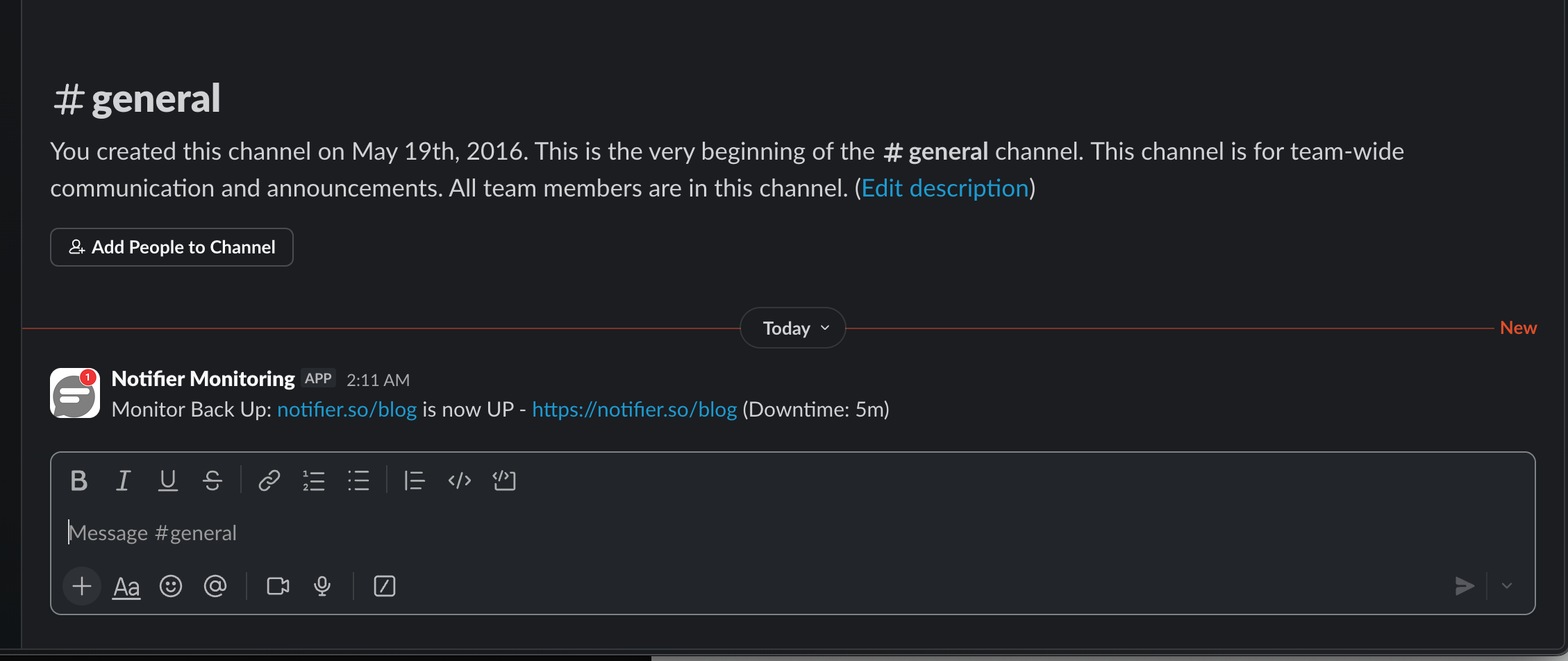
Connect Notifier to your Slack workspace to receive downtime and recovery alerts in any channel.
Connecting Slack
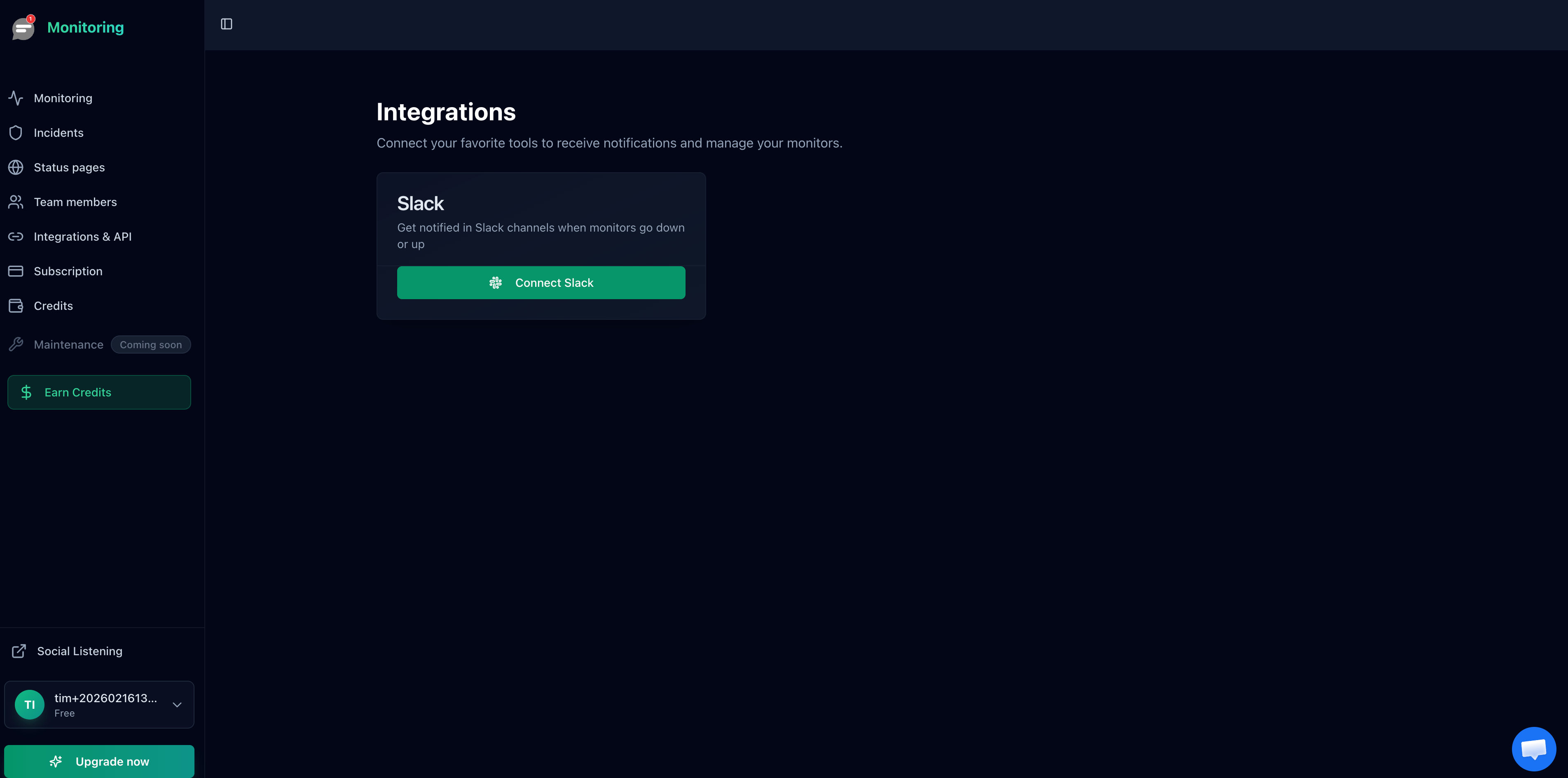
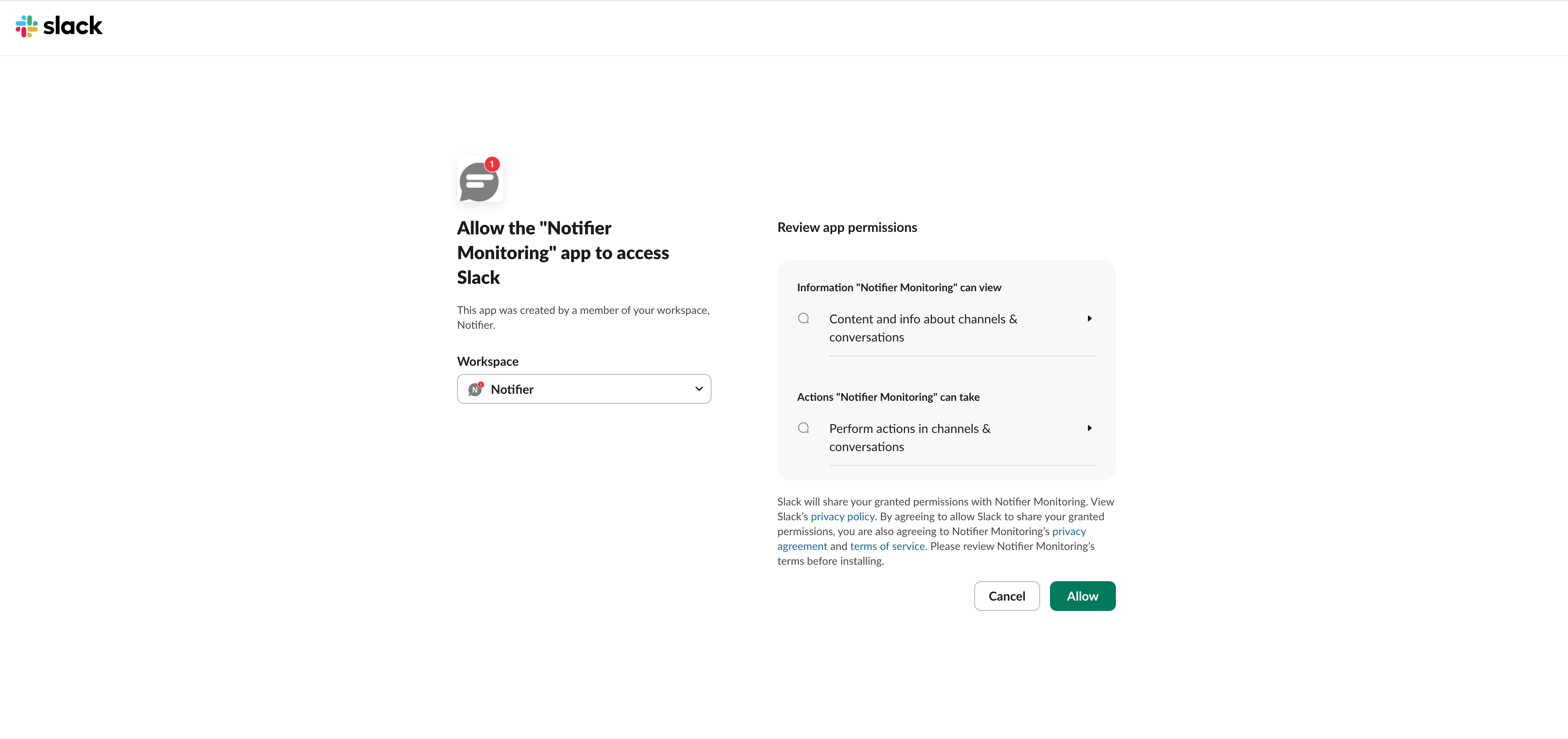
- Go to Monitoring > Integrations in the dashboard
- Click Connect Slack
- Authorize Notifier in your Slack workspace
Selecting a Channel
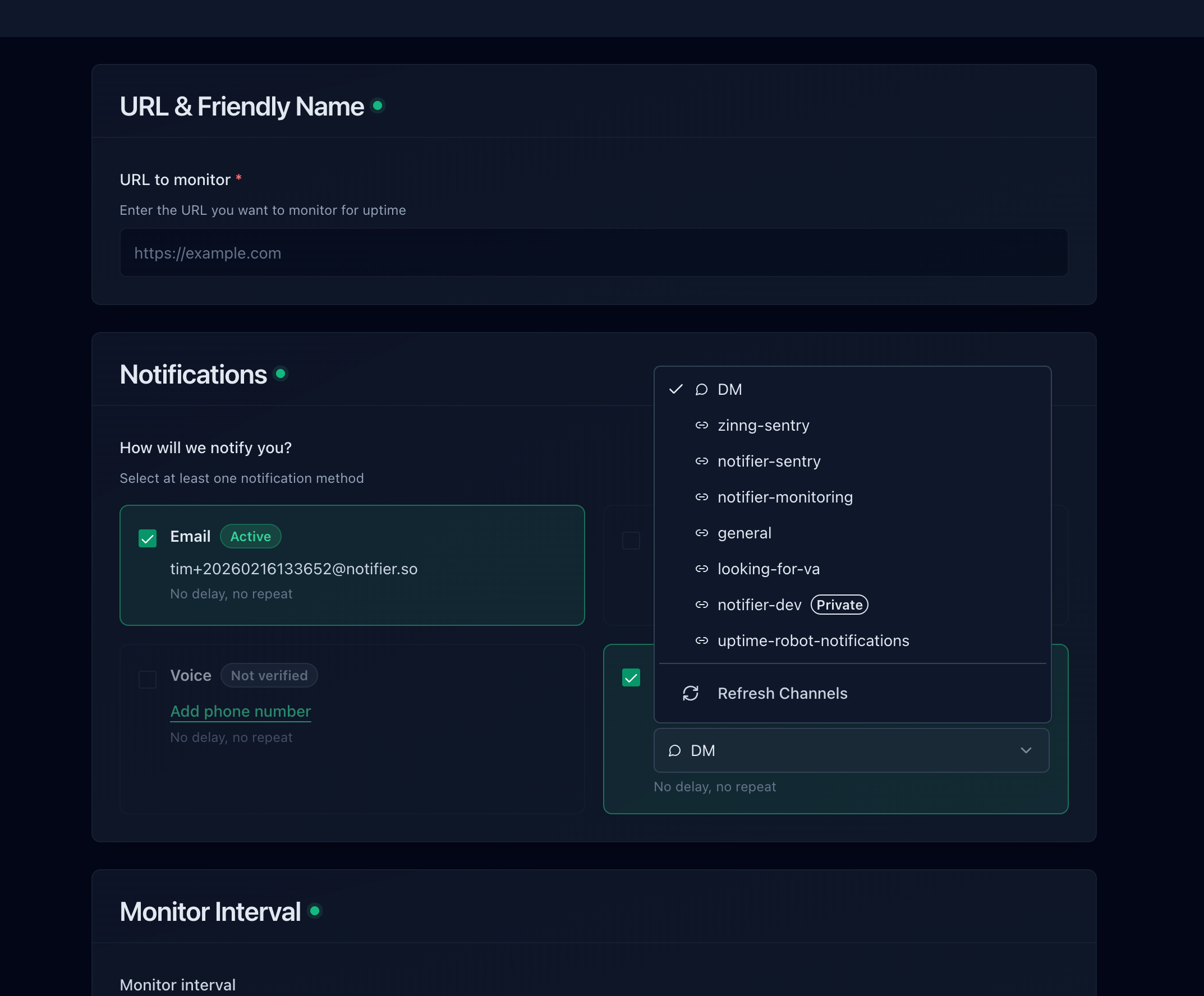
After connecting, edit any monitor and select a Slack channel from the dropdown menu.
Private Channels
Only public channels appear in the dropdown by default. To send alerts to a private channel, first invite the Notifier app to that channel in Slack:
- Open the private channel in Slack
- Go to channel settings > Integrations > Add app
- Search for and add Notifier
- The channel will now appear in the dropdown when editing a monitor
Slack Alert Example
Test Notifications
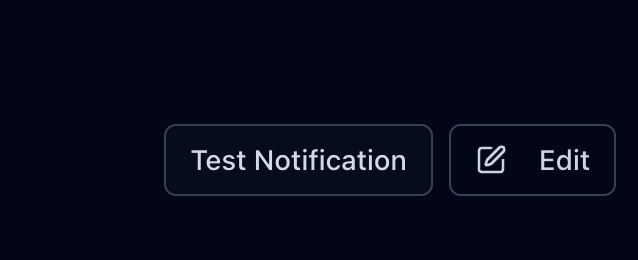
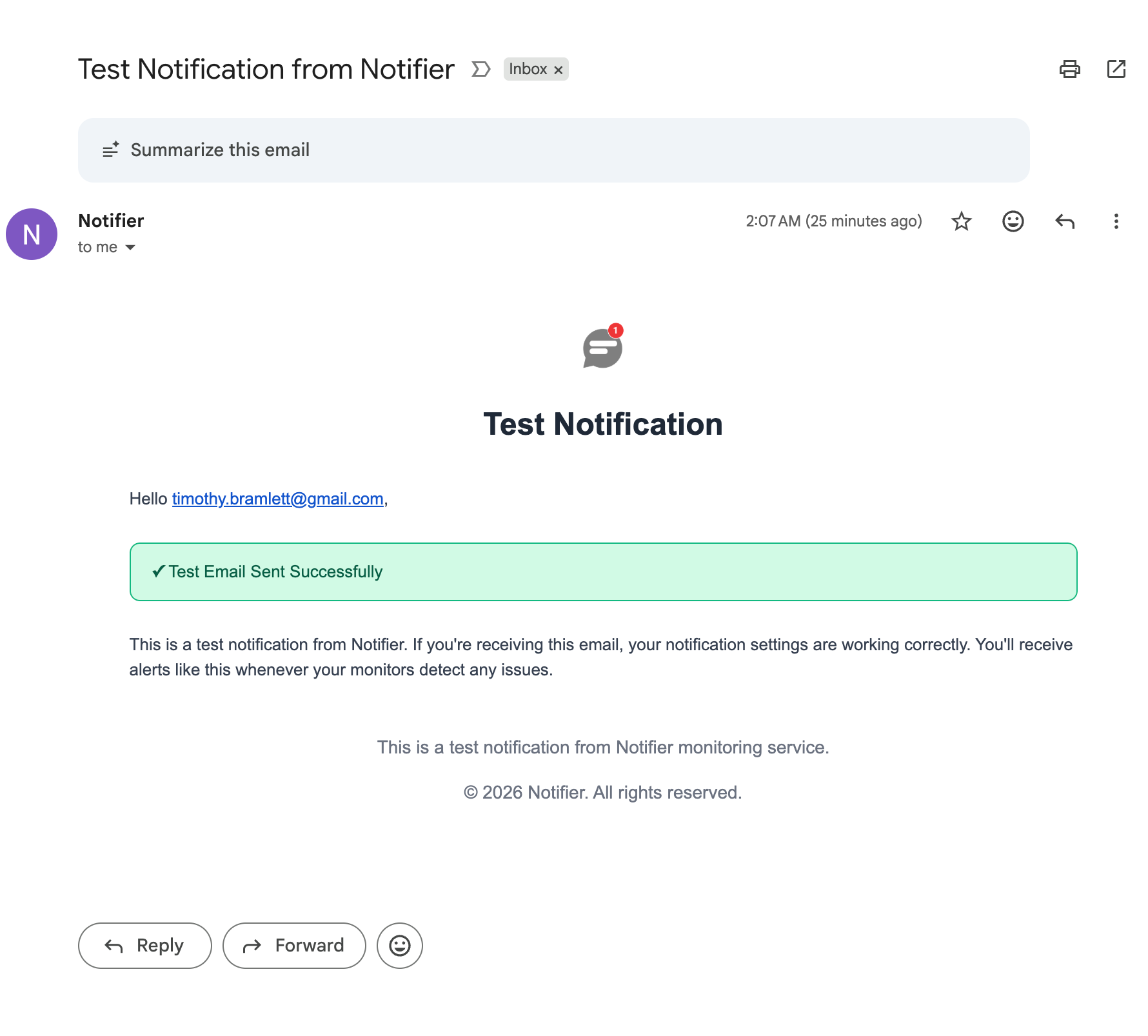
You can send a test alert from any monitor's detail page to verify that your notification setup is working correctly. Click the Test Notification button to trigger a test alert through all of the monitor's enabled channels.
Configuring Alert Channels Per Monitor
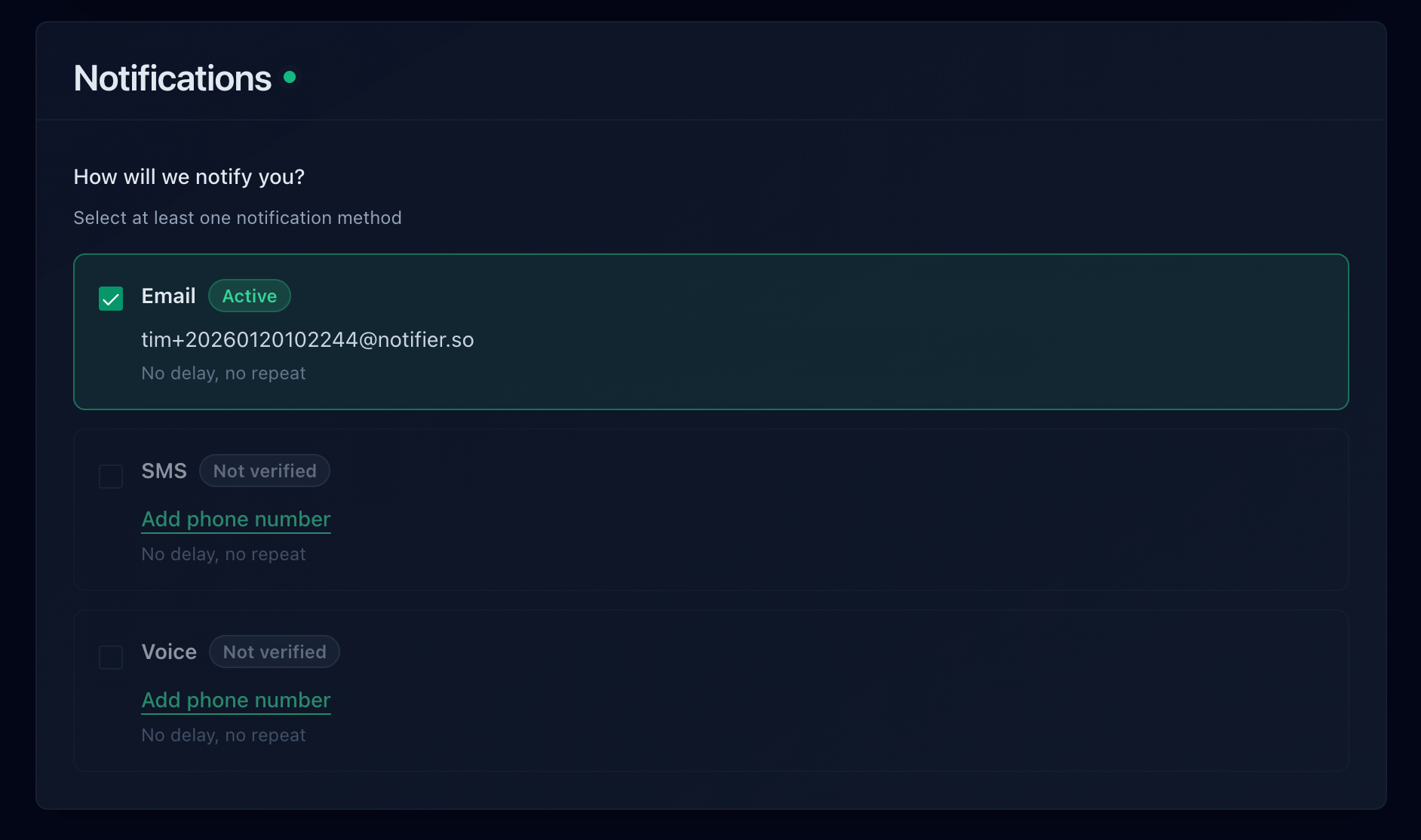
Each monitor has its own alert channel settings. When creating or editing a monitor, you can enable or disable each channel individually:
- Email — on or off
- SMS — on or off (requires verified phone number and credits)
- Voice call — on or off (requires verified phone number and credits)
- Slack — select a channel or leave disabled (requires connected workspace)
At least one alert channel must be enabled for each monitor.
Plan Availability
| Channel | Plans | Requirements |
|---|---|---|
| All plans | None (always available) | |
| SMS | All plans | Verified phone number + credits |
| Phone call | All plans | Verified phone number + credits |
| Slack | All plans | Connected Slack workspace |