WooCommerce powers roughly a third of all online stores worldwide. That's over 4.5 million live stores processing real transactions every day. But WooCommerce has a problem that Shopify stores don't: it runs on WordPress. That gives you complete control over your store, but it also means you're responsible for the infrastructure, the plugins, the database, and every potential failure point in between.
The average WooCommerce store runs 25 to 35 active plugins. Each one can conflict with another, exhaust PHP memory, or break silently after an update. WooCommerce adds 23+ custom database tables to WordPress, and as your order count grows, those tables bloat and queries slow down. Your checkout page depends on AJAX endpoints, REST API calls, and payment gateway connections that can fail independently of your homepage.
Standard uptime monitoring checks if your homepage returns HTTP 200. But for a WooCommerce store, the homepage loading fine while the checkout is broken is one of the most common (and most expensive) failure modes. This guide covers what WooCommerce store owners actually need to monitor and how to set it up.
Why WooCommerce Stores Go Down
WooCommerce inherits all of WordPress's failure modes (plugin conflicts, PHP memory exhaustion, database errors) and adds its own on top. For WordPress-specific issues, see our WordPress uptime monitoring guide. Here are the WooCommerce-specific causes.
1. Plugin and Extension Conflicts
WooCommerce's ecosystem includes 765+ official extensions and thousands of third-party plugins. When extensions conflict with each other, with your theme, or with a WooCommerce core update, the results range from broken checkout buttons to complete white screens.
This isn't hypothetical. In April 2025, the WooCommerce Stripe Payment Gateway 9.4.0 update introduced excessive API calls to Stripe, causing rate limiting that slowed admin dashboards and temporarily broke payment methods across thousands of stores. A separate WooCommerce Services plugin update triggered fatal autoloader errors that took down thousands of WordPress sites entirely.
2. Database Overload
This is WooCommerce's biggest architectural weakness. WooCommerce historically stored orders and products in WordPress's wp_postmeta table using an Entity-Attribute-Value model. Each product generates roughly 29 rows in wp_postmeta. A store with 10,000 orders can have 300,000+ rows just for order metadata.
Once wp_postmeta grows past a million rows, queries become noticeably slow. Store owners report 30+ second load times on the orders page and report generation timing out. During traffic spikes (Black Friday, flash sales), database connections hit their ceiling, and pages display "Error establishing a database connection."
WooCommerce's newer High-Performance Order Storage (HPOS) feature addresses this by moving orders to dedicated tables, but many stores haven't migrated yet.
3. Payment Gateway Failures
Your storefront can be perfectly functional while payments silently fail. Common causes: expired gateway API keys, misconfigured webhook URLs between Stripe/PayPal and WooCommerce, currency mismatches, and gateway plugin bugs. The May 2025 Stripe Gateway 9.5.0 update caused excessive network requests to Stripe's API, triggering checkout failures across many stores until a hotfix was released.
The checkout AJAX endpoint ?wc-ajax=checkout is where the actual order is placed. If this endpoint returns a 500 error or a 403 Forbidden, no orders go through. But your homepage, product pages, and even the checkout page itself can all look perfectly fine.
4. PHP Memory Exhaustion
WooCommerce is resource-heavy. The official minimum recommendation is 256MB of PHP memory, but many hosts default to 64MB or 128MB. WooCommerce blocks won't load when memory is too low, product syncs fail, and complex pages (large catalogs, variable products with many options) trigger fatal errors. Page builders like Elementor or Divi running alongside WooCommerce compound the memory pressure.
5. Action Scheduler Backlogs
WooCommerce uses the Action Scheduler for background tasks: subscription renewals, email queues, product syncs, analytics processing, and more. It depends on WP-Cron, which only fires when someone visits the site. On low-traffic stores, tasks pile up. When they finally execute, the sudden burst of database activity can crash the site.
Security plugins (Wordfence, Sucuri) can also block the loopback requests that Action Scheduler depends on, causing tasks to fail repeatedly. A healthy Action Scheduler has zero failed actions and minimal past-due items. A backlog of hundreds of past-due actions is a ticking time bomb.
6. REST API Failures
WooCommerce's block-based checkout (the default since WooCommerce 8.3+) relies heavily on the WordPress REST API. If /wp-json/ is blocked by a security plugin, hosting firewall, or broken .htaccess rules, the entire checkout process breaks. The checkout page may load, but clicking "Place Order" does nothing.
The Silent Checkout Failure Problem
Here's the scenario that costs WooCommerce store owners the most money: your homepage loads fine, your product pages work, customers can add items to their cart, but the checkout fails. No orders come through. You don't notice for hours because the site looks "up."
This happens because WooCommerce's checkout depends on a chain of components, and each link can break independently:
- The checkout page loads (HTML renders fine from cache or PHP)
- But the AJAX call fails (
?wc-ajax=update_order_reviewreturns 403, disabling the Place Order button) - Or the payment gateway rejects (expired API keys, Stripe rate limiting, PayPal misconfiguration)
- Or the REST API is blocked (security plugin update locked down
/wp-json/) - Or a plugin conflict breaks the form (JavaScript error from a third-party plugin prevents form submission)
Standard uptime monitoring that checks your homepage for HTTP 200 will report "all clear" during all of these scenarios. To catch silent checkout failures, you need to monitor more than just the homepage.
Real impact: 62% of customers never return after a failed payment experience
A broken checkout doesn't just cost you the immediate sale. Research shows that 62% of customers who experience a payment failure never come back to try again. If your checkout is broken for 3 hours on a busy day and 200 customers attempted to purchase, you've likely lost 124 of them permanently.
What to Monitor on a WooCommerce Store
Here are the specific URLs and endpoints that tell you whether your WooCommerce store is truly healthy.
1. Your Homepage
Monitor https://yourstore.com/ for HTTP 200. This is your baseline. It catches total server outages, DNS failures, and expired SSL certificates. But remember: a 200 response on the homepage tells you almost nothing about checkout health.
2. The Checkout Page
Monitor https://yourstore.com/checkout/ for HTTP 200. The checkout page is dynamically generated (never cached) and exercises the database, session handling, and payment gateway connections. If this page fails while the homepage works, you've caught a WooCommerce-specific issue.
3. The Cart Page
Monitor https://yourstore.com/cart/. The cart page exercises WooCommerce's session handling and app integrations. Discount plugins, upsell tools, and custom field extensions can break this page independently.
4. The REST API
Monitor https://yourstore.com/wp-json/. If the REST API is down, the block-based checkout is completely broken. This endpoint requires PHP, database, and full WordPress bootstrap to respond. It's a stronger health indicator than the homepage.
5. My Account Page
Monitor https://yourstore.com/my-account/. This is the customer portal for order history, account details, and downloads. If this page is broken, existing customers can't track their orders, and returning customers can't log in.
| URL | What It Tests | Priority |
|---|---|---|
/ |
Server, DNS, SSL, basic reachability | Essential |
/checkout/ |
WooCommerce checkout, sessions, payment | Essential |
/wp-json/ |
REST API, PHP, database, plugin loading | Essential |
/cart/ |
Session handling, cart app integrations | Recommended |
/my-account/ |
Customer portal, authentication system | Recommended |
The Revenue Impact of WooCommerce Downtime
WooCommerce stores range from small side businesses to operations doing millions in annual revenue. The downtime cost scales accordingly.
Formula: Daily Sales / 1,440 = Revenue Lost Per Minute
| Monthly Revenue | Per Hour Down | 3 Hour Outage | BFCM Day (3x) |
|---|---|---|---|
| $5,000/mo | $7 | $21 | $63 |
| $25,000/mo | $35 | $104 | $313 |
| $100,000/mo | $139 | $417 | $1,250 |
| $500,000/mo | $694 | $2,083 | $6,250 |
These are direct revenue losses only. The hidden costs add up fast: wasted ad spend (paid campaigns still running to a broken checkout), SEO damage (Googlebot encountering 500 errors), customer trust damage, and support tickets. With WooCommerce's baseline cart abandonment rate already at 70 to 75%, a broken checkout pushes that number even higher. For more on the broader business impact, see our guide on why uptime monitoring matters.
WooCommerce Health Checks (Internal Diagnostics)
External monitoring catches downtime from the outside. These internal checks help you diagnose and prevent issues from the inside.
WooCommerce System Status
Go to WooCommerce > Status in your admin panel. This page is more detailed than the WordPress Site Health screen and shows WooCommerce-specific information: database table health, active extensions and compatibility, API status, currency and tax settings, and error logs. Check this after every major plugin update or when something feels off.
Action Scheduler Status
Go to WooCommerce > Status > Scheduled Actions. This shows pending, completed, and failed background tasks. Key indicators:
- Healthy: Zero failed actions, past-due actions less than a day old
- Warning: A few failed actions, growing backlog of pending tasks
- Trouble: Hundreds of past-due actions, repeated failures, tasks piling up
WP-CLI Commands
If you have SSH access, these commands give you a quick health snapshot:
# Check WordPress core integrity
wp core verify-checksums

# List plugins with update status
wp plugin list --fields=name,status,update,version

# Check database integrity
wp db check

# View WooCommerce tools
wp wc tool list

# Clear WooCommerce transients
wp wc tool run clear_transients

# Check cron events
wp cron event list
WooCommerce Logs
Go to WooCommerce > Status > Logs. Logs are organized by source. The most important ones to review:
- fatal-errors: Any fatal PHP error that WooCommerce caught
- Your payment gateway logs (e.g.,
wc-stripe,wc-paypal): Payment failures, API errors, webhook issues - action-scheduler: Background task failures and timeouts
Internal checks + External monitoring
Internal health checks (WooCommerce Status, Action Scheduler, logs) are great for diagnosing problems, but they can't alert you when the server is down. You need to be logged into wp-admin to see them. External monitoring from Notifier checks your store from the outside and sends you an alert the moment something breaks, whether you're at your desk or not.
How to Set Up WooCommerce Monitoring (Step by Step)
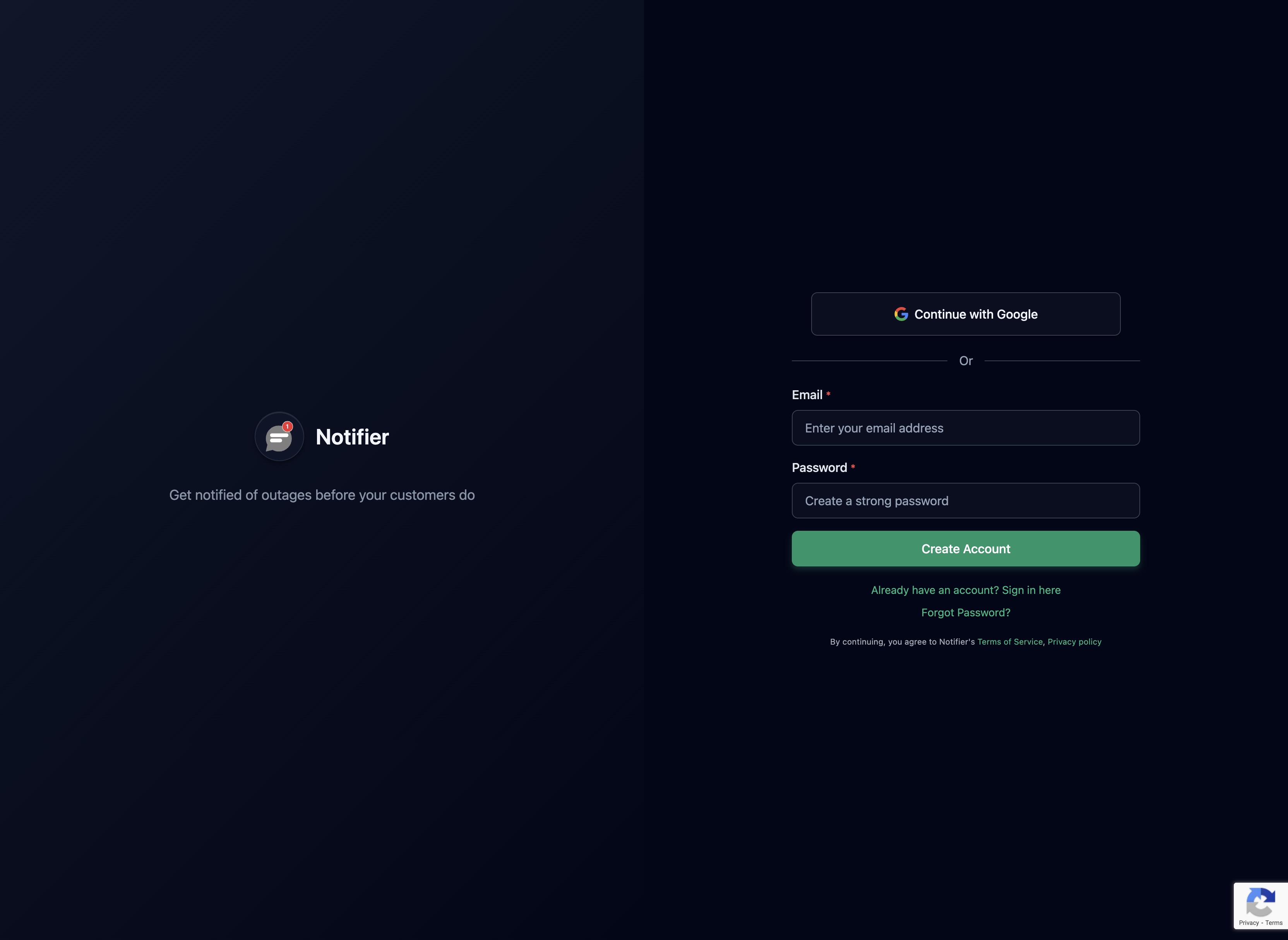
Step 1: Create Your Account
Sign up at notifier.so/register. The free plan gives you 10 monitors, enough to cover all critical WooCommerce URLs.
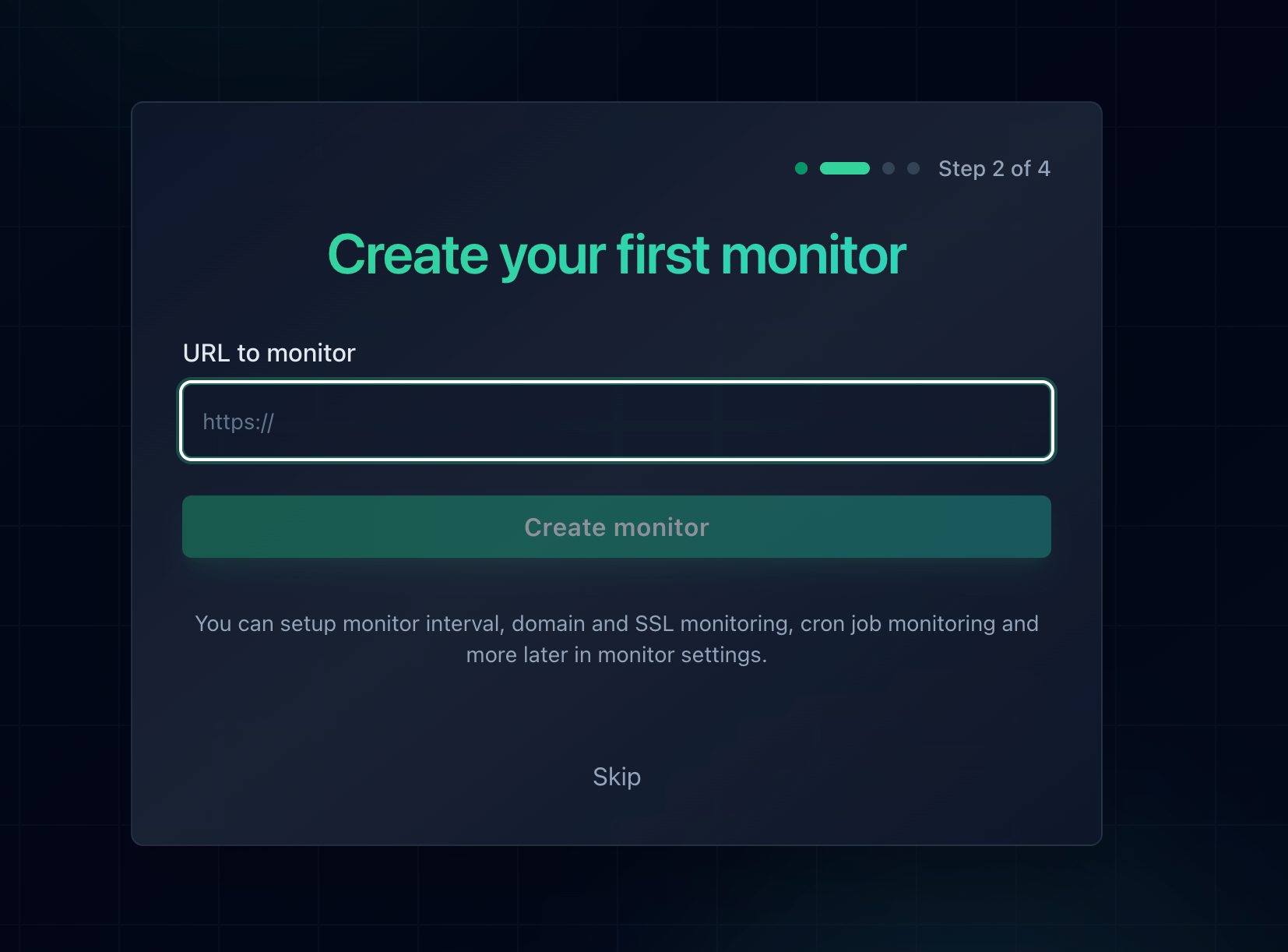
Step 2: Add Your Essential Monitors
Add monitors for your three most critical URLs:
- Homepage:
https://yourstore.com/ - Checkout page:
https://yourstore.com/checkout/ - REST API:
https://yourstore.com/wp-json/
Step 3: Add Cart and My Account Monitors
Add monitors for /cart/ and /my-account/. These catch WooCommerce session and authentication issues that the homepage and checkout monitors might miss.
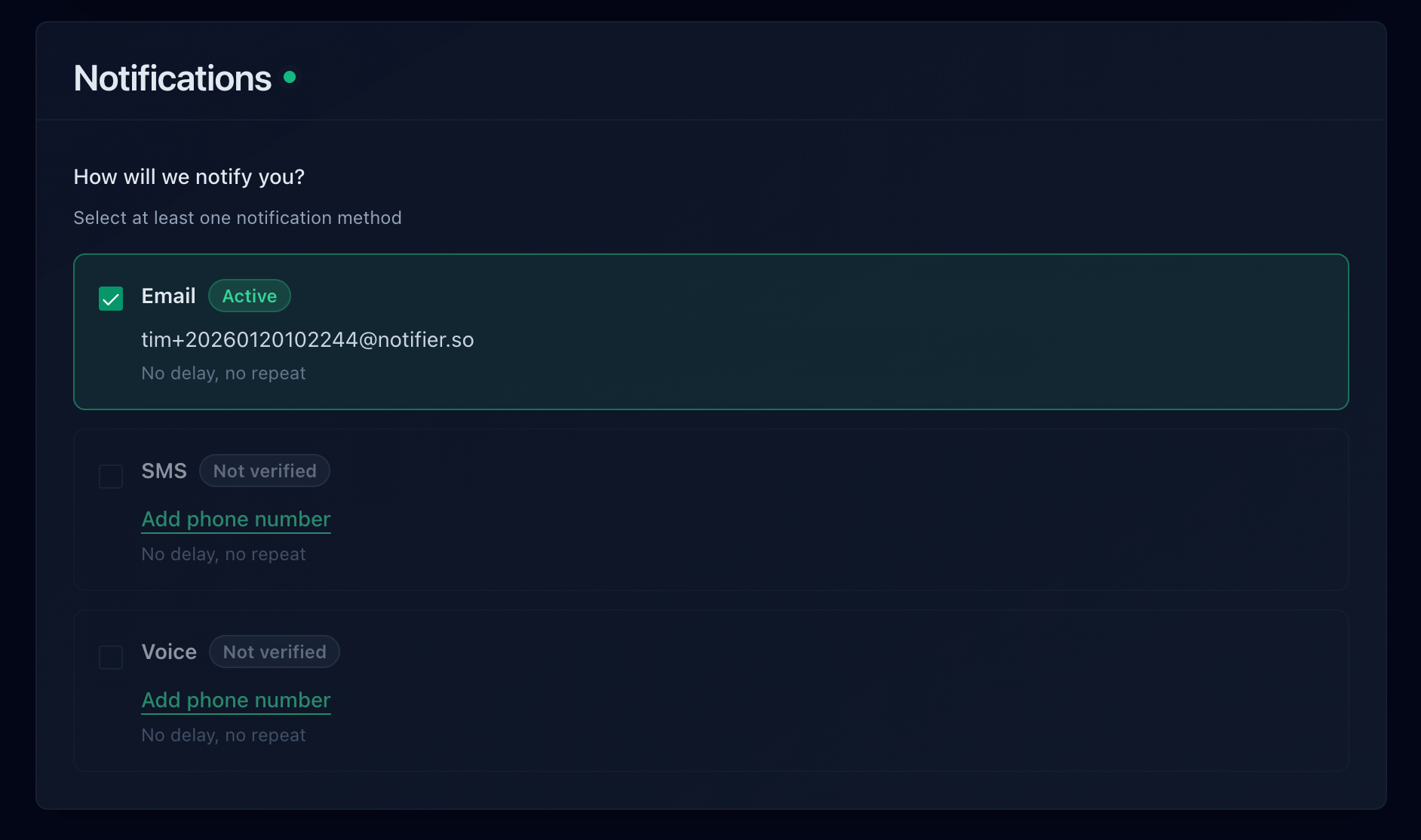
Step 4: Configure Alerts
For an e-commerce store, email alerts alone are not fast enough. Add SMS or phone call alerts so you're notified immediately when your checkout goes down. During a sale or ad campaign, finding out 30 minutes late that your checkout is broken is 30 minutes of lost revenue. Notifier includes SMS and phone calls on all paid plans with no per-message fees.
Step 5: Fix WP-Cron
While you're setting up monitoring, fix the unreliable WP-Cron system that Action Scheduler depends on. Add this to wp-config.php:
define('DISABLE_WP_CRON', true);Then set up a real server cron job:
*/5 * * * * wget -q -O /dev/null https://yourstore.com/wp-cron.phpThis ensures WooCommerce's Action Scheduler processes tasks reliably, preventing backlogs that can crash your store.
WooCommerce Caching Mistakes That Cause Downtime
Caching is essential for WooCommerce performance, but caching the wrong pages breaks your store in ways that look like downtime.
Pages You Must Never Cache
| URL Pattern | What Breaks If Cached |
|---|---|
/cart/* |
Customers see wrong items, quantities, and totals |
/checkout/* |
Stale form data, payment failures, orders placed for wrong customer |
/my-account/* |
Customer A sees Customer B's order history and personal data |
/wc-api/* |
Payment gateway callbacks fail silently |
?wc-ajax=* |
Cart updates, coupon application, and checkout all break |
Leading caching plugins (WP Rocket, FlyingPress) auto-exclude these pages. But CDN-level caching (Cloudflare, Fastly) often doesn't know about WooCommerce's exclusions. If you use a CDN, make sure it has page rules to bypass cache for these URL patterns and for requests with the _wc_session_ cookie.
Pages Safe to Cache Aggressively
Product pages, shop archives, the homepage, and category pages are safe to cache and benefit greatly from it. Object caching with Redis or Memcached also helps WooCommerce significantly by reducing repetitive database queries.
Frequently Asked Questions
How many monitors do I need for a WooCommerce store?
A minimum of 3 (homepage, checkout, REST API). Ideally 5 (add cart and my-account). Notifier's free plan gives you 10 monitors, which is enough for a WooCommerce store with room to spare for a status page or additional endpoints.
Can I monitor WooCommerce's AJAX checkout endpoint?
Monitoring ?wc-ajax=checkout directly requires a POST request with valid form data, which standard uptime monitors can't do. However, monitoring the /checkout/ page and the /wp-json/ endpoint together catches the vast majority of checkout failures, since most failures are caused by page-level errors or API issues rather than the AJAX endpoint itself.
What PHP memory limit does WooCommerce need?
WooCommerce officially recommends 256MB minimum. Many hosting providers default to 64MB or 128MB, which is not enough. You can increase it by adding define('WP_MEMORY_LIMIT', '256M'); to your wp-config.php, but your hosting provider must also allow this limit.
Should I use a WordPress monitoring plugin instead?
No, not as your primary monitoring. A plugin running on your WordPress site cannot alert you when the server is down, which is exactly when you need alerts most. Use external monitoring for real-time alerts and WordPress's built-in tools (WooCommerce Status, Site Health) for internal diagnostics. For a detailed comparison, see our WordPress monitoring guide.
What is HPOS and should I enable it?
High-Performance Order Storage (HPOS) moves WooCommerce orders from the bloated wp_postmeta table to dedicated custom tables. This significantly improves database performance for stores with many orders. It's available in WooCommerce 8.2+ and is the default for new stores. If you're running an existing store, test it in a staging environment first, as some extensions may not be compatible yet.
My WooCommerce store keeps going down. Where do I start?
First, set up monitoring to establish a pattern: does it crash after plugin updates? During traffic spikes? At the same time each day (could be cron-related)? Then check WooCommerce Status for database issues, review Action Scheduler for backlogs, and check your PHP memory limit. For a broader troubleshooting guide, see our article on why your website keeps going down.
