Your site goes down at 2:47 PM on a Tuesday. If you find out at 2:48 PM, you fix it in 10 minutes and most users never notice. If you find out at 4:00 PM from a customer complaint, you've lost over an hour of revenue and trust. The difference between those two scenarios is your outage alert system.
This guide focuses on speed: how to minimize the time between "site goes down" and "you know about it." We'll cover how detection timing works, how to build redundancy into your alerts so nothing slips through, and what to do in the first 60 seconds after you get that notification.
The Real Cost of Slow Outage Alerts
Downtime costs more than most people realize, and the cost grows the longer an outage goes undetected.
Revenue Loss
For e-commerce sites, downtime means zero sales. A store doing $10,000 per day loses about $7 per minute of downtime. At $100,000 per day, that's $70 per minute. A 30 minute outage that could have been a 5 minute fix costs you $1,750 to $17,500 in lost revenue alone.
Customer Trust
Users who hit your site during an outage may not come back. Research consistently shows that most users won't retry a failed website visit on the same day. For first-time visitors, a single outage can permanently lose them since they have no reason to give you a second chance.
SEO Impact
Google's crawlers visit your site regularly. If they hit errors repeatedly, your search rankings can drop. A few minutes of downtime won't matter, but extended or frequent outages signal to search engines that your site is unreliable. Recovering lost rankings takes far longer than the outage itself.
The Compounding Effect
These costs compound. A 30 minute outage doesn't just cost 30 minutes of revenue. It costs revenue plus lost customers plus potential SEO damage plus the support tickets you'll handle for the next week. Fast outage detection doesn't prevent downtime, but it dramatically reduces its impact.
The math is simple
If monitoring costs $4/month and cuts your average detection time from 30 minutes to 2 minutes, the ROI is obvious for any site generating revenue. Even for non-revenue sites, faster detection means less damage to your reputation and less time spent on damage control.
Understanding the Detection Timeline
When your site goes down, the clock starts immediately. Here's what the timeline looks like with and without monitoring:
Without Monitoring
| Time | What Happens |
|---|---|
| 0:00 | Site goes down |
| 0:05 | First users start hitting errors |
| 0:15 | Users start leaving and trying competitors |
| 0:30 | First support emails arrive (if you're lucky) |
| 1:00+ | You check email, see complaints, realize site is down |
| 1:15+ | You start investigating and fixing the issue |
With Monitoring (30 Second Checks + SMS)
| Time | What Happens |
|---|---|
| 0:00 | Site goes down |
| 0:30 | First check fails, confirmation check triggered |
| 0:45 | Confirmed down from multiple locations |
| 0:46 | SMS and Slack alerts sent instantly |
| 0:47 | You see the SMS, open your laptop |
| 1:00 | You're already investigating the issue |
With monitoring, you're investigating before the first customer even thinks about sending a support email. That's the difference between a minor blip and a major incident.
What Affects Detection Speed
Three factors determine how quickly you find out about an outage:
- Check interval: How often your monitoring service tests your site. 30 second checks mean you'll know within 30 seconds. 5 minute checks mean up to 5 minutes of undetected downtime. Notifier offers 30 second checks on the Team plan ($19/month) and 1 minute checks on Solo ($4/month).
- Confirmation checks: Most services verify a failure from multiple locations before alerting. This adds 10 to 30 seconds but prevents false alarms from network blips. It's worth the tradeoff.
- Alert delivery method: An SMS arrives in seconds. Email might take 30 seconds to several minutes depending on mail servers. Slack is nearly instant if you have notifications on. Phone calls connect in seconds but only reach one person.
Building Redundant Alert Systems
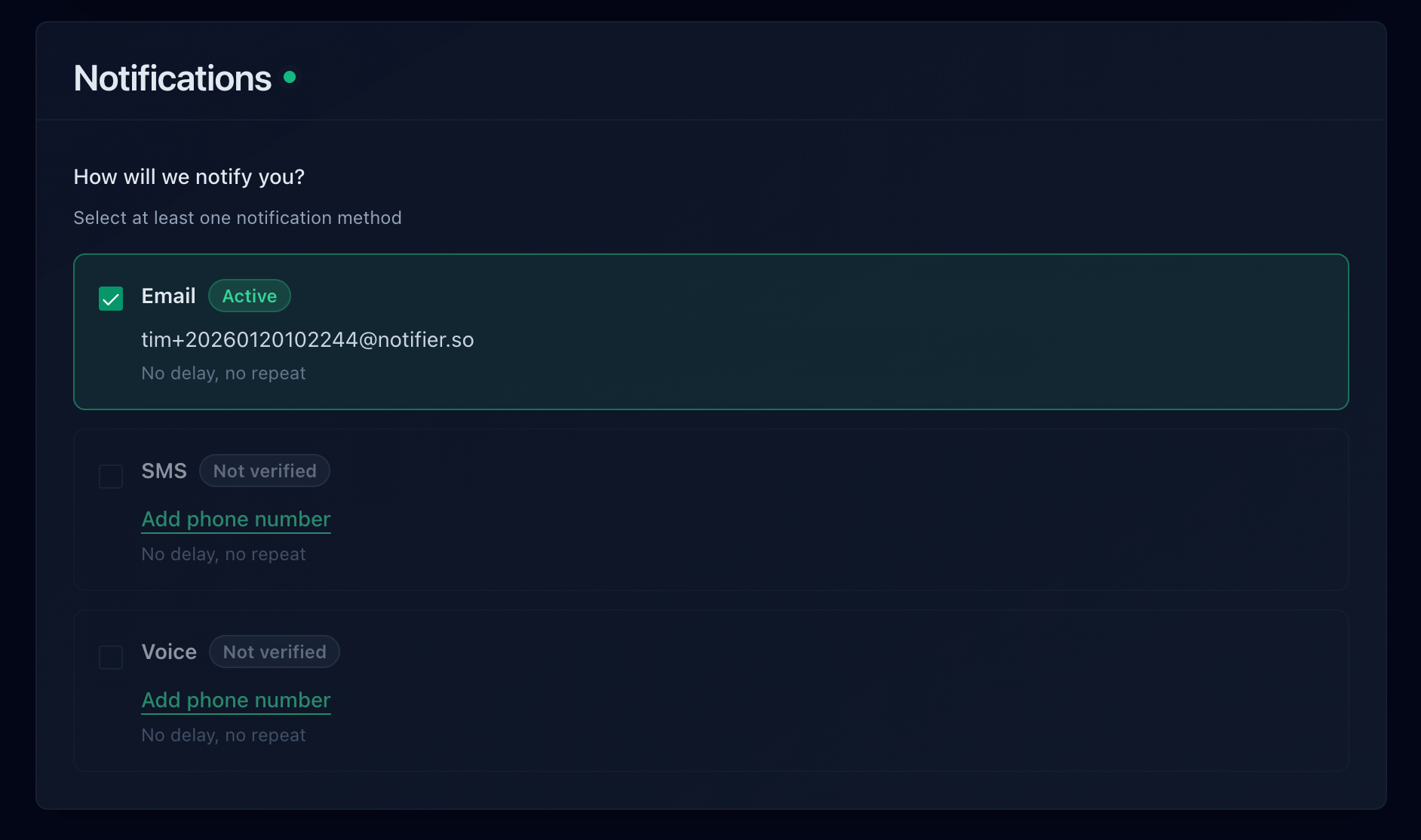
A single alert channel is a single point of failure. Your phone is on silent. Your email goes to spam. Your Slack channel is muted. Redundant alerting means using multiple channels simultaneously so at least one gets through.
The Layered Approach
The most reliable setup uses three layers:
-
Layer 1: Instant visibility (Slack)
Posts to a team channel so everyone on the team sees it immediately. Good for business hours when someone is always watching Slack.
-
Layer 2: Personal notification (SMS)
Sends a text directly to the person responsible. Works outside business hours, doesn't require an app to be open.
-
Layer 3: Record and documentation (Email)
Creates a searchable record of every alert. Useful for post-mortems and tracking incident frequency over time.
All three fire simultaneously. If Slack catches it, great. If the responsible person's Slack is closed, SMS gets them. Email creates the paper trail regardless.
Escalation for Critical Services
For your most important services, add a fourth layer: phone calls. If your revenue-generating production site goes down, a ringing phone at 3 AM is exactly what you need.
Here's how escalation should work for a critical service:
| Time After Detection | Action | Who |
|---|---|---|
| Immediately | Slack alert + Email | Entire team |
| Immediately | SMS alert | On-call person |
| Immediately | Phone call | On-call person |
With Notifier, you configure all of these channels per monitor. Your production site might use all four channels (Slack, email, SMS, phone). Your staging environment might only use Slack. Your blog might only use email. You decide based on how critical each service is.
Alerting for Teams
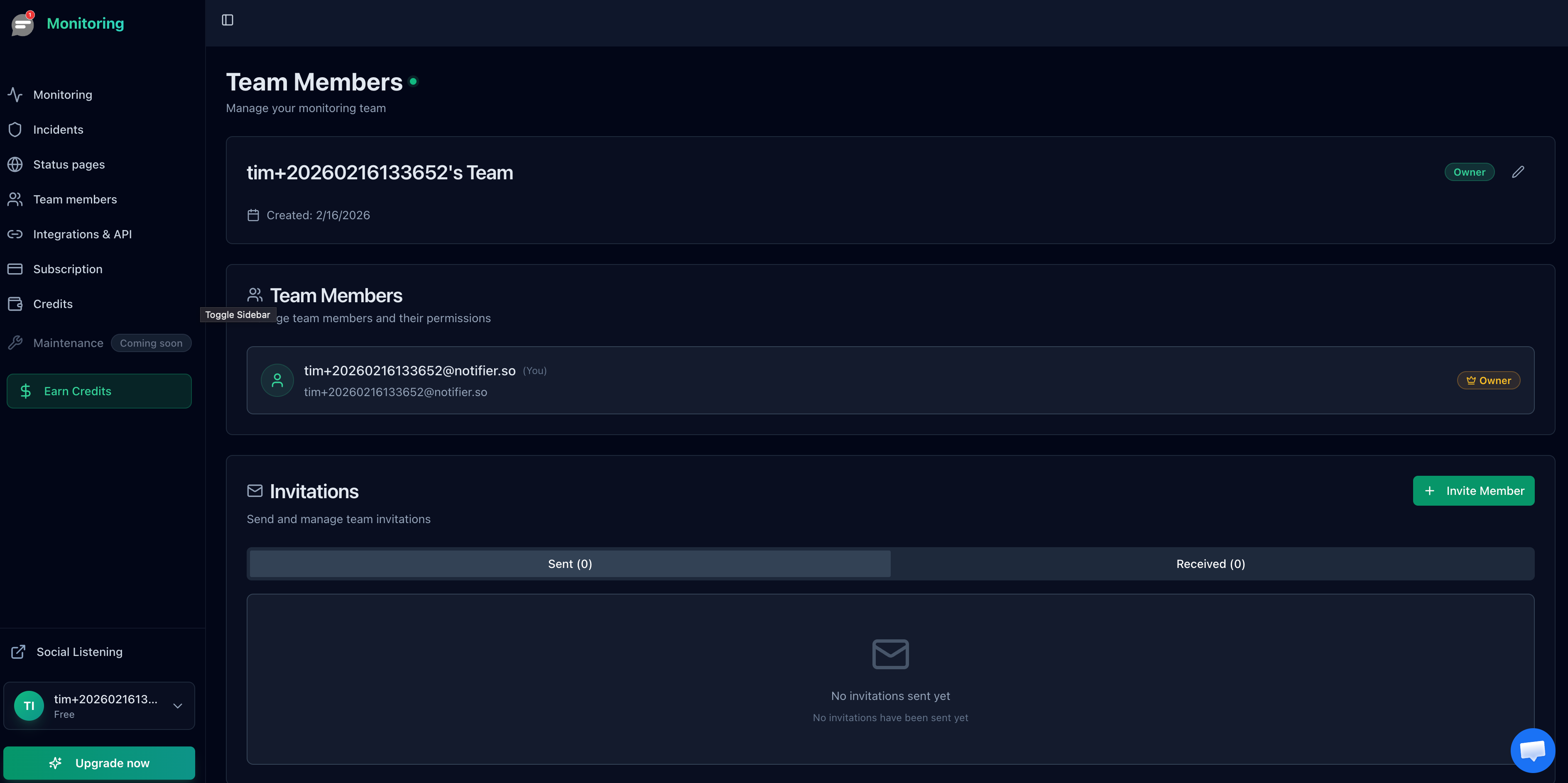
When you have multiple people who should be notified, Notifier's Team plan ($19/month) supports up to 3 team members and the Enterprise plan ($35/month) supports 10. Each team member gets their own notification preferences. One person might want SMS, another might prefer just Slack.
Setting Up Outage Alerts with Notifier
Here's the fastest path from "no monitoring" to "full redundant alerting."
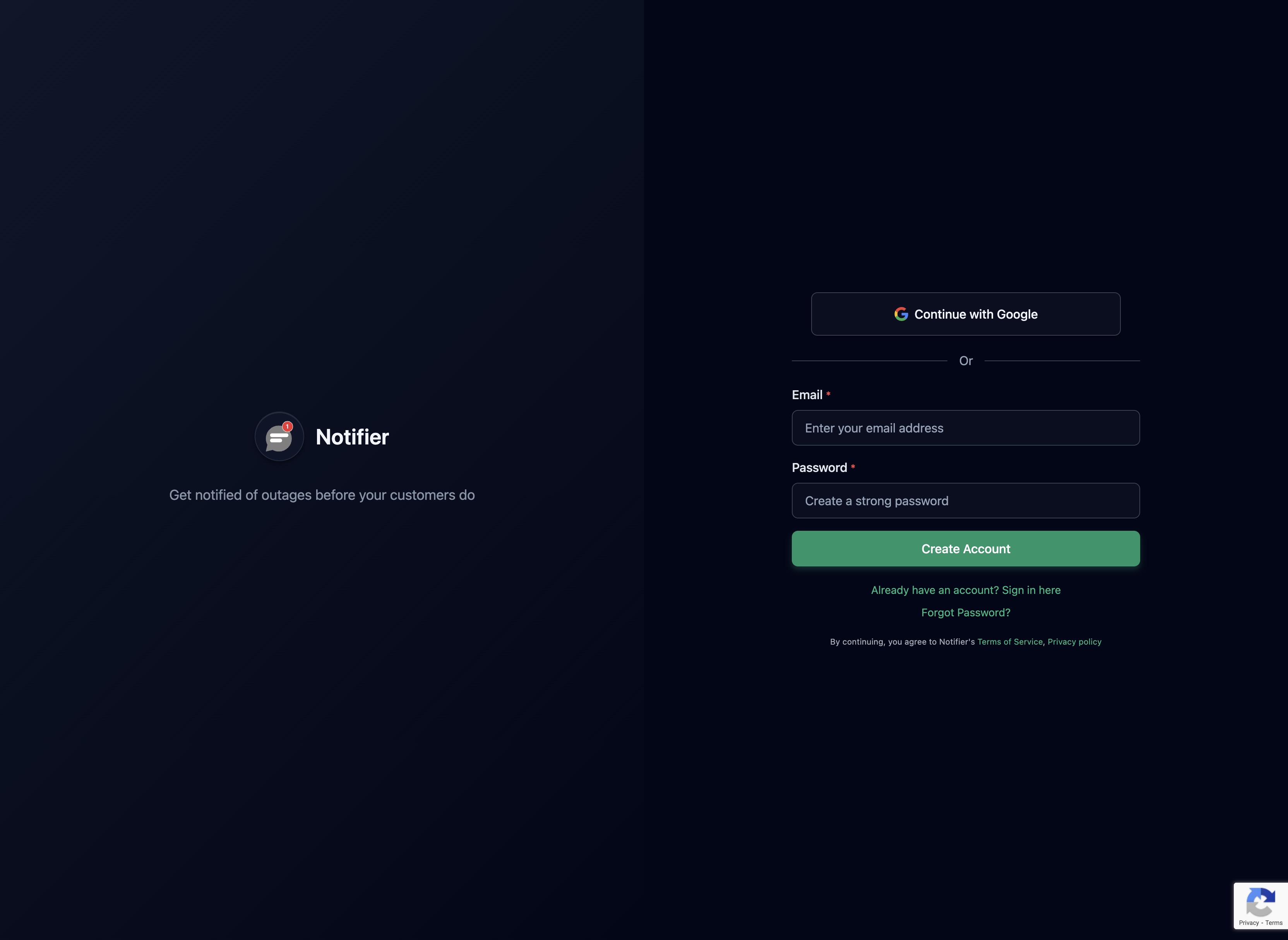
Step 1: Create Your Account
Sign up at notifier.so/register. No credit card required for the free plan (10 monitors, 5 minute checks, email alerts).
Step 2: Add Your Most Critical Monitor First
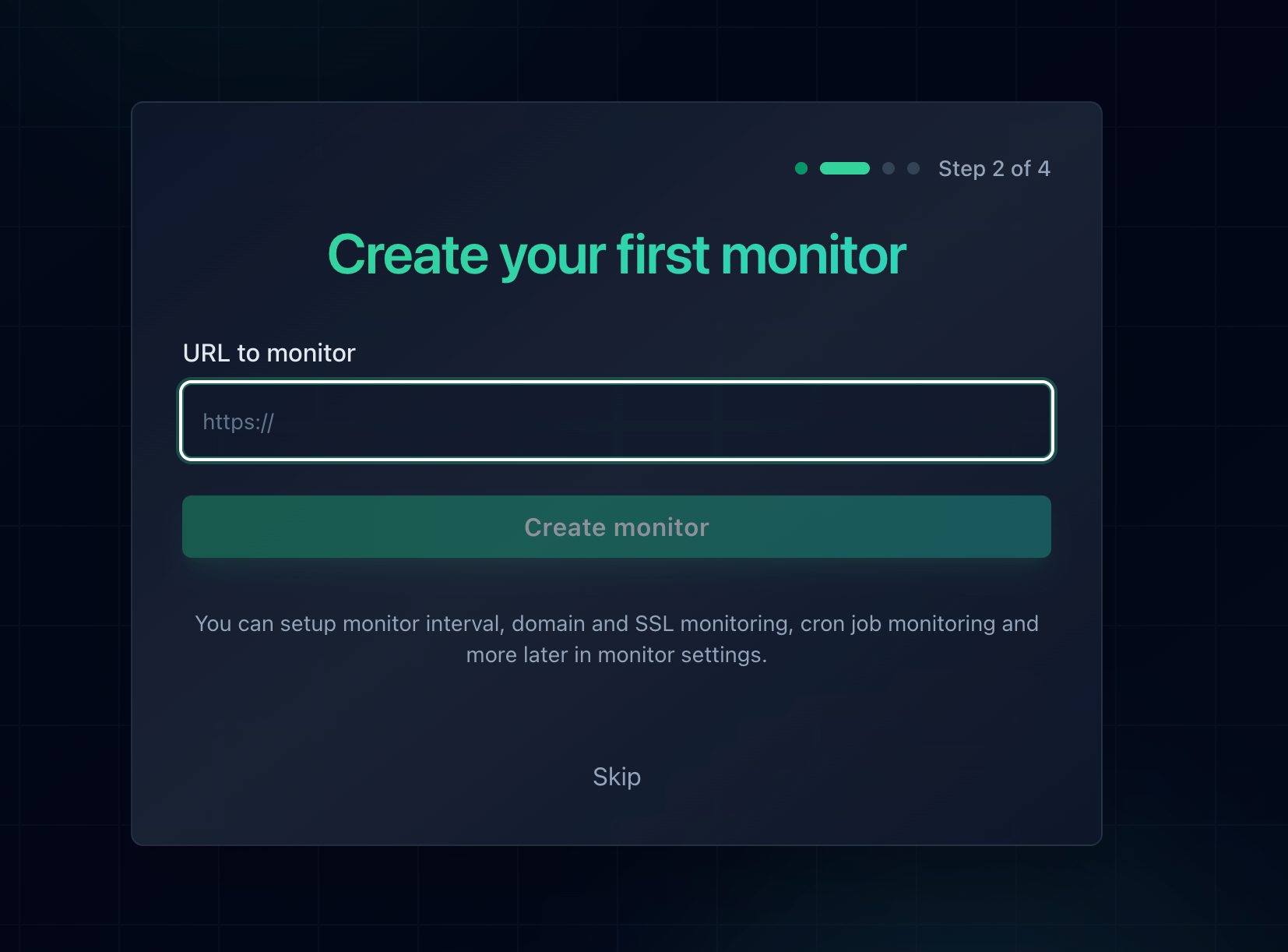
Start with the URL that matters most. Your main website, your API, or your checkout page. Enter the URL, give it a name, and select your check interval.
Step 3: Enable Multiple Alert Channels
Enable every alert channel available to you. On the free plan, that's email. On paid plans, add SMS and phone calls. If your team uses Slack, connect it from the Integrations page.
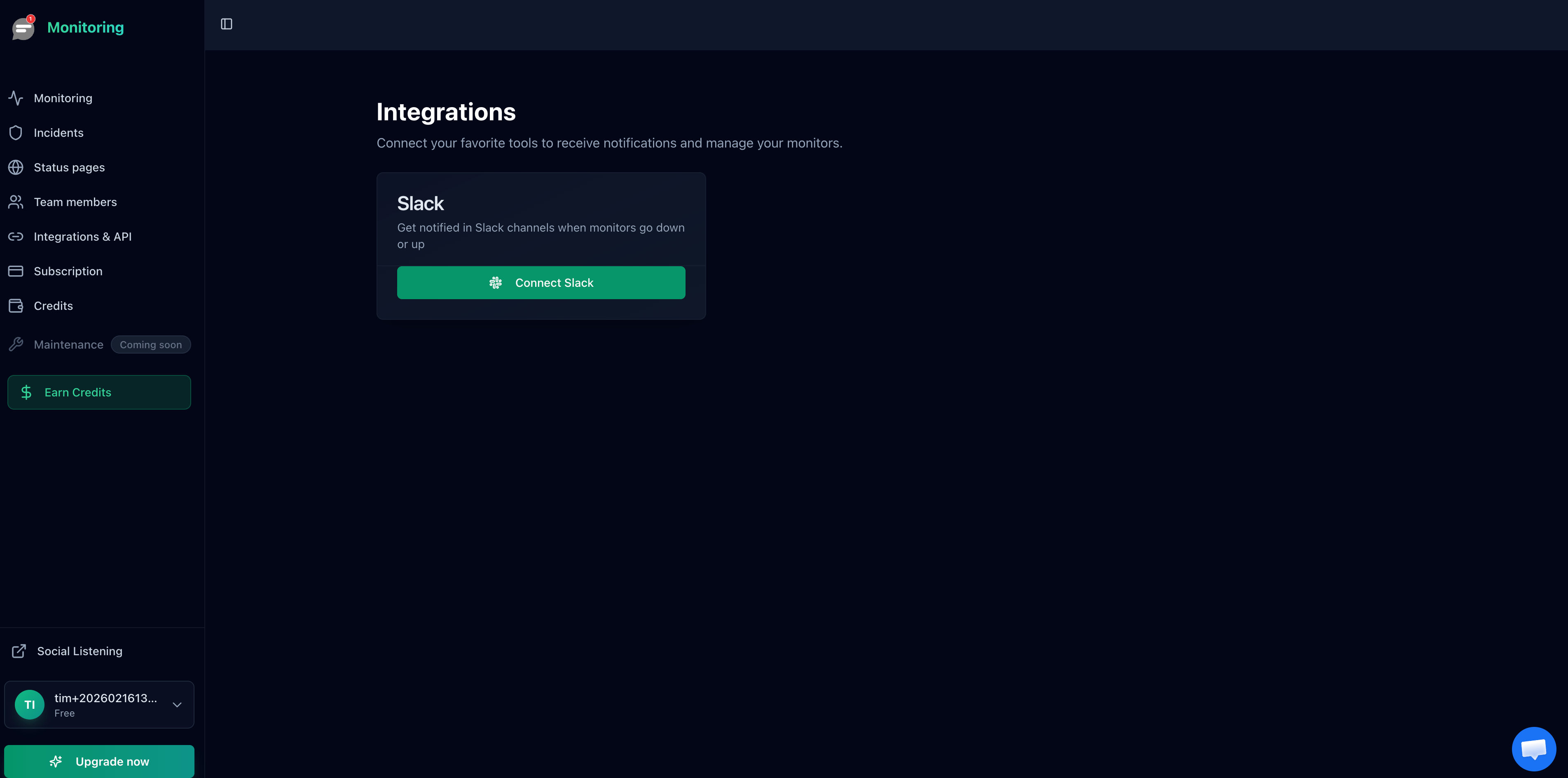
For a detailed walkthrough of Slack setup, see our Slack alerts guide. For email-specific tips, see our email notifications guide.
Step 4: Test Everything
Use the Test Notification button on your monitor's detail page. Verify that you receive alerts on every channel you configured. Check that SMS arrives, email doesn't go to spam, and the Slack message appears in the right channel.

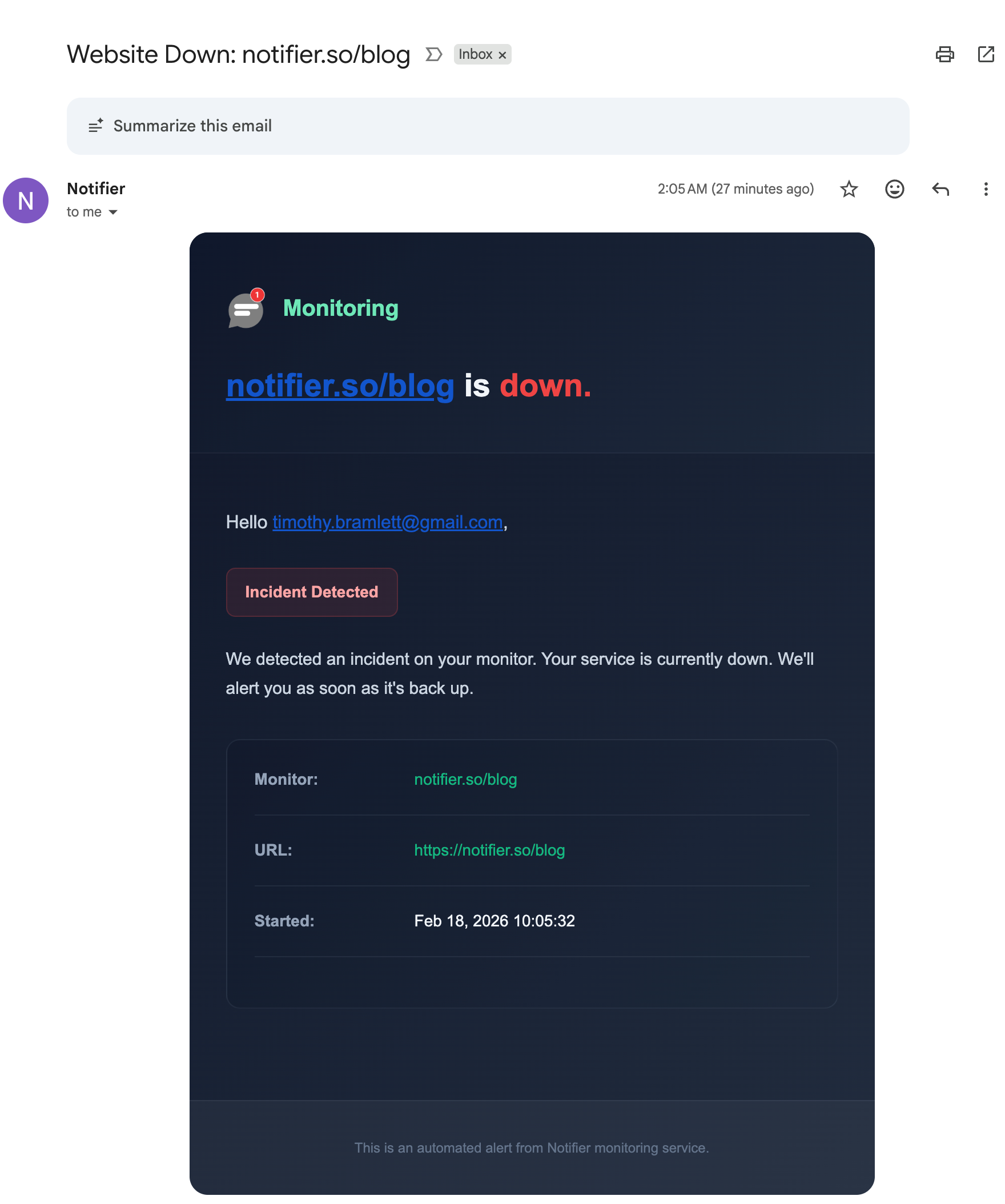
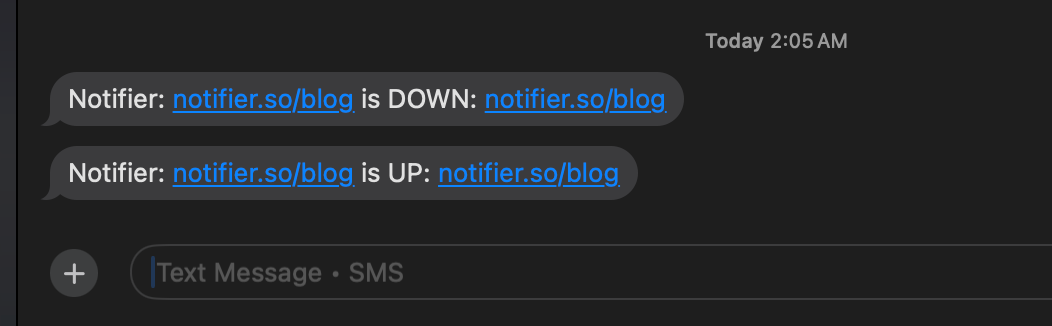
Here's what the alerts look like when they arrive:
Email alert:
SMS alert:
Your First 60 Seconds: An Outage Response Playbook
Getting alerted fast only helps if you know what to do next. When that SMS arrives, here's the playbook:
0 to 15 Seconds: Verify
Open the Notifier dashboard on your phone or laptop. Check the monitor detail page to confirm the outage and see when it started.
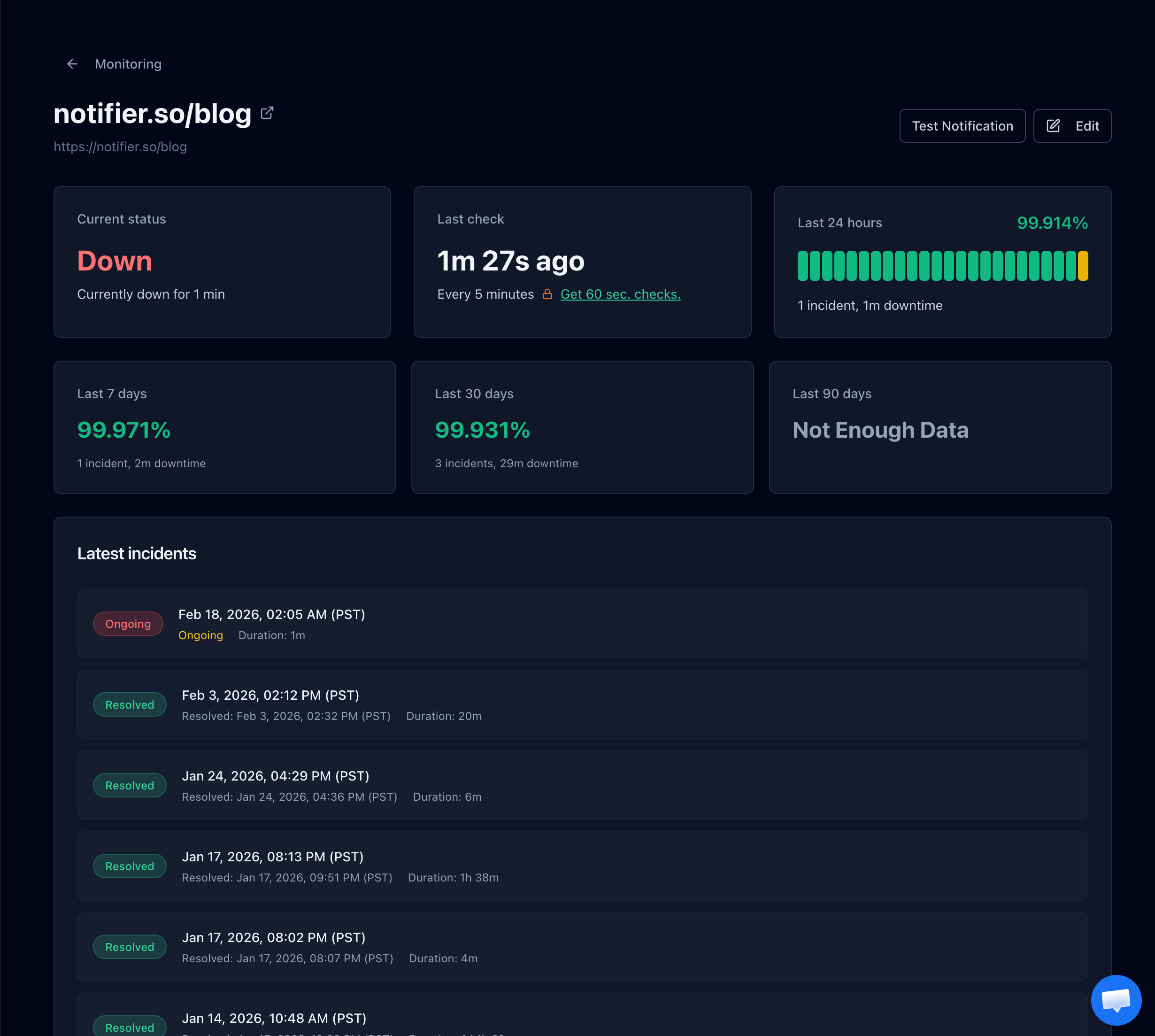
Quick check: can you load the site yourself? Sometimes a monitoring service detects a regional issue that doesn't affect all users. If you can load it, the problem might be localized.
15 to 30 Seconds: Identify the Scope
Is it just one page, or the entire site? Check your other monitors. If everything is down, it's likely a server or hosting issue. If only one endpoint is down, it might be an application error.
- All monitors down: Server, hosting, or DNS issue. Check your hosting provider's status page.
- One monitor down: Application error, specific route broken, or deployment issue.
- Intermittent failures: Load issues, database connection pool exhaustion, or CDN problems.
30 to 45 Seconds: Communicate
If you have a status page, update it. Even a simple "We're aware of the issue and investigating" post prevents a flood of support tickets. Your customers would rather see an honest status update than hit a broken site with no explanation.
45 to 60 Seconds: Act
Based on the scope, take the first remediation step:
- Server issue: SSH in and check processes, disk space, memory. Restart the service if needed.
- Hosting outage: Check your provider's status. If it's on their end, you're waiting. Consider failover if you have it.
- Deploy gone wrong: Roll back to the previous version immediately. Debug later.
- DNS issue: Check your DNS records. Propagation problems can take time but you can verify the records are correct.
Write your playbook before you need it
During an outage, you'll be stressed and rushed. A written playbook with SSH credentials, hosting dashboard URLs, rollback commands, and escalation contacts eliminates the scramble. Store it somewhere accessible offline (not on the server that's down).
Communicating Outages with Status Pages
Outage alerts tell you about the problem. Status pages tell your users. During an outage, the last thing you want is 50 support emails asking "is the site down?" A public status page answers that question before anyone asks it.
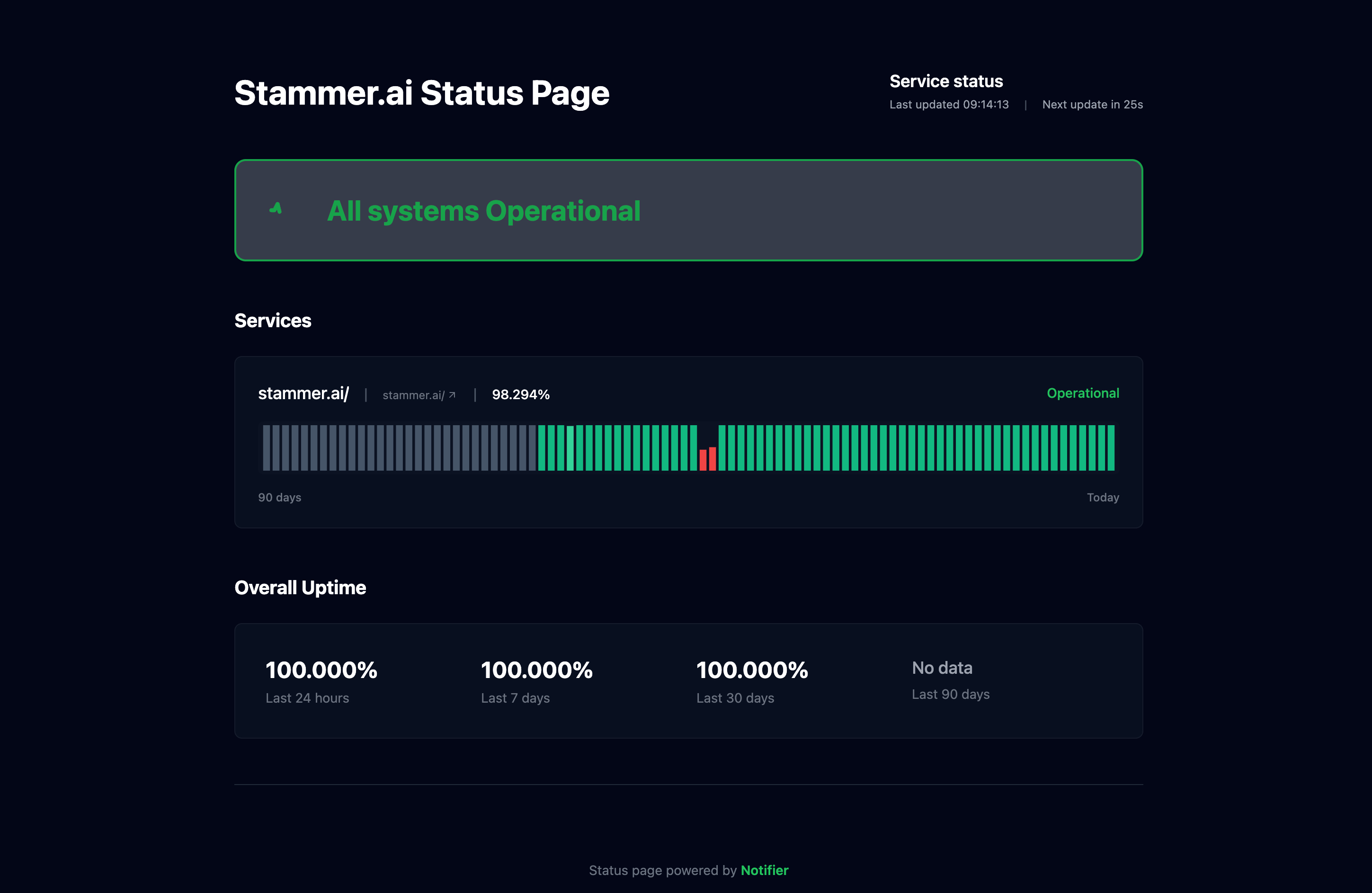
What a Status Page Looks Like
Notifier includes status pages on all plans (including free). Your status page shows real time monitor status and uptime history. When a monitor goes down, the status page updates automatically.
Status Page Best Practices During Outages
- Update immediately: As soon as you're aware of the issue, update the status page. "We're investigating" is better than silence.
- Be specific: "Our API is experiencing elevated error rates" is more useful than "We're having issues."
- Provide time estimates: Even rough ones help. "We expect resolution within 30 minutes" sets expectations.
- Post a resolution update: When the issue is fixed, post a summary of what happened and what you're doing to prevent it from happening again.
For a complete guide to setting up status pages, see our status page guide.
Outage Alert Speed: How Monitoring Tools Compare
The two biggest factors in outage alert speed are the minimum check interval and the number of alert channels supported. Here's how the major tools compare:
| Tool | Fastest Check | SMS | Phone | Slack | Status Page | |
|---|---|---|---|---|---|---|
| Notifier | 30 sec | Yes | Yes | Yes | Yes | Included (all plans) |
| UptimeRobot | 30 sec | Yes | Limited | No | Yes | Yes (paid) |
| Better Stack | 30 sec | Yes | Yes | Yes | Yes | Yes |
| Pingdom | 1 min | Yes | Yes | No | Yes | Separate product |
| Freshping | 1 min | Yes | No | No | Yes | Yes |
| StatusCake | 30 sec | Yes | Yes | No | Yes | Yes (paid) |
Why Notifier Stands Out
For outage alerting specifically, Notifier offers the best combination of speed, channels, and value:
- All four alert channels (email, SMS, phone, Slack) on paid plans. Most competitors lack phone calls or charge extra for SMS.
- Status pages on all plans including free. Pingdom charges separately, and others limit status pages to paid tiers.
- 30 second checks on the Team plan. Same speed as competitors that cost 3 to 5 times more.
- Transparent pricing: $4/month for Solo, $19/month for Team. No per-SMS fees, no hidden costs.
- Real support: Email support@notifier.so or use the chat widget on any page. You'll typically get a response within minutes, not days.
FAQ
How fast will I know when my site goes down?
With 30 second check intervals, you'll typically know within 45 to 60 seconds (check interval plus confirmation time). With 1 minute checks, expect 1 to 2 minutes. With 5 minute checks, up to 5 to 6 minutes. SMS and Slack alerts arrive within seconds of detection. Email can take an additional 30 seconds to a few minutes depending on mail server delays.
Will I get flooded with alerts during an outage?
No. Notifier sends one alert when downtime is detected and one alert when the site recovers. You won't get repeated alerts every check interval. This is important because alert floods train you to ignore notifications, which defeats the purpose.
What if the monitoring service itself goes down?
Reputable monitoring services run highly redundant infrastructure. Notifier checks from multiple locations, so a single server failure doesn't affect monitoring. For maximum reliability, some teams use two monitoring services from different providers. If one goes down, the other still catches outages.
Should I use the same alerts for every monitor?
No. Match the alert intensity to the service's importance. Your revenue-generating production site should alert via SMS, phone, email, and Slack. Your documentation site might only need email. Your staging environment might only need Slack. Over-alerting on non-critical services causes fatigue that makes you ignore alerts from critical ones.
How do I test that my alerts work without taking my site down?
Use the Test Notification feature in your monitoring tool. In Notifier, every monitor detail page has a Test Notification button that sends a test alert through all configured channels. Run this monthly to verify your phone number hasn't changed, emails aren't going to spam, and your Slack integration is still connected.
What's the cheapest way to get instant outage alerts?
Notifier's free plan gives you 10 monitors with email alerts and a status page. For $4/month (Solo plan), you add SMS and phone call alerts with 1 minute check intervals. That's the cheapest way to get truly instant notifications. For comparison, Better Stack starts at $25/month for similar features and Pingdom starts at $15/month without phone calls.
