At a Glance
- •Agencies need centralized monitoring across all client sites with per-client alert routing, so the right team member gets notified about the right site without noise.
- •Public status pages are a high-value deliverable for clients. Offer branded status pages on custom domains to build trust and reduce "is it down?" support tickets.
- •Team access matters more than monitor count. Look for tools that let you invite team members and assign responsibilities rather than sharing a single login.
- •Avoid tools that charge per seat or per component. Agency costs scale fast when you manage 20+ client sites across a 5-person team.
- •Notifier offers 100 monitors, 50 status pages, and 3 team members on the Team plan at $19/month, with SSL monitoring included free on every plan.
When you manage websites for a dozen clients, you cannot afford to find out about downtime from an angry email. Your clients expect their sites to be up, and they expect you to know about problems before they do.
This guide covers how to set up website monitoring for an agency: what to track for each client, how to route alerts to the right team member, how to use status pages as a client deliverable, and how to keep costs under control as your client list grows.
Why Agencies Need Dedicated Monitoring
A freelancer with three sites can check them manually. An agency with 20+ client sites across different hosting providers, CMS platforms, and tech stacks needs something more systematic. Here's what makes agency monitoring different:
- Multiple stakeholders. Different clients need different notification channels. The restaurant owner wants a text message. The SaaS startup wants a Slack notification. The e-commerce client wants a phone call during business hours.
- Mixed hosting environments. Client A is on Vercel. Client B runs WordPress on shared hosting. Client C has a custom app on AWS. Each has different failure modes, and you need to monitor all of them from one place.
- Reputation is on the line. If a client's site goes down and you don't notice, the client questions whether they need an agency at all. Proactive monitoring is how you demonstrate value and justify your retainer.
- SSL and domain expiry across many sites. One expired SSL certificate on a client's site destroys trust. Managing certificate renewals and domain expirations across 20+ domains manually is a recipe for missed renewals.
What to Monitor for Each Client
Most agencies start by monitoring just the homepage URL. That catches full outages, but it misses partial failures that frustrate users and hurt SEO. Here's a more complete checklist:
| What to Monitor | Why It Matters | Priority |
|---|---|---|
| Homepage | Catches full server outages and DNS failures | Essential |
| Key landing pages | Ad campaigns sending traffic to a broken page waste ad spend | Essential |
| SSL certificate | Expired certs trigger browser warnings that scare away visitors | Essential |
| Contact/lead forms | A broken form means lost leads. The client may not notice for days. | Important |
| Checkout/payment pages | For e-commerce clients, a broken checkout is direct revenue loss | Essential |
| DNS records | Catches propagation issues after DNS changes or domain transfers | Important |
| API endpoints | For SaaS clients, the API is the product | Important |
Practical tip
Start with 2 to 3 monitors per client (homepage, SSL, one key page), then expand as you learn each site's failure patterns. A WordPress site on shared hosting needs more attention than a static site on Netlify.
Organizing Monitors by Client
When you're managing 50+ monitors, organization is everything. Without a clear system, your dashboard becomes a wall of URLs that nobody wants to look at.
Use naming conventions. Prefix every monitor name with the client name or a short code. Instead of "Homepage" and "Homepage," use "Acme Co | Homepage" and "Beta Inc | Homepage." This makes it immediately clear which client is affected when an alert fires.
Group by client, not by type. It's tempting to group all SSL monitors together and all homepage monitors together. Resist this. When a client calls about their site, you want to see all their monitors in one place. Group by client, then by priority within each group.
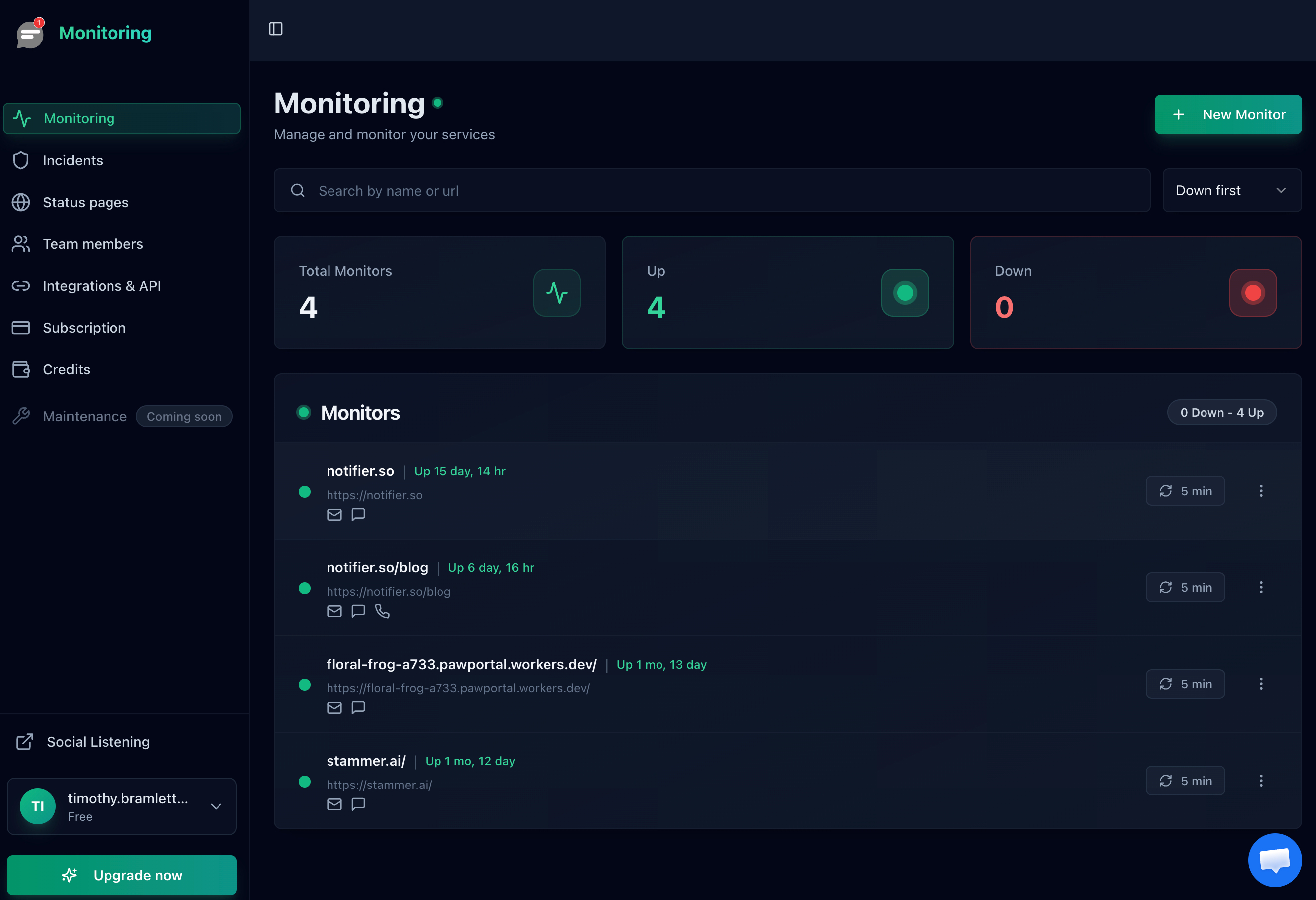
A well-organized monitoring dashboard makes it easy to spot which client needs attention.
Document your monitoring setup per client. Keep a simple spreadsheet or doc that lists what you monitor for each client, why, and what the expected response should be. When a team member is on call, they shouldn't need to guess whether a 302 redirect on Client B's homepage is normal or a problem.
Alert Routing: Getting the Right Alert to the Right Person
The biggest mistake agencies make with monitoring is sending every alert to everyone. Within a week, the whole team starts ignoring notifications. Here's how to set up alert routing that actually works:
Tier your alerts by severity
Critical (SMS/phone call): Full site down, SSL expired, checkout broken. These go to the on-call person immediately. Use SMS or phone call alerts so they can't be missed.
Warning (Slack/email): Slow response times, SSL expiring within 14 days, intermittent errors. These go to the team channel. Important, but not wake-someone-up important.
Informational (email digest): Uptime reports, performance trends, certificate renewal confirmations. These go to the client and the account manager for monthly reviews.
Use Slack channels per client
If your agency uses Slack, create a channel per client (like #monitoring-acme and #monitoring-beta) and route each client's monitoring alerts to the appropriate channel. This keeps noise out of your general channels and creates a natural audit trail of incidents per client.
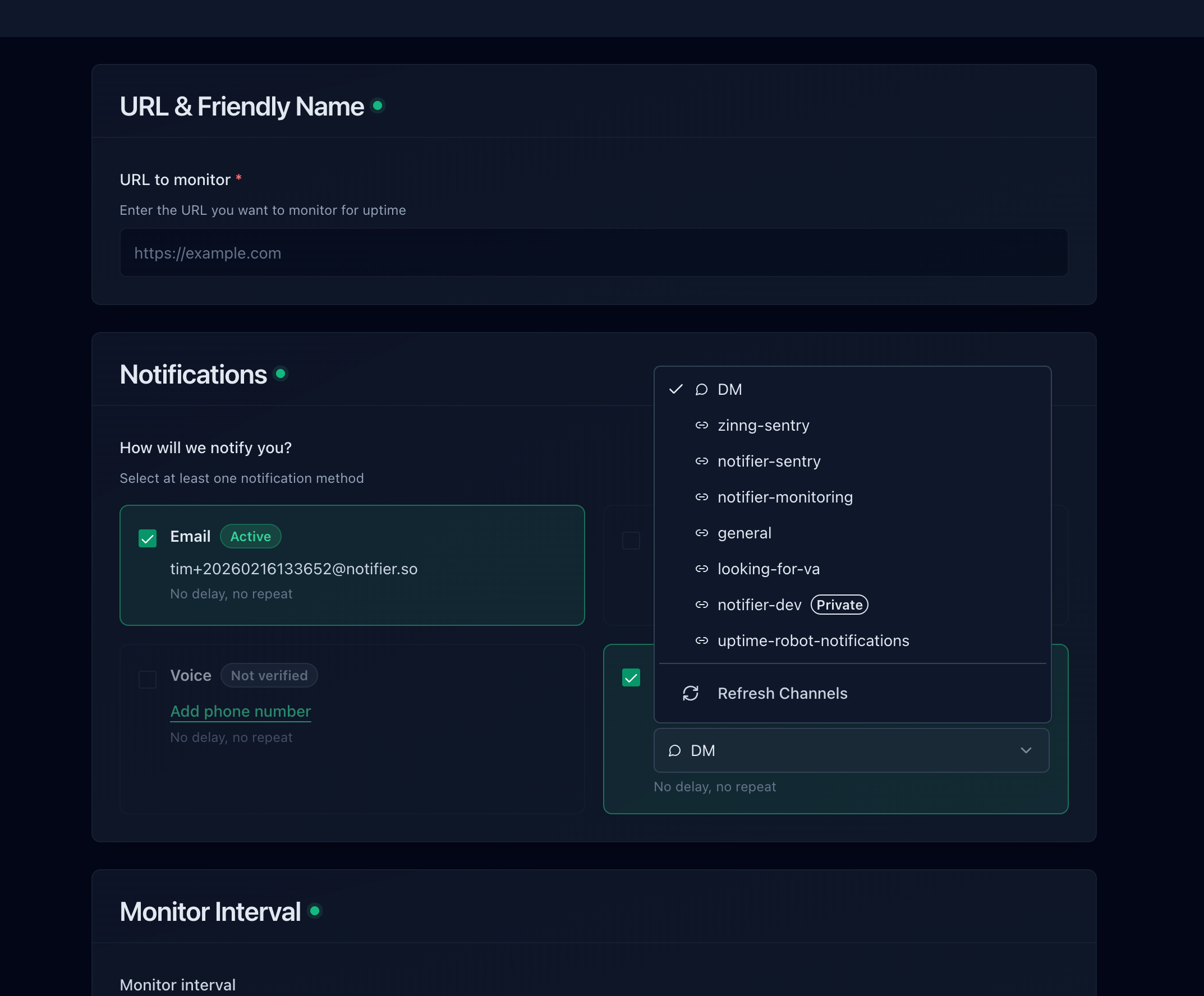
Route each client's alerts to a dedicated Slack channel to keep things organized.
Assign team members to clients
With team-based monitoring tools, you can invite team members and assign them to specific clients. The developer who built Client A's site should be the first to know when it goes down, not the designer working on Client B's rebrand. Look for monitoring tools that support multiple team members without charging per seat.
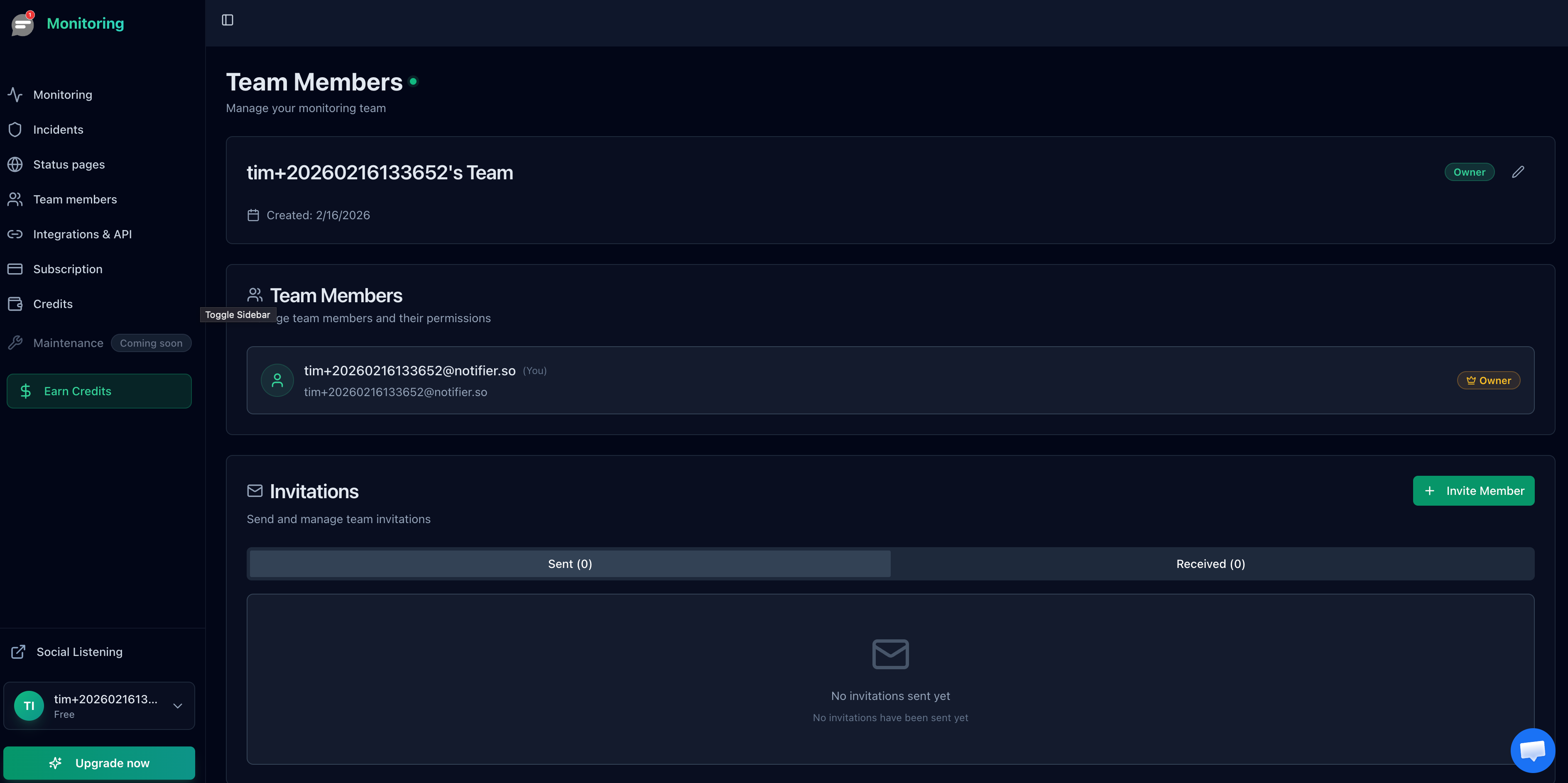
Invite team members so alerts reach the person responsible for each client.
Status Pages as a Client Deliverable
Most agencies overlook status pages entirely. That's a missed opportunity. A branded status page is one of the easiest ways to add value to a client relationship.
Why clients love status pages
- Reduces "is it down?" support tickets. When something goes wrong, clients and their users can check the status page instead of emailing you.
-
Demonstrates professionalism. A status page at
status.clientdomain.comsignals that you take uptime seriously. It's the kind of detail that makes clients confident they chose the right agency. - Creates accountability. A public record of uptime builds trust over time. When your client's status page shows 99.95% uptime over six months, that's a powerful retention tool at contract renewal.
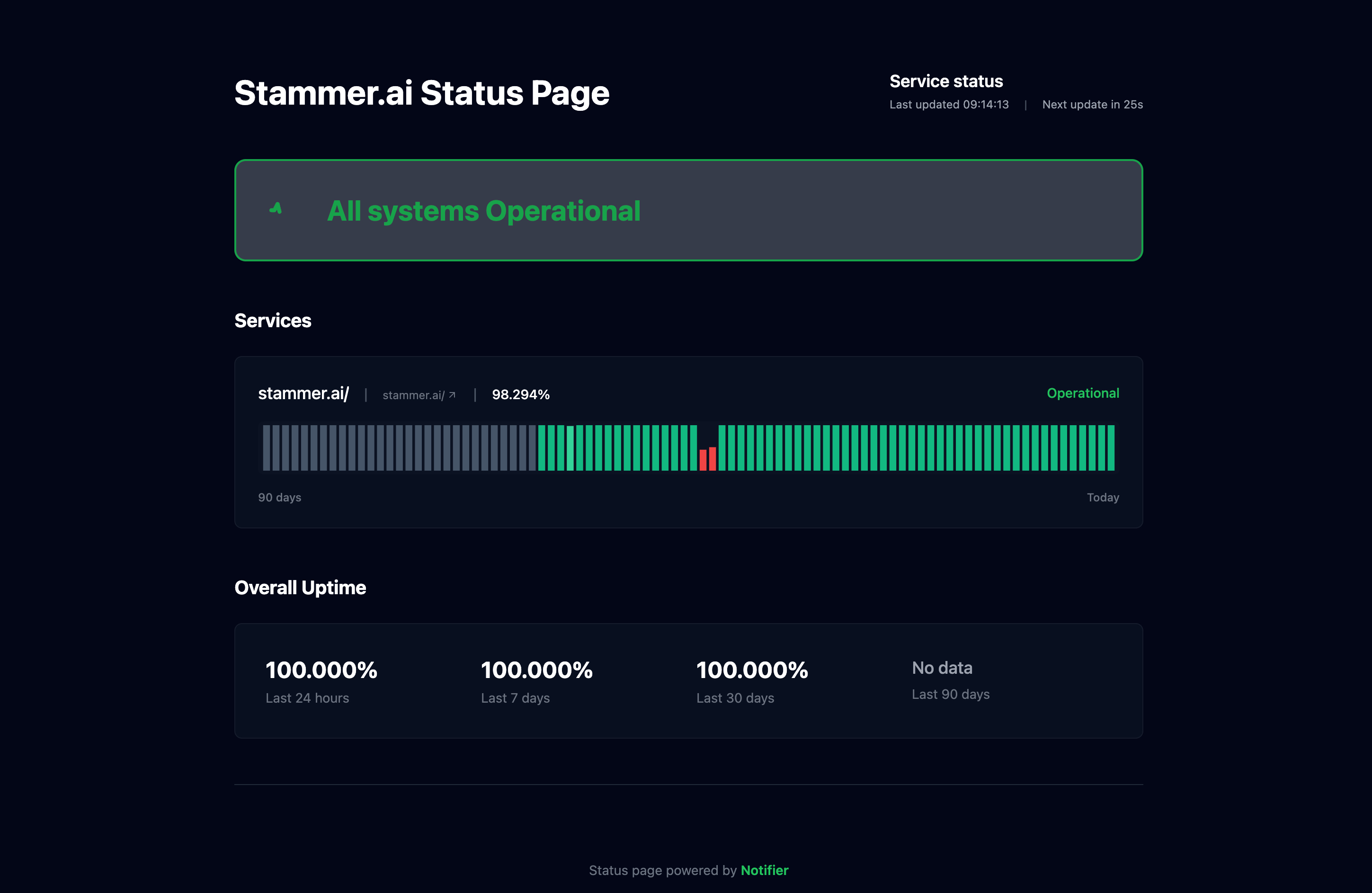
A public status page gives clients and their users transparency into service health.
How to set up status pages for clients
Create one status page per client with only the services relevant to them. An e-commerce client's status page might show "Storefront," "Checkout," and "Payment Processing." A SaaS client's page might show "Web App," "API," and "Documentation."
For clients on paid plans, use custom domains so the status page lives at status.theirclient.com rather than a generic subdomain. This small touch makes a big impression.
Agency tip: Include status page setup in your onboarding process for new clients. It takes five minutes and immediately sets you apart from agencies that just build the site and walk away.
Monitoring Tools Compared for Agency Use
Not every monitoring tool works well for agencies. Some charge per seat, some limit status pages, and some don't support team access at all. Here's how the main options compare for a typical agency managing 20 to 50 client sites:
| Tool | Monitors | Status Pages | Team Members | SSL Monitoring | Check Interval | Price |
|---|---|---|---|---|---|---|
| Notifier | 100 | 50 | 3 | Included free | 30 sec | $19/mo |
| UptimeRobot | 50 | 1 | 1 (add-on) | Included | 60 sec | $29/mo |
| Better Stack | 50 | 1 | Component pricing | Included | 30 sec | ~$85/mo* |
| StatusCake | 100 | Sold separately | 10 | Included | 60 sec | $24.49/mo |
| HetrixTools | 30 | Unlimited | 5 | Included | 60 sec | $9.95/mo |
| Uptime Kuma | Unlimited | Unlimited | Single user | Included | Custom | Free (self-hosted) |
*Better Stack uses component-based pricing. Estimated cost for an agency setup with 2 team members and 50 monitors. Prices verified March 2026.
Note: UptimeRobot's free tier is limited to non-commercial use since October 2024. If you're using it for client work, you need a paid plan.
Why Notifier works well for agencies
The Team plan at $19/month gives you 100 monitors, 50 status pages, and 3 team members with 30-second check intervals. That's enough for most agencies to cover all their clients without worrying about hitting limits.
SSL monitoring is included free on every plan, so you don't need a separate tool to track certificate expirations across your clients' sites. And if you need more capacity, the Enterprise plan at $35/month gives you 200 monitors and 10 team members.
If you run into issues or have questions about setting up monitoring for your agency, the support team typically responds within minutes via the chat widget or email at support@notifier.so.
What about self-hosted options?
Uptime Kuma is a popular open-source option and it's genuinely good for personal use. But for agencies, it has real limitations: it's single-user only (no team access), it runs on your own server (which itself needs monitoring), and performance degrades when you get past 150 to 500 monitors. If you're comfortable managing infrastructure and only need it for yourself, it works. For a team, a hosted solution saves time.
Getting Started: Agency Monitoring Setup in 15 Minutes
Here's a step-by-step process for setting up monitoring across your client base:
Create your account and invite your team
Sign up for a free account. Add monitors for your own agency's website first to get familiar with the interface. Then upgrade to the Team plan and invite your team members.
Add monitors for each client
Start with each client's homepage and SSL certificate. Use a consistent naming convention like "Client Name | Monitor Type" so your dashboard stays readable as it grows.
Connect Slack and set up alert routing
Connect your workspace via the Slack integration, then assign each client's monitors to the appropriate channel. Set up SMS or phone call alerts for critical monitors.
Create status pages for your clients
Create a status page for each client. Add the relevant monitors and set up a custom domain if they're on a paid plan. Share the URL with the client as part of your onboarding.
Review and expand monthly
Each month, review uptime reports for each client. Add monitors for new pages, campaigns, or integrations. Use the data in your client reporting to demonstrate the value of your monitoring.
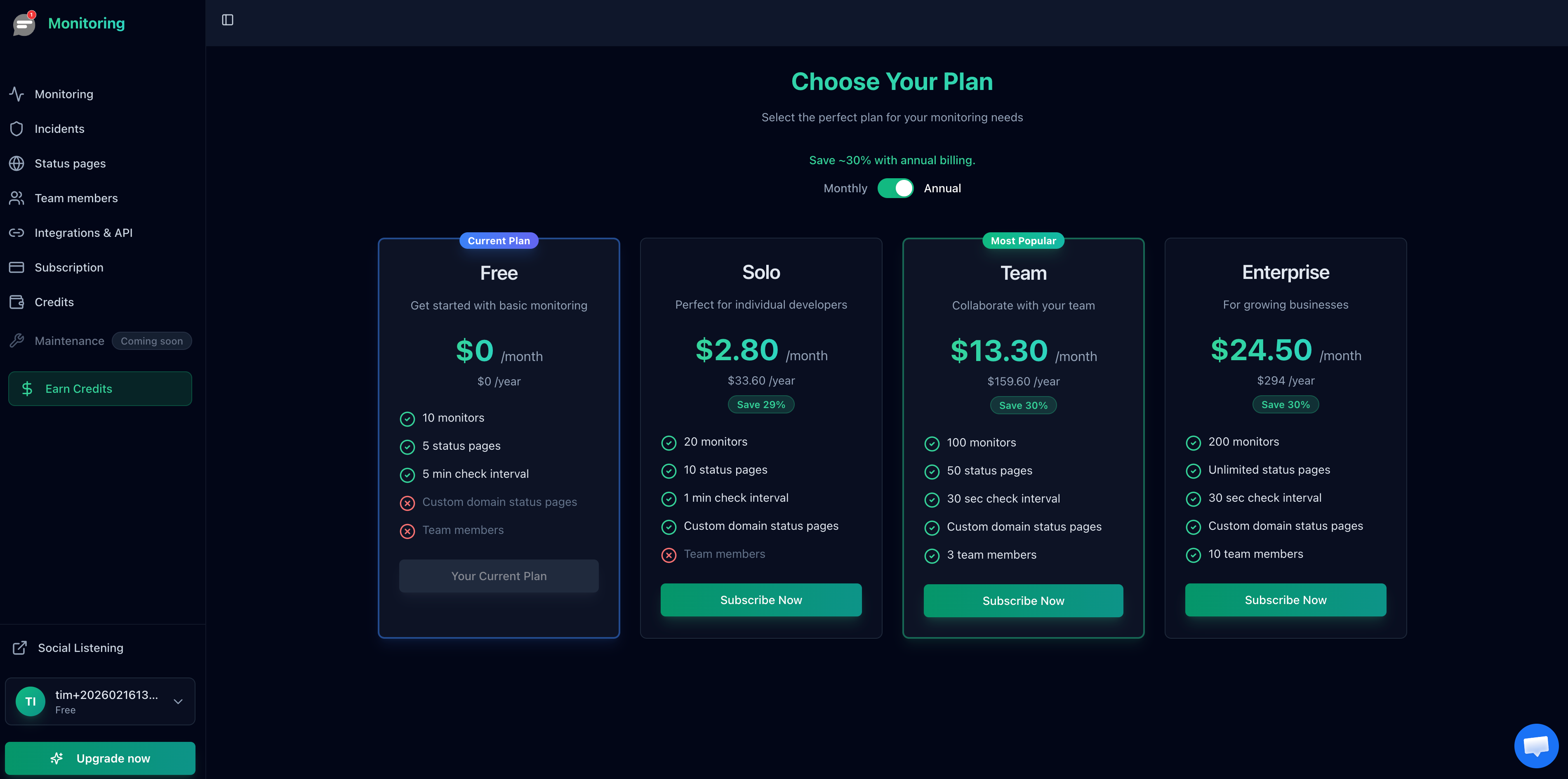
The Team plan ($19/month) covers most agencies. Enterprise ($35/month) adds capacity for larger operations.
Frequently Asked Questions
How many monitors do I need per client?
Start with 2 to 3 per client: homepage, SSL certificate, and one key conversion page (contact form, checkout, or signup). For larger or more complex clients, add DNS monitoring and additional endpoints. A typical agency with 20 clients needs 40 to 80 monitors.
Can I give clients access to their own monitoring data?
The simplest approach is to create a public status page for each client. They get real-time visibility into their site's uptime without needing login credentials to your monitoring dashboard. This keeps your monitoring setup private while giving clients the transparency they want.
Should I charge clients for monitoring?
Many agencies include basic monitoring in their maintenance retainer (it costs you a few dollars per client and adds significant perceived value). Some agencies list "24/7 uptime monitoring with instant alerts" as a line item in their maintenance packages. Either way, it's a retention tool: clients are less likely to leave an agency that's actively watching their site.
Is the UptimeRobot free plan enough for agency use?
No. Since October 2024, UptimeRobot's free tier is restricted to non-commercial use. Using it for client monitoring requires their paid Team plan at $29/month, which gives you 50 monitors and only 1 status page. For comparison, Notifier's Team plan gives you 100 monitors and 50 status pages for $19/month.
What check interval do I need for client sites?
For most agency clients, 1-minute checks are more than sufficient. If you manage sites where every second of downtime matters (high-traffic e-commerce, SaaS applications), 30-second intervals provide faster detection. The Notifier Team plan includes 30-second checks.
