At a Glance
- •A website monitoring checklist covers the 15 essential checks every site needs: uptime, response time, SSL certificates, DNS, domain expiration, HTTP status codes, page load time, error rates, third-party dependencies, API endpoints, status pages, alert channels, escalation policies, incident playbooks, and regular review schedules.
- •At minimum, every website needs uptime monitoring, SSL certificate monitoring, and at least two alert channels (email plus SMS or Slack).
- •Notifier covers uptime, SSL, DNS, and domain expiration monitoring on every plan, including the free tier with 10 monitors and 5 status pages.
- •Review your monitoring setup quarterly. New services, changed infrastructure, and expired alert contacts are the most common gaps.
Most teams set up monitoring for their homepage and call it done. Then a payment gateway fails silently, an SSL certificate expires at 2 AM, or a third-party script brings the whole site to a crawl. Nobody notices until customers start complaining.
This checklist covers the 15 things every website should be monitoring. Whether you are running a personal blog, a SaaS product, or an e-commerce store processing thousands of orders a day, use this as a reference to make sure nothing falls through the cracks. Each item includes what to monitor, why it matters, and a recommended check frequency.
Category 1: Availability Monitoring
These are the foundational checks. If your site is not reachable, nothing else matters.
Uptime / Availability
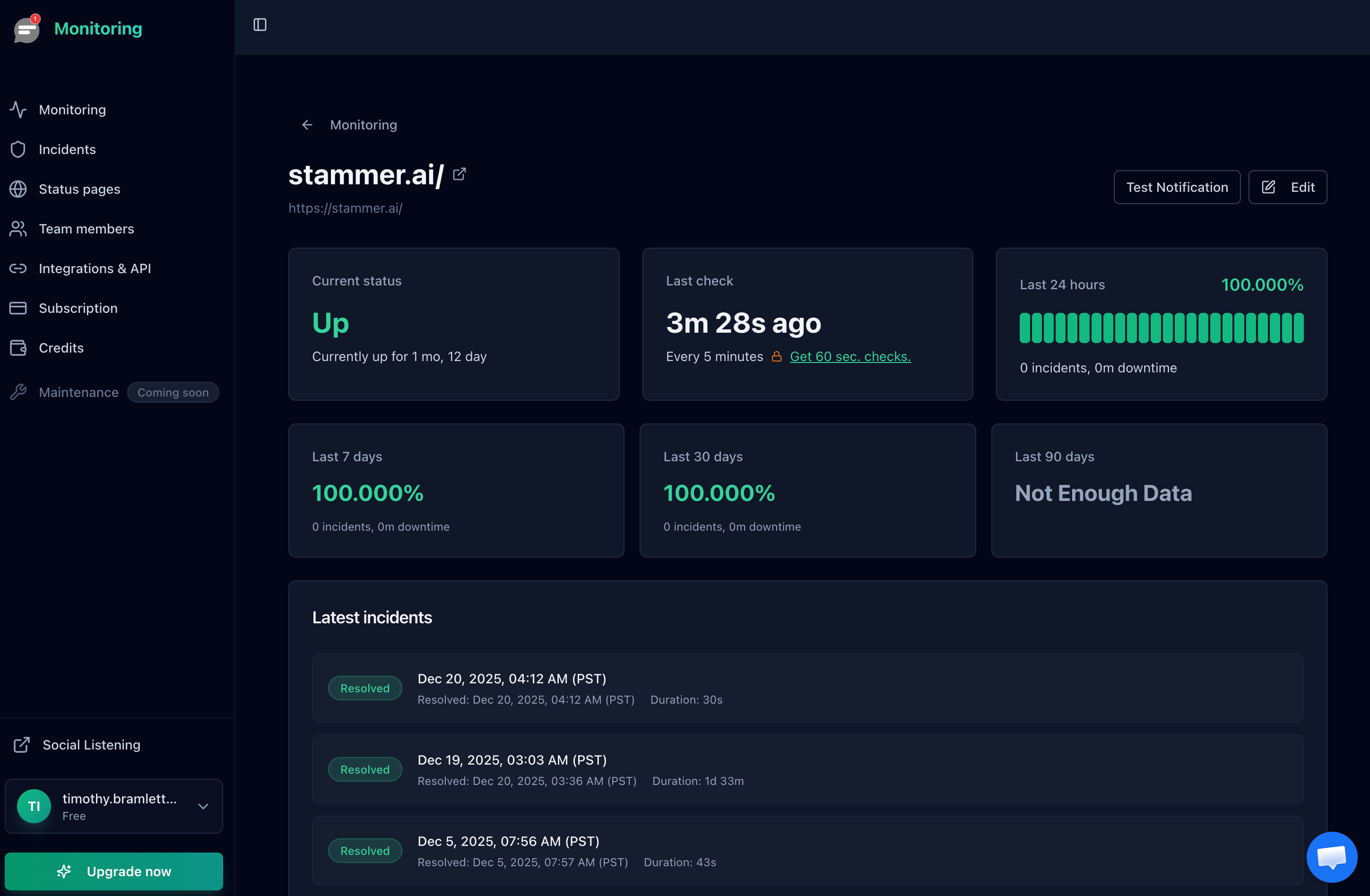
What to monitor: Whether your site returns a successful HTTP response (200 OK) when accessed from the outside. This is the most basic and most important check.
Why it matters: If your server crashes, your hosting provider has an outage, or a deployment goes wrong, uptime monitoring is the first thing that catches it. Without it, you are relying on customers to tell you something is broken.
Recommended frequency: Every 1 to 5 minutes for most sites. Every 30 seconds for revenue critical pages like checkout flows or login endpoints.
Response Time
What to monitor: How long your server takes to respond to a request, measured as Time to First Byte (TTFB). Track both the current value and the trend over time.
Why it matters: A site can technically be "up" but so slow that users leave. Response time degradation is often the earliest warning sign of deeper problems: an overloaded database, a memory leak, or a server running out of disk space. Catching slow responses early lets you fix issues before they become full outages.
Recommended frequency: Every 1 to 5 minutes. Set an alert threshold at roughly 2x your normal response time so you catch degradation without false alarms.
Related: How to Monitor Website Response Time
DNS Resolution
What to monitor: Whether your domain name resolves correctly to the right IP address, and how long DNS resolution takes.
Why it matters: DNS failures are invisible and devastating. If your DNS stops resolving, your entire site disappears for users even though the server is running perfectly. DNS issues can also be a sign of domain hijacking or misconfigured nameservers after a provider migration.
Recommended frequency: Every 5 minutes. DNS failures tend to persist once they start, so faster checks are less critical than for uptime.
Related: Server Uptime Monitoring
Category 2: Security Monitoring
Security problems often come with a countdown timer. Expired certificates and lapsed domains do not wait for business hours.
SSL Certificate Expiration
What to monitor: When your SSL/TLS certificate expires and whether it is valid. With the industry moving toward 47-day certificate lifecycles, automated renewal failures will become increasingly common.
Why it matters: An expired SSL certificate triggers a full-screen browser warning that tells visitors your site is not secure. Most users will leave immediately. Search engines also penalize sites with invalid certificates, damaging your SEO rankings.
Recommended frequency: Daily certificate validity checks. Set alerts to fire at 30 days, 14 days, and 7 days before expiration.
Related: SSL Certificate Monitoring: How to Never Miss an Expiration
Domain Expiration
What to monitor: When your domain registration expires. Even if you have auto-renewal enabled, payment failures, outdated credit cards, or registrar account lockouts can cause renewals to fail silently.
Why it matters: A lapsed domain means your entire online presence vanishes. Worse, expired domains can be purchased by domain squatters or used for phishing attacks against your customers. Recovering an expired domain is expensive and sometimes impossible.
Recommended frequency: Daily checks. Set alerts at 60 days, 30 days, and 14 days before expiration to give yourself time to resolve any payment issues.
Related: Domain Expiration Monitoring: How to Prevent Losing Your Domain
Category 3: Performance Monitoring
Your site can be "up" and still be broken. Performance monitoring catches the problems that uptime checks miss.
Page Load Time
What to monitor: The total time it takes for your page to fully load in a browser, including all assets (images, scripts, stylesheets). This is different from response time, which only measures the server's initial reply.
Why it matters: Google uses page speed as a ranking factor. Users expect pages to load in under 3 seconds, and conversion rates drop 7% for every additional second of load time. A sudden increase often means a new script, unoptimized image, or broken CDN is affecting the user experience.
Recommended frequency: Run synthetic page load tests hourly or use Real User Monitoring (RUM) for continuous data. Set alerts for any page that exceeds 5 seconds.
HTTP Status Codes
What to monitor: The HTTP status codes your server returns. Watch specifically for 4xx errors (client errors like 404 Not Found) and 5xx errors (server errors like 500 Internal Server Error, 502 Bad Gateway, or 503 Service Unavailable).
Why it matters: A spike in 5xx errors means your server is failing. A spike in 404 errors after a deployment means you broke internal links or removed pages without redirects. Both damage user experience and SEO. Monitoring status codes gives you an early warning system for problems that may not cause a full outage but are still harming your site.
Recommended frequency: Continuous via server access logs. For external checks, monitor key URLs every 1 to 5 minutes.
Related: How to Fix a 502 Bad Gateway Error | How to Fix a 503 Error | How to Fix a 500 Error
Error Rates
What to monitor: The percentage of requests that return errors over a given time window. Track both server-side errors (5xx) and application-level errors logged by your code.
Why it matters: A 1% error rate on a site handling 10,000 requests per hour means 100 users every hour are hitting failures. Error rate tracking helps you distinguish between isolated incidents (a single bad request) and systemic problems (a database connection pool is exhausted). A rising error rate is one of the strongest predictors of an approaching outage.
Recommended frequency: Continuous via application logs or an APM tool. Set alerts when the error rate exceeds your baseline by 2x or more.
Category 4: Dependency Monitoring
Your site depends on services you do not control. When those services fail, your users blame you, not them.
Third-Party Services
What to monitor: The availability and response time of external services your site depends on: payment processors (Stripe, PayPal), CDN providers (Cloudflare, Fastly), authentication services (Auth0, Firebase Auth), email delivery (SendGrid, Postmark), and any other API your application calls.
Why it matters: If your payment gateway goes down, your checkout is broken even though your server is running perfectly. If your CDN has a regional outage, users in that region cannot load your site. Monitoring third-party dependencies lets you identify the root cause of problems faster and communicate accurately with your users about what is happening.
Recommended frequency: Every 5 minutes for each critical dependency. Monitor their status pages as well for early warning.
API Endpoints
What to monitor: The health and response time of your own API endpoints, especially any that your frontend application, mobile app, or external partners depend on. Monitor both the status code and the response body (a 200 response with an error message inside is still broken).
Why it matters: Modern websites are often just a frontend that calls APIs for everything. If your user API is down, nobody can log in. If your product API is slow, pages render with empty content. API monitoring catches these failures even when the homepage still loads fine.
Recommended frequency: Every 1 to 5 minutes depending on criticality. Payment and authentication APIs warrant 30-second checks.
Related: How to Monitor an API Endpoint | API Uptime Monitoring
Category 5: Communication and Process
Detecting a problem is only half the job. These items ensure you can respond quickly and communicate clearly when something goes wrong.
Public Status Page
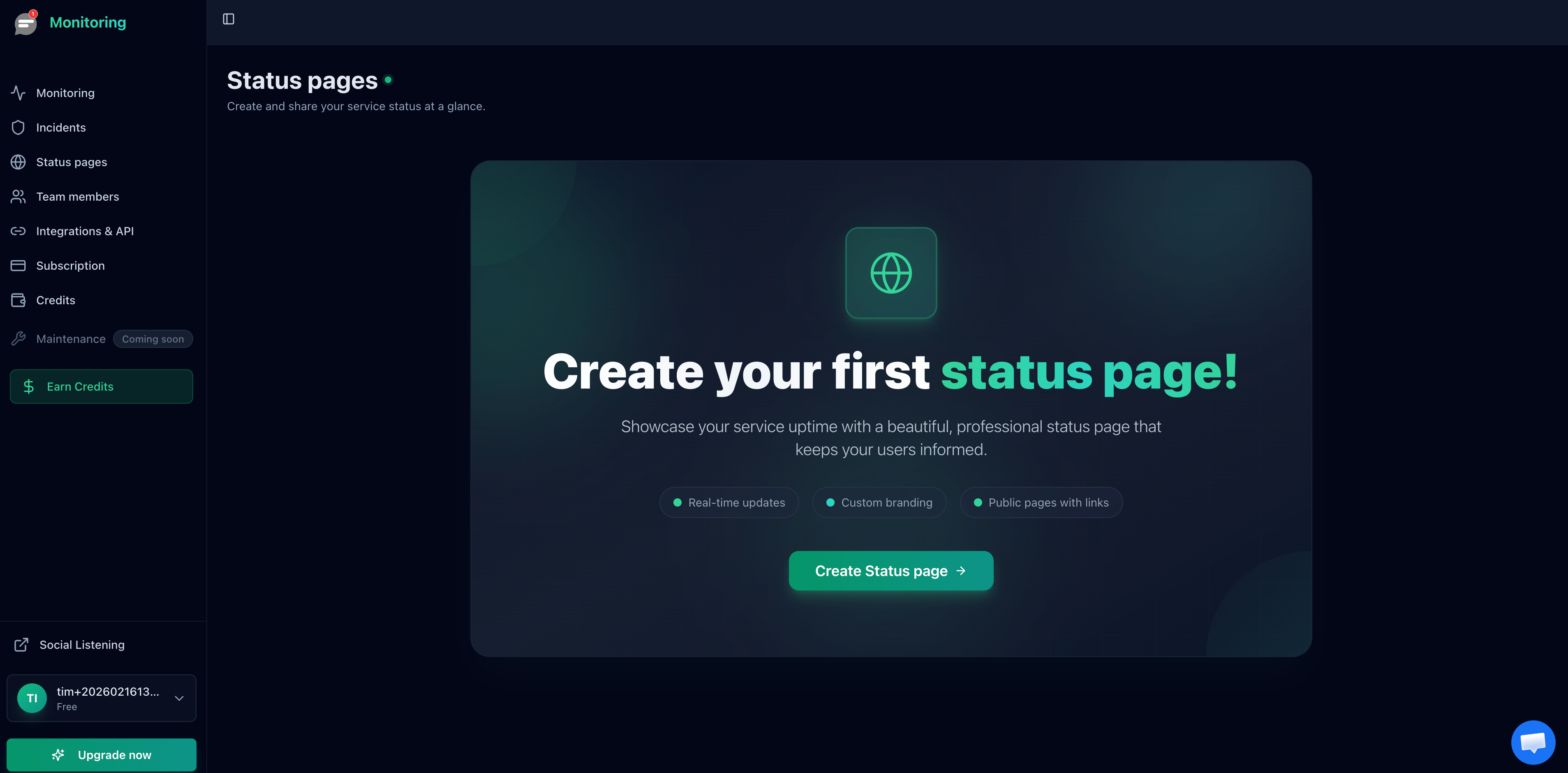
What to set up: A public-facing page where users can check whether your services are operational. Good status pages show current status, recent incidents, and planned maintenance.
Why it matters: During an outage, your support inbox floods with "is it down?" messages. A status page answers that question automatically, reducing support tickets by 30% to 50%. It also builds trust by showing your team is transparent about reliability. For SaaS companies and e-commerce stores, a status page is expected by customers.
Recommended setup: Create a status page that updates automatically based on your monitoring checks. Add individual components for each service (website, API, database, payment processing). Enable subscriber notifications so users can opt in to updates.
Related: How to Create a Status Page | Uptime Status Pages
Alert Channels
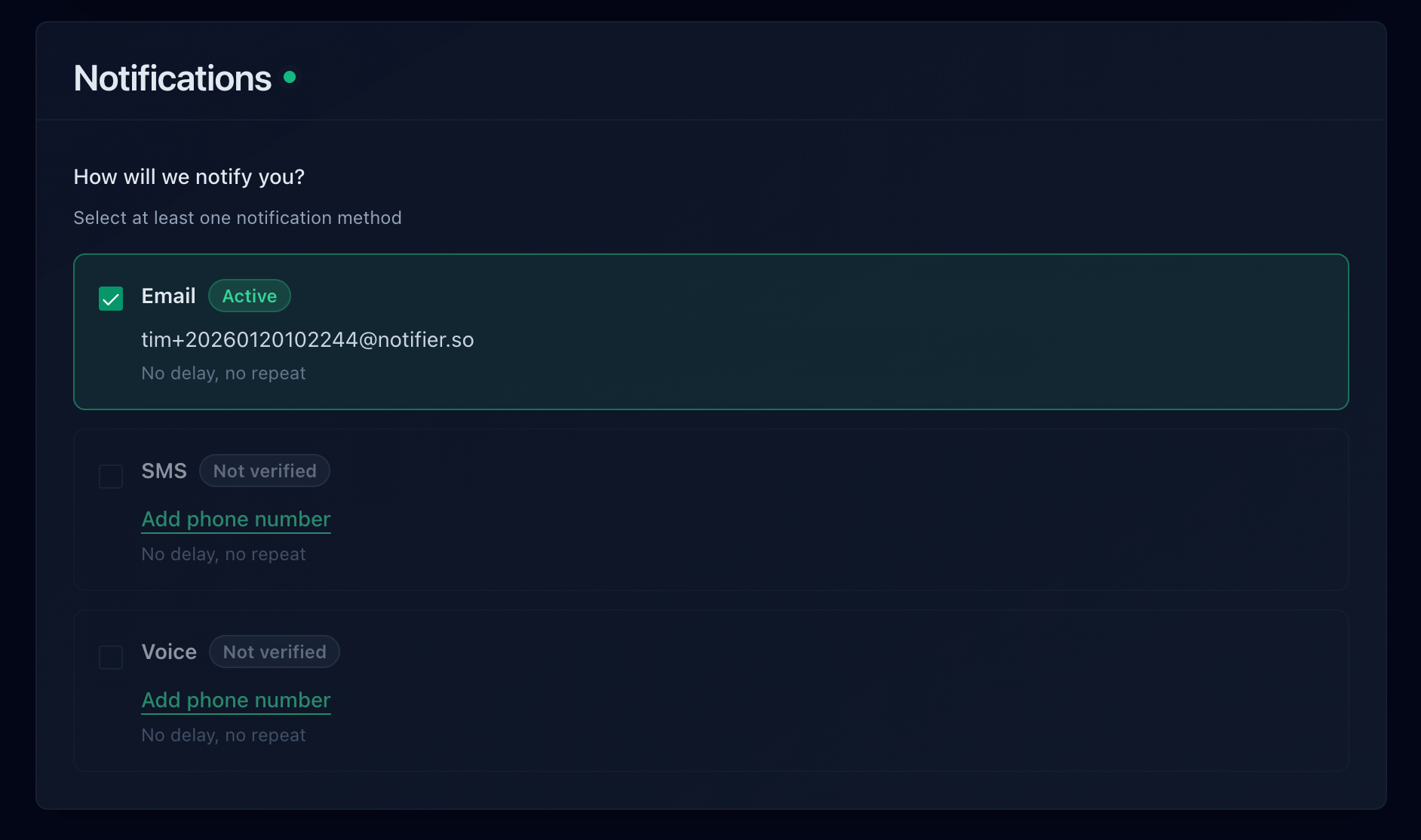
What to set up: At least two independent alert channels for receiving downtime notifications. Email alone is not enough because inboxes get delayed and messages get buried. Combine email with SMS, phone calls, or Slack for redundancy.
Why it matters: The fastest detection in the world is worthless if the alert never reaches someone who can fix the problem. Email can be delayed by spam filters or simply missed during off hours. SMS cuts through the noise. Phone calls wake people up at 3 AM when revenue-critical services go down.
Recommended setup: Email for all incidents (creates a record), SMS for anything critical, phone calls for revenue-impacting outages, and Slack for team visibility. Test your alert channels monthly to make sure they still work.
Related: Website Downtime Alerts
Escalation Policy
What to set up: A defined process for who gets notified when, and what happens when the first responder does not acknowledge the alert. For example: first alert goes to the on-call engineer via SMS, and if not acknowledged within 10 minutes, escalate to the team lead via phone call.
Why it matters: Without an escalation policy, alerts go to one person. If that person is asleep, on vacation, or has their phone on silent, the outage goes unaddressed. Escalation ensures that someone always responds, and it removes the ambiguity about who is responsible.
Recommended setup: Define at least two tiers. Tier 1 is the primary on-call person. Tier 2 is a backup who gets notified after a defined timeout. Document this in a shared team document and review it whenever the team changes.
Incident Response Playbook
What to set up: A written document that tells whoever receives an alert exactly what to do next. Include: how to verify the issue is real, who to contact, what to check first (hosting dashboard, deployment logs, DNS records), how to communicate the outage to customers, and when to escalate.
Why it matters: When your site goes down at 2 AM, you are not thinking clearly. A playbook removes the need to make decisions under pressure. It turns a stressful event into a series of steps to follow. Teams with documented playbooks resolve incidents significantly faster than teams without them because nobody wastes time figuring out what to do first.
Recommended setup: Start simple. Write a one-page document that covers the five most common failure scenarios for your site and the steps to diagnose and fix each one. Store it somewhere accessible when your main systems are down (a shared Google Doc or printed copy works better than your internal wiki if your server is the thing that is broken).
Regular Review Schedule
What to set up: A recurring calendar event (quarterly is a good starting point) to review and update your entire monitoring setup. During the review, check that all monitors are still pointing to the right URLs, alert contacts are still valid, escalation policies reflect the current team, and any new services or endpoints have been added.
Why it matters: Monitoring setups decay over time. Team members leave and their alert email addresses bounce. Services get migrated to new URLs but nobody updates the monitor. New features launch without monitoring. A regular review catches these gaps before they cause a missed alert during a real incident.
Recommended setup: Schedule a quarterly review. Use this checklist as the agenda. Walk through each item and confirm it is still configured correctly. After any major infrastructure change (server migration, new CDN, domain transfer), do an immediate ad-hoc review.
Related: What is a Good Uptime Percentage?
How to Get Started With Notifier
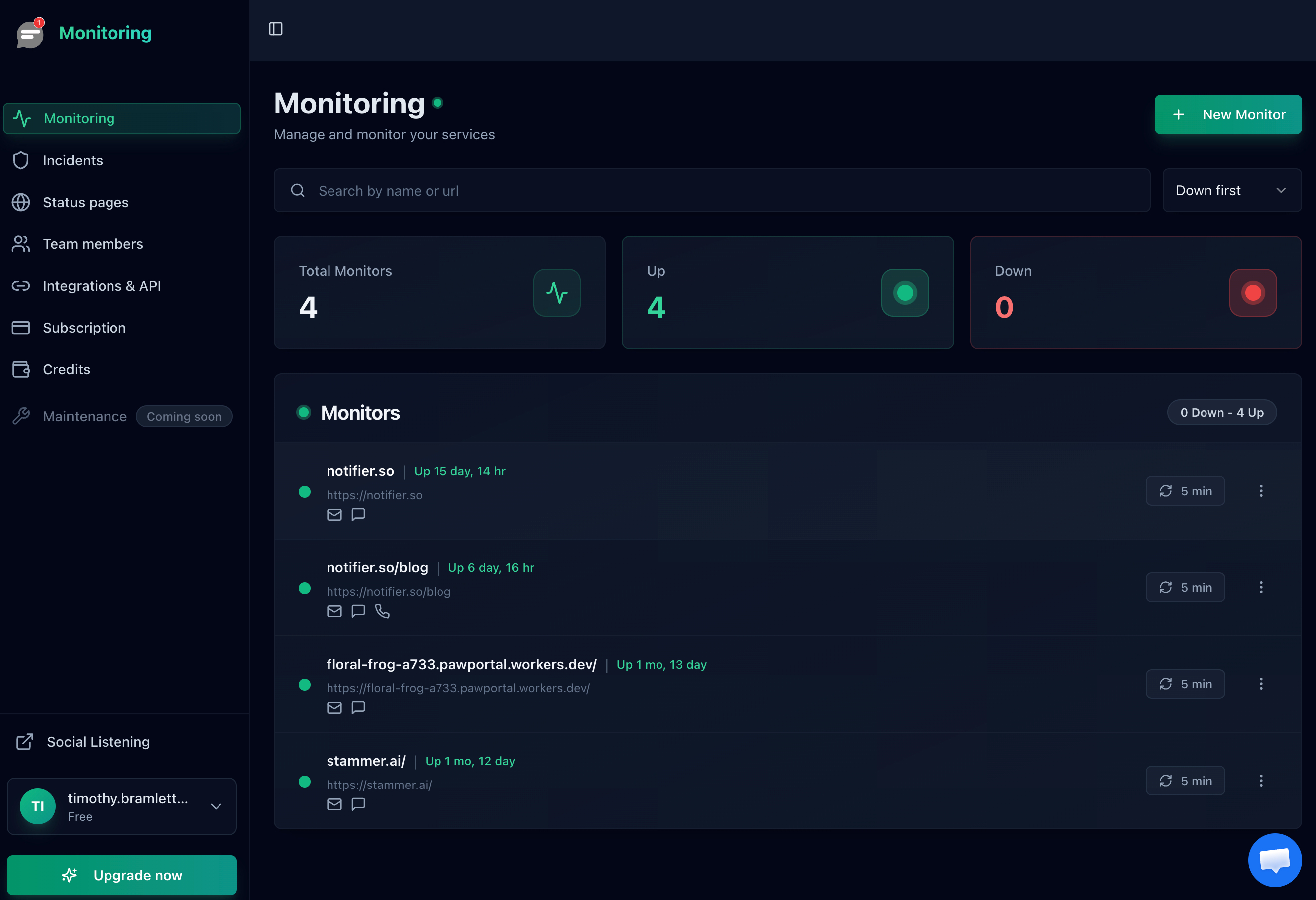
You do not need to tackle all 15 items at once. Start with the essentials and build from there. Notifier covers the most critical items on this checklist out of the box: uptime monitoring, response time tracking, SSL certificate monitoring, DNS monitoring, and status pages. Here is how to get started.
Step 1: Create Your Account
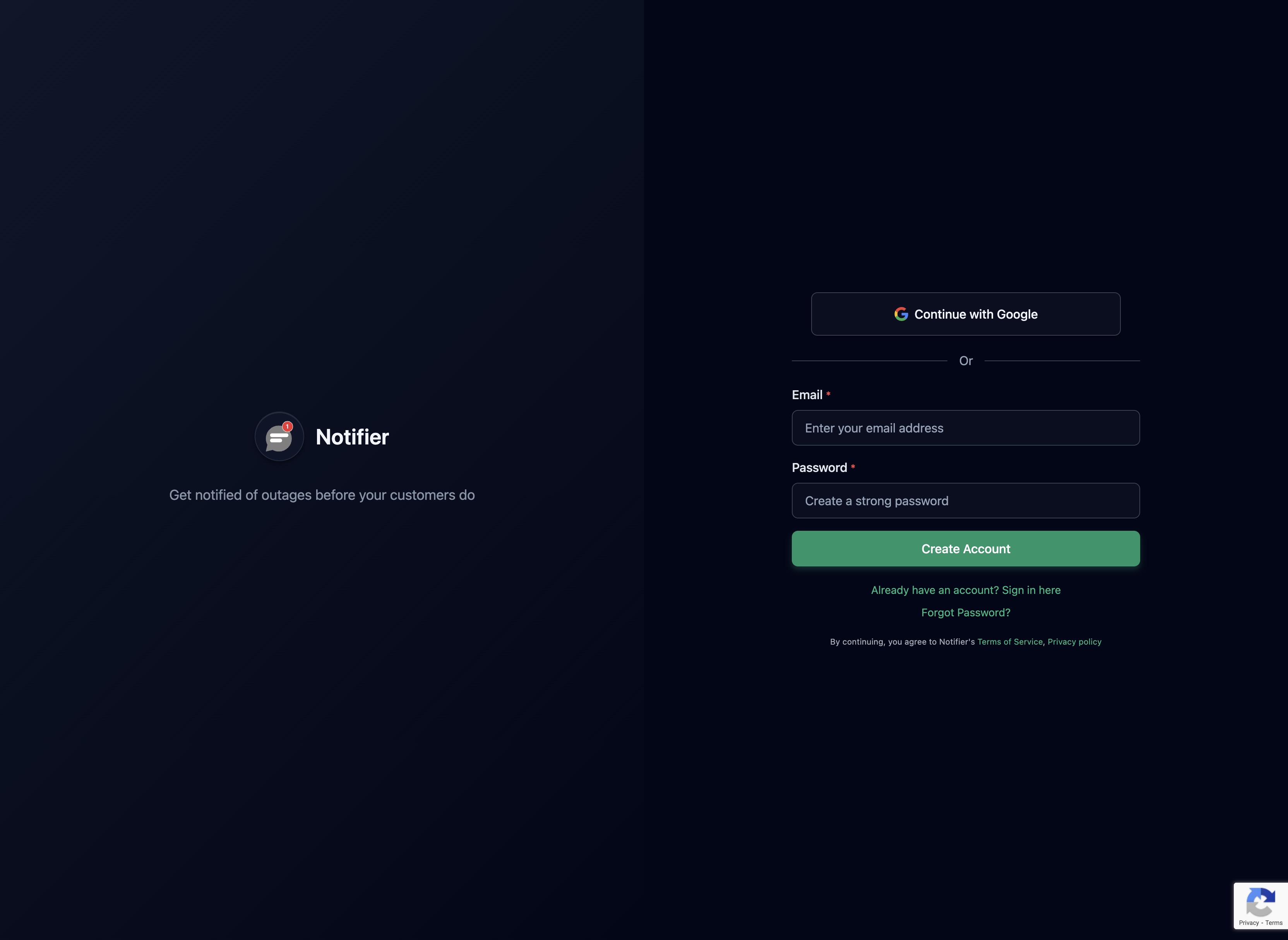
Sign up for a free Notifier account. The free plan includes 10 monitors, 5 status pages, and SSL certificate monitoring on every monitor. No credit card required.
Step 2: Add Your First Monitors
Start with your most important URLs. For most sites, that means:
- Homepage (e.g.,
https://yoursite.com) - Login or dashboard page if you run a SaaS product
- Checkout page if you run an online store
- API health endpoint if you have one (e.g.,
https://api.yoursite.com/health)
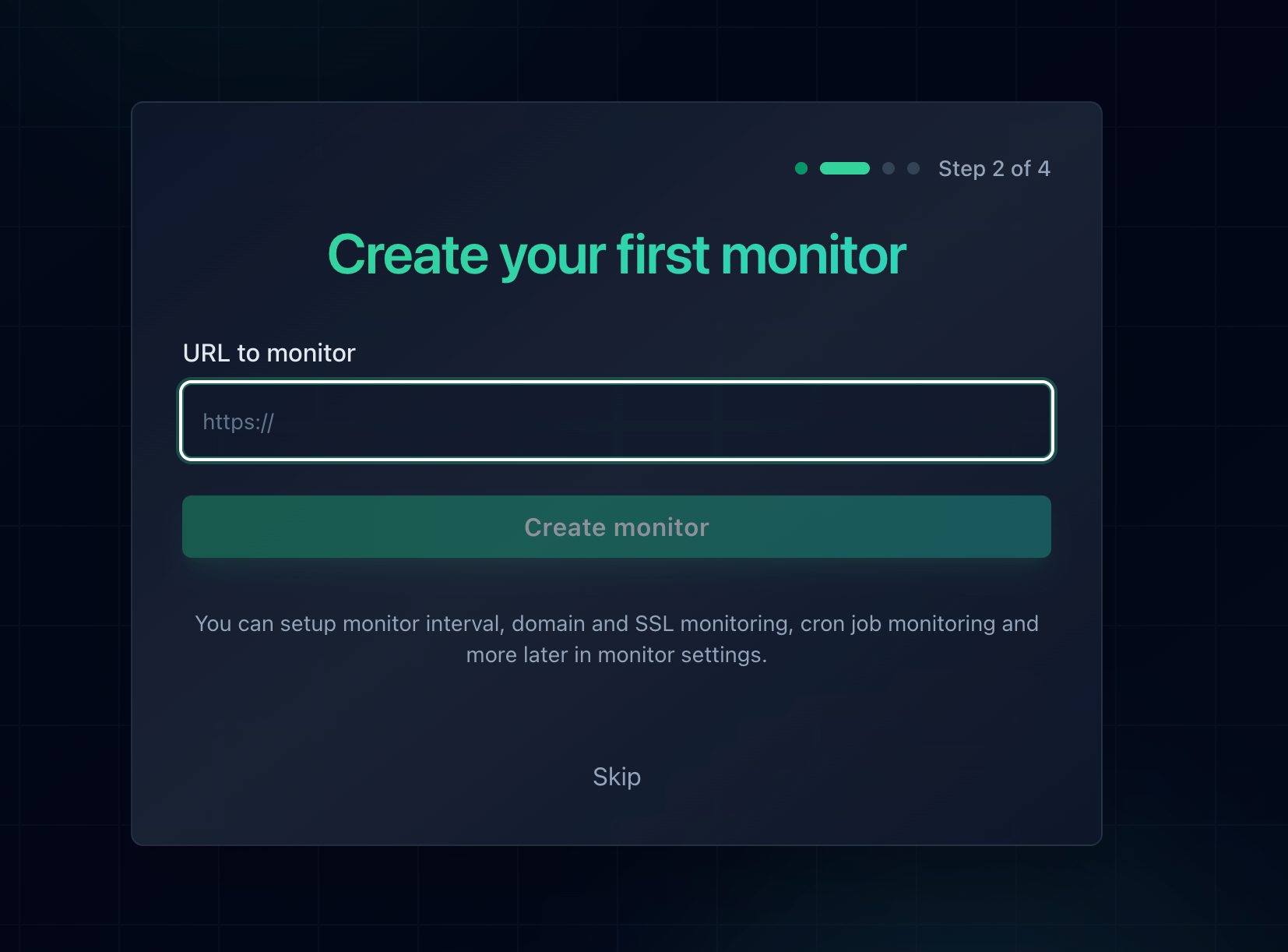
Each monitor automatically checks uptime, response time, and SSL certificate validity. DNS monitoring is also available for every monitor.
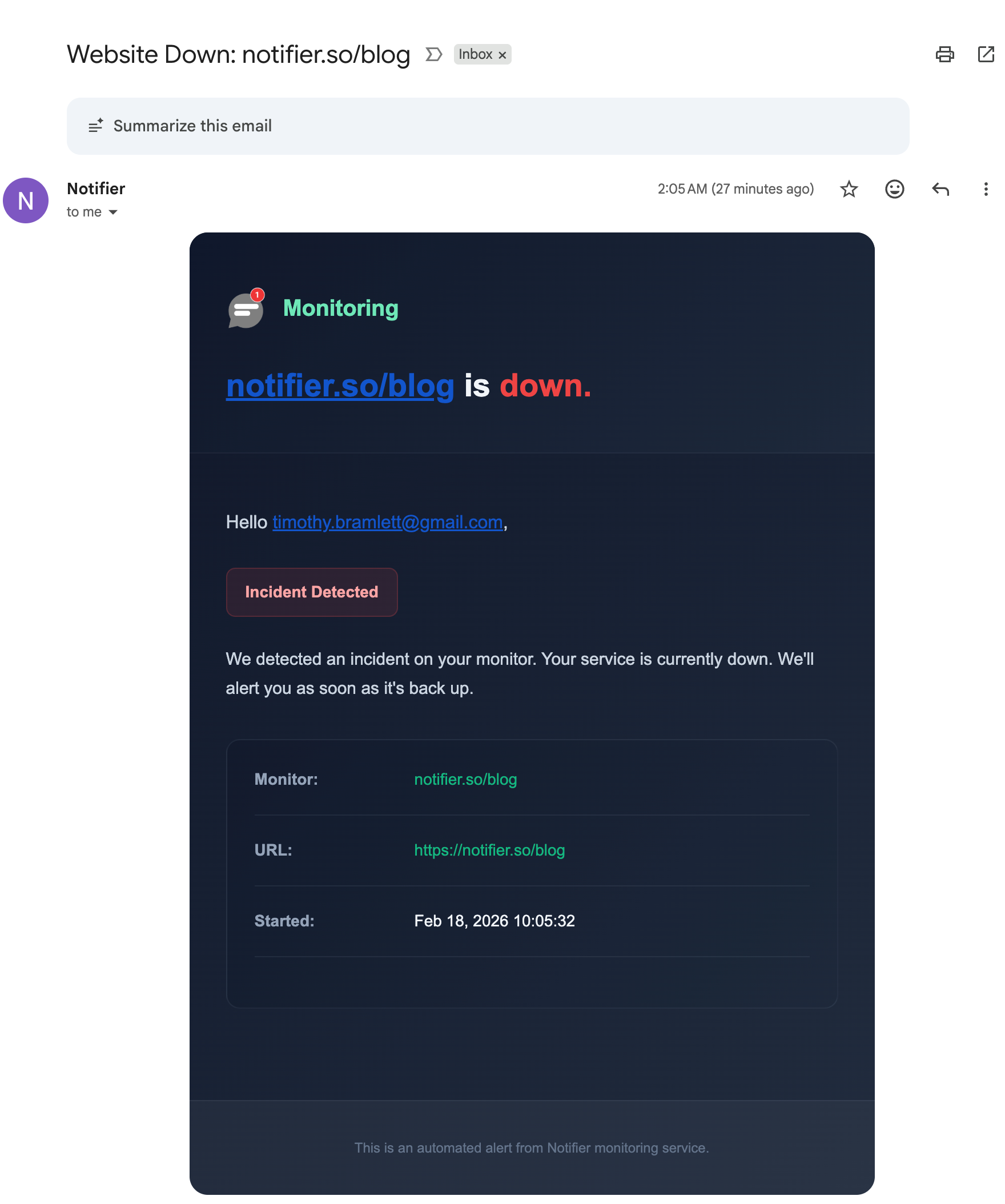
Step 3: Configure Your Alert Channels
Set up at least two alert channels. Email is enabled by default. Add SMS or phone call alerts for critical monitors, and connect Slack if your team uses it.
Step 4: Create a Status Page
Go to the Status Pages section and create your first public status page. Add your monitors as components so the page updates automatically when something goes down. Share the URL with your team and customers.
Step 5: Schedule Your First Review
Put a recurring quarterly event on your calendar to review your monitoring setup using this checklist. That single habit will keep your monitoring effective as your site evolves.
Notifier pricing for reference
The free plan covers 10 monitors with SSL monitoring included. The Solo plan at $4/month gives you 20 monitors with 1-minute check intervals and custom domain status pages. The Team plan at $19/month supports 100 monitors with 30-second checks and 3 team members. All plans include email, SMS, and phone call alerts.
Quick Reference Checklist
Use this condensed version as a quick reference when auditing your monitoring setup. Check off each item to make sure it is covered.
Availability
- ☐ Uptime monitoring on all critical URLs (1 to 5 min intervals)
- ☐ Response time tracking with alert thresholds set
- ☐ DNS resolution monitoring enabled
Security
- ☐ SSL certificate expiration alerts configured (30, 14, 7 day warnings)
- ☐ Domain expiration monitoring enabled (60, 30, 14 day warnings)
Performance
- ☐ Page load time monitored on key pages
- ☐ HTTP status code monitoring for 4xx and 5xx errors
- ☐ Error rate baseline established with alerts for anomalies
Dependencies
- ☐ Third-party service availability monitored
- ☐ API endpoints checked with response body validation
Communication and Process
- ☐ Public status page created and shared with users
- ☐ At least two alert channels configured and tested
- ☐ Escalation policy documented and current
- ☐ Incident response playbook written and accessible when systems are down
- ☐ Quarterly review scheduled on the calendar
Frequently Asked Questions
What should I monitor on my website?
At minimum, monitor uptime (is the site reachable), SSL certificate expiration, and response time. As your site grows, add DNS monitoring, domain expiration checks, API endpoint monitoring, and status pages. The 15 items in this checklist cover everything most websites need, from simple blogs to complex SaaS products.
How often should I check my website?
For most websites, checking every 5 minutes is a good starting point. Business-critical sites should use 1-minute intervals, and revenue-critical pages (checkout, payment processing) benefit from 30-second checks. Notifier's free plan checks every 5 minutes, the Solo plan ($4/month) checks every minute, and the Team plan ($19/month) checks every 30 seconds.
What is the minimum monitoring setup for a small website?
A small website or blog needs three things: an uptime monitor on the homepage, SSL certificate monitoring (to avoid browser security warnings), and email alerts. This entire setup is free with Notifier. As traffic grows, add response time alerts and a second notification channel like SMS or Slack.
Do I need to monitor SSL certificates separately?
Not necessarily. Some monitoring tools include SSL certificate monitoring automatically with every uptime check. Notifier, for example, monitors SSL certificate expiration on every plan including the free tier. If your tool does not include SSL monitoring, you should set it up separately because an expired certificate will make your site inaccessible and damage your SEO.
How do I set up an escalation policy?
Start with two tiers. Tier 1 is the primary on-call person who receives the initial alert via SMS or phone call. If they do not acknowledge it within 10 to 15 minutes, Tier 2 (a backup team member or team lead) gets notified. Write this down in a shared document, include phone numbers, and review it whenever someone joins or leaves the team. Even a simple two-person escalation policy is vastly better than having no policy at all.
What tools do I need for website monitoring?
For most teams, a single monitoring tool like Notifier covers uptime checks, SSL monitoring, DNS monitoring, response time tracking, status pages, and multi-channel alerts. Larger teams may add an Application Performance Monitoring (APM) tool for deeper server-side metrics and a log management tool for error rate tracking. Start simple and add tools only when you have a specific need.
How do I know if my monitoring setup is sufficient?
Run through this checklist quarterly and check off each item. If your team has ever learned about an outage from a customer instead of from a monitoring alert, that is a sign something is missing. Also ask: would I get an alert if my SSL certificate expired tonight? If my DNS stopped resolving? If my API started returning errors but with a 200 status code? If the answer to any of these is "no," you have a gap to fill.
