Your website keeps going down and you don't know why. Maybe it crashes every few days. Maybe it goes offline at the same time every month. Maybe it just went down for the third time this week and you only found out because a customer emailed you.
The good news: recurring downtime is almost always caused by one of a handful of common problems, and each one has a fix. This guide covers the 10 most common reasons websites go down repeatedly, how to diagnose which one is affecting you, and how to fix it. We will also cover how to set up monitoring so you find out about downtime before your customers do.
Quick Diagnosis: What Does Your Downtime Look Like?
- Site goes down randomly for a few minutes, then comes back: Likely shared hosting limits (#1) or database crashes (#7)
- Site goes down after you publish content or get media coverage: Traffic spikes (#2)
- Site went down right after an update: Plugin or theme conflict (#3) or bad deploy (#9)
- Site shows a security warning instead of your content: Expired SSL certificate (#5)
- Site goes down completely and takes hours to come back: DNS issues (#4), DDoS attack (#6), or domain expiration (#10)
- Site loads slowly then times out: Database overload (#7) or CDN failure (#8)
1. Shared Hosting Resource Limits
This is the single most common cause of recurring website downtime, especially for small businesses and WordPress sites. If you are on shared hosting (Bluehost, HostGator, GoDaddy, Hostinger, or similar), your website shares a server with hundreds or thousands of other websites. When your site uses too much CPU, memory, or I/O, the hosting provider throttles or temporarily suspends your account.
How to Diagnose It
- Check your hosting control panel for "Resource Usage" or "CPU/Memory" graphs
- Look for emails from your host about "resource limit exceeded" or "account suspended"
- Check if your site goes down during peak traffic hours (mornings, lunch, evenings)
- If your site returns a 503 Service Unavailable error, resource limits are a prime suspect
How to Fix It
- Short term: Enable caching. A caching plugin like WP Super Cache or W3 Total Cache can reduce server load by 80% or more. This alone often fixes resource limit issues.
- Medium term: Upgrade your hosting plan. Most shared hosts offer "business" or "premium" tiers with higher resource limits. Ask your host specifically what the CPU and memory limits are for each tier.
- Long term: Move to a VPS or managed hosting. Once you outgrow shared hosting, a VPS (DigitalOcean, Linode, Vultr) or managed WordPress hosting (Cloudways, Kinsta, WP Engine) gives you dedicated resources that don't get throttled.
How monitoring helps: With uptime monitoring, you will know the exact times your site goes down. If you see a pattern (every day at 2pm, every Monday morning), that points directly to resource limits during peak usage. Without monitoring, you are just guessing.
2. Traffic Spikes
Your site can handle 1,000 visitors a day. But what happens when a Reddit post goes viral, a news site links to you, or you launch a marketing campaign that actually works? If your server is not prepared for the surge, it crashes.
This is different from #1 because it is not about chronic overuse. Your hosting is fine 99% of the time. It is the sudden spikes that kill it.
How to Diagnose It
- Check your analytics. Did a traffic spike coincide with the downtime?
- Search for your URL on Reddit, Hacker News, or Twitter to see if someone shared it
- Check your server logs for a sudden jump in requests per second
- The error is usually a 503 or 502 error
How to Fix It
- Add a CDN: Cloudflare (free tier available) caches your static content globally and absorbs traffic spikes. This is the single most effective fix.
- Enable page caching: Serve cached HTML instead of generating pages dynamically for every request
- Use auto-scaling hosting: Platforms like AWS, Google Cloud, and managed services like Cloudways can automatically add server resources when traffic increases
- Prepare for planned spikes: If you are launching a product or running a campaign, increase your server resources beforehand
How monitoring helps: Monitoring with fast check intervals (1 minute or less) catches traffic-related crashes quickly. You can also correlate downtime alerts with your analytics to identify the traffic source and plan capacity accordingly.
3. Plugin or Theme Conflicts
If your website runs on WordPress, Shopify, or any platform with third-party extensions, plugin and theme conflicts are a major source of downtime. A plugin update introduces a bug, two plugins conflict with each other, or a theme update breaks compatibility with an existing plugin.
This is especially common with WordPress, where the average site runs 20 to 30 plugins. Each update is a potential point of failure.
How to Diagnose It
- Did the downtime start immediately after a plugin, theme, or core update?
- Check your error logs for PHP fatal errors or "white screen of death"
- The error is often a 500 Internal Server Error
- Try accessing
/wp-admin/separately. If the admin works but the frontend does not, the theme is likely the problem. If both are broken, it is probably a plugin.
How to Fix It
- Disable all plugins via FTP: Rename the
wp-content/pluginsfolder toplugins_disabled. If the site comes back, re-enable plugins one by one to find the culprit. - Switch to a default theme: Activate Twenty Twenty-Four or another default theme to rule out theme issues
- Disable auto-updates for critical plugins: Manual updates let you test changes on a staging site first
- Use a staging environment: Test all updates on a copy of your site before applying them to production
- Minimize plugins: Fewer plugins means fewer potential conflicts. Remove anything you are not actively using.
How monitoring helps: If you get a downtime alert within minutes of a plugin update, you immediately know the cause. Without monitoring, the site might be down for hours before anyone notices, and by then you have forgotten what changed.
4. DNS Issues
DNS (Domain Name System) translates your domain name into the IP address of your server. If DNS stops working, nobody can reach your site even though the server itself is running fine. DNS issues can be sneaky because the server shows no errors and your hosting dashboard says everything is healthy.
Common DNS Problems
- DNS provider outage: If your DNS provider (Cloudflare, Route 53, GoDaddy DNS) goes down, your domain stops resolving
- Incorrect DNS records: Someone accidentally changed an A record, CNAME, or nameserver setting
- DNS propagation delays: After changing DNS records, it can take up to 48 hours for the change to propagate globally. During this time, some users can reach your site and others cannot.
- TTL set too high: If your DNS records have a high TTL (Time to Live), outdated records stay cached for hours or days even after you fix them
How to Diagnose It
Use the dig or nslookup command to check if your domain resolves correctly:
dig yourdomain.com +short
nslookup yourdomain.com
If these return nothing or a wrong IP address, DNS is the problem.
How to Fix It
- Use a reliable DNS provider: Cloudflare (free) or AWS Route 53 are highly reliable. Avoid using your domain registrar's default DNS if it has a history of outages.
- Set low TTLs before making changes: Drop TTL to 300 seconds (5 minutes) before updating DNS records, then raise it back after everything is working
- Document your DNS records: Keep a record of your correct DNS configuration so you can quickly spot and fix accidental changes
- Consider secondary DNS: Some DNS providers support secondary zones that automatically serve your records if the primary provider fails
How monitoring helps: External uptime monitoring checks your site the same way your visitors do: by resolving the domain name and making an HTTP request. If DNS is down, your monitor catches it even though your server is technically running. Multi-location monitoring is especially useful here, because DNS issues often affect some regions but not others.
5. Expired SSL Certificate
When your SSL certificate expires, browsers show a scary security warning instead of your website. Most visitors will not click through the warning. They will leave and assume your site is hacked or abandoned.
This happens more often than you would think. Auto-renewal fails silently, the credit card on the certificate account expires, or someone migrates hosting without setting up certificate renewal on the new server. With the upcoming shift to 47-day SSL certificate lifetimes, renewal failures will become even more frequent.
How to Diagnose It
- Visit your site in a browser. If you see "Your connection is not private" or "NET::ERR_CERT_DATE_INVALID", the certificate is expired.
- Click the padlock icon in your browser's address bar and check the certificate expiration date
- From the command line:
echo | openssl s_client -servername yourdomain.com -connect yourdomain.com:443 2>/dev/null | openssl x509 -noout -dates
How to Fix It
- Use Let's Encrypt with auto-renewal: Free certificates that renew automatically every 90 days. Most hosting providers support this natively.
- Set up Cloudflare SSL: Cloudflare provides free SSL certificates that it manages automatically. No manual renewal required.
- Verify auto-renewal is working: Log into your certificate provider and confirm that auto-renewal is enabled and the payment method is current
- Set calendar reminders: Even with auto-renewal, set a reminder 30 days before expiration as a backup
How monitoring helps: SSL certificate monitoring warns you days or weeks before your certificate expires, giving you time to fix it before visitors are affected. Notifier includes free SSL monitoring on all plans, so every monitor automatically tracks your certificate's expiration date alongside uptime.
With Notifier, you can choose how you want to be alerted when your SSL certificate is nearing expiration or when your site goes down: email, SMS, phone call, or Slack.
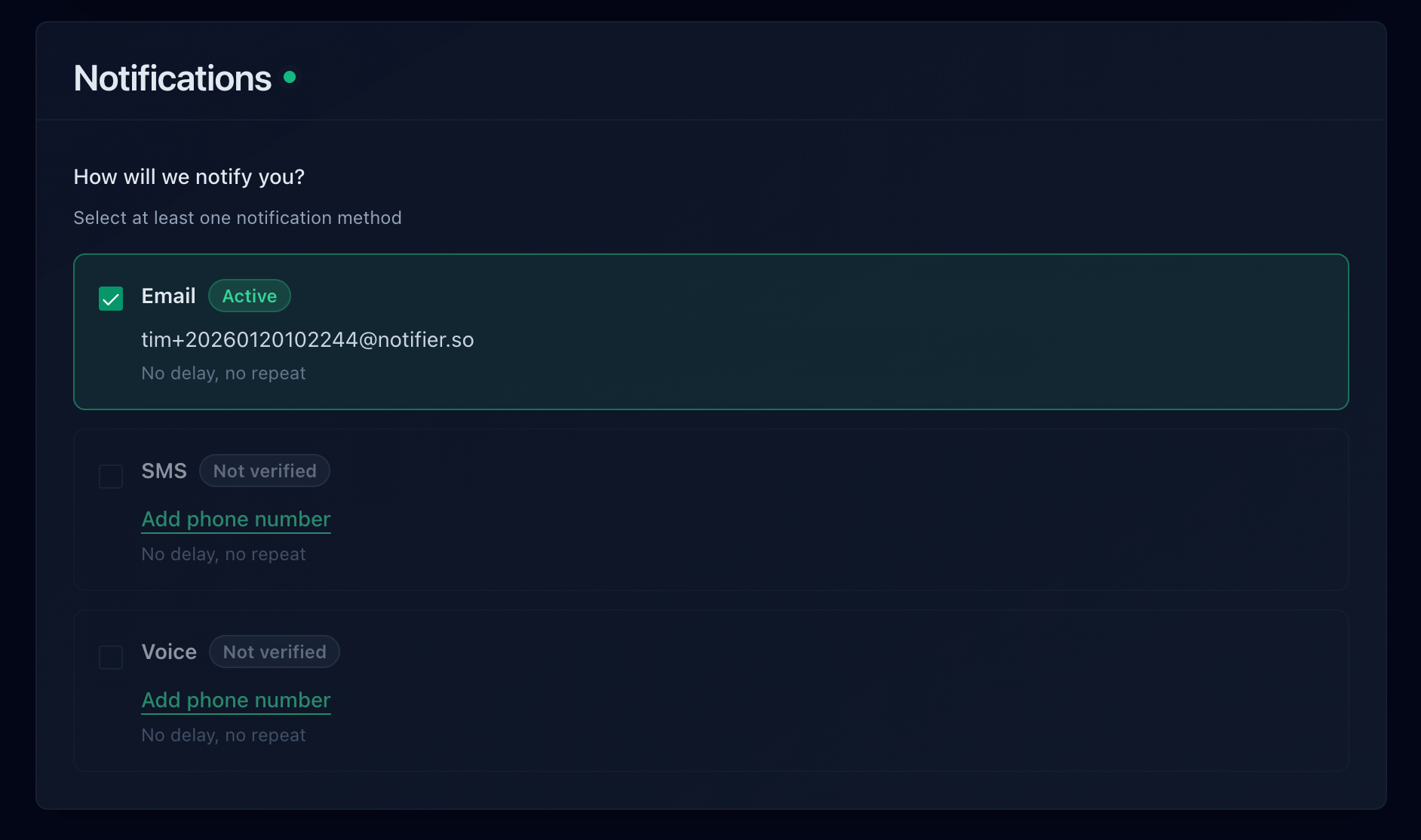
Notification options in Notifier: email, SMS, phone call, and Slack.
6. DDoS Attacks
A DDoS (Distributed Denial of Service) attack floods your server with so much fake traffic that it cannot serve legitimate visitors. Small and mid-sized sites are targeted more often than you might expect. Automated bots, competitors, or extortion attempts can all trigger attacks.
How to Diagnose It
- Check server logs for an abnormal spike in requests from many different IP addresses
- Your analytics will show no corresponding increase in real visitors
- The server may respond with 503 errors or simply time out
- Your hosting provider may notify you about unusual traffic patterns
How to Fix It
- Put Cloudflare in front of your site: Cloudflare's free tier includes basic DDoS protection. Their network absorbs attack traffic before it reaches your server.
- Enable rate limiting: Limit the number of requests per IP per minute. Most web servers and CDNs support this.
- Use your host's DDoS protection: Many hosting providers (AWS Shield, DigitalOcean, Hetzner) include DDoS mitigation
- Block attack patterns: If the attack uses a specific User-Agent, referrer, or request pattern, block it at the firewall level
How monitoring helps: Uptime monitoring detects the downtime immediately, and response time monitoring shows the gradual degradation before a full outage. If you see response times climbing from 200ms to 5,000ms before the site goes down, that is a classic DDoS pattern.
Here is what a downtime alert email looks like from Notifier. You get the monitor name, the time it went down, and the HTTP status code, so you can immediately start diagnosing the cause.
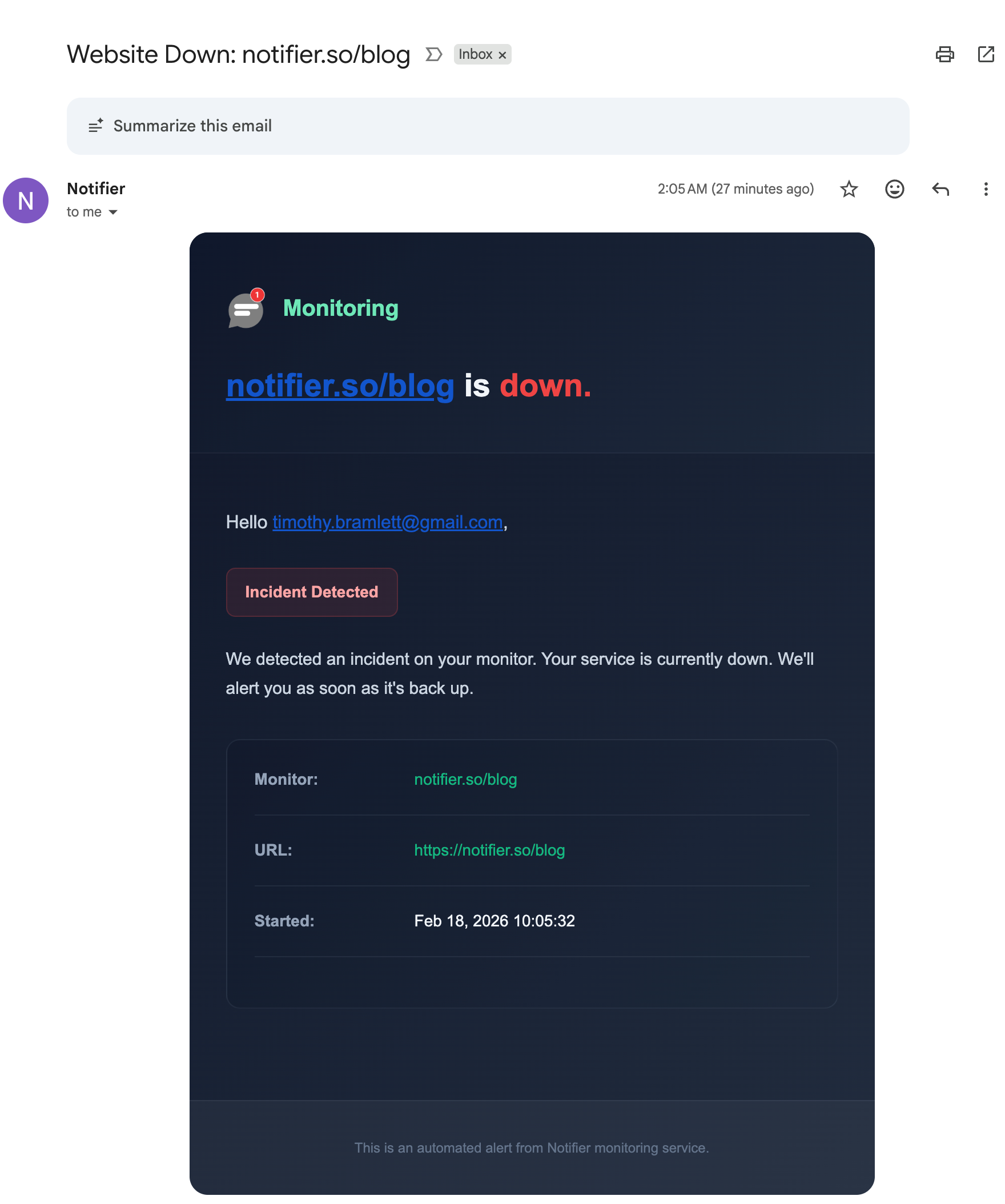
A downtime alert email from Notifier with incident details.
7. Database Overload or Crashes
Your web server might be running fine, but if the database behind it is overwhelmed or has crashed, your website will still go down. This is common with WordPress (MySQL), web applications (PostgreSQL, MongoDB), and any dynamic site that queries a database on every page load.
Common Database Problems
- Too many connections: Every visitor creates database connections. When the connection limit is reached, new requests fail.
- Slow queries: A single unoptimized query that takes 30 seconds blocks other queries and cascades into a full outage
- Table corruption: Power outages, disk failures, or improper shutdowns can corrupt database tables
- Running out of disk space: The database grows over time. If the disk fills up, the database crashes.
- Memory exhaustion: The database process gets killed by the OS when it uses too much memory (OOM killer on Linux)
How to Fix It
- Enable query caching: Use Redis or Memcached to cache frequent database queries. For WordPress, install a Redis object cache plugin.
- Optimize slow queries: Enable slow query logging, identify the worst offenders, and add proper database indexes
- Increase connection limits: Adjust
max_connectionsin MySQL/PostgreSQL config, but also investigate why you are hitting the limit - Clean up your database: Delete old post revisions, spam comments, transient options, and other bloat. For WordPress, use WP-Optimize or WP-Sweep.
- Monitor disk space: Set up an alert for when disk usage exceeds 80%
How monitoring helps: Database issues often cause intermittent slowdowns before a full crash. Response time monitoring catches the gradual degradation. If your typical response time is 500ms and it suddenly jumps to 3,000ms, the database is struggling and you can intervene before it crashes completely.
Notifier's monitor detail page shows uptime history and response times over time. You can spot database degradation patterns before they turn into full outages.
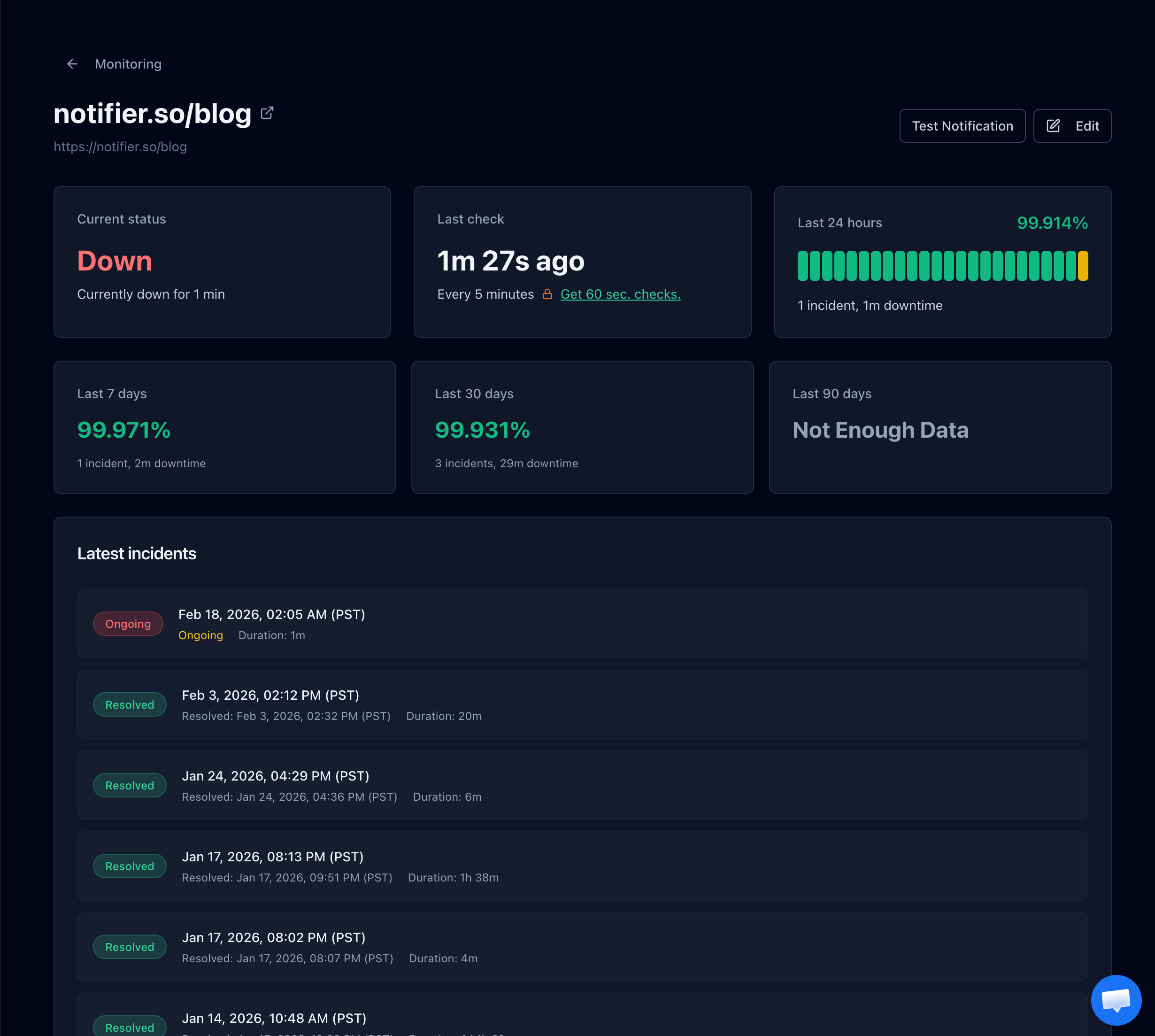
Monitor detail page showing downtime status and incident history.
8. CDN or Reverse Proxy Failures
If you use a CDN (Cloudflare, AWS CloudFront, Fastly) or a reverse proxy (Nginx, Varnish), your website depends on that layer working correctly. If the CDN goes down or misconfigures, your visitors see errors even though your origin server is healthy.
How to Diagnose It
- Check the CDN provider's status page (e.g.,
cloudflarestatus.com,health.aws.amazon.com) - Try accessing your origin server directly by IP address. If it works, the CDN is the problem.
- Check HTTP response headers for CDN-specific error codes (e.g., Cloudflare's error 520, 521, 522, 523, 524)
- 502 Bad Gateway errors often indicate a CDN or reverse proxy failing to reach your origin server
How to Fix It
- Have a bypass plan: Know how to quickly switch your DNS to point directly to your origin server if the CDN is having a prolonged outage
- Configure proper timeouts: CDNs time out waiting for your origin server. If your site is slow, the CDN returns a 502 or 504 before your server finishes responding. Increase the CDN timeout settings.
- Keep your origin healthy: Most CDN errors are actually caused by the origin server being slow or unresponsive, not by the CDN itself
- Monitor the CDN independently: Set up separate monitors for your CDN URL and your direct origin IP so you can tell which layer is failing
How monitoring helps: Multi-location monitoring is essential here. CDN outages are often regional. Your site might be down in Europe but fine in the US. If you only monitor from one location, you will miss regional CDN issues entirely.
9. Bad Code Deployments
You push a code change to production, and the site breaks. Maybe a syntax error in a config file, a missing environment variable, a failed database migration, or a dependency that does not exist on the production server. This is extremely common for development teams without proper deployment pipelines.
How to Diagnose It
- Did the downtime start within minutes of a deployment?
- Check your deployment logs and application error logs
- The error is often a 500 Internal Server Error or a complete connection failure
How to Fix It
- Roll back immediately: Have a one-command rollback process. If anything breaks after deploy, revert to the previous version first, debug later.
- Use a staging environment: Test every deployment on a production-like staging server before pushing to live
- Deploy during low-traffic hours: If something goes wrong, fewer customers are affected
- Use rolling or blue-green deployments: These strategies let you deploy new code to a subset of servers and verify it works before switching all traffic over
- Add health checks to your CI/CD: After deployment, automatically check if the site returns a 200 status code before marking the deploy as successful
How monitoring helps: With 1 minute check intervals, monitoring catches bad deploys almost immediately. Set up alerts to your deployment Slack channel so the whole team sees the downtime alert right after the deploy goes out. This makes it obvious what caused the issue and triggers an immediate rollback.
10. Domain Name Expiration
This is the most embarrassing cause of downtime, and it happens to companies of all sizes. Your domain registration expires, the registrar parks it or takes it offline, and your entire website disappears. Google has accidentally let domains expire. Microsoft has too. It is more common than anyone wants to admit.
Why It Happens
- The credit card on the registrar account expired
- Renewal emails went to an old email address or spam folder
- The person who originally registered the domain left the company
- Auto-renewal was accidentally turned off
- The domain was registered through a reseller who went out of business
How to Fix It
- Enable auto-renewal: Log into every registrar account you use and confirm auto-renewal is on
- Update payment information: Check that the credit card on file is current and will not expire before the next renewal date
- Use a registrar you trust: Cloudflare Registrar, Namecheap, and Google Domains (now Squarespace) are all reliable options
- Register for multiple years: Register your most important domains for 5 to 10 years at a time. The cost is minimal and it eliminates the risk of accidental expiration.
- Lock your domain: Enable registrar lock (also called "domain lock" or "transfer lock") to prevent unauthorized transfers
How monitoring helps: Domain expiration monitoring warns you days or weeks before your domain expires. Notifier's free domain expiry checker tool lets you quickly verify any domain's expiration date. Standard uptime monitoring will also catch the total outage, but by then the damage is done. It is far better to prevent this one entirely.
How to Stop the Downtime Cycle
Fixing individual causes is important, but the real solution is setting up a system that catches problems automatically. Here is a three-step approach that prevents most recurring downtime.
Step 1: Set Up Uptime Monitoring
This is the most important step. Without monitoring, you only find out about downtime when a customer complains or you happen to check the site yourself. With monitoring, you get an alert within minutes (or seconds) of any outage.
Notifier offers a free plan with 10 monitors, 5 status pages, SSL certificate monitoring, and alerts via email, SMS, and phone call. You can set up your first monitor in about 30 seconds. For a detailed walkthrough, see our website monitoring setup guide.
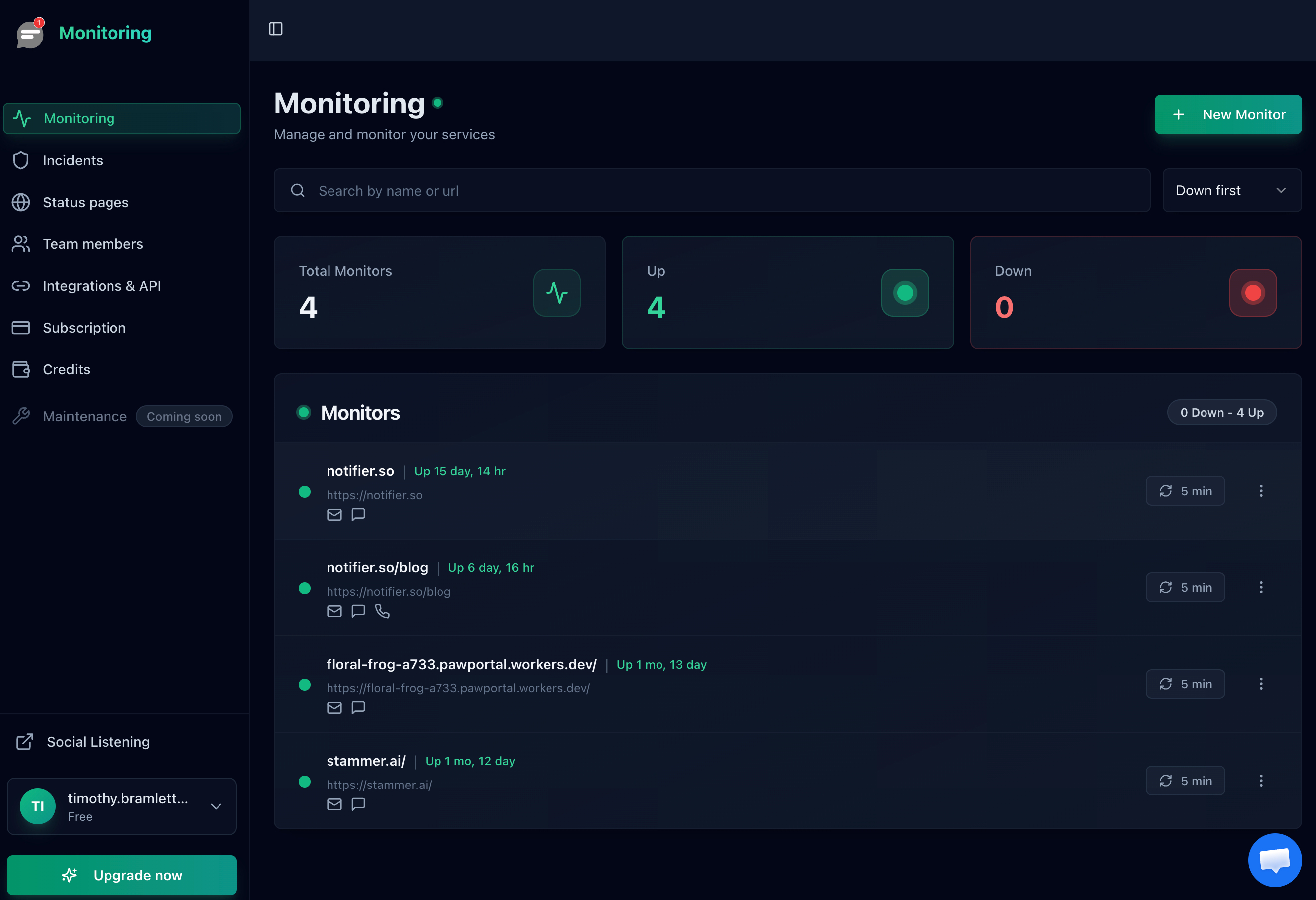
The Notifier dashboard showing all your monitors at a glance.
Step 2: Monitor the Right Things
Do not just monitor your homepage. Set up monitors for:
- Your homepage: The most basic check. If this is down, everything is probably down.
- Key application pages: Login page, checkout page, API endpoints, dashboard
- Your SSL certificate: Get warned before it expires, not after
- Your domain name: Get warned before it expires
- Any third-party services you depend on: Payment gateway, email provider, CDN
Step 3: Build a Response Playbook
When you get a downtime alert, you should not have to figure out what to do from scratch every time. Write a simple playbook:
- 1. Check if the site is really down using an external tool like a "down for everyone" checker
- 2. Check the error type (502, 503, 500, timeout, SSL error) to narrow down the cause
- 3. Check if anything changed recently (deploy, plugin update, DNS change, hosting migration)
- 4. Check server resources (CPU, memory, disk space) via your hosting dashboard
- 5. Check error logs for the specific failure message
- 6. Fix the issue and document what happened so it does not repeat
For a more detailed response framework, see our guide on website outage alerts and response playbooks.
The bottom line:
Most recurring downtime comes from a small set of predictable causes. Fix the root cause, set up monitoring to catch future issues early, and build a simple response process. You will go from "my site keeps crashing and I don't know why" to "I found out in 60 seconds and fixed it in 5 minutes."
