Your website went down at 2am. The monitoring service detected it immediately. But you didn't find out until 8am when customers started complaining. Why? Because the alert went to an email inbox you check once a day.
Detection is only half the problem. The other half is making sure alerts actually reach you fast enough to do something about it. This guide covers which alert channels work, how fast you need to know, and how to set up a system that won't let you down.
Why Alert Speed Matters
The difference between a 5 minute outage and a 2 hour outage often comes down to how quickly you found out. Every minute your site is down without you knowing is a minute you're not working on fixing it.
- Revenue loss: E-commerce sites lose money every minute they're offline
- Customer trust: Users who hit errors may not come back
- SEO impact: Prolonged downtime can affect search rankings
- Support burden: Without fast alerts, you learn from angry customers instead of your monitoring
The goal is simple: know about problems before your customers do. That means getting alerts through channels you actually check, at a speed that matters.
Alert Channels Compared
Different alert channels have different strengths. The right choice depends on your situation, your team, and how critical your uptime is.
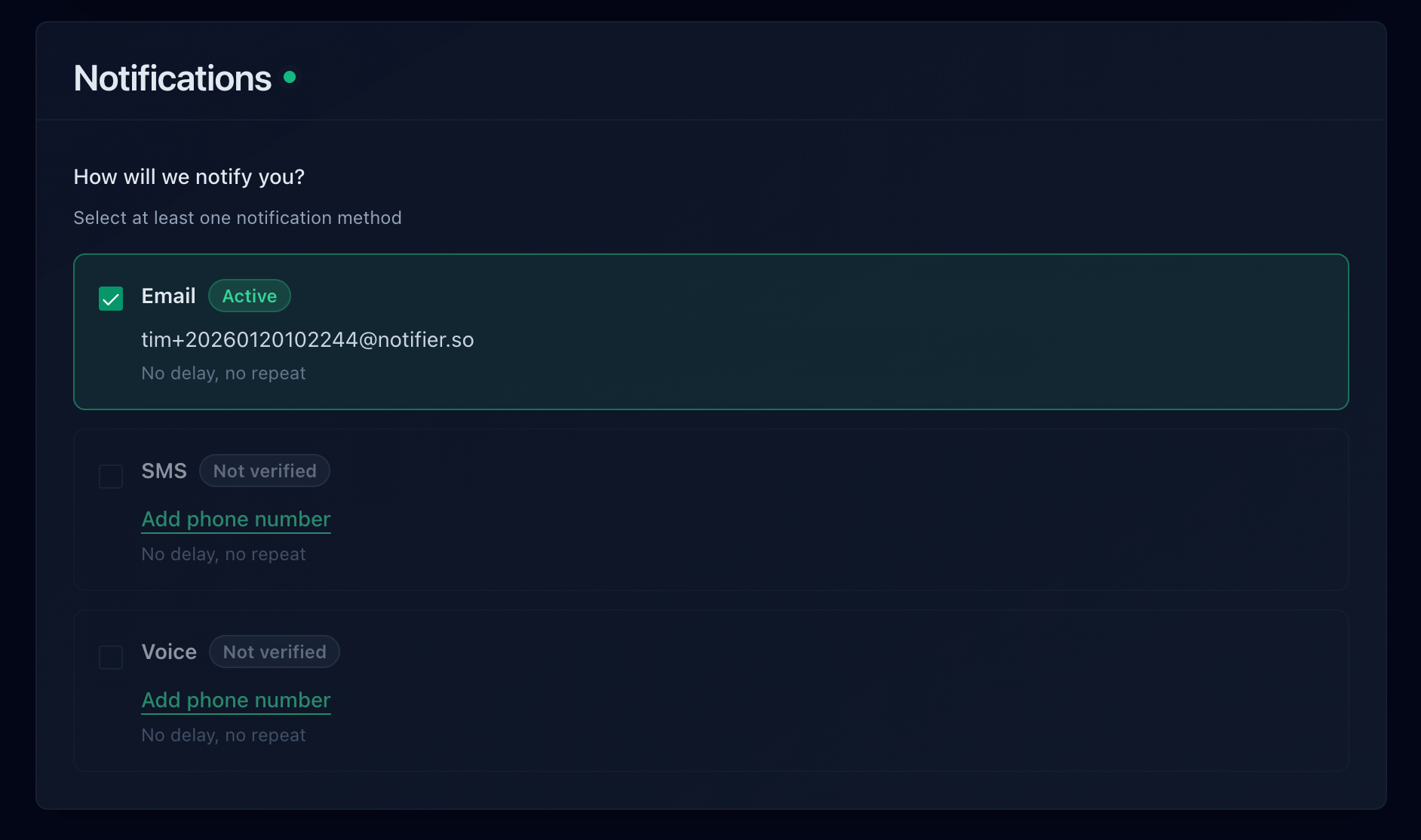
Email Alerts
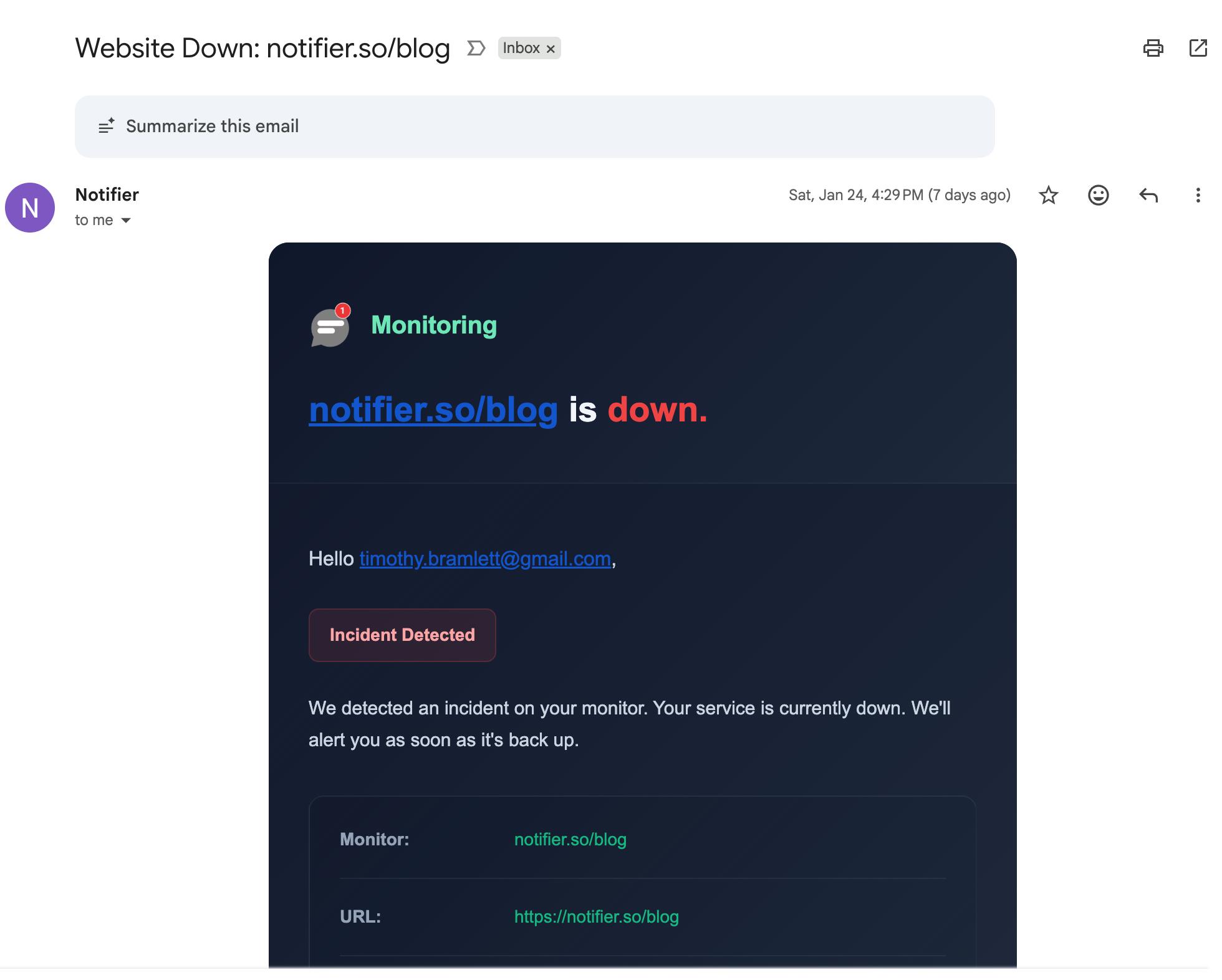
Email is universal. Everyone has it, it works everywhere, and it creates a record you can search later. But email has problems: it can get buried in spam folders, delayed by server queues, or simply ignored in a busy inbox.
- Pros: Universal, creates audit trail, free to send
- Cons: Easy to miss, can be delayed, spam filter risk
- Best for: Non-critical alerts, record-keeping, backup notifications
SMS Alerts
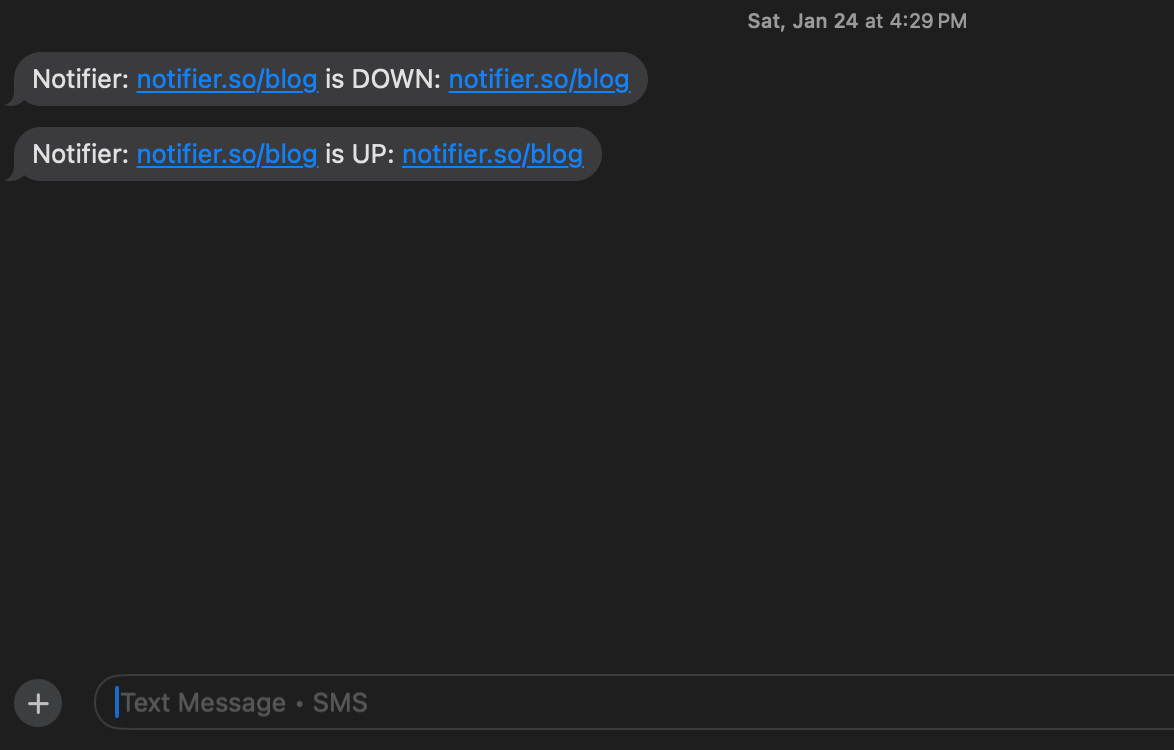
SMS cuts through the noise. Most people check a text message within minutes, even at night. The downside is cost: monitoring services often limit SMS on cheaper plans or charge per message.
- Pros: Immediate, hard to ignore, works without internet
- Cons: Costs money, carrier delays possible, limited message length
- Best for: Critical alerts, after-hours notifications, on-call situations
Phone Call Alerts
A phone call is the escalation option. If your site goes down at 3am and you need to wake up, a ringing phone will do it when email and SMS might not. Some services even support repeated calls if you don't answer.
Example phone call alert:
- Pros: Impossible to ignore, wakes you up, urgent feel
- Cons: Highest cost, disruptive, limited to one person per call
- Best for: Critical infrastructure, SLA-bound services, emergency escalation
Slack Alerts
If your team lives in Slack, getting alerts there makes sense. Everyone sees it, you can discuss the issue in-thread, and it integrates with your existing workflow. The limitation is that Slack requires the app to be open and notifications enabled.
- Pros: Team visibility, discussion in context, integrates with workflow
- Cons: Requires app open, easy to mute channels, needs internet
- Best for: Team notifications, business hours monitoring, collaborative response
Notifier supports Slack integration so alerts appear directly in your channels. Discord and Microsoft Teams support are coming soon.
Webhooks
Webhooks let you build custom integrations. When downtime is detected, your monitoring service sends a POST request to a URL you specify. You can use this to trigger automated responses: restart services, send custom notifications, update dashboards, or page on-call staff through PagerDuty or Opsgenie.
- Pros: Fully customizable, enables automation, integrates anywhere
- Cons: Requires development work, can fail silently
- Best for: Custom workflows, automated remediation, connecting to incident management tools
Webhook support is coming soon to Notifier.
How Fast Can You Know?
Alert speed depends on two factors: how often your site is checked and how quickly the alert is delivered. Both matter.
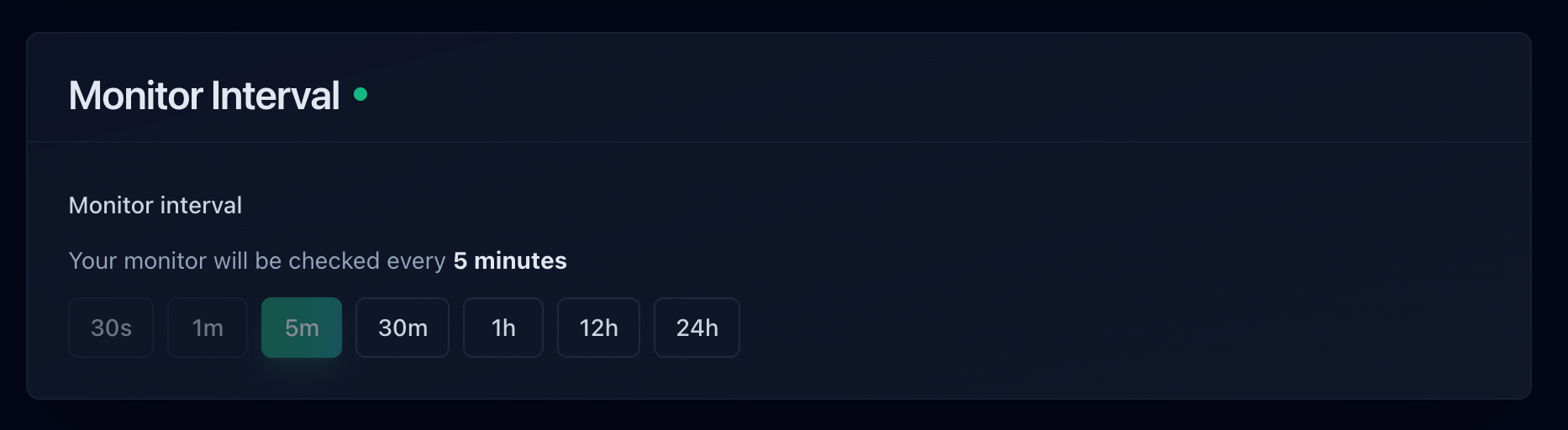
Check Intervals
The check interval determines the maximum time between when your site goes down and when it's detected:
- 30 seconds: Detected within 30 seconds. Best for critical services where every second counts.
- 1 minute: Detected within 1 minute. Good balance for most business sites.
- 5 minutes: Detected within 5 minutes. Fine for blogs, documentation, and non-critical pages.
Faster checks usually cost more. Notifier's free plan checks every 5 minutes. The $4/month Solo plan gets you 1 minute checks, and the Team plan includes 30 second checks.
Alert Delivery Time
Once downtime is detected, how quickly does the alert reach you? Email can be delayed by spam filters and server queues. SMS is usually instant but can be delayed by carrier congestion. Phone calls connect in seconds.
For the fastest response time, use multiple channels: SMS for immediate notification, email for documentation, and phone calls as an escalation if you don't acknowledge within a set time.
Avoiding Alert Fatigue
Too many false alarms train you to ignore alerts. After the 50th "your site is down" message that turns out to be a 10 second blip, you stop treating them as urgent. That's when a real outage slips through.
Confirmation Checks
Good monitoring services don't alert on the first failed check. They confirm the problem first, typically by checking from multiple locations or waiting for consecutive failures. This catches network hiccups and brief server restarts without triggering unnecessary alerts.
Threshold Tuning
Set appropriate thresholds for what counts as "down." A response time of 5 seconds isn't ideal, but it's not the same as a complete outage. Configure your monitoring to distinguish between slow responses and actual failures.
Quiet Hours
Not every alert needs to wake you up. For non-critical services, consider muting phone calls during sleeping hours while keeping email active. You'll still have a record in the morning, but you won't lose sleep over a dev server hiccup.
Alert Aggregation
If you monitor 20 endpoints and they all go down at once (say, a database failure), you don't need 20 separate alerts. Good monitoring aggregates related failures so you get one notification about the incident, not a flood.
Setting Up Alerts with Notifier
Here's how to set up downtime alerts in Notifier:
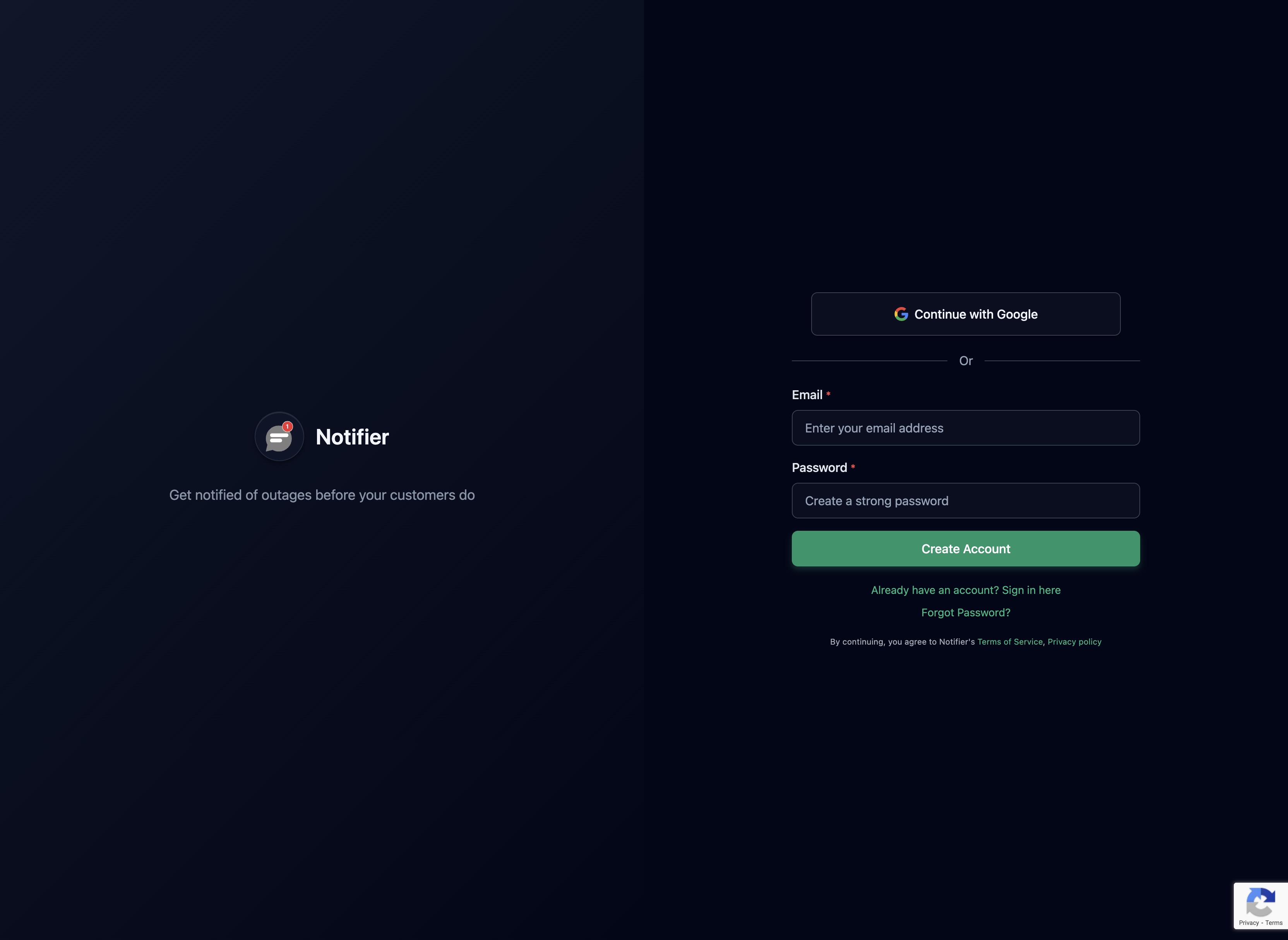
1. Create an account
Sign up at notifier.so/register. The free plan includes 10 monitors and email alerts.
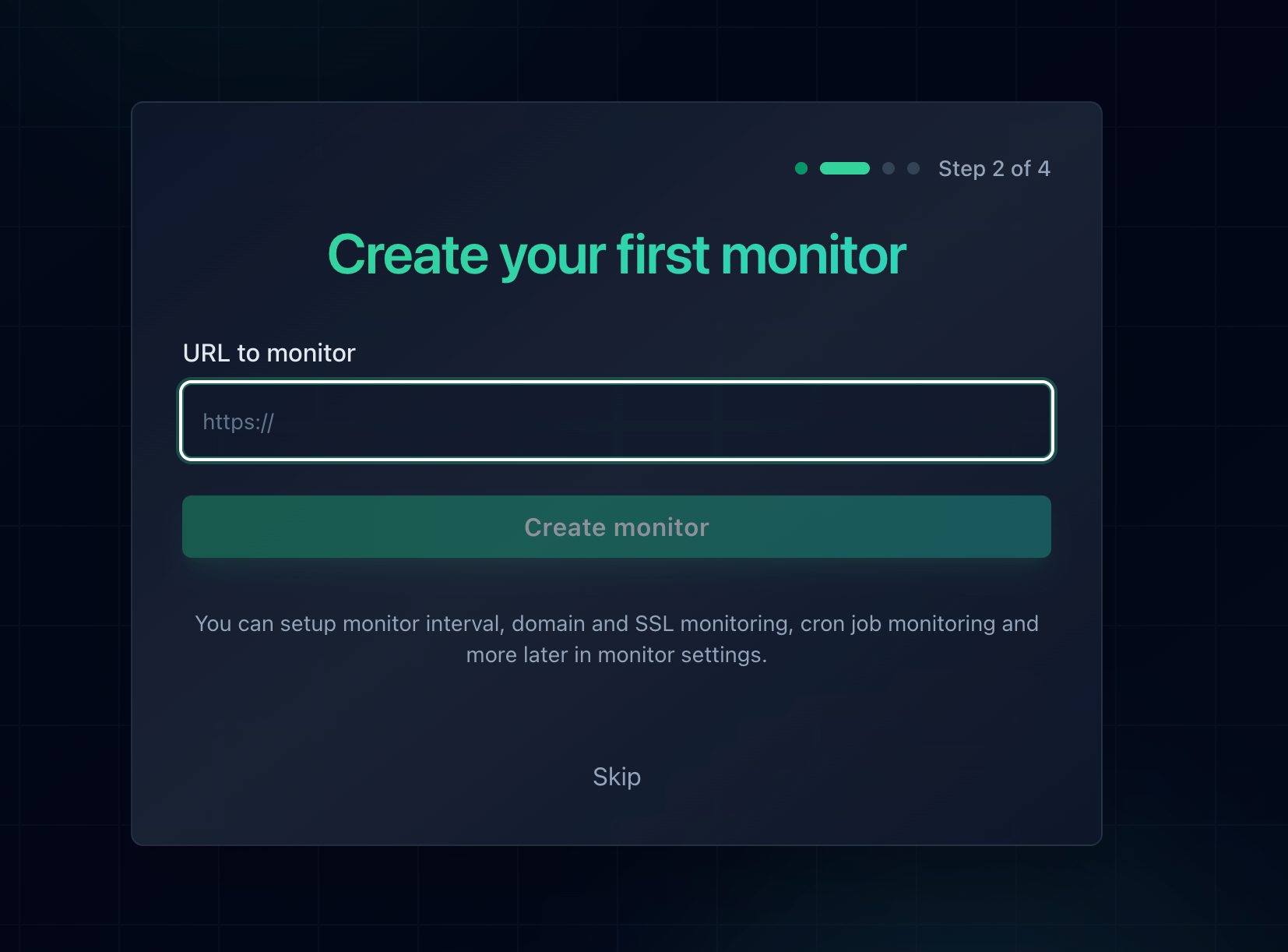
2. Add your first monitor
Enter your URL and give it a name. Notifier starts checking immediately.
3. Configure notifications
By default, you'll get email alerts. To add SMS or phone calls, go to notification settings and add your phone number.
4. Connect Slack (optional)
Link your Slack workspace to get alerts in your team channels. This keeps everyone informed when issues arise.
5. Test your alerts
Use the test notification feature to verify messages reach you before an actual outage. Better to find out your phone number is wrong now than during a real incident.
The whole setup takes about 30 seconds. If you run into issues, Notifier's support team typically responds within minutes via chat or email.
Best Practices
- Use multiple channels: Don't rely on just email. Add SMS or phone for critical services. If one channel fails or is ignored, the others still work.
- Set up escalation: Start with email, escalate to SMS after 5 minutes, then phone call after 15. This prevents alert fatigue while ensuring critical issues get attention.
- Test your alerts regularly: Send test notifications periodically to verify your phone number is correct, your Slack integration is working, and emails aren't going to spam.
- Document response procedures: When an alert fires, what do you do? Having a clear runbook reduces response time during stressful incidents.
- Review and tune: After a few weeks, look at your alert history. Too many false positives? Adjust thresholds. Missing real issues? Check your monitoring configuration.
Get Alerts That Actually Work
The best monitoring in the world is useless if alerts don't reach you. Choose channels that match your situation: email for records, SMS for immediate attention, phone calls for emergencies, and Slack for team visibility.
Start with Notifier's free plan to get email alerts on 10 monitors. Upgrade to Solo ($4/month) when you need faster checks and SMS. Either way, you'll know about problems before your customers do.
