At a Glance
- •Squarespace has no built-in uptime monitoring dashboard and no downtime alerts. If your site goes down, Squarespace will not notify you. You need external monitoring to know when something is wrong.
- •Common causes of Squarespace downtime include platform outages, DNS misconfiguration with custom domains, SSL certificate provisioning delays, and third-party integration failures (Stripe, PayPal, scheduling tools).
- •Monitor your homepage, key landing pages, e-commerce checkout, and booking or contact pages. Use 1 to 5 minute check intervals depending on how revenue-critical each page is.
- •Squarespace provides free SSL certificates, but renewal failures and DNS misconfigurations can break HTTPS. SSL certificate monitoring catches these before visitors see security warnings.
- •Notifier monitors all of this (including SSL certificates) free for up to 10 URLs with email, SMS, and phone call alerts on every plan. Paid plans start at $4/month for faster check intervals.
Squarespace powers millions of websites, from portfolio sites and blogs to full e-commerce stores. It handles hosting, security, and infrastructure so you can focus on content and design. But there is one thing Squarespace does not do: tell you when your site goes down.
Unlike Wix, which at least offers a basic uptime dashboard (even if it only checks once per day), Squarespace has no built-in monitoring at all. No uptime dashboard. No downtime alerts. No way to check if your site is accessible from different regions. If your Squarespace site goes down at 2 AM, you will not know until a customer tells you or you check it yourself the next morning.
This guide covers why Squarespace sites go down, what pages you should monitor, and how to set up external monitoring that alerts you within minutes of an outage. Whether you run a simple portfolio or a Squarespace store processing hundreds of orders per day, you need visibility into your site's availability.
Why Squarespace Sites Need External Monitoring
"Squarespace handles my hosting. Why would I need monitoring?" This is the most common question from Squarespace users, and the answer is straightforward: managed hosting does not mean zero downtime.
Squarespace runs on a robust infrastructure, but it is still a shared platform. When Squarespace has an issue, every site on the platform is affected. And since you have no access to the server, you cannot restart services, check error logs, or deploy a fix yourself. The only thing you can do is know that something is wrong, and that requires monitoring.
The core problem
With self-hosted sites, you can fix server issues yourself. With Squarespace, you cannot. That makes knowing about downtime even more important, because your response is different: contact Squarespace support, update your customers, pause ad campaigns, and wait. You cannot do any of that if you do not know your site is down.
External monitoring checks your Squarespace site from outside, just like a real visitor would. It detects outages, slow response times, SSL certificate problems, and DNS failures, then alerts you instantly via email, SMS, or phone call. For a deeper look at why monitoring matters for any website, see our guide on why uptime monitoring is important.
Why Squarespace Sites Go Down
Squarespace sites go down for reasons that are entirely outside your control, and for reasons that are partially within your control. Understanding both categories helps you set up the right monitors.
1. Squarespace Platform Outages
Squarespace is a large, complex platform serving millions of sites. Platform-wide outages happen several times per year and affect all Squarespace sites simultaneously. These incidents range from brief service degradations lasting a few minutes to major outages lasting several hours. Squarespace maintains a status page at status.squarespace.com, but it often takes 15 to 30 minutes for Squarespace to acknowledge an incident after it begins. External monitoring detects these outages faster.
2. Custom Domain DNS Misconfiguration
Connecting a custom domain to Squarespace requires specific DNS records: a set of A records pointing to Squarespace's IP addresses and a CNAME record for the www subdomain. If these records are incorrect, stale, or conflicting with other DNS entries, your site becomes unreachable on your custom domain even though the Squarespace platform itself is working fine. DNS propagation after changes can take up to 48 hours, creating a window where your site may be accessible in some regions but not others.
A common issue: users who previously pointed their domain to another hosting provider forget to remove old A records. The conflicting records cause intermittent failures that are difficult to diagnose without monitoring. For more on diagnosing this, see our guide on checking if a site is down for everyone or just you.
3. SSL Certificate Provisioning Failures
Squarespace provides free SSL certificates through Let's Encrypt for all custom domains. SSL provisioning happens automatically after you connect your domain, but it requires correct DNS configuration. If your DNS records are wrong, if your domain registrar has DNSSEC enabled without proper configuration, or if there is a delay in DNS propagation, SSL provisioning can fail. When this happens, visitors see browser security warnings ("Your connection is not private") or cannot access your site at all over HTTPS.
4. Third-Party Integration Failures
Squarespace integrates with payment processors (Stripe, PayPal, Square), scheduling tools (Acuity Scheduling), email marketing platforms, and various third-party extensions. When any of these services experience an outage, the affected functionality on your Squarespace site breaks silently. Your homepage may load perfectly while your checkout page, booking system, or contact form is completely non-functional.
Payment gateway outages are particularly damaging because customers who encounter a failed checkout rarely come back to try again. They go to a competitor.
5. Squarespace Extension and Code Injection Conflicts
Squarespace allows custom code injection (header, footer, and page-level) and supports third-party extensions from the Squarespace Extensions marketplace. Poorly written custom code, conflicting JavaScript from multiple extensions, or an extension that breaks after an update can cause pages to render incorrectly or fail to load entirely. These issues often affect specific pages rather than the whole site, making them harder to detect without page-level monitoring.
6. Squarespace Commerce and Inventory Issues
If you run a Squarespace Commerce store, additional failure modes come into play. Inventory sync failures, tax calculation errors, shipping rate API timeouts, and payment processing issues can all prevent customers from completing purchases. The storefront may look fine while the checkout flow is broken. This is why monitoring only your homepage is not enough for e-commerce sites. For more on e-commerce specific monitoring, see our e-commerce monitoring guide.
Squarespace Has No Built-in Uptime Monitoring
This is worth emphasizing because many Squarespace users assume the platform monitors their site for them.
What Squarespace does NOT provide:
- No uptime monitoring dashboard: There is no page in your Squarespace admin that shows whether your site is currently up or down.
- No downtime alerts: Squarespace will not send you an email, SMS, or any notification when your site goes offline.
- No response time tracking: You cannot see how fast your site loads over time or detect performance degradation.
- No SSL expiration alerts: While Squarespace auto-renews SSL certificates, you are not notified if renewal fails.
- No regional availability checks: You cannot test if your site is accessible from different countries or regions.
Squarespace does maintain a public status page at status.squarespace.com where you can subscribe to platform-wide incident updates. But this only covers Squarespace infrastructure issues. It will not alert you to problems specific to your site, like DNS misconfigurations, SSL failures on your custom domain, or broken third-party integrations.
Compare this to Wix, which at least offers a manual global availability test (once per 24 hours) and a 90-day uptime history bar. Squarespace offers neither. Shopify also lacks built-in monitoring but provides a detailed status page with component-level updates. Squarespace's status page is more basic.
The monitoring gap
Squarespace: 0 automated checks per day, no alerts, no uptime history for your site.
External monitoring with Notifier: Up to 2,880 checks per day (every 30 seconds on Team/Enterprise), with instant SMS, phone, email, and Slack alerts.
The difference is the difference between finding out about downtime in seconds versus hours.
What to Monitor on Your Squarespace Site
The pages you monitor depend on what your Squarespace site does. A portfolio site needs fewer monitors than an e-commerce store. Here is a breakdown by page type and priority.
| URL / Page | What It Tests | Recommended Interval | Priority |
|---|---|---|---|
yourdomain.com/ |
DNS, SSL, platform availability, CDN | 1 to 5 min | Essential |
/store or /shop |
E-commerce storefront availability | 1 min | Essential (if e-commerce) |
/checkout |
Checkout flow, payment gateway | 1 min | Essential (if e-commerce) |
/booking or /schedule |
Scheduling and booking system | 1 to 5 min | If using bookings |
/contact |
Contact form availability | 5 min | If primary lead source |
Key landing pages |
Pages linked from ad campaigns | 1 min | If running ads |
Key product pages |
High-traffic or featured products | 5 min | Nice to have |
For a basic Squarespace site (portfolio, blog, business site): monitor your homepage and contact page. That is 2 monitors, well within the free tier of most monitoring tools.
For a Squarespace e-commerce store: monitor your homepage, store page, checkout page, and any landing pages with paid traffic. That is 4 to 6 monitors. Notifier's free plan covers up to 10, so you can monitor everything without paying.
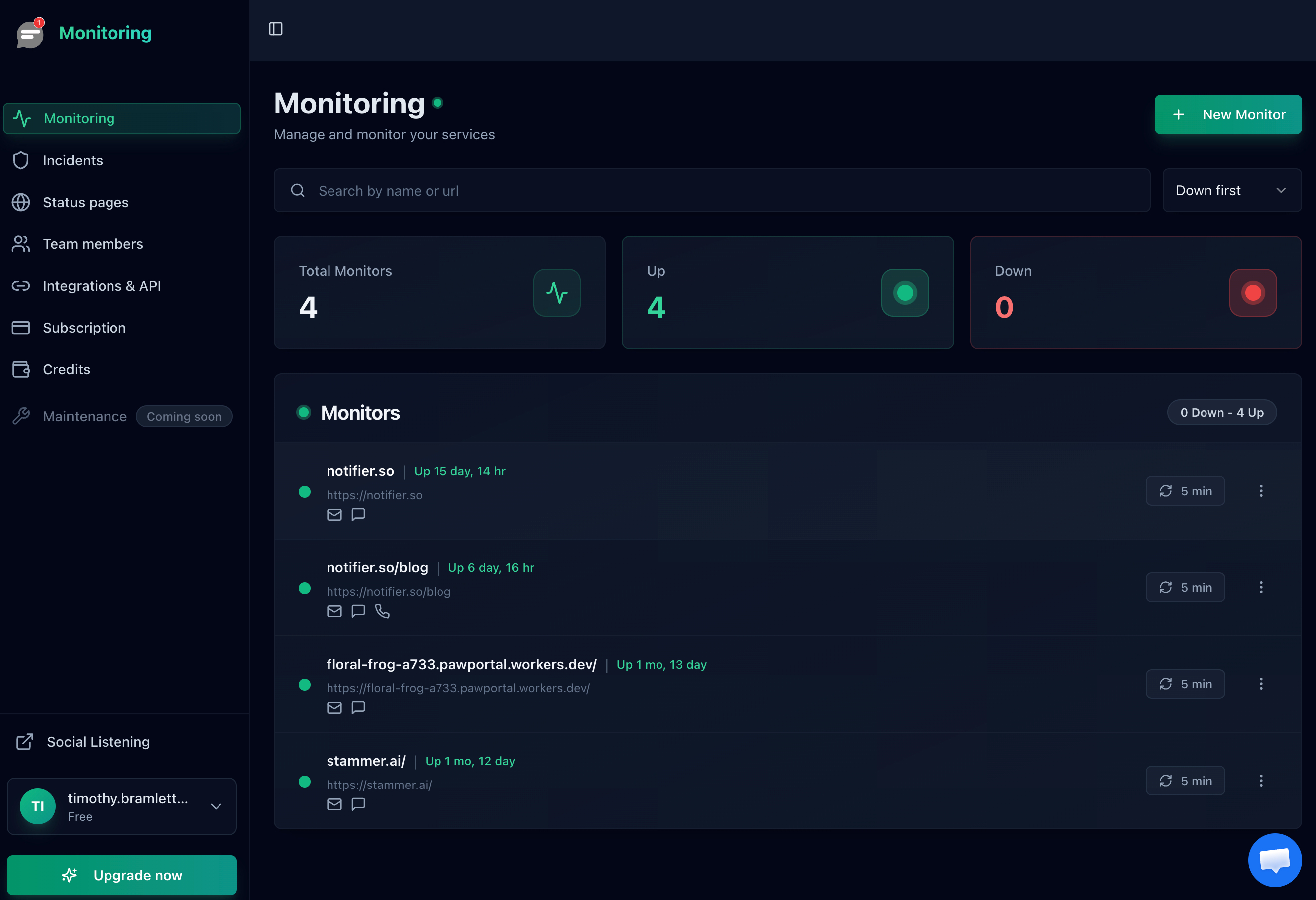
A monitoring dashboard tracking multiple Squarespace site URLs.
How to Set Up Squarespace Monitoring With Notifier (Step by Step)
Setting up monitoring for your Squarespace site takes less than 5 minutes. Here is the process.
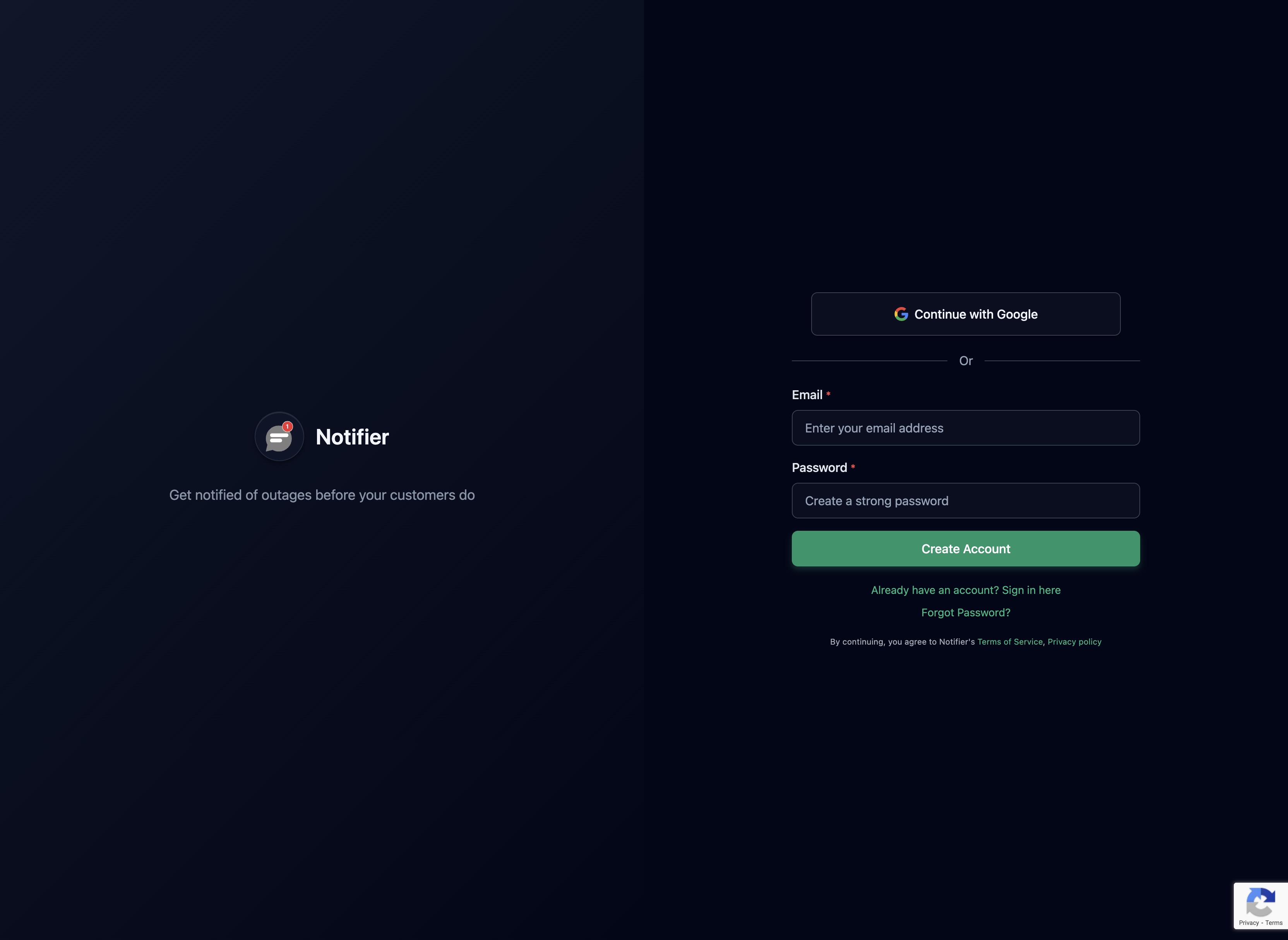
Step 1: Create a Notifier Account
Sign up at notifier.so/register. The free plan includes 10 monitors, 5 status pages, and SSL certificate monitoring. No credit card required.
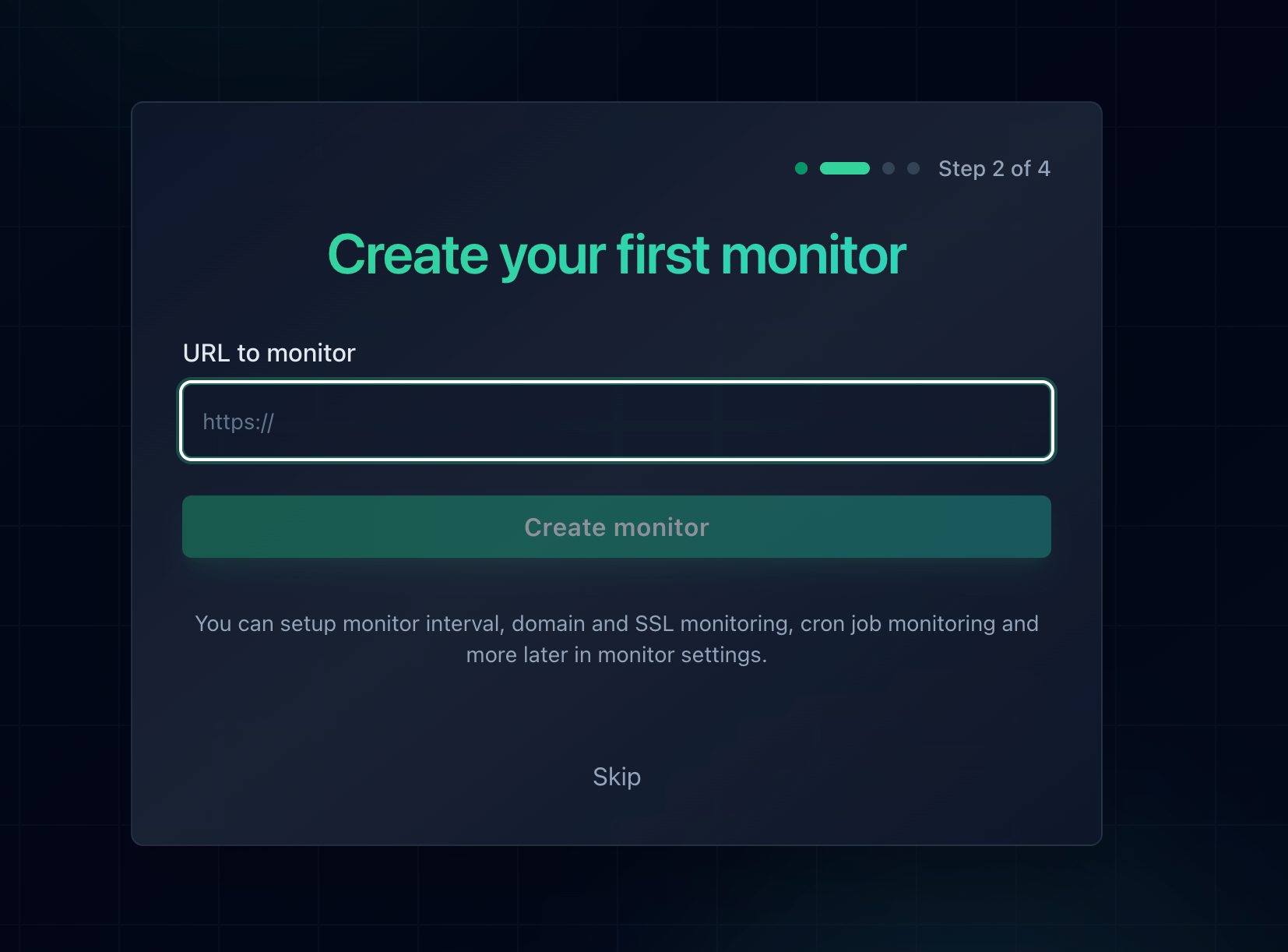
Step 2: Add Your Squarespace Homepage
Click "Add Monitor" and enter your Squarespace site's custom domain URL (e.g., https://yourdomain.com). This is your primary monitor. It checks DNS resolution, SSL validity, and HTTP response status every time it runs.
Choose your check interval. The free plan checks every 5 minutes. The Solo plan ($4/month) checks every minute, which is a significant improvement for sites where downtime costs money. For e-commerce stores, the Team plan ($19/month) offers 30 second checks.
Step 3: Add Revenue-Critical Pages
If your Squarespace site has an online store, add separate monitors for your shop page and checkout page. If you use Acuity Scheduling or Squarespace Scheduling, add a monitor for your booking page. Each page gets its own monitor, so you know exactly which part of your site is affected during an incident.
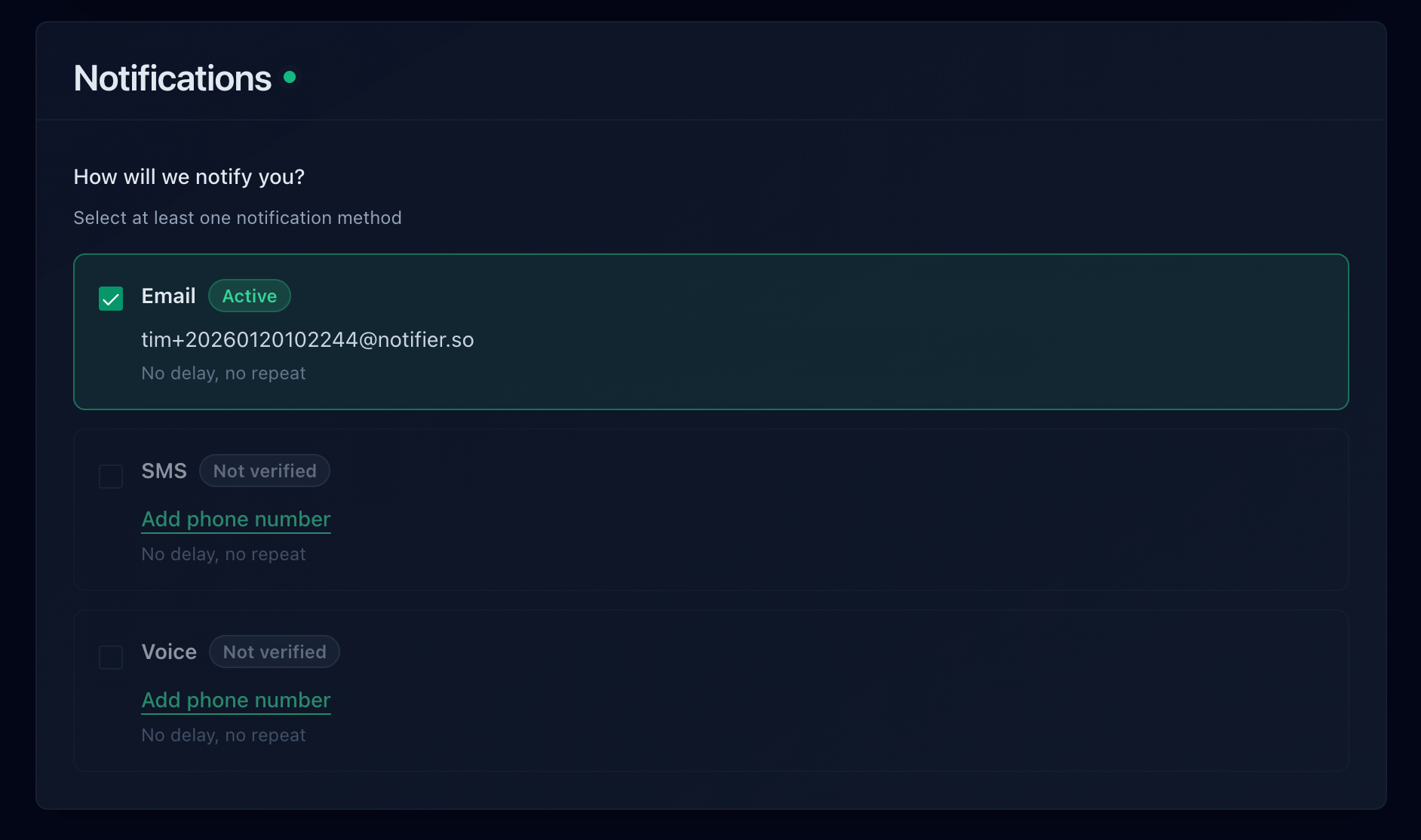
Step 4: Configure Your Alert Channels
This is where external monitoring dramatically outperforms Squarespace's non-existent alerting. Configure how you want to be notified when your site goes down:
- Email alerts: Good for non-urgent notifications and keeping a record of incidents.
- SMS alerts: Reach you even when you are away from your desk. Available on all plans, including free.
- Phone call alerts: For revenue-critical sites where you cannot afford to miss a notification. Available on all plans, including free.
- Slack alerts: Ideal if your team uses Slack for communication.
Step 5: Subscribe to Squarespace's Status Page
As a complementary step, visit status.squarespace.com and subscribe to email updates. This gives you notifications about platform-wide incidents that Squarespace officially acknowledges. Between your external monitors and Squarespace's status page, you will have complete coverage: external monitoring catches issues fast, and Squarespace's status page provides context about whether the problem is platform-wide.
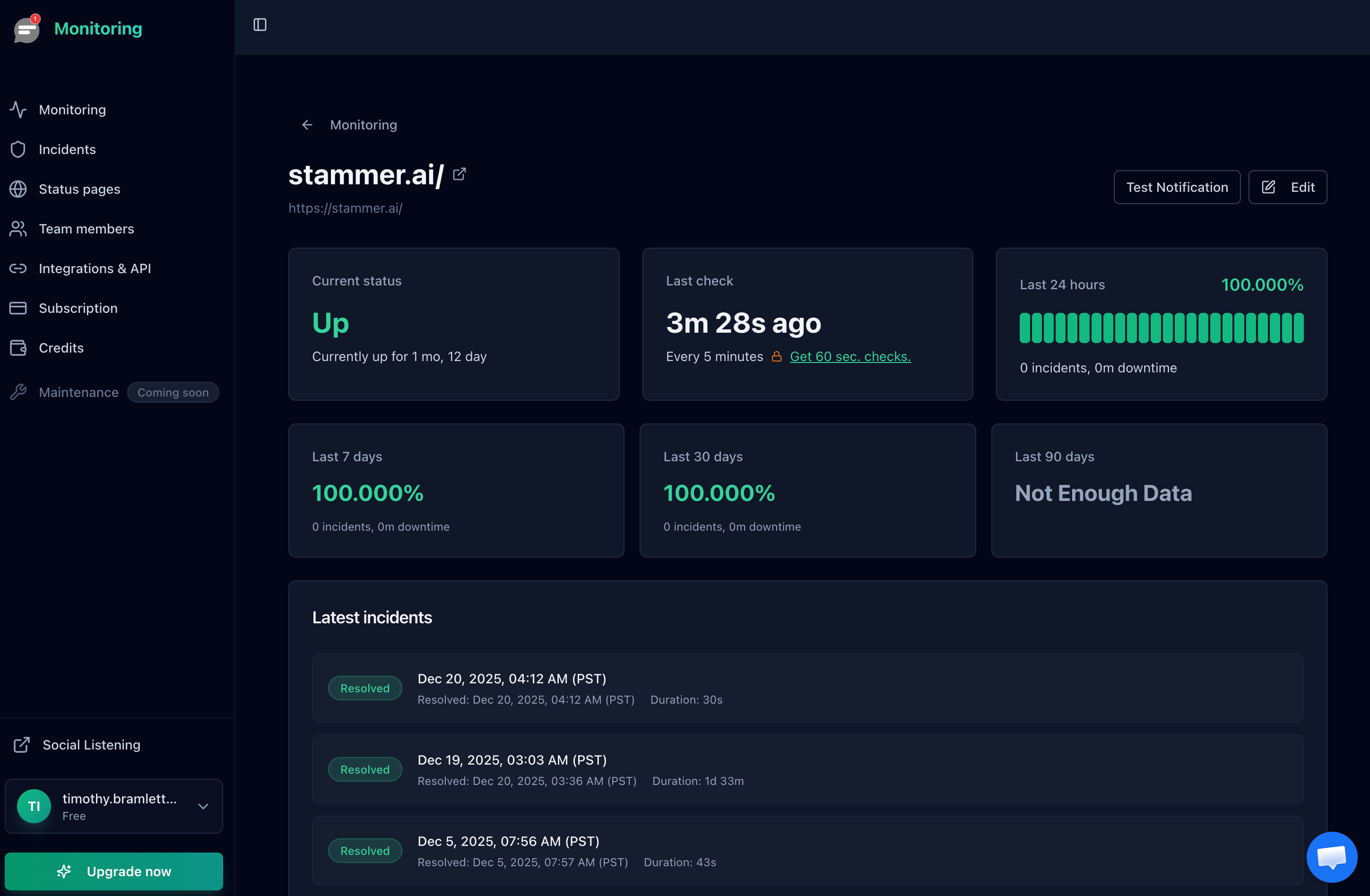
Uptime history view showing response time trends and availability for a monitored URL.
SSL Certificate Monitoring for Squarespace
Squarespace provides free SSL certificates for all sites with custom domains. These certificates are issued through Let's Encrypt and are supposed to renew automatically. In most cases, they do. But there are several scenarios where SSL renewal fails silently.
When Squarespace SSL Renewal Fails
- DNS records were changed: If someone modified your DNS records (intentionally or accidentally) after the initial setup, the SSL certificate may not be able to renew because Let's Encrypt cannot verify domain ownership.
- Domain was transferred: Moving your domain to a new registrar can disrupt DNS settings. If the A records or CNAME pointing to Squarespace are lost during the transfer, SSL renewal will fail.
- DNSSEC conflicts: Enabling DNSSEC at your domain registrar without proper configuration can block the domain verification process that SSL renewal requires.
- Squarespace infrastructure issue: Occasionally, Squarespace's own SSL provisioning system has issues that delay or prevent certificate renewals.
When an SSL certificate expires, browsers display a full-page security warning that most visitors will not click through. Your site is effectively offline for all practical purposes. Squarespace does not send you a warning before this happens.
How Notifier helps with SSL
Notifier automatically monitors your SSL certificate's expiration date on every plan, including the free tier. If your certificate is approaching expiration and has not renewed, you get alerted with enough time to fix the DNS issue before visitors see a security warning. For a complete guide to SSL monitoring, see our SSL certificate monitoring guide.
What to Do When Your Squarespace Site Goes Down
Because Squarespace is a managed platform, your response to downtime is different from self-hosted sites. You cannot SSH into a server, restart a process, or check error logs. Here is what you can actually do.
1. Check If It Is Squarespace or Your Configuration
Visit status.squarespace.com first. If Squarespace is reporting an incident, the problem is on their end and you need to wait for their team to resolve it. If their status page shows "All Systems Operational," the issue is likely specific to your site: DNS, SSL, or a code injection conflict. For more diagnostic techniques, see our guide on how to check if a website is down.
2. Pause Paid Advertising
If you are running Google Ads, Facebook Ads, or any paid campaigns that send traffic to your Squarespace site, pause them immediately. Every click while your site is down is wasted money. This is one of the biggest reasons fast alerting matters: the sooner you know, the sooner you can stop the bleeding.
3. Communicate With Your Customers
If you have a public status page (which you can create for free with Notifier), update it with the current situation. Post on your social media channels. Send an email to affected customers if appropriate. Transparency during outages builds trust rather than eroding it.
4. Check Your DNS and SSL Settings
If the outage is specific to your site, log in to your domain registrar and verify that your DNS records still point to Squarespace correctly. Check the SSL settings in your Squarespace admin panel. If SSL shows as inactive or pending, the issue is likely DNS related.
5. Contact Squarespace Support
For platform issues or problems you cannot resolve through DNS settings, contact Squarespace support. Include the specific error you are seeing, when it started (your monitoring data will tell you this precisely), and what troubleshooting steps you have already taken. Having monitoring data makes support interactions faster because you can provide exact timestamps and error details.
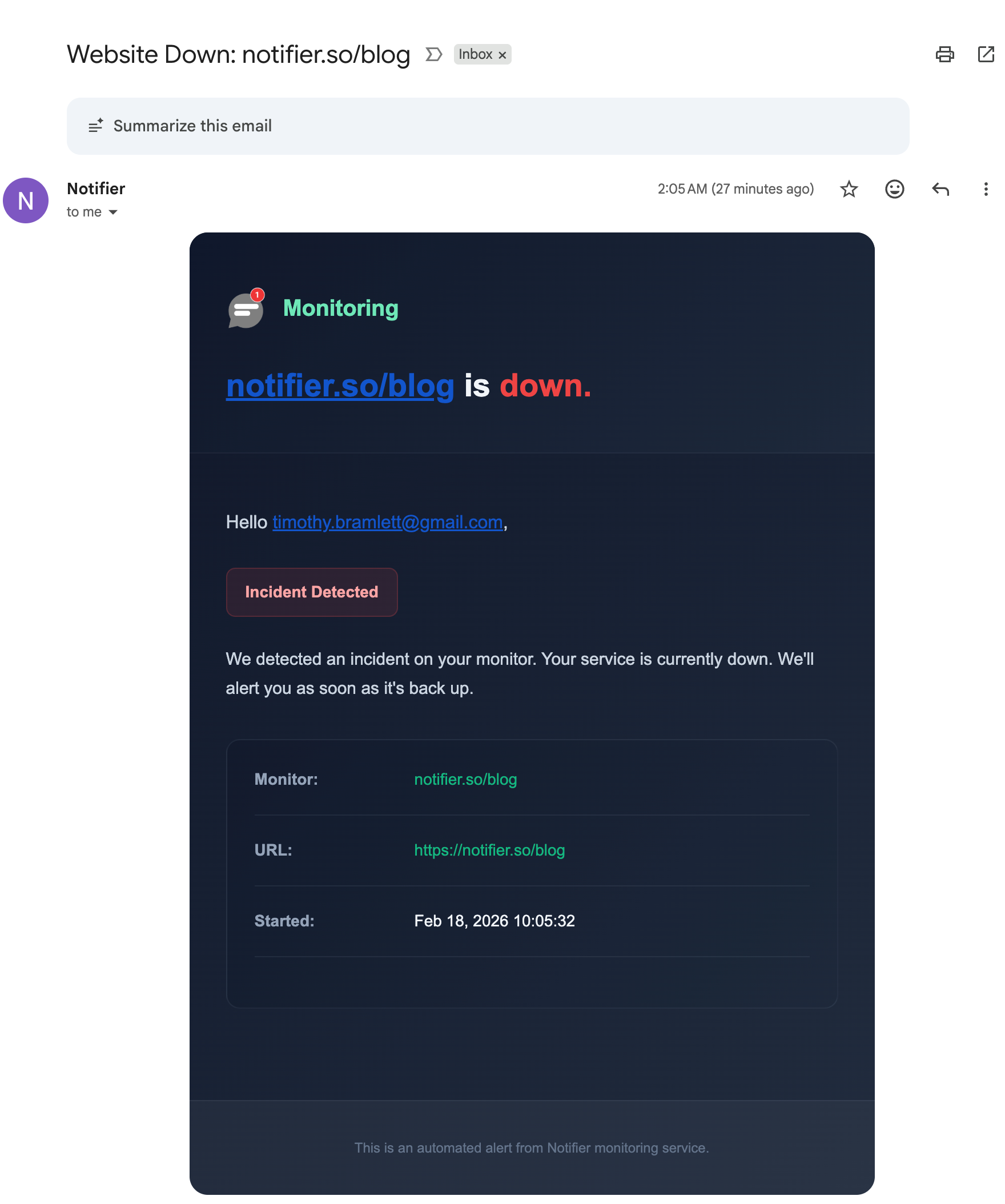
A downtime alert email that gives you the exact time and details of the outage.
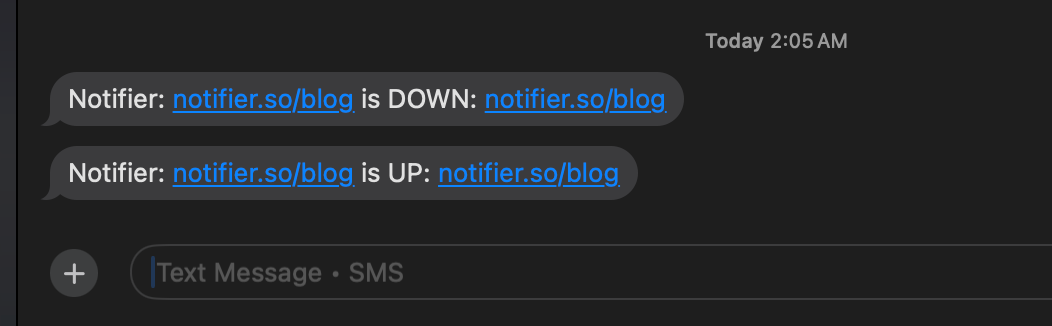
SMS alerts notify you when your site goes down and again when it recovers.
Frequently Asked Questions
Does Squarespace have built-in uptime monitoring?
No. Squarespace does not offer any built-in uptime monitoring, downtime alerts, or availability dashboards. The only related resource is the public status page at status.squarespace.com, which covers platform-wide issues but does not monitor your individual site. You need a third-party monitoring service to know when your specific Squarespace site goes down.
Why does my Squarespace site go down?
The most common causes are Squarespace platform outages (which affect all sites on the platform), DNS misconfiguration with your custom domain, SSL certificate provisioning failures, third-party integration outages (payment processors, scheduling tools), and conflicts from custom code injections or extensions. For a broader overview of website downtime causes, see our guide on website downtime alerts.
How do I check if Squarespace is down?
Visit status.squarespace.com to see if there is a platform-wide incident. To check if the issue is specific to your site, use a tool like Notifier or any online "is it down" checker. If Squarespace's status page shows everything operational but your site is unreachable, the issue is likely with your DNS, SSL, or a site-specific configuration. See our guide on checking if a site is down for everyone for more diagnostic steps.
Can I monitor my Squarespace e-commerce checkout?
Yes. Add your checkout page URL as a separate monitor. While you cannot simulate a full purchase transaction with basic HTTP monitoring, checking that the checkout page returns a 200 status code confirms the page is accessible and the Squarespace Commerce backend is responding. If the checkout page returns an error, you know there is a problem before customers report it.
Does Squarespace monitoring include SSL certificate checks?
Squarespace itself does not monitor or alert you about your SSL certificate status. However, external monitoring tools like Notifier include SSL certificate monitoring on every plan, including the free tier. This means you will be alerted if your Squarespace SSL certificate is approaching expiration without being renewed, giving you time to fix the underlying DNS issue.
How often should I monitor my Squarespace site?
For a basic Squarespace site (portfolio, blog), checking every 5 minutes is sufficient. For business sites where downtime means missed leads, 1 minute checks are better (available on Notifier's Solo plan at $4/month). For e-commerce stores processing orders, 30 second checks (Team plan at $19/month) ensure you catch outages as fast as possible. The right interval depends on how much a minute of downtime costs your business.
What should I do when my Squarespace site goes down?
First, check status.squarespace.com to see if it is a platform-wide issue. If it is, you must wait for Squarespace to resolve it. If it is not, check your DNS records and SSL settings. Pause any paid ad campaigns to stop wasting money on clicks to a broken site. Communicate with customers via your status page or social media. Contact Squarespace support with the exact time the outage started (which your monitoring tool will provide).
Is there a free way to monitor my Squarespace site?
Yes. Notifier's free plan includes 10 monitors, 5 status pages, and SSL certificate monitoring with no credit card required. That is enough to monitor your Squarespace homepage, store page, checkout, booking page, and several landing pages. For more free monitoring options, see our guide to setting up website monitoring.
