At a Glance
- •A 504 Gateway Timeout means a reverse proxy (like Nginx or Cloudflare) waited too long for a response from an upstream server and gave up. The upstream is slow or unresponsive, not the proxy itself.
- •Most 504 errors come from four causes: slow database queries, PHP-FPM or Node.js workers maxed out, low proxy timeout values, or upstream servers that have crashed.
- •Quick fixes: reload the page, clear your cache, try a different network. If you own the site, check server logs, raise proxy_read_timeout in Nginx, and restart PHP-FPM.
- •Long-term prevention requires monitoring. A 504 error means visitors already failed to load your site. External uptime monitoring with response time alerts catches slowdowns before they become timeouts.
- •Notifier monitors uptime, response time, and SSL certificates free for up to 10 URLs with email, SMS, and phone call alerts. Paid plans start at $4/month for 1-minute checks.
A 504 Gateway Timeout is one of the most frustrating HTTP errors because it means something was almost working. A request reached your server, travelled through your reverse proxy, hit your application, and then just ran out of time. The proxy gave up waiting and returned a 504 to the visitor.
This guide covers what a 504 gateway timeout actually means, quick fixes you can try right now, and detailed server side solutions for Nginx, Apache, Cloudflare, WordPress, and Node.js. Every fix includes the exact commands and config snippets you need.
What Is a 504 Gateway Timeout Error?
A 504 Gateway Timeout is an HTTP status code that means a server acting as a gateway or proxy did not receive a timely response from an upstream server it needed to access. In plain English: the proxy asked the backend for a response, waited for a configured number of seconds, and finally gave up.
This is different from a 502 Bad Gateway (the upstream replied with garbage or refused the connection) or a 503 Service Unavailable (the server explicitly said it cannot handle the request right now). A 504 specifically means the upstream was silent for too long.
The chain typically looks like this:
Browser → CDN (Cloudflare) → Reverse Proxy (Nginx) → Application Server (PHP-FPM, Node.js, Gunicorn) → Database
Any link can be slow. A 504 gateway timeout means one of the links upstream took too long, and the link in front of it stopped waiting. The most common offender is the application server or the database.
You might see the error displayed differently depending on the server or CDN:
- 504 Gateway Timeout
- HTTP Error 504
- Gateway Timeout Error
- 504 Gateway Time-out nginx (very common, since Nginx is the most popular reverse proxy)
- Error 504: Gateway Timeout
- Cloudflare 504 Gateway time-out (shown when Cloudflare cannot reach your origin in time)
- The request timed out
They all mean the same thing: a response took longer than the proxy was willing to wait. Let's fix it.
Quick Fixes for 504 Gateway Timeout (Try These First)
If you are seeing a 504 gateway timeout error on someone else's site, or you want to rule out simple issues before digging into server configs, try these first.
1. Reload the Page
504 errors are often temporary. The upstream server might have been briefly overloaded, running a slow query, or under heavy traffic. Wait 30 seconds and press Ctrl + F5 (Windows) or Cmd + Shift + R (Mac) for a hard reload that bypasses cached responses.
2. Clear Your Browser Cache and Cookies
Your browser or an intermediate cache might be serving a stored 504 error page. Clear your cache, or open the site in an incognito window. If the page loads in incognito but not in your normal session, a bad cookie or cached error is the culprit.
3. Check if the Site Is Down for Everyone
The problem might affect everyone, not just you. Use our free ping test or our website down checker to verify. If the site is down for everyone, the problem is server side and only the owner can fix it. See our guide to checking if a site is down for more options.
4. Try a Different Network
Route your connection through your phone hotspot or a different Wi-Fi network. Some 504 errors are caused by your ISP routing traffic through a path that is slow or congested. If the site loads fine on a different network, the issue is between your ISP and the site, not the site itself.
5. Flush Your DNS Cache
Occasionally, a stale DNS entry points your browser at an old IP address that no longer responds.
# macOS
sudo dscacheutil -flushcache; sudo killall -HUP mDNSResponder

# Windows (Command Prompt as Administrator)
ipconfig /flushdns

# Linux (systemd-resolved)
sudo systemd-resolve --flush-caches
If none of these quick fixes work and the site still returns 504, the problem is almost certainly server side. If you own the site, keep reading. If not, there is nothing you can do except wait or contact the site owner.
The 7 Most Common Causes of 504 Gateway Timeout
Before editing config files, it helps to know what usually causes 504s. In rough order of frequency:
| Cause | Where to Look | Typical Fix |
|---|---|---|
| Slow database query | MySQL slow query log, Postgres pg_stat_statements | Add an index, optimize the query, cache results |
| PHP-FPM workers exhausted | PHP-FPM error log, process list | Increase pm.max_children, restart PHP-FPM |
| Low proxy timeout | Nginx/Apache config, Cloudflare dashboard | Raise proxy_read_timeout to 60s or more |
| Upstream server crashed | systemctl status, application log | Restart the service, investigate crash cause |
| DNS resolution failure | DNS query logs, /etc/resolv.conf | Switch to 1.1.1.1 or 8.8.8.8, raise DNS timeout |
| External API is slow | Application log, outbound request traces | Add timeouts on outbound calls, cache responses |
| Firewall or network routing | Cloud provider security groups, traceroute | Open required ports, fix routing tables |
The first place to look, regardless of stack, is your error log. The timestamp of the 504 in your proxy log should line up with something in the upstream application log. If it does not, the upstream has gone completely silent or crashed.
How to Fix 504 Gateway Timeout in Nginx
Nginx is the most common reverse proxy, and a 504 from Nginx specifically means Nginx waited longer than proxy_read_timeout seconds for a response from the upstream. The default is 60 seconds.
Step 1: Check the Nginx Error Log
sudo tail -f /var/log/nginx/error.log
Look for lines containing upstream timed out (110: Connection timed out). That is the smoking gun. The log will also tell you which upstream was slow.
Step 2: Raise Proxy Timeouts
Open the relevant Nginx site config (usually under /etc/nginx/sites-available/) and add or raise these values inside the location block:
location / {
    proxy_pass http://backend;
    proxy_connect_timeout 60s;
    proxy_send_timeout    300s;
    proxy_read_timeout    300s;
    send_timeout          300s;
}
Raising the timeout does not fix a slow backend. It just gives the backend more time before Nginx gives up. Use this as a temporary mitigation while you hunt down the real cause.
Step 3: Reload Nginx Without Downtime
sudo nginx -t          # validate config
sudo systemctl reload nginx
nginx -t checks your syntax before reload. Never skip it on a production server.
Step 4: Check the Upstream (PHP-FPM, Node.js, Gunicorn)
If Nginx is timing out, the backend is either overloaded or stuck. Common checks:
# PHP-FPM
sudo systemctl status php8.2-fpm
sudo tail -f /var/log/php8.2-fpm.log

# Node.js (pm2)
pm2 status
pm2 logs

# Gunicorn
sudo systemctl status gunicorn
sudo journalctl -u gunicorn -f
Step 5: Raise PHP-FPM Worker Limits
If your PHP-FPM pool is full, every new request queues until a worker frees up. That queue time is what Nginx eventually times out waiting for. Edit /etc/php/8.2/fpm/pool.d/www.conf:
pm = dynamic
pm.max_children = 50
pm.start_servers = 10
pm.min_spare_servers = 5
pm.max_spare_servers = 15
pm.max_requests = 500
Then restart:
sudo systemctl restart php8.2-fpmHow to Fix 504 Gateway Timeout in Apache
Apache can also act as a reverse proxy, usually via mod_proxy. A 504 here means Apache ran out of patience waiting for the upstream.
Step 1: Raise the ProxyTimeout
Open the relevant virtual host file (e.g. /etc/apache2/sites-available/example.com.conf) and set:
<VirtualHost *:443>
    ServerName example.com
    ProxyPass / http://127.0.0.1:3000/ timeout=300
    ProxyPassReverse / http://127.0.0.1:3000/
    Timeout 300
    ProxyTimeout 300
</VirtualHost>
Step 2: Raise PHP max_execution_time
If you are using mod_php or PHP-FPM with Apache, PHP has its own timeout. In /etc/php/8.2/apache2/php.ini:
max_execution_time = 300
max_input_time = 300
Step 3: Reload Apache
sudo apache2ctl configtest
sudo systemctl reload apache2
How to Fix Cloudflare 504 Gateway Timeout
A Cloudflare 504 is different from a server 504. It means Cloudflare could not get a response from your origin within 100 seconds (the default Cloudflare timeout). You cannot raise this limit on the free, Pro, or Business plans. The origin must respond faster.
Step 1: Confirm the 504 Is Coming From Cloudflare
Check the HTTP response headers. If you see Server: cloudflare and CF-RAY:, Cloudflare is the one returning the 504. You can test this by temporarily pausing Cloudflare in the dashboard (Overview page, Advanced Actions, Pause Cloudflare on Site).
Step 2: Check Origin Response Time Directly
curl -s -o /dev/null -w "Total: %{time_total}s\n" --resolve example.com:443:YOUR_ORIGIN_IP https://example.com/slow-pageIf the origin itself takes more than 100 seconds, no CDN trick will save you. You need to fix the slow page.
Step 3: Use Argo or Enterprise for Longer Timeouts
Enterprise Cloudflare customers can request a longer timeout (up to 6000 seconds in some cases). For most teams, the right fix is to move long-running work off the request path: background jobs, async processing, or a webhook callback pattern.
Step 4: Verify Cloudflare Can Reach Your Origin
If your origin firewall is blocking Cloudflare IPs, every request will eventually time out. Allow the full list of Cloudflare IPs on ports 80 and 443.
How to Fix 504 Gateway Timeout in WordPress
WordPress 504 errors almost always come from slow PHP execution, usually triggered by a heavy plugin, a slow database query, or an autoupdate that got stuck.
Step 1: Disable Plugins to Find the Culprit
If you can still access wp-admin, deactivate plugins one by one until the 504 stops. If you cannot log in, rename the plugins directory over SSH:
cd /var/www/html/wp-content
sudo mv plugins plugins_disabled
Reload the site. If it works, your problem is a plugin. Rename it back and reactivate one at a time.
Step 2: Raise WordPress Memory Limit
Add to wp-config.php before the "That's all, stop editing!" line:
define('WP_MEMORY_LIMIT', '512M');
define('WP_MAX_MEMORY_LIMIT', '512M');
Step 3: Enable Query Monitor to Find Slow Queries
Install Query Monitor. It shows exactly which query or hook is taking the longest on each page. If one query takes 4 seconds, you just found your 504 source.
Step 4: Use a Caching Plugin
For high-traffic pages, a full-page cache (WP Rocket, W3 Total Cache, LiteSpeed Cache) prevents PHP from running at all on cached hits. That eliminates most timeout-prone code paths for anonymous visitors.
Step 5: Check the Autoload Option in wp_options
A bloated wp_options table with thousands of autoloaded rows can slow every single WordPress request.
SELECT SUM(LENGTH(option_value)) as total_autoload_size
FROM wp_options WHERE autoload = 'yes';
If the result is over 1 MB, find the biggest autoloaded options and set them to autoload = 'no' unless they are actually needed on every page.
How to Prevent 504 Errors (And Know Before Users Do)
Fixing a 504 once is good. Preventing the next one requires three things: response time monitoring, better application architecture, and instant alerts.
Set Up External Uptime Monitoring
A 504 error happens because a response took too long. External uptime monitoring checks your site from outside your infrastructure and records response times for every check. When response times start trending upward, you know something is getting slow before it crosses the timeout threshold.
Notifier monitors uptime and response time for free on up to 10 URLs and alerts you via email, SMS, or phone call when a site goes down or returns an unexpected status code. SSL monitoring is included free on every plan, which catches another common cause of user-facing failures.
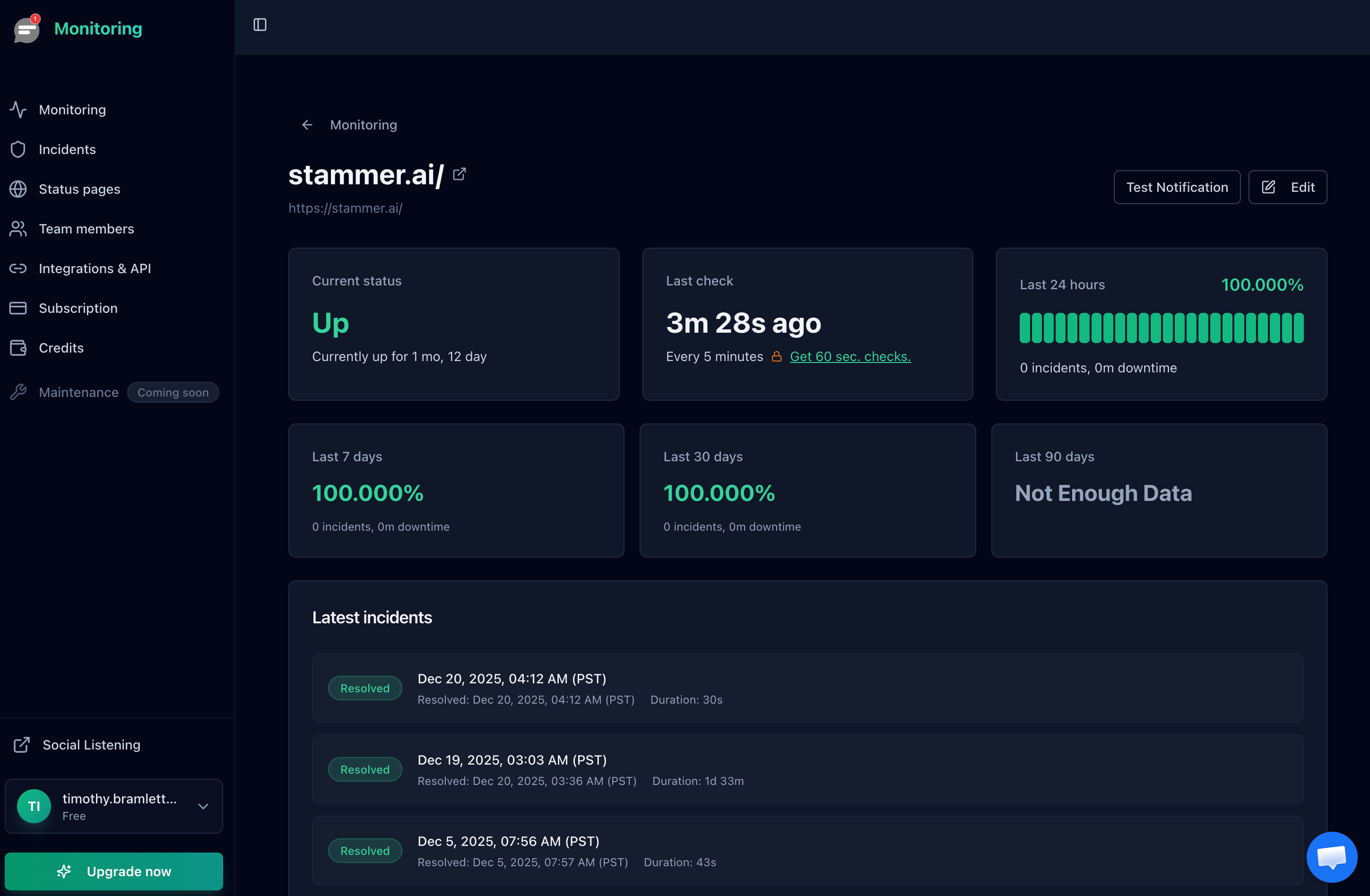
Response time trending upward is your early warning before the first 504 happens.
Move Long Tasks Off the Request Path
If a single user request takes 30+ seconds (report generation, image processing, third party API calls), it does not belong on the web request path. Use a job queue (Celery, Sidekiq, BullMQ, Laravel Queue) and let the user poll for results. No queue, no 504.
Add Timeouts on Outbound Requests
A very common cause of 504s is an outbound HTTP call with no timeout. Your app waits forever for a third party API that is slow, and Nginx eventually gives up. Always set explicit timeouts:
# Python requests
requests.get(url, timeout=(5, 10))  # 5s connect, 10s read

# Node.js fetch
fetch(url, { signal: AbortSignal.timeout(10000) })

# PHP Guzzle
$client->request('GET', $url, ['timeout' => 10, 'connect_timeout' => 5]);
Configure SMS or Phone Call Alerts
Email alerts are too slow during a real outage. If your site is down at 2 AM, an email sits in your inbox for 6 hours. SMS and phone call alerts wake you up. With Notifier, SMS and phone call alerts are available on every plan including free, so you do not have to pay extra to get paged.
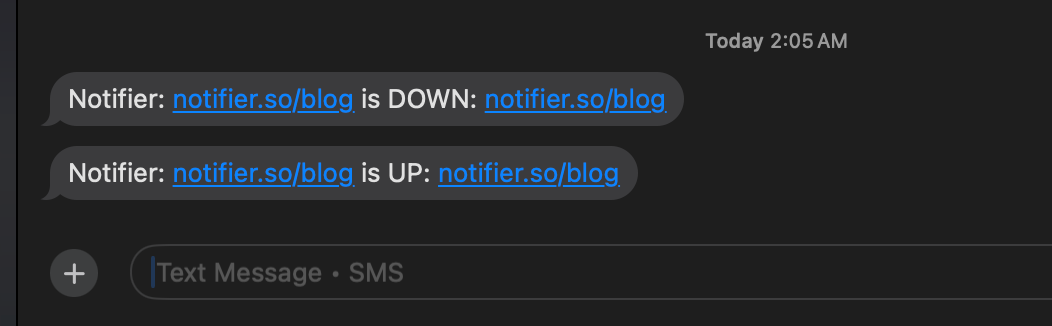
Notifier SMS alert showing both the downtime and recovery messages.
Which Monitoring Tools Catch 504 Errors?
Every major uptime monitoring tool catches a 504 response. What varies is response time tracking, alert speed, and whether SSL monitoring is included.
| Tool | Free Plan | SMS/Phone Alerts | SSL Monitoring | Paid Starts At |
|---|---|---|---|---|
| Notifier | 10 monitors, 5 min checks, commercial use OK | Yes, all plans (credit based) | Free on all plans | $4/mo |
| UptimeRobot | 50 monitors, non-commercial only | Paid only | Paid only | $7/mo |
| Better Stack | 10 monitors, 3 min checks | Paid plans | Yes | ~$24/mo |
| Pingdom | No free plan | Included on paid | Extra | ~$15/mo |
| StatusCake | 10 monitors, 5 min checks | Paid plans (extra cost) | Yes on paid | ~$24/mo |
Note on UptimeRobot's free plan
Since December 2024, UptimeRobot's free tier is restricted to non-commercial use. If you are monitoring a business or client website, you need a paid plan or a different tool.
Frequently Asked Questions
What is the difference between 502 and 504 errors?
A 502 Bad Gateway means the upstream server responded with something invalid (garbage, a refused connection, or nothing usable). A 504 Gateway Timeout means the upstream was completely silent for longer than the configured timeout. 502 is "bad answer," 504 is "no answer in time."
Is a 504 error my fault or the server's fault?
If you are a visitor, it is almost always the server's fault. If you are the site owner, it is your infrastructure. The proxy sits in the middle, but the actual delay happened at the upstream application, database, or external API. Checking server logs is the only way to know for sure.
Why does Cloudflare 504 happen on some pages but not others?
Cloudflare will return 504 for any page that takes longer than 100 seconds at your origin. Fast, cached pages never hit that limit, so you only see 504 on slow endpoints (admin dashboards, report generation, CSV exports, AI-generated content). Move those behind a background job or raise your server side limits.
Will a 504 error hurt my SEO?
Yes, if it is frequent. Googlebot treats repeated 5xx errors as signals that the site is unreliable. Pages returning 504 during a crawl can be dropped from the index or have their rankings reduced. See our guide on good uptime percentages for the thresholds that matter.
How long should proxy_read_timeout be?
Start with 60 seconds. Most web requests should complete in under 2 seconds, so 60 gives you a wide buffer. Raise to 300 seconds for specific admin or export endpoints if needed. Do not set it to hours. A long timeout hides performance problems and ties up worker processes on requests that have already failed from the user's perspective.
Can a DDoS attack cause 504 errors?
Yes. A large DDoS floods your origin with requests, workers fill up, and legitimate requests queue until the proxy times them out. The visible symptom is 504. The fix is upstream: DDoS protection, rate limiting, or CDN caching. The 504 itself is a downstream consequence of the flood.
Does monitoring every 30 seconds help catch 504 errors sooner?
Yes. If your monitor checks every 5 minutes, a 504 could affect users for nearly 5 minutes before you are alerted. Notifier supports 30-second checks on the Team and Enterprise plans, and 1-minute checks on the Solo plan at $4 per month. For revenue-critical sites, the faster interval is worth the upgrade.
