You're trying to load a website and instead of the page you expected, you see "502 Bad Gateway." If you're a visitor, it's annoying. If you're the site owner, it's urgent. Either way, you need to know what caused it and how to fix it.
This guide covers what a 502 Bad Gateway error actually means, quick fixes you can try immediately, and detailed server side solutions for Nginx, Apache, Cloudflare, WordPress, and Node.js/npm. Every 502 bad gateway fix includes the actual commands you need to run.
What Is a 502 Bad Gateway Error?
A 502 Bad Gateway error is an HTTP status code that means the proxy server received an invalid response from an upstream server. In plain English: Server A asked Server B for something, and Server B either didn't respond, crashed, or sent back garbage. This is what people mean when they see the message "bad gateway the proxy server received an invalid response from an upstream server."
This is different from a 500 Internal Server Error (which means the server itself broke) or a 503 Service Unavailable (which means the server is temporarily overloaded). A 502 specifically involves two servers, where the front one couldn't get a valid response from the back one.
Here's what the chain typically looks like:
Browser → CDN (Cloudflare) → Reverse Proxy (Nginx) → Application Server (PHP-FPM, Node.js, Gunicorn)
A 502 bad gateway error can happen at any link in this chain. The CDN can't reach Nginx. Nginx can't reach PHP-FPM. The application server crashed. The fix depends on which link is broken.
You might see the error displayed differently depending on the server or browser:
- 502 Bad Gateway
- HTTP Error 502
- 502 Proxy Error
- Bad Gateway: The proxy server received an invalid response from an upstream server
- Bad Gateway: The web server reported a bad gateway error
- Error 502 or Error reference number: 502
- 502 Bad Gateway nginx (very common, since Nginx is the most popular reverse proxy)
They all mean the same thing. Let's fix it.
Quick Fixes for 502 Bad Gateway (Try These First)
If you're seeing a 502 bad gateway error on someone else's site, or you want to rule out simple issues before digging into server configs, try these first.
1. Reload the Page
502 errors are often temporary. The upstream server might have been restarting, deploying new code, or briefly overloaded. Wait 30 seconds and press Ctrl + F5 (Windows) or Cmd + Shift + R (Mac) to do a hard reload that bypasses the cache.
2. Clear Your Browser Cache
Your browser or a caching layer might have stored the 502 error page. Clear your browser cache, or try opening the site in an incognito/private window. If it works in incognito but not in your regular browser, the cached error page is the problem.
3. Check If the Site Is Down for Everyone
The site might be down for everyone, not just you. Use a tool like our free ping test or any "is it down" checker to verify. If the site is down for everyone, the problem is on the server side and only the site owner can fix it. If it loads for others but not you, the issue is likely your network, DNS, or ISP.
4. Try a Different DNS
DNS issues can sometimes cause 502 errors. Try switching to Google's DNS (8.8.8.8) or Cloudflare's DNS (1.1.1.1) temporarily. If the site loads with a different DNS provider, your ISP's DNS servers might be returning a stale or incorrect IP address.
5. Disable Your VPN or Proxy
If you're using a VPN, browser proxy, or corporate firewall, try disabling it. VPNs can introduce their own gateway layer, and if that layer has trouble reaching the site, you'll see a 502 even though the site itself is fine.
Still seeing the error?
If none of the quick fixes work and the site is yours, the problem is server side. Read on for specific 502 bad gateway fixes by server type.
What Causes 502 Bad Gateway Errors
Before jumping into server specific fixes, here are the most common root causes of 502 bad gateway errors. Understanding which one applies to you will save time.
| Cause | What Happens | How to Check |
|---|---|---|
| Upstream server crashed | PHP-FPM, Node.js, or Gunicorn process died | systemctl status php-fpm |
| Upstream server overloaded | All worker processes are busy, new requests queued or dropped | Check server CPU/memory usage |
| Timeout exceeded | Backend took too long to respond, proxy gave up | Check Nginx/Apache timeout settings |
| Wrong socket or port | Proxy pointing to a socket/port the backend isn't listening on | ss -tlnp | grep 9000 |
| Firewall blocking connections | iptables/ufw blocking the proxy from reaching the backend | ufw status |
| DNS resolution failure | Proxy can't resolve the upstream hostname | dig yourdomain.com |
| CDN can't reach origin | Cloudflare/AWS CloudFront can't connect to your server | Bypass CDN and test origin directly |
| SSL/TLS mismatch | Expired or misconfigured SSL certificate between proxy layers | Check SSL mode in CDN settings |
Fixing 502 Bad Gateway Errors on Nginx
Nginx is the most common source of 502 errors because it's the most popular reverse proxy. When Nginx shows "502 Bad Gateway," it means Nginx itself is running fine, but it can't get a response from whatever backend it's forwarding requests to (usually PHP-FPM, Node.js, or Gunicorn).
Step 1: Check the Error Log
Always start with the error log. It will tell you exactly what went wrong.
sudo tail -50 /var/log/nginx/error.logLook for lines containing "upstream" or "connect()". Common messages and what they mean:
connect() failed (111: Connection refused)— The backend isn't running or is listening on a different port/socketupstream timed out (110: Connection timed out)— The backend is running but too slow to respondno live upstreams— All servers in an upstream block are marked as downrecv() failed (104: Connection reset by peer)— The backend accepted the connection but then crashed or terminated it
Step 2: Check If the Backend Is Running
For PHP-FPM (the most common Nginx + PHP setup):
sudo systemctl status php8.2-fpmIf it's not running, start it:
sudo systemctl start php8.2-fpmFor Node.js apps (check if the process is running on the expected port):
ss -tlnp | grep 3000For Python/Gunicorn:
sudo systemctl status gunicornStep 3: Verify the Socket/Port Matches
A common misconfiguration: Nginx is trying to connect to a Unix socket, but PHP-FPM is listening on a TCP port (or vice versa). Check your Nginx config:
# In your Nginx site config (e.g., /etc/nginx/sites-enabled/yoursite)
# Look for the fastcgi_pass or proxy_pass directive:

fastcgi_pass unix:/run/php/php8.2-fpm.sock;   # Unix socket
# or
fastcgi_pass 127.0.0.1:9000;                   # TCP port
Then verify PHP-FPM is actually listening on that same socket or port:
# Check PHP-FPM pool config:
cat /etc/php/8.2/fpm/pool.d/www.conf | grep "^listen "

# Should output something like:
# listen = /run/php/php8.2-fpm.sock
# or
# listen = 127.0.0.1:9000
If they don't match, update one or the other and reload both services:
sudo systemctl reload php8.2-fpm
sudo nginx -t && sudo systemctl reload nginx
Step 4: Increase Timeout Settings
If your backend is slow (heavy database queries, large file uploads, slow API calls), Nginx might give up before the backend finishes. Increase the timeout values in your Nginx config:
# For PHP-FPM (in your server block):
fastcgi_read_timeout 300;
fastcgi_send_timeout 300;
fastcgi_connect_timeout 300;

# For proxy_pass (Node.js, Gunicorn, etc.):
proxy_read_timeout 300;
proxy_send_timeout 300;
proxy_connect_timeout 300;
After editing, always test and reload:
sudo nginx -t && sudo systemctl reload nginxStep 5: Increase PHP-FPM Workers
If your site gets traffic spikes, PHP-FPM might run out of worker processes. When all workers are busy, new requests get a 502. Edit the PHP-FPM pool config:
# /etc/php/8.2/fpm/pool.d/www.conf

pm = dynamic
pm.max_children = 50        # Max worker processes (increase based on available RAM)
pm.start_servers = 10       # Workers started on boot
pm.min_spare_servers = 5    # Minimum idle workers
pm.max_spare_servers = 20   # Maximum idle workers
pm.max_requests = 500       # Restart workers after N requests (prevents memory leaks)
A rough guideline: each PHP-FPM worker uses about 30 to 50 MB of RAM. If your server has 4 GB of RAM and other services use 1 GB, you can safely run about 60 workers.
Fixing 502 Bad Gateway Errors on Apache
Apache shows 502 errors when it's configured as a reverse proxy (using mod_proxy) and the backend doesn't respond. This is common when Apache sits in front of Tomcat, Node.js, or another application server.
Step 1: Check Apache Error Logs
sudo tail -50 /var/log/apache2/error.log
Look for messages like proxy: error or AH01114.
Step 2: Verify the Backend Is Running
Check if whatever Apache is proxying to is actually alive:
# Test if the backend responds:
curl -I http://127.0.0.1:8080

# Check if the backend service is running:
sudo systemctl status tomcat
# or
sudo systemctl status your-app-service
Step 3: Increase ProxyTimeout
If the backend is slow, increase the timeout in your Apache virtual host or proxy config:
# In your VirtualHost or proxy config:
ProxyTimeout 300
ProxyPass / http://127.0.0.1:8080/ timeout=300
ProxyPassReverse / http://127.0.0.1:8080/
Then test and restart:
sudo apachectl configtest && sudo systemctl restart apache2Step 4: Check mod_proxy Is Loaded
If you recently changed your Apache config, make sure the proxy modules are enabled:
sudo a2enmod proxy proxy_http proxy_balancer lbmethod_byrequests
sudo systemctl restart apache2
Fixing 502 Bad Gateway Errors With Cloudflare
If you use Cloudflare, 502 errors have two possible sources: your origin server or Cloudflare itself. Cloudflare's error page will tell you which one.
Cloudflare's 502 vs Your Origin's 502
Look at the error page carefully:
- Gray Cloudflare error page with "Cloudflare" branding: Cloudflare could not reach your origin server at all. The problem is on your server.
- White/plain 502 page or your custom error page: Cloudflare reached your server, but your server returned a 502. The problem is your upstream configuration (see the Nginx or Apache sections above).
Step 1: Test Your Origin Directly
Bypass Cloudflare and hit your origin server directly to see if it responds:
# Find your origin IP from Cloudflare DNS settings, then:
curl -I --resolve yourdomain.com:443:YOUR_ORIGIN_IP https://yourdomain.com
If the origin returns a 502, the problem is your server, not Cloudflare. If the origin works fine, the issue is between Cloudflare and your server.
Step 2: Check Your Origin's Firewall
Your server's firewall might be blocking Cloudflare's IP addresses. Cloudflare publishes their IP ranges. Make sure your firewall allows traffic from all of them. On a server with UFW:
# Check if Cloudflare IPs are allowed:
sudo ufw status

# If needed, allow Cloudflare IP ranges (check cloudflare.com/ips for current list):
sudo ufw allow from 173.245.48.0/20
sudo ufw allow from 103.21.244.0/22
# ... add all Cloudflare ranges
Step 3: Check SSL Mode
An SSL mismatch between Cloudflare and your origin is a common cause of 502 bad gateway errors. In your Cloudflare dashboard, go to SSL/TLS and check the mode:
- Full (Strict): Your origin must have a valid SSL certificate
- Full: Your origin must have SSL, but it can be self-signed
- Flexible: Cloudflare connects to your origin via HTTP (port 80)
If your origin doesn't have SSL and Cloudflare is set to "Full" or "Full (Strict)," you'll get 502 errors. Either install an SSL certificate on your origin or temporarily switch to "Flexible" (though "Full (Strict)" is recommended for security). Use SSL certificate monitoring to catch expiration before it causes 502 errors.
Step 4: Pause Cloudflare Temporarily
If you can't identify the issue, temporarily pause Cloudflare to isolate the problem. In your Cloudflare dashboard, go to Overview and click "Pause Cloudflare on Site." This sends traffic directly to your origin. If the site works without Cloudflare, the issue is in your Cloudflare configuration.
Fixing WordPress 502 Bad Gateway Errors
WordPress sites are especially prone to 502 bad gateway errors because plugins and themes can exhaust PHP memory, spawn long running processes, or conflict with each other. If your WordPress site is showing a 502, try these WordPress specific fixes.
Step 1: Disable All Plugins
A misbehaving plugin is the #1 cause of WordPress 502 bad gateway errors. If you can't access wp-admin, disable plugins via the command line or file manager:
# Via WP-CLI:
wp plugin deactivate --all

# Or via SSH, rename the plugins folder:
mv wp-content/plugins wp-content/plugins-disabled
If the site loads after disabling plugins, re-enable them one at a time to find the culprit.
Step 2: Switch to a Default Theme
If disabling plugins didn't help, try switching to a default WordPress theme (like Twenty Twenty-Four):
# Via WP-CLI:
wp theme activate twentytwentyfour

# Or rename your active theme folder via SSH:
mv wp-content/themes/your-theme wp-content/themes/your-theme-disabled
Step 3: Increase PHP Memory Limit
WordPress might be running out of PHP memory. Increase the limit in your wp-config.php:
// Add this line to wp-config.php (before "That's all, stop editing!"):
define('WP_MEMORY_LIMIT', '256M');
Also increase the PHP memory limit in your PHP configuration:
# Find your php.ini:
php -i | grep "Loaded Configuration File"

# Edit it and set:
memory_limit = 256M
max_execution_time = 300

# Then restart PHP-FPM:
sudo systemctl restart php8.2-fpm
Step 4: Check for Database Issues
If MySQL/MariaDB is overloaded or crashed, WordPress can't generate pages, which causes the PHP process to hang until Nginx times out and returns a 502.
# Check if MySQL is running:
sudo systemctl status mysql

# If it's down, start it:
sudo systemctl start mysql

# Check for too many connections:
mysql -u root -e "SHOW STATUS LIKE 'Threads_connected';"
Step 5: Contact Your Hosting Provider
If you're on managed WordPress hosting (like WP Engine, SiteGround, or Kinsta), the 502 might be caused by resource limits on their end. Check if you've hit your PHP worker limit, memory cap, or bandwidth quota. Contact their support with the specific time the error started.
Fixing npm and Node.js 502 Bad Gateway Errors
If you're seeing an npm 502 bad gateway error while installing packages, or a 502 from a Node.js application running behind Nginx or a load balancer, the causes and fixes are different.
npm Registry 502 Errors
When npm install or npm publish returns a 502 bad gateway, the issue is usually with the npm registry itself, a corporate proxy, or Artifactory/Nexus if you're using a private registry.
# Check your npm registry URL:
npm config get registry

# If using a private registry (Artifactory, Nexus, Verdaccio), test it directly:
curl -I https://your-registry.example.com/

# Try switching to the official registry temporarily:
npm install --registry https://registry.npmjs.org/

# Clear the npm cache if the 502 was cached:
npm cache clean --force
For Artifactory 502 bad gateway errors specifically, check:
- Artifactory service health: Check the Artifactory admin panel or
/api/system/pingendpoint - Reverse proxy config: Artifactory typically runs behind Nginx or Apache. Check those proxy configs using the steps above.
- Memory limits: Artifactory is a Java application that can run out of heap space. Check
artifactory.logfor OutOfMemoryError. - Remote repository timeouts: If Artifactory proxies to npmjs.org, a slow upstream can cause 502 errors. Increase the socket timeout in the remote repository settings.
Node.js Application 502 Errors
If your Node.js application is returning 502 errors through Nginx or a load balancer:
# Check if your Node.js app is running:
pm2 status
# or
ss -tlnp | grep 3000

# Check Node.js application logs:
pm2 logs
# or
journalctl -u your-node-app -f

# Restart the application:
pm2 restart all
# or
sudo systemctl restart your-node-app
Common causes of Node.js 502 errors:
- Unhandled promise rejections crashing the process
- Event loop blocking from synchronous operations
- Memory leaks causing the process to be killed by the OS
- Port mismatch between Nginx proxy_pass and what the app actually listens on
How to Prevent 502 Bad Gateway Errors
Fixing a 502 is good. Preventing the next one is better. Here's how to reduce the chances of seeing another 502 bad gateway error.
Set Up Uptime Monitoring
The worst version of a 502 error is one your users find before you do. An uptime monitoring tool checks your site every minute (or more frequently) and alerts you immediately when it goes down, whether from a 502, 503, or any other error.
Notifier checks your site and sends alerts via email, SMS, and phone call when it detects downtime. The free plan includes 10 monitors with SSL certificate monitoring. Set it up once, and you'll know about 502 errors within minutes instead of hours.
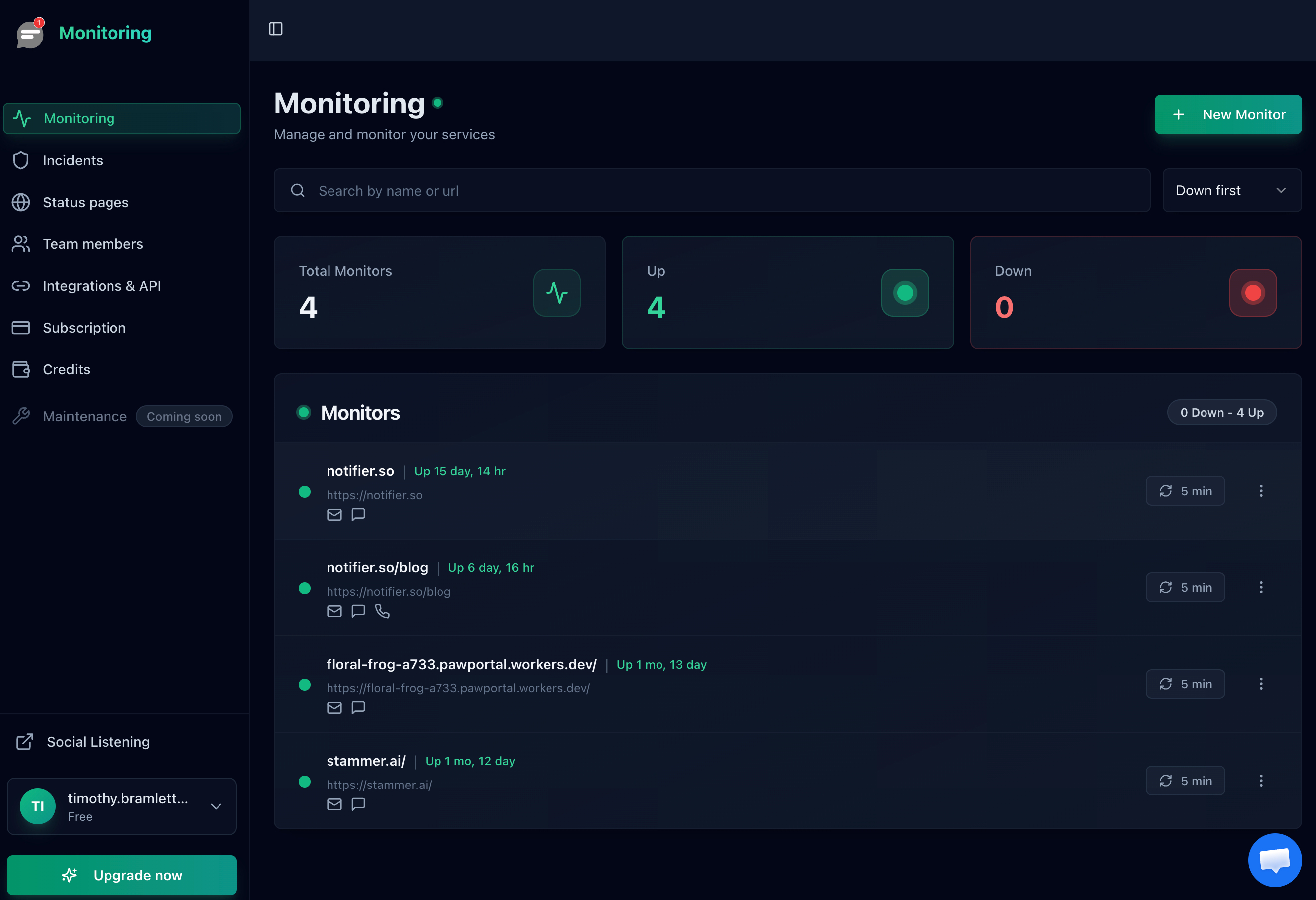
The Notifier dashboard showing all monitors at a glance.
Use a Process Manager
If your backend process crashes, a process manager will restart it automatically:
- Node.js: Use PM2 (
pm2 start app.js) with automatic restart on crash - Python: Use systemd or Supervisor to manage Gunicorn/uWSGI
- PHP: PHP-FPM already handles this with
pm.max_requeststo recycle workers
Monitor SSL Certificates
Expired SSL certificates are a sneaky cause of 502 errors, especially when Cloudflare's SSL mode is set to "Full (Strict)." If your origin certificate expires, Cloudflare can't connect and visitors see a 502. Notifier includes free SSL certificate monitoring on all plans, warning you days before expiration.
Right-Size Your Server
Most 502 errors during traffic spikes come from running out of PHP workers or application threads. Monitor your resource usage under normal load, then ensure you have at least 2x headroom for spikes. If you regularly hit resource limits, it's time to upgrade your server or add horizontal scaling.
Configure Health Checks
If you use a load balancer, configure health checks so it stops sending traffic to unhealthy backends. Nginx can do this natively with the upstream health check module. AWS ALB, Google Cloud Load Balancer, and Cloudflare Load Balancing all support health checks out of the box.
Set Up Graceful Deployments
Deploying new code can cause brief 502 errors if the old process is killed before the new one is ready. Use rolling deployments or blue/green deployments to ensure there's always a healthy backend ready to serve requests.
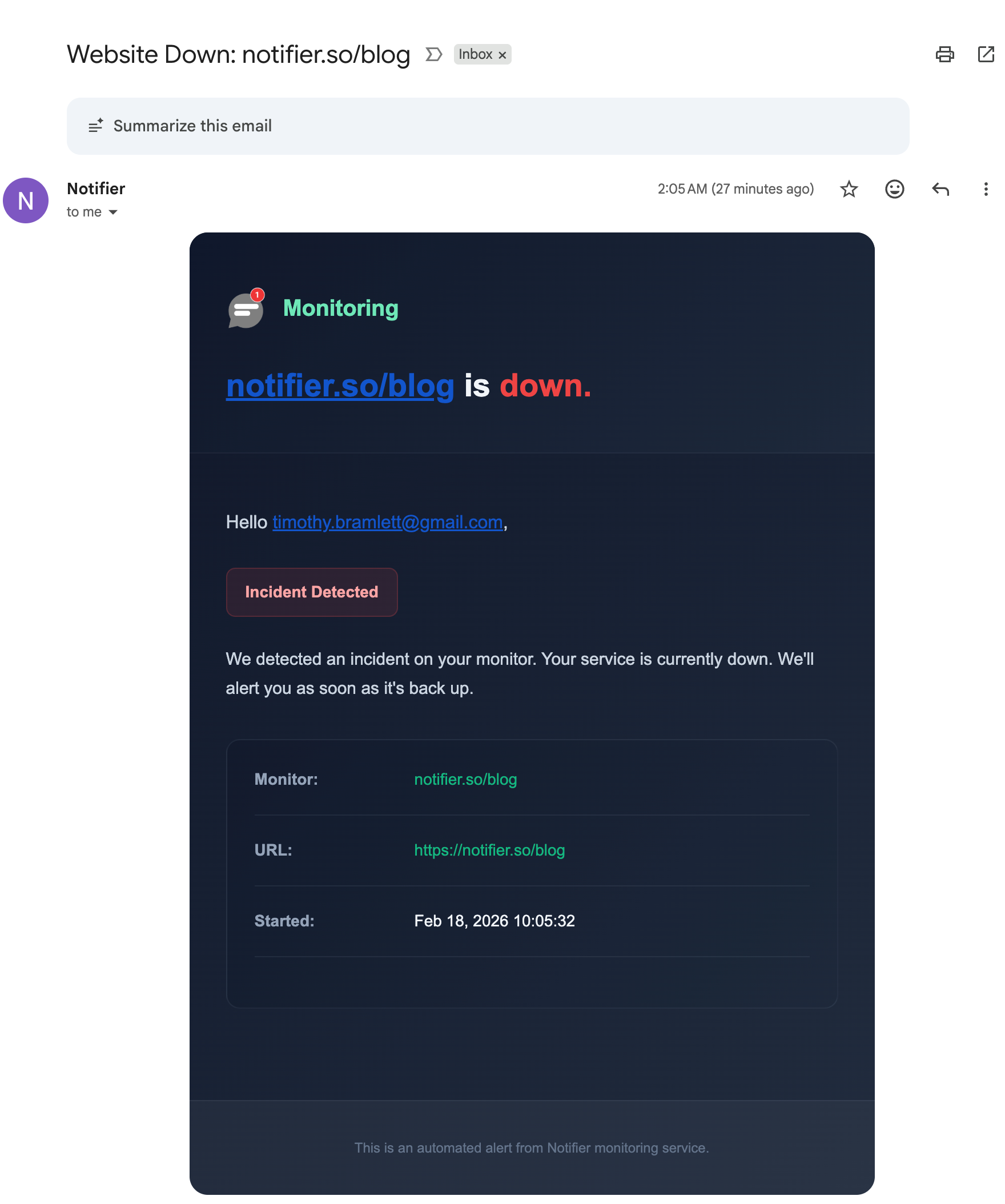
A downtime alert email from Notifier with incident details.
Frequently Asked Questions
What does 502 Bad Gateway mean?
A 502 Bad Gateway error means a server acting as a gateway or proxy received an invalid response from an upstream server. In simple terms, the proxy server received an invalid response from an upstream server it was trying to reach. The front-facing server (Nginx, Cloudflare, a load balancer) tried to get a response from a backend server, and the backend either crashed, timed out, or sent back data the proxy couldn't understand.
What causes 502 Bad Gateway errors?
The most common causes of 502 bad gateway errors are: a crashed backend process (PHP-FPM, Node.js, Gunicorn), an overloaded server running out of worker processes, timeout mismatches between proxy and backend, misconfigured socket or port connections, firewall rules blocking internal connections, DNS resolution failures, and SSL certificate mismatches between CDN and origin server.
Is a 502 Bad Gateway error my fault?
If you're a visitor, no. A 502 is a server side problem. It means something is wrong with the website's infrastructure, not your browser or device. If you're the site owner, the error is in your server configuration or your backend application.
Does 502 Bad Gateway mean I'm blocked?
No. A 502 Bad Gateway does not mean you are blocked. It means the server's proxy or gateway received an invalid response from an upstream server. If a site intentionally blocked you, you would see a 403 Forbidden or 401 Unauthorized error instead. A 502 is a server infrastructure problem, not an access control issue.
How do I fix 502 Bad Gateway on WordPress?
To fix a WordPress 502 bad gateway error: first disable all plugins (rename the plugins folder via FTP/SSH). If the site loads, re-enable plugins one by one to find the culprit. If not, switch to a default theme, increase PHP memory limit to 256M in wp-config.php, check if MySQL is running, and restart PHP-FPM. See our WordPress section for detailed steps.
How do I fix npm 502 Bad Gateway?
An npm 502 bad gateway error usually means the npm registry or your private registry (Artifactory, Nexus) is having issues. Try: switching to the official registry with npm install --registry https://registry.npmjs.org/, clearing the npm cache with npm cache clean --force, or checking your private registry's health endpoint and proxy configuration.
How long does a 502 error last?
It depends on the cause. If the backend just needs to restart, it might be back in seconds. If the server ran out of memory and needs a full reboot, it could take minutes. If there's a misconfiguration that nobody notices, it could last hours. This is why uptime monitoring is critical: you want to know about the error immediately, not when customers start complaining.
What's the difference between a 502 and a 504 error?
Both involve a gateway and an upstream server. A 502 means the upstream server sent an invalid response (or no response at all because it crashed). A 504 means the upstream server took too long to respond (timeout). In practice: 502 usually means "the backend died," while 504 usually means "the backend is alive but too slow."
Can a 502 error hurt my SEO?
Briefly, no. Google is forgiving of temporary server errors. But if your site returns 502 errors for extended periods (hours or days), Googlebot will reduce crawl rate and eventually drop pages from the index. If you're worried about SEO impact, fix the root cause and set up monitoring to catch future 502 bad gateway errors quickly.
How do I know when my site has a 502 error?
Set up uptime monitoring. A tool like Notifier checks your site every minute and sends you an alert via email, SMS, or phone call the moment it goes down. The free plan covers 10 monitors with SSL certificate monitoring. Without monitoring, you rely on users reporting the problem, which can take hours.
